1.What is pc3000 UDMA?
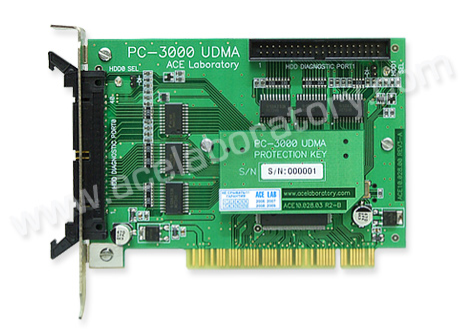
PC3000 UDMA is a new product of ACE Laboratory combining a wealth of long experience in data recovery and HDD repair market with 18 years of work with their first products: PC-2000 MFM/RLL, PC-3000 DOS (ISA), and PC-3000 for Windows PCI recognized by data recovery experts worldwide.

(Specialized two-port tester card PC-3000 UDMA)
2.Which problems can be solved using PC-3000 UDMA?
The features provided by PC-3000 UDMA can be conventionally subdivided into two parts according to their purpose:
Operations with HDD printed circuit board (PCB):
- Scanning of firmware microcode in ROM; verification of configuration data in ROM; verification of firmware version in ROM; buffer RAM test; performance of self-diagnostics.
- Reading and recording of Flash ROM containing firmware microcode and configuration data in ROM. The data for programming of Flash ROM can be copied from the resource database of the PC-3000 for Windows (UDMA) suite.
Operations with HDD service area (SA):
- Testing of service area for BAD sectors; scanning of service modules to detect possibly corrupted sections.
- Erasure and formatting of service area; restoration of damaged SA modules or their overwriting with standard reference data from the resource database of PC-3000 for Windows (UDMA).
Operations with HDD disks:
- Surface testing and detection of BAD sectors; launching the internal low-level format procedure.
- Relocation of revealed surface defects updating the defect tables; launching the Self Test procedure.
Operations with reading/writing HDD heads:
- Head testing (for some drive families only).
- Isolation of malfunctioning heads. HDD capacity decreases in such cases but the drive may become completely functional.
Universal features for operations with HDD:
- An opportunity to reset SMART parameters of a HDD.
- An opportunity to correct drive identificatin data (ID).
- An opportunity to unlock USER and MASTER passwords in a HDD.
- An opportunity to delete HDD data quickly without impeding its functionality.
- Read data in UDMA66 mode.
3. PC3000 UDMA FAQS:
1. Can users add new factory modes on their own?
Yes, if the user is quite proficient and familiar with programming basics! For this, PC-3000 for Windows (UDMA) suite has:
- Built-in script engine, which allows independent extension of utility features. Of course, the task may be daunting for novice users, but after some experience someone who has mastered the product perfectly may attempt to enhance its functionality. Open interface of the PC-3000 for Windows (UDMA) suite provides a wide range of opportunities for that purpose. Besides, users of PC-3000 for Windows (UDMA) can exchange the resources and ready scripts for new factory modes.
- ATA Commander is another tool that allows inspection of new HDD modes. In fact, it offers a real research lab for users who wish to analyze HDD operation on their own. АТА Commander allows you to send to a HDD any command including factory ones. It also supports their classification, reuse and conversion to scripts, if necessary.
2. Does PC-3000 UDMA support 2.5″ and 1.8″ HDDs?
Yes, the package of PC-3000 for Windows (UDMA) includes a special PC-2″ mini ATA adapter for connection of 2.5″ and 1.8″ HDDs to the PC-3000 UDMA tester board. The software portion of the complex includes factory mode utilities for 2.5″ and 1.8″ drives manufactured by IBM, Hitachi, Toshiba, Fujitsu, Seagate, Western Digital, and Samsung.
3. Does PC-3000 for Windows (UDMA) support 1.0″ Microdrive HDDs?
1.0″ HDD are relatively new. They are designed for use in portable devices featuring the Compact Flash interface. PC-3000 for Windows (UDMA) suite includes a special PC-CF adapter with the Compact Flash interface, which allows connection of such drives to the PC-3000 UDMA tester board. A specialised utility for Hitachi 4-16 Gb Microdrives is currently in development.
4. Does PC-3000 for Windows (UDMA) support SATA HDDs?
Yes, the package of PC-3000 for Windows (UDMA) includes a special PC PATA-SATA adapter for connecting SATA HDDs to the PC-3000 UDMA tester board. The software part of the suite includes factory mode utilities for operations with SATA HDD.
5. Can PC-3000 for Windows (UDMA) be used to unlock a password-protected HDD?
Yes, it can. Factory mode utilities feature a special mode for work with the password-based security subsystem of HDDs. The mode allows you to view and erase existing Master and User passwords thus unlocking the HDD. For most 3.5″ and 2.5″ HDD unlocking is based entirely on software methods in factory mode. Some types of 2.5″ HDD require special Unlock 2,3 probes.
4. PC3000 UDMA Case studies:
Case 1. A Western Digital WD1200PB-00FBA0 drive cannot be identified in computer BIOS, we need to recover user data.
In the first place it is necessary to power-up the HDD and listen carefully to check whether the spindle motor spins up and the drive produces recalibration sounds (PC-3000 is not required during that stage). If the spindle motor spins up, check the settings of configuration jumpers, they should set the drive to be Master Only (in WD drives the mode is on when all jumpers are disabled), then you can connect the drive to the PC-3000 UDMA tester board.
That can be accomplished using a flat IDE cable connected to port 0 or 1 and a power cable. Then it is time to run the software (PC-3000 for Windows), power-up the HDD and launch the PC-3000 universal utility.
If the universal utility is unable to read ID from that HDD and reports error 04h (ABRT), then you should launch a specialized utility for Western Digital HDDs. It will switch the drive to factory mode and attempt to read firmware header in ROM and the configuration sector in service area on disk.
If the utility succeeds and outputs drive information to a report on display, then it starts service area structure test taking several minutes. Then the test results will be displayed. They will likely inform about damaged firmware modules 20h, 21h and 25h. The cause of HDD malfunction becomes evident. Using the “service modules” wizard one can tell that the modules belong to drive translator; modules 20h and 25h at that will be able to recover without assistance when the “regenerate translator” procedure is performed, but module 21h has to be overwritten. To do so, you will have to select from the database of the PC-3000 complex for Windows module 21h, having specified model WD1200PB-00FBA0 and firmware version 15.05R15 as search criteria. Use the list of suggestions to pick any module 21h and select the “write to drive” option. Then you will have to select the “regenerate translator” option and the default menu item; the program will also display the “recommended for data recovery” tip. Then switch the drive’s power supply off and on again to make it initialize itself with new parameters and ensure than the drive is functional and user data can be accessed. Now you can connect that HDD to a computer normally and copy necessary data from it.
Case 2. A Fujitsu MHS2020AT is identified normally in computer BIOS, but during the startup procedure you receive a message about HDD malfunction. We need to recover user data from it.
To connect that 2.5″ HDD to your PC-3000 for Windows system, you will have to use the PC-2″ adapter included into the package. Then power-up the HDD and listen carefully to check whether the spindle motor spins up and the drive produces recalibration sounds (PC-3000 is not necessary during that stage). If the spindle motor spins up, then you can connect the drive to the PC-3000 UDMA tester board and launch the PC-3000 universal utility. At the start the latter will attempt to read identification parameters of the HDD and display the information in its report. In that case the utility would read drive description, but it would also output the following message: “WARNING! Security locked drive”. The cause of HDD malfunction becomes evident.
You may not know the password defined for that HDD, so you should start a specialized utility for 2.5″ Fujitsu drives. Then select the “Security disable password” mode from the “Security subsystem” menu of the utility. The operation will take only a couple of seconds and the password will be disabled. Then switch the drive’s power supply off and on again to make it initialize itself with new parameters. Make sure than the drive is functional and user data can be accessed. Now you can connect that HDD to a computer normally and copy necessary data from it.


 1. Stellar Phoenix Macintosh Data Recovery Software