Data Recovery ST3500320AS Misinstallation System

Case:After the customer describes the reinstallation of the computer system, it is found that from the original 4 districts to the current entire area.Customer telephone consultation with data recovery data recovery engineers, engineers and customers simply communicate with customers to timely repairs to the data recovery center. Solution:Data recovery has no hardware failure by engineers…

Read More

Seagate hard drive data recovery

Case:Seagate 320GB notebook hard disk, customers accidentally broke, and received the detection of our company as a magnetic head damage, abnormal noise, unable to recognize the hard disk, and recovered data. Solution:After the customer’s consent, we first transferred the accessories from the accessories library, and then opened the magnet head in the dust -free room…

Read More

How NTFS File System Works: NTFS Physical Structure (5)

NTFS File Record Attributes

Every allocated sector on an NTFS volume belongs to a file. Even the file system metadata is part of a file. NTFS views each file (or folder) as a set of file attributes. File elements such as its name, its security information, and even its data are file attributes. Each attribute is identified by an attribute type code and an optional attribute name.

File and folder records are 1 KB each and are stored in the MFT, the attributes of which are written to the allocated space in the MFT. Besides file attributes, each file record contains information about the position of the file record in the MFT.

When a file’s attributes can fit within the MFT file record for that file, they are called resident attributes. Attributes such as file name and time stamp are always resident. When the amount of information for a file does not fit in its MFT file record, some file attributes become nonresident. Nonresident attributes are allocated one or more clusters of disk space. A portion of the nonresident attribute remains in the MFT and points to the external clusters. NTFS creates the Attribute List attribute to describe the location of all attribute records. The table NTFS File Attribute Types lists the file attributes currently defined by NTFS.

NTFS File Attribute Types

Attribute TypeDescription
Standard InformationInformation such as access mode (read-only, read/write, and so forth) timestamp, and link count.
Attribute ListLocations of all attribute records that do not fit in the MFT record.
File NameA repeatable attribute for both long and short file names. The long name of the file can be up to 255 Unicode characters. The short name is the 8.3, case-insensitive name for the file. Additional names, or hard links, required by POSIX can be included as additional file name attributes.
DataFile data. NTFS supports multiple data attributes per file. Each file typically has one unnamed data attribute. A file can also have one or more named data attributes.
Object IDA volume-unique file identifier. Used by the distributed link tracking service. Not all files have object identifiers.
Logged Tool StreamSimilar to a data stream, but operations are logged to the NTFS log file just like NTFS metadata changes. This attribute is used by EFS.
Reparse PointUsed for mounted drives. This is also used by Installable File System (IFS) filter drivers to mark certain files as special to that driver.
Index RootUsed to implement folders and other indexes.
Index AllocationUsed to implement the B-tree structure for large folders and other large indexes.
BitmapUsed to implement the B-tree structure for large folders and other large indexes.
Volume InformationUsed only in the $Volume system file. Contains the volume version.

NTFS creates a file record for each file and a folder record for each folder created on an NTFS volume. The MFT includes a separate file record for the MFT itself. These file and folder records are 1 KB each and are stored in the MFT. The attributes of the file are written to the allocated space in the MFT. Besides file attributes, each file record contains information about the position of the file record in the MFT. The figure MFT Entry with Resident Record shows the contents of an MFT record for a small file or folder. Small files and folders (typically, 900 bytes or smaller) are entirely contained within the file’s MFT record.

MFT Entry with Resident Record

image

Typically, each file uses one file record. However, if a file has a large number of attributes or becomes highly fragmented, it might need more than one file record. If this is the case, the first record for the file, the base file record, stores the location of the other file records required by the file.

Folder records contain index information. Small folder records reside entirely within the MFT structure, while large folders are organized B-tree structures and have records with pointers to external clusters that contain folder entries that cannot be contained within the MFT structure.

The benefit of using B-tree structures is evident when NTFS enumerates files in a large folder. The B-tree structure allows NTFS to group, or index, similar file names and then search only the group that contains the file, minimizing the number of disk accesses needed to find a particular file, especially for large folders. Because of the B-tree structure, NTFS outperforms FAT for large folders because FAT must scan all file names in a large folder before listing all of the files.


Read More

Hard Drive Data Recovery In Sydney Australia

Hard Drive Data Recovery In Sydney AustraliaSydney is the largest and most populous city in Australia and the state capital of New South Wales. Sydney is located on Australia’s south-east coast of the Tasman Sea.

Looking for a professional data recovery service in Sydney area? Here is a collection of recovery companies for your referance:

Payam Forensic Data Recovery Pty Ltd
www.payam.com.au
3/54 Miller Street, North Sydney
(02) 9957 2288

Sydney Data Recovery Technology
www.sydneydatarecovery.com.au
2A 6 Herbert Street, St Leonards, Sydney
(02) 9437 5755

Data Detect Pty Ltd
www.datadetect.com.au
148 Pacific Hwy, North Sydney New South Wales
(02) 9929 4822

Absolute Data Recovery
www.a-data-recovery.com.au
439 Liverpool Street, Darlinghurst
(02) 9029 1955

Data Recovery Services Pty Ltd
www.datarecovery.com.au
3 Grove Street, Lilyfield
(02) 9810 2000

If you are living in Sydney area maybe you have heard about one or some all of them, they are all top-customer-reviews recovery companies that can help you so much. If you also know other companies can provide professional recovery services please feel free to contact me, I can list them here in time. Thank you!

Read More

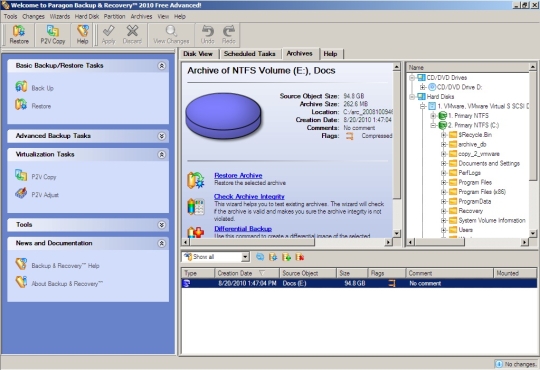
Free Backup Software: Paragon Backup & Recovery Free Advanced Edition 2010

Paragon Backup & Recovery Free Advanced Edition 2010 Paragon Backup & Recovery Free Advanced Edition 2010 – Back up and restore your Windows system.

Software Name: Paragon Backup & Recovery Free Advanced Edition 2010
Version: Publisher: www.paragon-software.com
Operating system: Windows 2000/XP/Vista/7 (32/64 bit)

Take complete control of your PC’s safety. Based on solid commercial backup and recovery software from Paragon, the new Backup & Recovery 2010 Free Advanced Edition will give you a rich set of features that you can trust.

Paragon Backup & Recovery Free Advanced Edition 2010 Main Features:

  • Complete Backup – Create an exact copy of your PC including: operating system, applications, user settings and all data
  • Differential Backup – backup only changed data
  • Backup Scheduler – plan your regular backup
  • Any backup destination – including external storages, CD/DVD/Blu-ray discs, network as well as the secured hidden partition (Backup Capsule)
  • Automatic data exclusion – automate the process of building up contents of the future backup image, by excluding irrelevant data such as movies, music, etc.
  • Support for GPT (GUID Partition Table) disks – back up and restore not only single GPT volumes but entire disks with the option of resize during the restore operation
  • P2V Migration – Migrate a physical system to a virtual environment by converting all installed software and data into a virtual disk of the required virtual machine
  • Complete Restore – restore your computer to an earlier state without losing data and reinstalling and reconfiguring your programs
  • Create a bootable USB Flash drive – recover your PC on demand
  • Restore an entire disk, separate partitions or only files you need
  • Restore with Shrink to restore a backup image to a free block of smaller size taking into account only the amount of actual data of the image

Paragon Backup & Recovery Free Advanced Edition 2010 Reviews:

A reliable program with some great features to handle the needs of most users: fast complete backup and restore, basic partitioning, differential backups, individual file restore, cyclic backup, hard drive cloning, and good compression options.

It works with no glitches, allowing both full and differential backups. Paragon provides a 127-page user manual for those wanting to take advantage of the programme’s many functions.

I’d like to thank you for producing the best backup software I have ever used. I have always been careful to do backups, even though it is so much effort using other software. Drive Backup Free Edition is so quick and easy that I did my backup without any trouble.

Paragon Backup & Recovery Free Advanced Edition 2010 Download:

Free Download: Paragon Backup & Recovery Free Advanced Edition 2010

Note: You must get a product key and serial number from Paragon’s site to install the program. This file is free for non-commercial use only.

Read More

Windows-based Bootable Recovery CD/USB Flash Disk: Active Boot Disk

Windows-based Bootable Recovery CD/USB Flash Disk: Active Boot DiskWindows can’t start normally? Need to access your data or repair your computer?
Boot your computer from Active Boot Disk (LiveCD) and repair most of the problems by three steps easily:

1. Creat a Bootable Disk
It is ready to burn immediately to a CD, DVD, USB disk. Create a bootable disk right now after downloading. Download Active Boot Disk Now.

2. Boot Your Computer
Insert the boot disk and reboot the computer. Make sure that a boot section in BIOS is configured properly. BIOS setting guide.

3. Over 30 Utilities Included
When you boot up your computer, select from as many powerful tools as possible. Over 30 useful utilities are included: disk recovery, data recovery, smart disk diagnostic, password resetting, data erasure and network access tools in one bootable disk.

Active@ Boot Disk combines a number of powerful tools that let you: Recover lost data,Reset Windows passwords, Make computer system backups, Securely erase data.

Main utilities included:
2. Active@ Data CD/DVD Burner – Burner Utility
Active@ File Recovery – File & Folders Recovery Tool
Active@ Partition Recovery – Partition Restore Utility
Active@ Disk Image – Backup Disk Image
Active@ KillDisk – Erase & Destroy Data
Active@ Disk Monitor – Monitor & Control Disk Health
Active@ Password Changer – Recover & Reset Passwords
Active@ Partition Manager – Create, Format & Delete Partitions

OS Support:
Works with Windows Clients: NT, Win2000 Wks, XP, Vista, Windows 7
Works with Windows Servers : NT, 2000 Server, 2003, 2008

Read More