Keep a backup of your important data at all times! Backing up your data protects you in case of a computer virus, data corruption, hardware issues, or electrical problems.
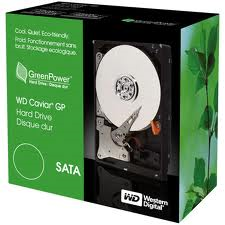
Western digital is one of the most popular hard drive manufacturers. This article will give some tips on how to backup data on all series of these hard drives.
1. My Book 3.0, My Book AV DVR Expander, and My Passport AV:
These drives do not come with any backup software. You can manually copy and paste your data to the drive, use Windows Backup or Apple Time Machine if applicable, or you can use a third party backup software of your choice.
2. My Book Live, My Book Elite, My Book For Mac, My Book Studio, My Book Studio LX, My Book Essential, My Passport Elite, My Passport Essential SE, My Passport Essential, My Passport Studio, My Passport Essential SE, My Passport For Mac and My Passport SE For Mac:
These drives can use the WD SmartWare backup software that comes on the drive to backup your data from your internal hard drive. Please see the link below for step-by-step instructions on how to backup your data.
3. My Book Essential Edition 2.0, My Passport Essential Edition, My Passport Essential Edition SE and My Book Essential (Green Ring):
These drives do not come with any backup software. You can manually copy and paste your data to the drive, use Windows Backup or Apple Time Machine if applicable, or you can use a third party backup software of your choice.
4. My Book Mirror Edition, My Book Home Edition, My Book Studio Edition, My Book Studio Edition II, My Book Office Edition, My Book World Edition (White Light), My Book World Edition II (White Light), My Passport Studio Edition, My Passport Elite Edition, My Book World Edition (Blue Rings), My Book World Edition II (Blue Rings), and WD ShareSpace, drives:
These drives can use the WD Anywhere Backup software that come with them to backup your data from your internal hard drive. Please see link below for step-by-step instructions on how to backup your data.
5. My Book Premium Edition:
This drive came with WD Backup, which you can use to backup your pictures, videos, and other documents. Please see link below for step-by-step instructions on how to backup your data.
6. WD Elements Play , WD Elements Desktop , WD Elements Portable , WD Elements SE Portable, Elements Portable and Elements Desktop:
This drive does not come with any backup software. You can manually copy and paste your data to the drive, use Windows Backup or Apple Time Machine if applicable, or you can use a third party backup software of your choice.
7. My Book Premium ES:
This drive came with Retrospect HD 2.0 software that can backup your data from the internal hard drive. This software also supports a full system backup. Please see the link below for step-by-step instructions on how to backup your data.
8. WD Dual-Option Combo , WD Dual-Option USB, and WD Dual-Option Media Center :
If you have a WD Media Center, Dual-option Combo, or Dual-option USB external hard drive, you can use the Retrospect Express 6.5 software that comes with the drive to create a backup that will backup your data from the internal drive. This software also supports a full system backup.
9. WD TV Live Hub Media Center:
If you have a WD TV Live Hub Media Center, this drive includes a Network Hard Drive (NAS). WD does not recommend using this drive for backup purposes, and does not provide backup software with this unit.
10. Other External hard drives (that did not come with backup software):
If you want to backup only your data onto a second hard drive, please see links below for how you can use your operating system to store your data on an external drive for both Mac and PC.
Note:: Always remember that “backup” means that you have your data stored in at least two (2) locations. Moving data from your system drive to an external hard drive is not a backup, unless there is already a duplicate of the file on a different drive.