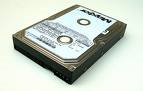
If your computer crashes once an ATA drive larger than 32GB is installed, it is probable that the capacity of the hard drive is too large for the BIOS to support.
This article and its troubleshooting refer only to ATA drives, as Serial ATA controllers do not have any issues seeing large capacity SATA drives.
Computer systems built prior to October of 1998 (such as Pentium 2 processors and some Pentium 3 processors) typically hang or freeze while auto-detecting large hard disks during system startup.
Common BIOS capacity barriers include 528 MB, 2.1 GB, 8.4 GB, and 32 GB. There are multiple solutions to work around BIOS capacity barriers.
First of all,
- turn off your computer
- disconnect the ATA and power cables from the large drive
before booting the computer and entering the BIOS, in order to keep the system from hanging.
To allow your system’s hardware to recognize the full capacity of the hard drive, it is recommended that you either
- upgrade your system’s BIOS (see the motherboard manufacturer website or contact their technical support department), or
- purchase a PCI ATA controller card. This is the best solution, and these cards are usually inexpensive.
The following steps can allow older systems to access ATA drives of larger capacity. However, the drive will operate with a reduced capacity.
- Create a SeaTools for DOS CD or floppy diskette. SeaTools for DOS tutorial for help.
- Restart and enter the system BIOS to set the drive parameters manually.Entering the system BIOS is usually accomplished by pressing F1, F2, or DEL right after powering the system on. Look for an on-screen message stating which key to press.
Alternately, the correct key to press may be found in the motherboard documentation. - Set the BIOS parameters for the drive from Auto-Detect to None, or Off.
- Save BIOS settings.
- Exit setup.
- Power the system off.
- Reconnect the power and ATA cables.
- Insert the SeaTools for DOS CD or floppy diskette.
- Power on the computer.
- When the system boots to the SeaTools program, press C to set the drive capacity.
- If you don’t know the maximum capacity drive your system’s BIOS can handle, press S to set the maximum to 32GB, which is a common limit on older systems. If you do know the maximum, you can press Mto set the limit manually.Once you have changed the capacity for the drive and SeaTools for DOS accepts it, completely power down your system to clear any cached information. If you simply restart without completely powering the computer off first, the drive size changes may be lost.
- Power the system back on and enter the system BIOS.
- Set the drive parameters back to Auto-Detect.
- Save BIOS settings.
- Exit setup.
- (If necessary) Insert your Windows install CD.
- (If necessary) Reboot the computer to launch the normal Windows installation procedures.
Alternate Settings: Steps 1 and 2 above will not work on some system BIOSes. You will notice this if the system still hangs at startup or if SeaTools for DOS is unable to detect the drive after the BIOS settings have have been set to None.
So, try setting the drive’s parameters to a User Definable Type with 1024 cylinders, 16 heads, and 63 sectors.
- With the computer’s power off, disconnect the large ATA drive’s cables.
- Boot to the BIOS.
- Set the LBA to Normal, Standard or Disabled.
- Set Write Pre Comp (WpCom) and Landing Zone (LZ) settings to zero.
- Save BIOS settings.
- Exit setup.
- Power the system off.
- Reconnect the power and ATA cables of the large drive.
- Power the system on.
- Reboot the computer to launch the normal Windows installation procedures.
This process will also set the drive to operate at a reduced capacity. Please remember that the best solution is to connect the drive to PCI ATA controller card, which should solve the system hang problem and also allow the drive to function at full capacity.