What Should You Do Before a Computer Crash

data backupDo you has the experience a computer crash or data loss? We know that once it happens there is very little we can do about it. Just can pay a data recovery company hundres or thousands of dollars to recover the data or lose the data forever.

What should you do before a computer crash?

Find all of the documents, pictures and other files that are important to you and move them to a central location on your computer. Having documents on your desktop and root folder of your C drive and all kinds of miscellaneous folders is not only a headache when you try to find something, but it will make backing up even harder and waste a lot of space.

The most important part of preparing for a computer crash is to save copies of your work on more than just your single hard drive. You can backup your data by Manual Backup, Backup Software or Backup Media.

Manual Backup.
This is the cheapest option in the short run. However, if you forget to make a regular backup yo u will loose some of your work. This option will likely also take you more time.

Backup Software
You can also choose from several pieces of software that will automate the process and make it much simpler and faster. The big advantage for this is that you can set backups to run at varying frequencies and at times while you aren’t using the computer. See the resource area for several backup solutions.

Backup Media
Regardless of how you backup your computer files, you must have a place to back up your files. You can look for online backup websites that will give you so much space to use for free or a small price. The problem with this is that it can be very slow depending on the speed of your ISP. The biggest advantage however, is that they are likely to have backup servers themselves. You’re next likely choice is to buy a second hard drive. You can buy an internal or external drive. This will give you the quickest way to backup your files on a regular basis. Finally, you can also prepare for a crash by saving your files onto CD or DVD. You will need a CD or DVD writer but these are common on most computers. Optical media like CDs or DVDs however, have a limited lifetime and can get scratched or lost. This is a good secondary backup source but shouldn’t be your own or primary source. A portable USB drive is a very good place to save files to also, but it has the same risks of an optical device. It can be lost or broken.

Regularly check your backups to make sure they will work when you use them. You can do this by opening your files and make sure they work but if you are using a program test it out, make sure you protect your files in at least one other place in case the backup software has a problem and corrupts your files.

Make a list of all the software you have installed on your computer. Find this software and make sure you have a working copy and have the serial number. This is also a good idea to make a backup of your programs.

Read More

Data Storage Corporation Partners With inFORM Decisions

Cloud storage firm Data Storage Corporation announced on Thursday that it has formed a partnership with document automation solutions provider inFORM Decisions to offer a one-stop-shop for automating document processes and protecting the data, applications and systems to ensure business continuity.

This partnership comes a month after Data Storage Corp signed a $20 million equity line agreement with investment firm Southridge Partners.

According to the press release, inFORM Decisions provides solutions specifically for IBM i Power System/iSeries environments.

“With document automation solutions specifically designed for the IBM i environments, inFORM is a logical partner for Data Storage Corp., As inFORM focuses on helping organizations more efficiently manage their electronic documents, we can help protect the IBM infrastructure to ensure that data is protected, recoverable and available during any potential system downtime – planned or unplanned.” Peter Briggs, executive VP at DSC said in a statement.

inFORM Decisions specializes in electronic document automation and management, and accounts payable solutions for IBM System i, AS/400, iSeries and IBM Power Systems, according to the press release.

“Our solutions enable organizations to reduce costs, increase productivity and save trees by automating document processes and eliminating dependency on printing paper, Partnering with Data Storage Corp. makes sense, as we can now mutually offer our clients not only state-of-the-art document management solutions, but also provide Data Storage solutions to safeguard their document and report data on the IBM i system.” Alex Rodriguez, business development manager at inFORM Decisions said in a statement.

About inFORM Decisions inFORM Decisions specializes in electronic Document Automation and Management, and Accounts Payable solutions for IBM System i, AS/400, iSeries and IBM Power Systems. inFORM’s acclaimed iDocs Suite make it easy to design, distribute and print laser forms and MICR checks directly from IBM i output; intelligently burst, sort, format and distribute reports; and provide easy, 24-7 Web access to all electronic documents, saving thousands of dollars plus obsolete paper document management, inventory and mailing costs. iDocs works with any IBM i-based ERP/accounting solution with no additional coding. IFD was one of the first IBM Business Partners to implement a comprehensive e-document distribution system powered by intelligent routing capabilities for fax, email, archive-retrieval and laser forms. The company’s products are organized into two product families, compatible with more than 30 popular brands of application software. An IBM Business Partner since 1998, inFORM’s worldwide headquarters are located in Rancho Santa Margarita, California. To learn more, visit www.informdecisions.com or call 949.709.5838.

About Data Storage Corp. Data Storage Corporation was incorporated in the state of Delaware on August 21, 2001. DSC is the resulting company of a merger between Emergent LLC , a broadband service company and Data Storage Corporation. Following the merger, DSC quickly became a leading edge service bureau of offsite backup, offering and providing disaster recovery solutions. Over the years DSC has emerged into a one-stop shop for all your disaster recovery, business continuity and information technology integration needs. Working with Strategic partners such as Microsoft, Cisco, Dell and many others, DSC can provide the solutions your business requires.


Read More

Basic Disk VS Dynamic Disk

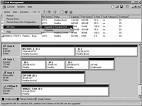
Basic Disk VS Dynamic Disk Basic Disks in Windows 2000/XP/Vista:
A basic disk uses the normal partition tables found in MS-DOS and Windows. The volumes contained on a basic disk will be basic volumes, such as primary and extended partitions, and logical drives. Basic disks may also contain multi-disk volumes created by Windows NT 4.0 and earlier (volume sets, stripe and mirror sets, and stripe sets with parity). Windows XP will not support these types of multi-disk basic volumes. With Windows XP, you should back up your data and then convert these to dynamic disks prior to installing Windows XP Professional.

Dynamic Disks in Windows 2000/XP/Vista:
Dynamic disks are supported in Windows 2000 Professional and Windows XP Professional. Windows XP Home Edition does not support dynamic disks. Dynamic disks contain simple volumes, spanned volumes, striped volumes, mirrored volumes, and RAID-5 volumes. Dynamic storage allows you to perform disk and volume management without having to restart Windows.

Dynamic disks are only supported in Windows Vista Ultimate, in Windows Vista Business, and in Windows Vista Enterprise. Generally, dynamic disks are not supported in Windows Vista Home Basic or in Windows Vista Home Premium. However, when you upgrade your computer from Windows XP Media Center Edition to Windows Vista Home Premium, some dynamic disks are supported.

General Information

  • On a basic disk, a partition is a portion of the disk that functions as a physically separate unit. On a dynamic disk, storage is divided into volumes instead of partitions.
  • Storage types are separate from the file system type; a basic or dynamic disk can contain any combination of FAT16, FAT32, and NTFS partitions or volumes. Please note that the creation of FAT16 volumes will be limited to 2GB or less, FAT32 volumes will be limited to 32GB or less. NTFS volumes do not have a capacity limitation.
  • Windows 2000 Professional and Windows XP Professional accommodates both basic and dynamic storage. A disk system can contain any combination of storage types. However, all partitions or volumes on the same disk must use the same storage type (Basic or Dynamic).
Read More

Does Your Hard Drive Need A Firmware Update?

Firmware Update Many thousands of hard drives enter the market with any given version of firmware in common.

Thousands of drives have the same firmware version when they are sold.
External, SATA, and ATA drives that are used in PCs and for personal storage pass through extensive testing before they leave the factory.  Therefore, they are not designed for firmware updates in the field.

Firmware updates

Performing a firmware update can be risky by itself even in the best of situations.  For example, a power outage during a firmware update carries a very good possibility of ruining the drive.  External, Serial ATA, and ATA drives are not designed for field firmware updates by end users.

Very often, system or device driver issues cause symptoms that are incorrectly called “firmware problems.”

What is firmware?

Firmware is defined as a computer program that is hard-coded into the hard drive and contains its basic operational storage programming.  Another way to think of it is that firmware is a software middleman that allows your hardware to talk to software (i.e., Windows operating systems, etc).  For a hard drive, firmware is a program that governs the behavior and factory settings, even the identity, of that drive.  Any drive that comes out of the factory and is in use in a computer or server has firmware installed on it from the factory.

What is the relationship between firmware and drivers?

Drivers tell the operating system how to behave. Firmware tells the drive how to behave. Seagate provides no drivers for most products in any modern Windows or MacOS operating system – the drivers must come from Microsoft, Apple, or the motherboard.

Why not just put firmware updates online with public links?

There are four main reasons:

  1. Field support for firmware updates involves robust and compatible tools, backwards compatibility and data safety.  These features are designed into Enterprise class SAS, Fibre Channel and SAS interface disc drives.Desktop and Mobile SATA and PATA drives are not designed for firmware updates in the field in the vast majority of cases.  Very often what looks like a newer version of firmware, by the number, may actually be incompatible with previous versions.  If incompatible firmware is copied to an earlier version of the same model, data loss or drive ruin will result.  Performing a firmware update can be risky by itself even in the best of situations.  For example, a power outage during a firmware update carries a very good possibility of ruining the drive.  This is why Seagate uses a warranty exchange process, if necessary, to update SATA and PATA drive firmware.
  2. In most cases, when a hard drive is thought to be malfunctioning, it is an operating system (i.e. Windows) issue or a problem with a software program.  Firmware is easy to blame when a hard drive does not perform as a user expects, when its installation does not proceed exactly as expected, or a myriad of other situations, or even when a drive diagnostic reports bad sectors.  In order to protect the user, Seagate restricts access to firmware updates.
  3. Some drives that still bear the Seagate name on the label but are actually the property of an Original Equipment Manufacturer (OEM) (such as Dell or Hewlett-Packard [HP]) might have unique firmware on them.  OEMs purchase large amounts of bare drives from Seagate and put their own firmware on them, at which point the drive is sold as part of a larger piece of equipment, such as a server or a personal or notebook computer.  Often the OEMs load specialized firmware in order to be able to build in performance enhancements that are specific to their product.However, sometimes these servers or computers are disassembled and the hard drives end up being sold separately from a third-party technology reseller or even on eBay, and because these drives have “Seagate” on the label and sometimes even the same model number (the “ST” number) as standard drives sold in a retail store, it can be easy to confuse the two.  The specialized firmware on some of these drives sometimes works outside of their original equipment and sometimes does not.  In very many cases, performing a firmware update with “standard” firmware would violate Seagate’s legal agreements with the OEM, thus voiding both the OEM and Seagate warranty, and carries a good possibility of ruining the OEM drive.
  4. Very seldom does a firmware update increase the drive’s performance. Most firmware updates are made available in order to solve a problem with timing, in order to synchronize with the timing of the system’s communication lines.

In summary, it is always best to seek other avenues of troubleshooting the hard drive and the surrounding system before resorting to questions of firmware.  If you suspect a drive may be defective, test it using Seatools.

Read More