Solutions For Enterprise Flash Storage by Seagate & Virident

Seagate and Virident announced a strategic agreement to jointly deliver solutions for the growing enterprise flash storage market. Under the agreement, Seagate will immediately offer a complete line of flash-based PCIe solutions to its OEM and distribution partners. In addition, Seagate and Virident intend to leverage their mutual strengths to create next-generation hardware and software solutions for the solid-state storage market. In conjunction with the agreement, Seagate has made a strategic equity investment in Virident, and will appoint one member to the Virident Board of Directors.

“Seagate is thrilled to team with Virident, a technology leader in one of the fastest growing markets in enterprise and cloud computing, together, we are working to develop the next-generation hardware and software solutions in the PCIe space. Our solid-state strategy is founded on both in-house development and through strategic partnerships with innovative companies to deliver the broadest portfolio in the industry. We believe that this strategic agreement immediately strengthens our leading position in the enterprise storage market by adding a broad line of Seagate flash-based PCIe solutions powered by Virident to our portfolio. We look forward to a long, productive partnership with Virident.”said Gary Gentry, senior vice president and general manager, Solid State Drives at Seagate.

“We are extremely pleased to have Seagate as a strategic partner and investor, this partnership validates Virident’s vision of pervasive flash in the performance tier and accelerates our shared vision by bringing next-generation SCM solutions to the enterprise and web datacenters worldwide. The agreement also expands Virident’s routes to market today by making our best-in-class PCIe flash products available to Seagate’s world-class channels.” said Mike Gustafson, Chief Executive Officer of Virident.

About Virident Systems
Virident Systems is a leading provider of enterprise-class Storage Class Memory (SCM) solutions that deliver unconditional, consistent performance to data-intensive applications. The inherent advantage associated with this disruptive technology revolutionizes computing by speeding application response time and optimizing datacenter efficiency for new levels of ROI. Virident Systems is backed by strategic investors, Intel®, Cisco® Systems and a storage solution provider, as well as Hercules Technology Growth Capital and venture investors Globespan Capital Partners, Sequoia Capital, Mitsui Global Investments and Artiman Ventures. For more information, visit www.virident.com.

Read More

Seagate Unveils New New R&D Hub In Korea

On Feb. 20, 2013, Seagate unveils its Seagate Korea Design Center, dedicated to developing advanced 2.5-inch hard drive solutions and small form-factor products for the mobile compute market. The new R&D Hub is located at Gwanggyo New Town, Gyeong-gi Province, is a seven-story, 26,000 square-meter building. Seagate has invested US$ 136.5Million (Approximately KRW 142.34Billion) in…

Read More

Solutions to ‘Safety Remove Hardware’ related problems

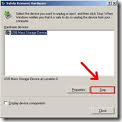
Safety Remove Hardware To prevent data loss or physical damage of the external hard drive, it’s better to perform ‘Safely Remove Hardware’.

When using the ‘Safe To Remove Hardware’, the icon may disappear or other errors could occur. Following are the solutions to those problems.

1. When ‘Safely Remove Hardware’ icon disappears

Windows 2000: The problem can be solved through the HotFix provided by Microsoft. Download and run the HotFix then re-boot.

Windows XP:
a) Restore Customize Notifications : Enables the icon display.

  1. Right click the ‘Start’ button then select Properties.
  2. After selecting Taskbar tab Notification area Hide inactive icons, click Customize.
  3. When ‘Customize Notifications’ window is displayed, either find ‘Safely Remove Hardware’ then select ‘Always show’ or click ‘Restore Defaults’ button on right bottom side then check.

b) Checking the USB Device Registration Information: ‘Safely Remove Hardware’ can be selected directly.

  1. On Start ▶ Control Panel ▶ System ▶ Hardware ▶ Device Manager, double click the ‘Disk Drive’.
  2. When ‘Properties’ window is displayed, click ‘Safely Remove Hardware’ in Optimize for Performance section in Policies tab then ‘Safely Remove Hardware’ window pops up.

Windows Vista: The problem occurs due to incorrect device driver setting and should be solved by updating to the latest Service Pack.

2. External Hard Drive is not visible when clicking the ‘Safely Remove Hardware’ icon.

Windows XP: When connected through a USB hub, the problem occurs because the OS recognizes the external hard drive as a non-portable device and also not as a device to remove.Thus it does not display the drive. The problem should be solved by shutting down the PC before removing the USB device. The problem should not occur when using the USB port of the system instead of using the USB hub.

3. ‘Safe To Remove Hardware’ message does not appear when clicking the ‘Safely Remove Hardware’ icon.

Windows XP: The problem should be solved by updating to the latest Service Pack.

4. Even after running the ‘Safely Remove Hardware’, the external hard drive does not stop operating.

Windows Vista: The problem could be related to the system feature of continually supplying power to the external hard drive. It can be solved by shutting down the system while the drive is being connected then disconnecting it after the shut down.

5. After right clicking the external hard drive in Windows Explorer then running the ‘Safely Remove Hardware’, data loss occurs.

Windows Vista: The above menu is not available in XP when right clicking the mouse. The problem could occur when using the NTFS file system and can be solved by updating to the latest Service Pack.

Note: If the external drive is connected by the eSATA interface, the icon may not
appear in the system tray.


Read More

Glossary of Hard Disk Drive Terminology (Letter U)

Ultra SCSI
Provides 20 MB/s transfers over an 8-bit bus or 40 MB/s transfers over a 16-bit Wide SCSI bus. Also known as Fast-20 SCSI, this feature is most commonly found in SCSI-3 drives.

Ultra DMA/33
A high-speed host data transfer feature that transfers data at 33.3 MB per second.

Un-correctable Error
An error that cannot be overcome using Error Detection and Correction.

Unformatted Capacity
The total number of usable bytes on a disk, including the space that is required to record location, boundary definitions, and servo data. (See also formatted capacity.)

Unrecoverable Error
A read error that cannot be overcome by an ECC scheme or by rereading the data when host retries are enabled.

Untagged Queuing
The ability of the drive to receive a maximum of one I/O process from each initiator.

Upgrade
In hard drives, the replacement of a hard drive with one offering greatercapacity or performance, or both.

Read More

Run as administrator from command line on Windows 8

I am trying to run Notepad as admin so I can edit my hosts file from the command line. I have tried runas /user:(myusername)administrator “notepad c:windowssystem32driversetchosts” I then input my password and I get   RUNAS ERROR: Unable to run – notepad  c:windowssystem32driversetchosts 1327: Account restrictions are  preventing this user from signing in. For example:…

Read More