Western Digital hard drive WD600UE hard drive open data recovery successfully

Case:When the hard disk was used, I accidentally wounded, and then stunned again.Computers cannot recognize mobile hard disks. Solution:According to the damage process described by the customer, it is generally damaged by the hard disk magnetic head.It may also be scratched by the plate. If the scratches are severe, the data will not be recovered.Customers…

Read More

USB 2.0, USB 3.0, or FireWire – What is the recommended solution for data storage?

1. What is USB 2.0?

USB 2.0, USB 3.0, Firewire USB 2.0 is the industry standard peripheral connection type for most x86 computers (Windows based). This specification is rated with maximum transfer rate of 480Mb/s (60MB/s). Sustained transfer rate of USB 2.0 depends on many factors including type of device in use, data being transferred, and speed of the computer system. A normal sustained data transfer rate for USB 2.0 ranges from 10-30 MB/s. Only burst data transfers can reach the 480Mb/s rate.

What are the benefits of USB 2.0?

  • USB 2.0 is “hot swappable,” eliminating the need to reboot or restart your computer when attaching a device.
  • There’s no need for terminators, memory addresses or ID numbers with USB devices.
  • Various sorts of devices can plug into a USB port: external hard drives, digital cameras, printers, Zip drives, SuperDisk drives, floppy drives, mice, keyboards, etc.

2. What is USB 3.0?

USB 3.0 is the replacement connection type for USB 2.0. This specification is rated with maximum transfer rate of 4Gb/s. Sustained transfer rate of USB 3.0 depends on many factors including type of device in use, data being transferred, and speed of the computer system. Sustained transfer rates can reach speeds of 3.2 Gbit/s.

What are the benefits of USB 3.0?

  • USB 3.0 is “hot swappable,” eliminating the need to reboot or restart your computer when attaching a device.
  • There’s no need for terminators, memory addresses or ID numbers with USB devices.
  • Various sorts of devices can plug into a USB port: external hard drives, digital cameras, printers, Zip drives, SuperDisk drives, floppy drives, mice, keyboards, etc.
  • USB 3.0 is backwards compatible with USB 2.0 ports, and USB 2.0 devices will work on a USB 3.0 port (both at USB 2.0 speeds)

3. What is FireWire?

FireWire is a high-performance connection standard for personal computers and consumer electronics. Originally developed for Apple computers, this connection has been implemented by x86 computers for some time now. FireWire can move large amounts of data between computers and peripheral devices at transfer rates of up to 400 Mb/s (50 MB/s). A new FireWire specification, FireWire 800 (or FireWire B) has entered the computer market with transfer rates of up to 800 Mb/s (100MB/s).

What are the benefits of FireWire?

  • FireWire is “hot swappable,” eliminating the need to reboot or restart your computer when attaching a device.
  • There is no need for terminators, memory addresses of ID numbers with FireWire devices.
  • Though USB 2.0 is rated at a higher throughput speed (480Mb/s related to FireWire’s 400Mb/s), FireWire delivers faster performance for sustained transfer rates on external hard drives. This is because FireWire has lower overhead (less instructions that the CPU has to interpret related to USB 2.0).

Which connection type is better? USB 2.0, USB 3.0 or FireWire?

  • If you plan on transferring large amounts of data often, then USB 3.0 would be the best connection type for you.
  • If you are doing Audio/Video or are on a Mac, than FireWire would be a good choice as many of these programs recommend FireWire over USB 2.0, and Apple currently does not support USB 3.0.
  • If you want the versatility of connecting the hard drive to many different computer systems quickly and easily, and transfer rates are not that important, then USB 2.0 would be the ideal because it is compatible with both PCs and Macs, and most computers today still have USB 2.0 ports.
Read More

NTFS Master File Table (MFT)

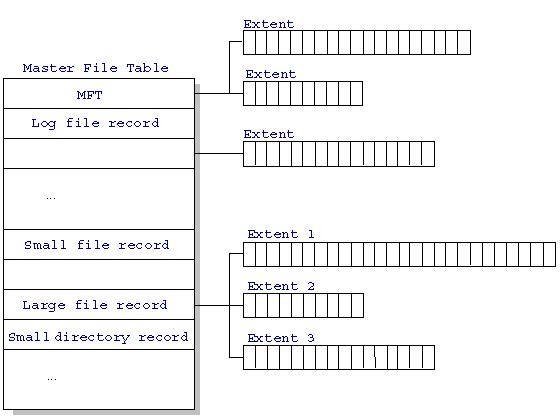
Each file on an NTFS volume is represented by a record in a special file called the master file table (MFT). NTFS reserves the first 16 records of the table for special information. The first record of this table describes the master file table itself, followed by a MFT mirror record. If the first MFT record is corrupted, NTFS reads the second record to find the MFT mirror file, whose first record is identical to the first record of the MFT. The locations of the data segments for both the MFT and MFT mirror file are recorded in the boot sector. A duplicate of the boot sector is located at the logical center of the disk.

The third record of the MFT is the log file, used for file recovery. The seventeenth and following records of the master file table are for each file and directory (also viewed as a file by NTFS) on the volume.

Figure provides a simplified illustration of the MFT structure:

Figure 5-2 MFT Structure


The master file table allocates a certain amount of space for each file record. The attributes of a file are written to the allocated space in the MFT. Small files and directories (typically 1500 bytes or smaller), such as the file illustrated in next figure, can entirely be contained within the master file table record.

Figure 5-2 MFT Record for a Small File or Directory:


This design makes file access very fast. Consider, for example, the FAT file system, which uses a file allocation table to list the names and addresses of each file. FAT directory entries contain an index into the file allocation table. When you want to view a file, FAT first reads the file allocation table and assures that it exists. Then FAT retrieves the file by searching the chain of allocation units assigned to the file. With NTFS, as soon as you look up the file, it’s there for you to use.

Directory records are housed within the master file table just like file records. Instead of data, directories contain index information. Small directory records reside entirely within the MFT structure. Large directories are organized into B-trees, having records with pointers to external clusters containing directory entries that could not be contained within the MFT structure.


Read More

Technologies used for maintaining HDD reliability

With all the complications HDD manufacturers are constantly trying to make user data storage more reliable. To accomplish that they use various methods and technologies in their drives.

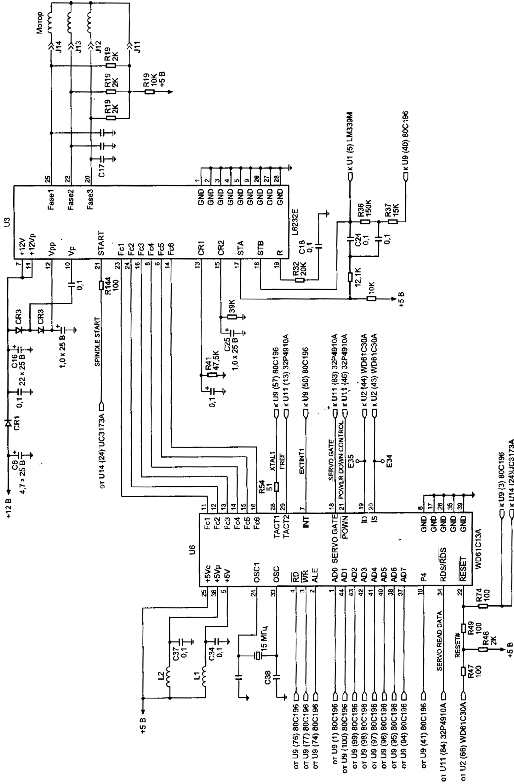
Figure 5. Control circuit of spindel of HDD (family WDAC 32500 and WDAC 33100)
S.M.A.R.T. (abbreviated Self-Monitoring, Analysis, and Reporting Technology) is intended to inform hard drive users about the status of its main parameters. Many motherboard BIOSes support analysis of those parameters at computer power-up and if some critical parameter exceeds its emergency limit an informational message is displayed during computer start-up. Of course, it does not mean that the drive will stop functioning, but the user should take some steps in that situation, for example, prepare a backup copy of valuable data. If computer BIOS does not contain an analyzer of S.M.A.R.T. attributes you can use an external diagnostic utility launched from within the operating system. The list of such utilities includes, for instance, SMART Vision available from http://www.acelab.ru/products/pc/traning.html.

For greater reliability practically all drives use a technology, which allows hiding and relocation of occurring defects immediately during operation. Some peculiarities of its implementation may vary with different drive models; however, they are all based upon the same principle. If the operating system attempts to access a sector, which cannot be read or written to, then the drive will replace it if possible (if there is sufficient reserved space) with a sector from the reserved zone (assign). The table of thus substituted sectors is stored in drive firmware zone and the drive loads it to controller ROM at power-up.

Impact sensors found in all drives also belong to technologies used for protection against malfunctions. It is a piezoelectric sensor producing an electric pulse at mechanical shock. Filtering of sensor pulses allows identification of obvious impacts. When a drive detects shock action, it parks magnetic heads. One peculiarity of impact sensor installation is the angle of its mounting relative to front case line. It is equal to 45O.

In recent models manufacturers have began to use widely temperature sensors in PCB and heads’ block. Temperature information is monitored by drive processor and the drive stops operation if the allowed value is exceeded. In some drive models temperature is output as S.M.A.R.T. attribute value and there are programs (usually available from the web pages of HDD manufacturers) which allow viewing it.

Read More