SeaTools for DOS is a comprehensive, easy-to-use diagnostic tool that helps you quickly determine what is preventing you from accessing data on your desktop or notebook computer. It includes several tests that will examine the physical media on your Seagate or Maxtor disc drive and any non-Seagate disc drive. This is the walk-through for both the old (text) and new (GUI) version.
In order to use SeaTools for DOS choose to download the floppy diskette version or the bootable CD image version.
Creating a Diskette
For the floppy diskette version you will need one 1.44MB floppy diskette. Click the .EXE file downloaded from the Seagate web site and follow the on-screen instructions.
Creating a CD using the bootable CD image .ISO file.
Just copying the files to a CD will not work; the file must be burned as an image to the CD.
Once the bootable media has been created then boot the computer with the media in the drive. If it doesn’t boot from the media the boot order may need to be adjusted in the computer BIOS.
This document will cover a Graphical and a text version of Seatools for DOS. Find the guide to the graphical version immediately below.
SeaTools for Dos will not detect external drives. Please use SeaTools for Windows to test external drives.
SeaTools for DOS, Graphical version
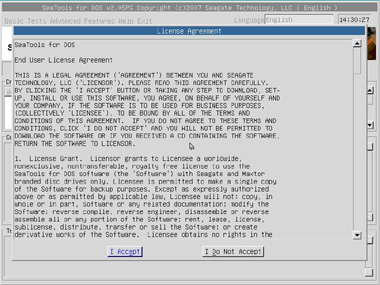
At bootup, you will see an End User License Agreement:

Simply click “I Accept” to continue.
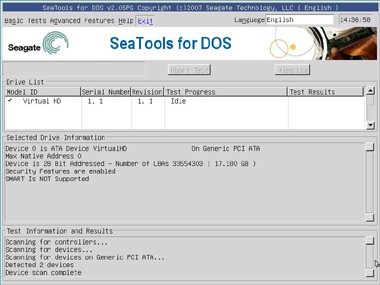
This will take you to the main menu page.
Under the Basic menu:
- Short test – Runs a DST test against Seagate drives. If DST is not supported by the drive, Seatools runs a read test. This test takes about 2 minutes.
- Long test – Runs a full scan of the drive. This is usually used to find and repair bad sectors.
- Acoustic test – Spins the drive down so you can determine if noise in a system is caused by the drive or by something else.
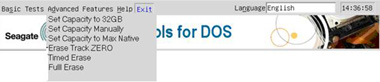
Advanced Features
- Set Capacity to 32GB – Limits drive to 32GB for use on Pentium 3 or older systems.
- Set Capacity manually – Limits drive to a specific number of Logical Block Addresses (LBAs), useful when replacing an unusual drive size in a RAID.
- Set Capacity to MAX – Used to resize drive to full capacity (does not bypass the limit capacity jumper).
- Erase Track Zero – Quick Zero fill to erase the data and partitions from a drive. This option requires one second to complete.
- Timed Erase (10 second, 20 seconds, 1 minute, 5 minutes) – Handy for when quick zero fill just doesn’t get it all (ie, in case of boot loaders, etc).
- Full Erase – Fills the entire drive with zeros. It can be used to recover bad sectors and erases all data. This is not a Secure erase .
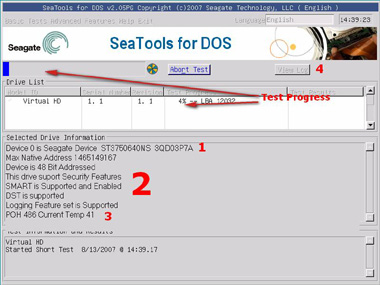
Below is the Results and Progress screen:
- Model number and Serial number for drive selected.
- Drive status and supported features displayed.
- POH – Power on hours displayed; and Drive temperature in Celsius.
-Click View log to open the log file once the test is complete (won’t show much more than what is on the screen).
SeaTools for DOS, Text Version
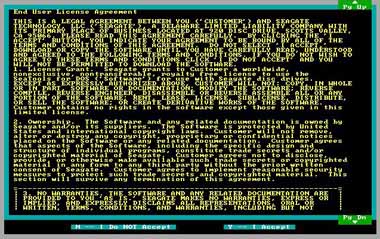
Once you have booted into SeaTools a license agreement will appear.
Read the agreement and press “Y” to accept the terms and continue to the testing or press ‘”N” to exit the program. Use the Page Up and Page Down keys to scroll.
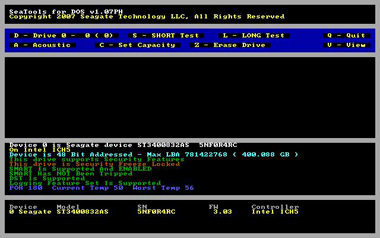
Once you agree to the license terms the testing screen will appear.
See here the varying elements of the old version’s testing screen.
- D or 0-9 – Switches drives – Select which drive to perform actions on (see device area for correlating number).
- S – Short test – Runs a Drive Self-Test (DST) test against Seagate drives. (If DST is not supported, Seatools runs a read test). Takes about 2 minutes.
- L – Long test – Full scan of the drive. Usually used to find and repair bad sectors.
- Z – Zero Fill – Wipes out the data on the drive. Good for erasing corrupted or unusual partitions. It will erase ALL partitions and data on the drive. Quick and Long options supported.
- A – Spin down drive (for Acoustic test) – Spins the drive down so you can determine if noise in a system is caused by the drive or by something else.
- C – Set Capacity – Used to set drive capacity to surpass the common 32GB and 137 GB limits. Also used for drives that get clipped to a lower capacity.
- V – View log file – Pulls up the log file for review.
The explanation for the multi-colored text near the bottom follows:
White text: The device (ie, Device 0) and its model and serial numbers.
Yellow text: The motherboard chipset.
Aqua text: Whether the motherboard supports 48-bit Logical Block Addressing, and the Maximum LBA for this drive along with its capacity.
Green text: SMART status. If SMART has been tripped, then there is no need to run a test. The drive should be replaced.
Green text: DST (Drive Self Test) support status – If DST is supported it will be used during testing.
Blue text: Operating temperature status – Current and Max registered temp – useful in determining if heat is a factor in drive trouble or drive failure. See Product manual for specified Operating temperature. The Worst Temp refers to the highest temp that the drive has ever experienced in its lifetime.
A common unusual reading displays 253 Celsius, which simply means that the drive does not support the temperature reading feature. It is nothing to worry about.
POH = Power on Hours – Tells how long the drive has been running in its total lifetime.
Acoustic Test
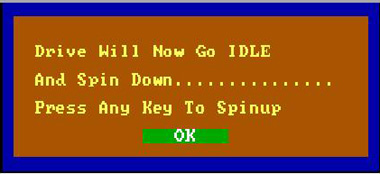
Once activated, the drive will spin down so you can tell if noise is coming from the drive or other components (like a computer fan). The drive will remain spun down until user presses a key.
The Pop-up window will remain open for several seconds until the drive spins back up.
Set Capacity
- S – Set 32 GB Capacity: Useful for ATA drives on older motherboards that will lock up if the drive is larger than 32 GB. This solution sets the drive to 32 GB. If too much capacity is lost, you can consider an add-in ATA controller that can fully support >32 GB.
- R – Reset to Drive Maximum: Useful for both ATA and SATA drives that have been clipped (either manually or spontaneously) back to its maximum capacity.
- M – Set Manually: Often useful for ATA and SATA drives as an alternative to attempt if the Reset to Maximum fails. Sometimes used to make all drives in a RAID array have the exact same size (use a specific number of sectors on the drive to set the size).
- Q – Back to Main Menu.
Zero Fill
Main menu options: Z-Erase Drive is the zero-fill option.
Here is the Zero-fill submenu.
On the Zero Fill sub menu you have the following options:
- Z – Quick Zero Fill (first 63 sectors of the drive, instantaneous)
- A – Full Zero Fill (every sector of the drive, may take many hours)
- F – Timed Zero fill where T adjusts the time.
Drive Information
This is the yellow text seen on the bottom of the main menu screen.
Shows hard drives detected
- Device number – Used to select which drive to test.
- Model number
- SN – Serial Number
- FW – Firmware revision – Useful on SCSI and SATA products and a few ATA products.
- Controller – Chipset to which the drive is connected. Useful for some SATA and capacity issues. If it is an old chipset, the 28-bit LBA limit may apply, and so the chipset may only support SATA speeds of 1.5Gb/s.
If a drive does not show up in this area then power off the computer and confirm the drive is installed correctly.
View the installation assistance page for details on configuring various types of drives.
Log File
Log file is stored on boot media if writeable or in memory for the CD version. It is stored as: Serial#.LOG
Ex: 5NF0R4RC.LOG
To view log in software, press V.
To exit log viewer, press the Escape key.
Test Status (during a DST)
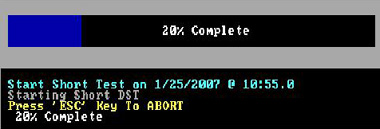
During a test the top part of the display shows a progress bar and the middle area shows the results.
After the test is complete, the middle area continues to show the result, and the top goes back to showing command options.
Bad Sector Repair (Long Test)
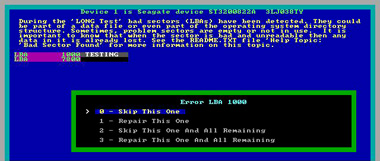
If bad blocks are found during a long test, a prompt will ask how to proceed.
The screen below appears at the end of the scan or if the user aborts the test if bad sectors have been discovered on the drive.
Example:
Follow the instructions on the screen to proceed.
For further information about SeaTools for DOS view the SeaTools for DOS User Guide.txt file.


 SeaTools for DOS is a comprehensive, easy-to-use diagnostic tool that helps you quickly determine what is preventing you from accessing data on your desktop or notebook computer. It includes several tests that will examine the physical media on your Seagate or Maxtor disc drive and any non-Seagate disc drive. This is the walk-through for both the old (text) and new (GUI) version.