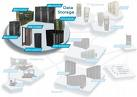
With the increasing use of technology, usage of digital data has increased to no limits. In order to store this enormous amount of data, we need more powerful and secured data storage devices. Development teams all over the world are working around the clock to make better devices which would be small and inexpensive, but at the same time having more capacity and security.
These are the types of data storage used in computers. Advancing technologies these days are increasing the access rate and the capacity of these data storage devices.
Computer Data Storage Types
1. Data Storage Types – Primary Storage
Basically, primary storage is the memory part of the computer itself. Primary storage includes the Random Access Memory (RAM) and Read Only Memory (ROM).
2. Data Storage Types-Secondary Storage
Hard disks, magnetic tapes and all other data storage devices are included in the secondary storage. They are external to the processor and are used to increase the storage capacity of the computer. The secondary storage is non-volatile and can retain information even after the computer is switched off.
3. Data Storage Types – Tertiary Storage
Tertiary data storage is the third data storage out of the three types of data storage. The tertiary devices includes the storage devices that are connected to the computer in the form of removable mass storage devices. Tertiary storage is often used to store those files that are rarely accessed by the computer user.
Computer Data Storage Devices
Computer data storage devices refers to computer components which can retain the data in digital format, to be used for computing at some point of time in the future.
Disk Storage
Disk storage is a category of computer storage devices, wherein the data is recorded on a round and rotating surface, two-dimensional in nature. Disk drivers are used to record or retrieve information from these disks. Though these days, the term disk storage is mostly used to refer to a hard disk, it also refers to floppy disks and optical disks.
Floppy Disk
A floppy disk is a thin flexible medium of magnetic storage which is encased in a square plastic shell. A floppy disk is read and written by a floppy disk drive. This small storage device was invented by IBM in 1969. It comes in three sizes – 8-inch, 5¼-inch and 3½-inch. Floppy disks enjoyed wide popularity from the 70s to the 90s, but post 90s they were overshadowed by devices which had more capacity and were faster. The use of floppies has almost ceased, though limited use can be still seen in some places.
Compact Disk
Compact disk, more commonly referred to as a CD, is an optical disk used to store digital data. After its introduction in the market in 1982, this technology was followed with the launch of CD-ROM, CD-R, CD-RW, VCD, SVCD and Enhanced CD. CD-ROM and CD-R are widely used in the field of computers. A standard CD having a diameter of 120 mm can hold up to 700 MB data. An estimated 200 billion CDs were sold all over the world by the year 2007.
Digital Versatile Disk
Digital versatile disk, more commonly referred to as DVD, is an optical storage device used for data storage in computer technology. Although they share the same dimensions as the CDs, DVDs have the capacity to store six times more data than the compact disks. DVD-video is used to store video content while DVD-audio is used to store audio content. The original DVD is more often referred to as Standard Definition DVD (SD-DVD). High-definition DVDs were discontinued after the Blu-ray optical disk was introduced into the market.
Blu-Ray Disks
Blu-ray disks, also referred to as BD, are optical disks manufactured by Sony for the storage of digital data. Its is most commonly used in gaming, high definition video storing, etc. Though it is of the same size as a CD or DVD, it can store up to 50 GB data. This technology uses a blue-violet laser to read the data, and hence is referred to as blu-ray disk. These optical disks have overshadowed other optical storage devices due to their high storage capacity.
Hard Disk Drive
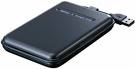
A hard disk drive is a non-volatile storage device used to store digitally encoded data on rotating platters having magnetic surfaces. Being non-volatile means it can retain the data stored on it even when it is not powered. Hard disk drives were invented by an IBM team, led by Rey Johnson on 14th December, 1954. Earlier, hard disk drives were a removable form of data storage, but today it has become a sealed unit with fixed media. The first hard disk had a capacity to store 5 MB data on fifty 24 inch platters. Today, the capacity has risen to more than a 100 gigabytes, and is still increasing by the day.
Flash Memory
Flash memory is a non-volatile memory in computer technology which can be electrically programmed or erased. Flash memory devices commonly used today include USB flash drives and memory cards.
USB Flash Drive
USB flash drive is a type of memory storage device that consists of NAND-type flash memory, integrated with Universal Serial Bus (USB) interface. The USB flash drives are removable as well as rewritable. Although they are smaller than a floppy disk, their storage capacity ranges from 64 MB to 128 GB. Some USB drives allow as many as 1 million erases and write cycles, while some have a 10 year data retention capacity.
Memory Cards
Flash memory cards are solid electronic flash memory devices used to store data in digital format. These cards are often used in hand-held as well as mobile computers. They are rewritable and non-volatile in nature. Though small, they have a high capacity and can store data of around 8 GB or more.