5 Popular Data Backup Freewares

Data Backup Freewares The post consists of programs for making duplicate copies of your computer files, digital photos, music, movies, or anything else on your hard drive or portable device that you’d like to duplicate in case of accident or catastrophe.

1. Paragon Backup & Recovery Free Edition (32 bit)
Back up and restore your Windows system.

Paragon Backup & Recovery 10.2 Free Edition – a disaster recovery tool for stand-alone Windows-based PCs. Combining all the existing backup techniques and exclusive recovery environments, this latest edition satisfies the needs of even the most demanding user and is simply the most powerful free backup tool available today.

Paragon launches 2 versions of Backup & Recovery 10.2. 32-bit provides support for 32-bit systems. And 64-bit for 64-bit Operating Systems. Paragon Backup & Recovery 10.2 Free Edition allows you to take complete control of your PC’s safety. Based on solid commercial backup and recovery software from Paragon, it has a rich set of features that you can trust. Simple to install and easy to use.

2. Macrium Reflect Free
Create, burn, and back up disk images.

Macrium Reflect Free Edition. An award winning disk imaging solution for free. A complete disaster recovery solution for your home and office. Protect your personal documents, photos, music and e-mails. Upgrade your hard disk or try new operating systems in the safe knowledge that everything is securely saved in an easily recovered backup file. Macrium Reflect supports backup to local, network and USB drives as well as burning to all DVD formats. This version is for non-commercial home use.

What’s new in this version:
Version 4.2 build 2733 may include unspecified updates, enhancements, or bug fixes.

3. Easeus Todo Backup
Back up and restore data on your system, partition, or hard disk.

EASEUS Todo Backup is a backup and restore solution for a good reason: with detailed instruction wizards, your computer will be in a safe condition within minutes without the help of an IT specialist to backup your system state, partition and disk. EASEUS Todo Backup can backup your system partition to quickly get the system up and running in the event of a system crash or hardware failure. It allows you to backup and restore disk or partition after viruses attack, unstable software download, hard drive failure. Meanwhile, EASEUS Todo Backup is useful if you want to upgrade the older smaller hard disk without reinstalling the operating system and applications once again.

4. Second Backup Free Edition
Easy-to-use file backup and folder sync tool.

Second Backup is an easy-to-use file backup and sync tool, it can archive multiple versions backed up copies for different time (for example, the first copy for Monday is ‘Backup_1’, the second copy for Tuesday is ‘Backup_2’). Automatically backup your important data (includes opening/using files and folders) to external hard drive, USB disk, network, and other storage device. Intuitive interface makes it easy to use, simply tell it which file or folder to backup, where and when to archive them, then it works reliably in the background and uses very little system resources. The backup task can be directed only copy the new or modified files, it monitors the source files and automatically backups the new or changed file to the destination. Automatic scheduling includes specific days of the week, days of the month, hours of the day, or any desired time intervals. E-mail notification lets you know the file backup status anytime and anywhere.

Note: It says it’s “free” and even has “Free Edition” in it’s name but it’s a 30 day evaluation copy which says after 30 days you must buy it.

5. FBackup
Protect your files/folders from data loss.

FBackup is freeware backup program for Windows. FBackup protects your important files and folders from partial or total loss by automating backup tasks, password protecting and compressing it to save storage space. Using FBackup you can easily backup to any local or network drive or to external drives (such as USB drives). FBackup can backup open/locked files and it can perform full and mirror backups (backup type that does not compress the files).

When defining a backup you can also set file filters and schedule the backup for automatic execution. You can run predefined backups, such as My Documents, My Pictures, or Outlook Express and load backup plug-ins that will back up the settings and data of specific applications. FBackup has ZIP64 support (can create backups over 2GB) and creates standard ZIP files, meaning that you can access it with any zip compatible utility.

5 Popular Data Backup Freewares Read More »
5 Popular Data Recovery Freewares

Pandora Recovery
Find, preview and restore permanently deleted files.
Operating system: Windows 2000/XP/Vista

5 Popular Data Recovery Freewares Pandora Recovery is a powerful free tool that provides its users an effective way to attempt recovery of permanently deleted files. And that does not mean restoration of a file from Recycle Bin. The software recovers files removed from Recycle Bin, deleted using Shift + Delete keys bypassing Recycle Bin and files deleted from DOS prompt. Pandora Recovery lets its user browse, search, preview and recover files deleted from NTFS and FAT volumes, supporting hard drives, flash drives and memory cards. It successfully handles archived, hidden, encrypted and compressed files and recovers Alternate Data Streams (ADS). Pandora Recovery features classic interface wizards, hints and context-sensitive help. Pandora Recovery allows user to browse and search the tree of deleted files where show deleted items only button comes handy. Finally, it has ability to scan drive clusters, picking up files whose MFT record has been reused by OS, damaged or recreated (it can restore files on formatted drives).
Version 2.1.1 supports Data carving (surface scan) of Adobe PhotoShop PSD and MS Outlook PST.

EASEUS Data Recovery Wizard Free Edition
Recover data from formatted/lost partitions.
Operating system: Windows 2000/XP/2003/Vista/Server 2008/7

EASEUS Data Recovery Wizard Free Edition is a one-stop & free data recovery software to recover 1 GB data free of charge. It is a comprehensive file recovery freeware which can recover deleted files or folders even when they have been emptied from Recycle Bin, recover data due to format, lost partition, system crash, and virus attack. Compare with other data recovery freeware, it can restore files from formatted disk, dynamic disk, deleted or lost partition with original file names & storage paths. By the way, it is designed with wizard mode which makes the data recovery process easy even for a beginner. Free, easy-to-use, powerful functions make EASEUS Data Recovery Wizard Free Edition a must-have data recovery software in case of any data loss.

PC Inspector File Recovery
Recover lost or damaged files.
Operating system: Windows 95/98/Me/2000/XP/NT

PC Inspector File Recovery is a data recovery program that supports the FAT 12/16/32 and NTFS file systems. Finds partitions automatically, even if the boot sector or FAT has been erased or damaged (does not work with the NTFS file system). Recovers files with the original time and date stamp. Supports the saving of recovered files on network drives.
Version 4 supports the saving of recovered files on network drives.

Data Recovery
Restore accidentally deleted FAT12, FAT16, FAT32, and NTFS files.
Operating system: Windows 95/98/Me/2000/XP/Vista/NT

FAT12, FAT16, FAT32, NTFS undeletion. Undelete NTFS compressed files. Undelete EFS encrypted files. Wipe out deleted files never to be recovered again. Runnable from floppy disk. Search by partial string in the file name. Undelete whole files in a directory. Neither installation nor DLLs is needed. Windows Vista supported.

R-Linux Free Recovery
Recover files from existing logical disks when file records are lost.
Operating system: Windows 95/98/Me/2000/XP/Vista/NT

R-Linux is a free data recovery and undelete utility for Ext2FS/3FS (Linux) file systems. File recovery after power failure, system crash, virus infection or partition reformation, even for the different file system. Unformat and unerase tool. The utility creates image files an entire disk, partition or its part. Such drive image can be processed like regular drive. Recognition and parsing of Dynamic (Windows 2000/XP), Basic and BSD (UNIX) partitions layout schema. Localized names support. Recovered files can be saved on any (including network) disks accessible by the host operating system.

Version 3.0 may include unspecified updates, enhancements, or bug fixes.

5 Popular Data Recovery Freewares Read More »

exFAT file system (Extended File Allocation Table)

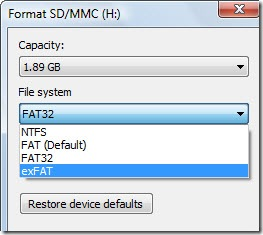
exFAT File System exFAT (Extended File Allocation Table) is a file system designed and patentend by Microsoft and released in all versions of Windows, starting with Windows Server 2008. In addition Microsoft has released an update for Windows XP and Windows Server 2003, to add support for exFAT formatted drives.

exFAT is considered the successor to the FAT16 and FAT32 file systems. exFAT has a number of advantages and disadvantages over NTFS and FAT32. It has a theoretical maximum disk size up to 64 ZB (Zettabytes) or 64 billion terabytes, versus a 32 GB maximum under a FAT32 partition. It also allows for up to 2,796,202 files per directory, increased from 65,536 under FAT32. Finally exFAT supports Sector sizes between 512 and 4k, and a cluster size of 32 MiB (mebibyte, large megabyte).

Advantages:

  • Scalability to large disk sizes: 64 ZiB theoretical max, 512 TiB recommended max, raised from the 2 TiB limit of FAT32 partitions. Note that the built-in Windows XP format utility limits new FAT32 partitions to 32 GiB.
  • Sector size between 29 (512) and 212 (4,096) bytes.
  • Cluster size up to 32 MiB.
  • File size limit of 64 ZiB (512 TiB recommended max), raised from close to 4 GiB in FAT32.
  • Free space allocation and delete performance improved due to introduction of a free space bitmap
  • Support for up to 2,796,202 files per directory, increased from 65,536
  • Support for access control lists (not supported yet in Windows Vista SP1)
  • Support for TFAT, a transactional file system standard (optionally WinCE activated function)
  • Provision for OEM-definable parameters to customize the file system for specific device characteristics
  • Support for UTC timestamps (starting with Vista SP2)
  • Timestamp granularity of 10 ms (better than previous FAT versions’ 2 s, but worse than NTFS’s 100 ns)

Disadvantages:

  • Windows XP and Windows Server 2003 users must have Service Pack 2 or later and install an update to support exFAT
  • Windows Vista must be Service Pack 1 or later for exFAT support
  • Devices formatted using exFAT cannot be read by any version of Windows prior to Windows XP or by any version of DOS or OS/2 (unless emulated as otherwise).
  • Devices using exFAT are unable to use Windows Vista’s ReadyBoost capability (Windows 7 adds support for ReadyBoost on exFAT formatted drives and enables a larger ReadyBoost cache due to the removal of the 4GB file size limit of FAT32)
  • Microsoft has not released the official exFAT file specification, and a license from Microsoft is required in order to make and distribute exFAT implementations
  • Limited or no support outside PC environment at present — most current consumer electronics, such as televisions and A/V receivers, can only handle previous FAT versions (this may change with the new SDXC cards and Memory Stick XC requiring exFAT)

exFAT file system (Extended File Allocation Table) Read More »

What is the difference between a primary and extended hard drive partition in Windows

Disk Management A hard drive can be divided into primary and extended partitions. Partitions function as physically separate storage units. This allows you to separate different types of information, such as user data on one partition and applications on another. A hard drive can contain up to four primary partitions, or up to three primary partitions and one extended partition, for a maximum of four partitions.

There can be only one extended partition on a hard disk, so you should include all remaining free space in the extended partition. Unlike primary partitions, you don’t format extended partitions or assign drive letters to them. You divide extended partitions into segments. Each segment is a logical drive. You assign a drive letter to each logical drive and format it with a file system.

For more information about Disk Management in Windows 2000 and how to use it to setup your hard drive, please see Microsoft Article 323967

For more information about Disk Management in Windows XP and Windows Vista and how to use it to setup your hard drive, please see Microsoft Article 309000

What is the difference between a primary and extended hard drive partition in Windows Read More »

How to Access Motherboard BIOS?

Access BIOS The BIOS is a program pre-installed on computers (with the exception of Macs) that the computer uses to start up. The CPU accesses the BIOS before the operating system is loaded. The BIOS then checks all your hardware connections and locates all of your devices. If everything is OK, the BIOS loads the operating system into the computer’s memory and finishes the boot-up process.
Some of the most common single key commands are:

F1, F2, ESC and DEL.

Some of the most common key combinations are:

CTRL+ALT+ESC, CTRL+ALT+DEL, or CTRL+ALT+INS.

///////////////////

ALR Advanced Logic Research, Inc. ® PC / PCI     //F2
ALR PC non / PCI     //CTRL+ALT+ESC
AMD® (Advanced Micro Devices, Inc.) BIOS     //F1
AMI (American Megatrends, Inc.) BIOS     //DEL
Award™ BIOS     //CTRL+ALT+ESC
Award BIOS     //DEL
DTK® (Datatech Enterprises Co.) BIOS     //ESC
Phoenix™ BIOS     //CTRL+ALT+ESC
Phoenix BIOS     //CTRL+ALT+S
Phoenix BIOS     //CTRL+ALT+INS

Acer®     //F1, F2, CTRL+ALT+ESC
ARI®     //CTRL+ALT+ESC, CTRL+ALT+DEL
AST®      //CTRL+ALT+ESC, CTRL+ALT+DEL
Compaq® 8700      //F10
CompUSA®     //DEL
Cybermax®      //ESC
Dell 400     //F3, F1
Dell 4400     //F12
Dell Dimension®     //F2 or DEL
Dell Inspiron®      //F2
Dell Latitude     //Fn+F1 (while booted)
Dell Latitude     //F2 (on boot)
Dell Optiplex     //DEL
Dell Optiplex     //F2
Dell Precision™     //F2
eMachine®     //DEL , F 2
Gateway® 2000 1440     //F1
Gateway 2000 Solo™     //F2
HP® (Hewlett-Packard)     //F1, F2 (Laptop, ESC)
IBM®     //F1
E-pro Laptop     //F2
IBM PS/2®     //CTRL+ALT+INS after CTRL+ALT+DEL
Intel® Tangent     //DEL
Micron®     //F1, F2, or DEL
Packard Bell®      //F1, F2, Del
Seanix     //DEL
Sony® VAIO     //F2
Sony VAIO     //F3
Tiger     //DEL
Toshiba® 335 CDS     //ESC
Toshiba Protege     //ESC
Toshiba Satellite 205 CDS     //F1
Toshiba Tecra     //ESC then F1 or F2

Fujutsu Manuals & BIOS Manuals & BIOS Download
Lenovo(formerly IBM) Lenovo BIOS Access page

Toshiba Notebook:
1. Turn on computer by Holding down power button while pressing the ESC key.
The machine will beep, then display:
Check System, then press [F1] key.
2. Release ESC key
3. Press F1 key

//////////////////////

Each computer and BIOS manufacturer can use a different key or combination of keys in order to enter the System BIOS. Sometimes during system boot when the screen is blank you will see some text in the bottom middle or bottom right of the screen that will tell you what the key sequence is. If not, you may need to consult your computer manual, or contact the manufacturer of your computer to find out what the key or key combination is.

How to Access Motherboard BIOS? Read More »

How to configure a WD EIDE hard drive using the Alternate Jumper Settings?

When NOT to use Alternate Jumper Settings:

* If you are running Windows 2000/XP/Vista.

* If the system can boot with just one jumper on the drive without locking up.

* If the drive is installed on an IDE controller card that is providing support to access the full drive capacity.

When to use Alternate Jumper Settings
The most common scenario when a drive should be configured with the Alternate Jumper Settings is when the system hangs up or freezes upon boot up after auto-detecting all IDE devices. The reason for this error is because the drive capacity is larger than what the system can support.

What happens after the drive is configured with the Alternate Jumper Settings
The full capacity of the drive is not recognized. In order for the system to boot properly, the BIOS will recognize smaller drive capacity. Depending on your BIOS, your drive will recognize one of the following sizes: 2.1GB, 8.4GB, 32GB.

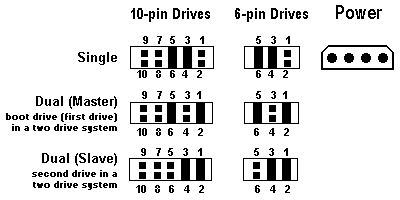
WD EIDE Drive Jumper Settings

Configuring a single (alone on the IDE cable) drive with the Alternate Jumper Settings
If you are connecting your drive as the only IDE device on the cable, place the jumper shunts on pins 3 & 4 and 5 & 6. Connect the drive to the black connector at the end of the cable.

Configuring a primary or dual Master drive with the Alternate Jumper Settings
If you are connecting your drive as the Master drive on the cable with another IDE device, place the jumper shunts on pins 1 & 2 and 5 & 6. Then configure the jumper on the other IDE device as Slave. Connect the Master drive to the black connector at the end of the cable and the Slave device to the gray connector located at the middle of the cable.

Configuring a secondary or dual Slave drive with the Alternate Jumper Settings
If you are connecting your drive as the Slave drive on the cable with another IDE device, place the jumper shunts on pins 1 & 2 and 3 & 4. Then configure the jumper on the other IDE device as Master. Connect the drive to the gray connector at the middle of the cable and the other IDE device to the black connector located at the end of the cable.

How to configure a WD EIDE hard drive using the Alternate Jumper Settings? Read More »

The difference between WD Desktop edition and RAID (Enterprise) edition hard drives

WD Hard Drives Western Digital manufactures desktop edition hard drives and RAID Edition hard drives. Each type of hard drive is designed to work specifically as a stand-alone drive, or in a multi-drive RAID environment.

If you install and use a desktop edition hard drive connected to a RAID controller, the drive may not work correctly. This is caused by the normal error recovery procedure that a desktop edition hard drive uses.

Note: There are a few cases where the manufacturer of the RAID controller have designed their drives to work with specific model Desktop drives. If this is the case you would need to contact the manufacturer of that enclosure for any support on that drive while it is used in a RAID environment.

When an error is found on a desktop edition hard drive, the drive will enter into a deep recovery cycle to attempt to repair the error, recover the data from the problematic area, and then reallocate a dedicated area to replace the problematic area. This process can take up to 2 minutes depending on the severity of the issue. Most RAID controllers allow a very short amount of time for a hard drive to recover from an error. If a hard drive takes too long to complete this process, the drive will be dropped from the RAID array. Most RAID controllers allow from 7 to 15 seconds for error recovery before dropping a hard drive from an array. Western Digital does not recommend installing desktop edition hard drives in an enterprise environment (on a RAID controller).

Western Digital RAID edition hard drives have a feature called TLER (Time Limited Error Recovery) which stops the hard drive from entering into a deep recovery cycle. The hard drive will only spend 7 seconds to attempt to recover. This means that the hard drive will not be dropped from a RAID array. While TLER is designed for RAID environments, a drive with TLER enabled will work with no performance decrease when used in non-RAID environments.

The difference between WD Desktop edition and RAID (Enterprise) edition hard drives Read More »

Data recovery companies in Australia

1. PAYAM Data Recovery Pty Ltd
http://www.payam.com.au
Australia Data Recovery Company Data recovery services for faulty hard disk drives in Sydney and Melbourne, Australia.
Level 10, 379 Queen Street, Brisbane, QLD, 4000.
Phone: (07) 3221 5988

2. Technetics Data Recovery
http://www.techneticsdata.com.au
The data recovery labs in Australia with many years of experience in the industry.
Level 1, 71 Palmerston Crescent
South Melbourne VIC 3205
Melbourne Australia
Phone: 1300 853 453

3. DATA DETECT Pty Ltd
http://www.datadetect.com.au
Recovers data from hard disk drives, digital media and RAID systems in Australia.
Suite 5, Level 6
144-148 Pacific Highway
North Sydney
Phone: (02) 9929 4822

4. Sydney Data Recovery
http://www.sydneydatarecovery.com.au
2A 6-8 Herbert Street
St Leonards NSW
Australia 2065
Phone: (02) 9437 5755

Data From Data Recovery Union: Australia data recovery directory

Data recovery companies in Australia Read More »

Why is Drive Translation necessary?

image DOS and DOS based programs like Windows 3.x and Windows 95 cannot access drives over 1024 cylinders on their own, but require third party assistance to use large hard drives. SCSI drives handle this with drivers built in to the SCSI controller, so we will limit this discussion to ATA hard drives. There are several methods used to overcome the cylinder limitation, and all of them involve translation.
A translation scheme converts information from one form to another and back again. Think of it like this: If you go to a foreign country to conduct business and you don’t speak the language, you need a translator. The translator’s job is to convert information from one party into a language the other party can understand and vice versa. Without the services of a translator, the two parties have a limited exchange of information. A smile, a nod, and a mispronounced and grammatically incorrect “How are you?” is about all that is possible.

The types of translation support are as follows:

1. An ATA (IDE) host adapter with a BIOS that provides large drive support.

2. Third party software like EZ-Drive® and DiscWizard Starter Edition.

3. A motherboard BIOS that provides large drive support. Some of the terminology is as follows:

  • Logical Block Addressing (LBA)
  • Large
  • Extended Cylinder, Head, Sector (E-CHS)
  • Sector Translation
  • Sector or Track Mapping

These support features are the “language” translators that allow your operating system and hardware to speak two different “languages” and still interact successfully with one another.

All of the BIOS options, once installed, are transparent to the user. EZ-Drive and DiscWizard Starter Edition are not. In addition, there is one issue that both share — special procedures are needed to boot to a diskette when installing new software.

Dynamic Drive Overlay software like EZ-Drive and DiscWizard Starter Edition use similar techniques, at first glance, to overcome the 1024 cylinder limitation. Both programs load proprietary translation information on the boot hard drive that identifies which drive is using the program and gives the operating system access to the area of the drive over 1024 cylinders. Without this proprietary translation code loaded, the drive using EZ-Drive or DiscWizard Starter Edition is unrecognizable to the operating system. If the hard drive is using translating software, and you try to boot with an unmodified diskette in the floppy drive, the translating software does not get a chance to load, thereby rendering the hard drive unreadable. This is generally only a problem if the diskette is infected with a virus. Simply remove the diskette and reboot. The hard drive should boot normally.

Why is Drive Translation necessary? Read More »

Are Seagate and Maxtor External drives hot swappable?

External Drives Hot Swap Yes, with the following recommendations:

Never unplug any eSATA, 1394, or USB device that is being actively accessed by the operating system (such as during a file copy).

  • Unplugging a device while it is being used may result in a system crash and the loss of the ability to recover the data already written to the drive.
  • For Macintosh – If you want to unplug an External Drive you must first drag the mounted drive icon to the trash to dismount it. After the drive is dismounted then it can be unplugged.
    For Windows – If you wish to disconnect an External Drive, you must use the “Safely Remove”  or “Unplug and Eject Hardware” utility located in the Windows Task Bar ( identified by the Green Arrow Icon located close to the clock on your desktop).

Are Seagate and Maxtor External drives hot swappable? Read More »

Scroll to Top