Seagate announced the world’s fastest 2.5-inch laptop PC hard drive

May 24, 2010 – Seagate announced channel and OEM shipments of the Momentus ® XT hard drive, the world’s fastest 2.5-inch laptop PC hard drive, combining SSD-like performance with the massive capacity and much lower cost of HDDs. The Momentus XT drive also features Adaptive Memory™ – a groundbreaking new technology from Seagate that learns and optimizes the drive’s performance to each user by moving frequently used information into the flash memory for faster access. The Momentus XT solid state hybrid drive boots up to 100 percent faster than traditional 5400RPM drives, the mainstream spin speed for laptop PCs, and sets new benchmarks for real-world system performance for laptops and gaming systems.

Today’s high-performance SSDs for mobile computing cost as much as 10 times more than hard disk drives of the same capacity, with the price of a 250GB SSD outstripping even the cost of many laptop PCs. As a result, most consumers and system builders are unwilling or unable to pay the high price for the greater speed and quiet operations of SSDs. Additionally, SSDs offer fewer capacity options than hard disk drives.

Momentus XT, 2.5-inch Solid State Hybrid Drive

The Momentus XT drive is a best-of-both-worlds solution that combines a 7200RPM spin speed, 4GB of solid state memory and Seagate’s Adaptive Memory technology to deliver unprecedented hard drive performance. The unique Adaptive Memory technology works by identifying patterns in how often certain digital data is used, and then moving the most frequently used information to the embedded solid state memory for faster access – effectively tailoring hard drive performance to each user and their applications.

“For notebook PC users looking forward to faster PC performance without sacrificing storage capacity or affordability, now there’s an option, Seagate’s new Momentus ® XT drive is the first storage device for notebook PCs that raises the bar for affordable capacity and performance.” according to John Rydning, IDC’s research director for hard disk drives.

“We see the Momentus ® XT drive as a game changer, a product heralding a new generation of hard drives that combine SSD and HDD capabilities so that laptop users don’t have to make trade-offs on speed, cost or capacity, The feedback we’ve received from customers, industry experts and early reviews has been overwhelmingly positive, and Seagate will continue to drive innovation that provides more value and a better computing experience to consumers.” said Dave Mosley, Seagate executive vice president of Sales, Marketing and Product Line Management.

Momentus ® XT Drive Brings Unprecedented Speed to New ASUS Gaming Laptop PC
ASUS has also announced that it will offer the Momentus XT drive as an upgrade option for its new Republic of Gamers (ROG) G73Jh notebook. The system is powered by an Intel i7 720Qm quad-core processor, 8GB of DDR3 memory, and DX11 capable ATI Radeon Mobility HD 5870.

“With the Momentus ® XT drive, ASUS gives gaming customers who prefer the ASUS ROG G73 the capacity they need and the performance they crave, Seagate’s innovative solid state hybrid drive hands down delivers the best value, capacity and SSD-like performance to a wide audience.”  said PC Wang, vice president of the ASUS Systems Business Group.

The Momentus XT drive installs as easily as a traditional 9.5mm-high notebook drive for new systems or laptop upgrades and, unlike early hybrid drives, operates independently of the operating system and the motherboard chipset.

ASUS and Seagate Unveil the Momentus ® XT Drive and the ROG G73JH with a Live Webcast
On Wednesday, May 26, Seagate and OEM customer ASUS will co-sponsor a live webcast unveiling not only the new Momentus XT solid state hybrid drive, but also featuring the new ASUS ROG G73JH system with two Momentus XT drives. Three lucky attendees of this webcast will win a new G73 system just for attending*. Special guest speakers will provide an in-depth look at how this drive will transform high-performance computing.

For more information visit the Momentus XT drive product page.

Read More

How to Restore Factory Capacity of Hard Drive?

How to restore factory capacity of hard drive This post is a complete guide on recovering your hard drive’s factory capacity.

Reasons why hard drive might lose some megabytes or even gigabytes:

  • Your Operating System does not support LBA48 addressing mode
  • You are mixing binary and decimal gigabytes
  • Your motherboard has created a hidden area on your hard drive to store a backup of the BIOS binaries
  • Your PC/Laptop manufacturer has created a hidden area on your hard drive to store a backup of the Operating System installation files (needed for automatic restore functionality)
  • You have used some software that sets HPA (Host Protected Area), messes with DCO (Device Configuration Overlay), or switches off LBA48 support
  • You have misplaced a jumper on the drive
  • There was Magic involved

Solutions to Restore Hard Drive Factory Capacity :

  1. Check jumpers. Consult with manufacturer’s instructions and set jumpers to the proper position.
  2. Check your OS, does it have all updates installed?
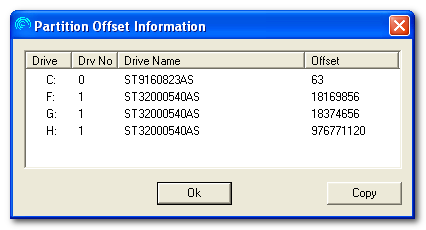
  3. Check disk partitions. Run Windows Disk Management console and see if there is any free space that is not used by any partition.
  4. If steps 1—3 did not help, then we have a very cool tool that analyzes your hard drive’s LBA48, HPA and DCO status and recovers factory settings

Useful Tool: HDD Capacity Restore v1.2

License: Freeware
Author: Atola Technology
Supported hard drives: all hard drives
Supported OS: 32-bit versions of Windows XP/Vista/2003

HDD Capacity Restore Tool allows you to restore factory capacity of any hard drive. It does everything automatically: it extracts the factory capacity; then it restores the factory LBA48, HPA and DCO settings.

In some cases this program allows to actually increase the capacity of a hard drive (if it was limited by the distributor; for example, Hewlett-Packard sometimes sells 80-GB hard drives but sets a 40-GB limit. You can restore the full 80-GB capacity in this case).

Download Now: HDD Capacity Restore V1.2

Read More

Cables for Ultra ATA/66 to Ultra ATA/133 Drive Users

Ultra ATA/66 to Ultra ATA/133 Drive Cables Why must I use this type of cable?

The faster timing requirements of Ultra ATA/66 and above require the use of an 80-conductor cable. This is necessary for proper operation of UDMA modes 3 and greater. The 80-conductor cable is used with the same connector configuration as the standard 40-conductor cable. The 40 additional conductors are used as ground paths and are all connected to the 7 original ground conductors. These additional ground conductors serve to improve the overall signal quality (signal-to-noise ratio) of the ATA cable. 80-conductor Ultra ATA cables are also limited to a maximum cable length of 18 inches.

If the drive was purchased in a retail kit and not as a “bare” drive, the kit includes an Ultra ATA cable as described here. If not Ultra ATA cables can be purchased from your system vendor or reseller and are fully backward compatible for operation on all standard/legacy ATA devices and hosts. However, these cables will typically utilize the cable select (CS) configuration on ATA drives for defining a master or slave device (drive 0 or drive 1). The drive placement convention used on an 80-conductor cable is also different from the previous generation of cable select type cables. The 80-conductor Ultra ATA cables require the master drive (drive 0) to be installed at the end of the cable and the slave drive (drive 1) to be installed on the middle connector.

The connectors on 80-conductor cables are also color-coded to help ensure proper drive placement and attachment to the host (system). Typical color-coding is as follows: blue for attachment to the host (system), black is for device 0 (master) and gray is for device 1 (slave).

Ultra ATA/66 to Ultra ATA/133 Drive Cables

This post applies to all Seagate, Maxtor, Quantum ATA 66, ATA 100, and ATA 133 drives.

Read More

How to burn a disaster recovery CD?

How to burn a disaster recovery cd The most popular CD Burning Softwares, detailing how to burn a disaster recovery CD from the image file saved by Retrospect.

1. Nero Burning Rom (Ahead Software):

Start Nero and close the new compilation window, file browser window, and any wizard that appears. Choose Burn Image from the File menu. In the file selection dialog, change the shown file type to All Files, navigate to the disaster recovery ISO image, select it, and click Open. Click OK if Nero informs you it does not recognize the format of the image file. Nero presents its Foreign image settings dialog, which should have default settings of Data Mode 1, block size 2048 bytes, other values zero, and boxes unchecked. Click OK to work with these settings for the ISO image. Nero presents the Write CD window. Click Write to begin recording your disc.

2. Easy CD Creator (Adaptec/Roxio):

Start Easy CD Creator and cancel any wizard that appears. From the File menu, choose Open CD Layout. In the file selection dialog, change the shown file type from Easy CD Creator to All Files, navigate to the disaster recovery ISO image, select it, and click Open. In the CD Creation Setup window which appears, select your desired CD recorder, leave the write speed and options as they are, and click OK to begin recording your disc.

3. CD Extreme (Sony):

Start CD Extreme. At the default CD Starter window, click on the CD Extreme button/combo box in the lower right to go into the full application. From the File menu’s New Job submenu, choose Global-Image or Other Image. Click the ’…’ button at the far right of the Disk Image File area. In the file selection dialog, change the shown file type to Other Image, navigate to the disaster recovery ISO image, select it, and click Open. Click the Burn button to begin recording your disc.

4. B’s Recorder GOLD (B.H.A.):

Start B’s Recorder GOLD and close or cancel any assistant or wizard that appears. In the main window, drag the disaster recovery ISO image to the lowest of the three panes (which says it accepts Image files). Click Record at the top of the window to start burning the CD.

5. MyCD Pro (Sonic)

MyCD does not have the ability to record discs from ISO image files, but MyCD Pro does. Start MyCD Pro and close the Starter window to get to the main screen. Click the New Global-Image or Other Image button on the toolbar. A Global Image Job Setup window appears in the Job Setup pane. Highlight your CD-R drive in the Drive Status pane and select it by clicking the Select/Deselect as Recorder button on the toolbar. A red arrow appears on the drive icon to indicate it is selected. Click the Browse button from the Job Setup window. In the file selection dialog, change the shown file type to Other Image, navigate to the disaster recovery ISO image, select it, and click Open. (The path to your image file appears in the Job Setup pane.) Click the Record button to begin recording your disc. (The MyCD Pro online help includes icons in its instructions and the icons may help you better understand the steps to burn a CD from an image. Follow the help’s links from Using MyCD Pro to Global-Image Job and scroll down to Recording a CD from a Global-Image File.)

6. Macintosh OSX Disk Utility (Apple)

Open Disk Utility, which can be found in the Utilities folder. Click on Images on the menu bar and select Burn… In the Open window, browse to the ISO image file you want to burn, select the file, and click on the Open button. In the Burn Disk In: drop-down menu, select the CD burner drive that you will be burning the CD-ROM in. Click on the Burn button in the lower right hand corner. A Progress window will open that will show the progress of your CD being burned.

Read More

Serial ATA (SATA) Native Command Queuing (NCQ)

Serial ATA (SATA) Native Command Queuing (NCQ) What is native command queuing?

Native command queuing is arguably the most significant advancements in the Serial ATA II specification. NCQ allows the host to issue multiple commands to the device (up to 32 commands) without having to wait for the device to complete any commands. Queuing of commands allows the drive to look ahead at what data has been requested or needs to be written, thereby allowing the drive to optimize the order of the commands and maximize data throughput efficiency, providing significant performance improvement.

To enable Native Command Queuing, the Serial ATA II standard defines a method of allowing an HDD to control the order of command execution and data transfer. Using special SATA commands, READ FPDMA QUEUED or WRITE FPDMA QUEUED, the host will issue each command an identifier, or tag. The specification of Native Command Queuing allows for up to 32 tags (0 to 31). In order to avoid collisions and mishandled data, the HDD will only release a tag after the associated command is complete and the data has been returned to the host.

The concept of command queuing means that a drive does not need to return the data in the same order that the commands are requested (tags 0 to 31 can be executed in any order and data packets for those commands can be returned to the host in any order). For example, the commands may be issued in numerical order: 1, 2, 3, 4, and the data for those commands may be returned to the host in a different order: 4, 2, 1, 3 (or any other order). This allows a drive to use rotational position optimization to maximize the efficiency and overall performance of the drive.

Native command queuing FAQs:

1. What are the Native Command Queuing requirements?

In order to take full advantage of Native Command Queuing, you must have the following:

  • NCQ supported hard drive
  • Motherboards or PCI controllers with NCQ support
    Verify NCQ support through your motherboard and host adapter manufacturer
  • Multi-threading software

2. What is multi-threading software?

Multi-threading is the ability of a program or an operating system process to manage its use by more than one user at a time and manage multiple requests by the same user without having to have multiple copies of the program running in the computer.

3. What are the advantages of using NCQ?

Some of the advantages of using NCQ supported hard drives are:

  • Improved endurance of the hard drive due to less mechanical wear
  • Higher performance when utilizing multiple command workloads

4. Will I notice a big performance increase when using a NCQ supported hard drive?

Each hard drive model will have its own product specification which you should use to determine performance. You will not see a big performance increase when using applications that do not utilize multi-threading technology. Performance increase is more noticeable when utilizing transactional workloads.

5. How do I enable NCQ?

Native Command Queuing is enabled at the firmware level of the hard drive and cannot be altered by the end user, which means you have support as long as all the other requirements are met. If all requirements are not met, NCQ will not be utilized.

6. Can I use my NCQ supported hard drive with a non NCQ supported controller or motherboard?

Yes. The NCQ supported hard drives will work just fine with non-NCQ supported controllers or motherboards. However you will not be able to take advantage of the NCQ features.

7. What Seagate model numbers support NCQ?

Since late 2004, most new SATA drive families have supported NCQ.  The following Seagate model numbers drive familes support NCQ:

  • Barracuda 7200.8, 7200.9, 7200.10, 7200.11 (SATA) and later
  • Barracuda NL35, NL35.2, ES, ES+, ES.2 (SATA) and later
  • Momentus 5400.2, 5400.3 (SATA) and later
  • Momentus 7200.1, 7200.2 (SATA) and later
  • Momentus 5400 PSD and later
  • Momentus 5400 FDE.2 and later

The difference between Native Command Queuing & Tagged Command Queuing:

The difference between NCQ (Native Command Queuing) and TCQ (Tagged Command Queuing) for the SCSI-2 and later specification is that TCQ supports 3 modes of queuing:

Simple – specifies that the command is to be placed in the drive’s command task set (queue). If several commands are present, the drive may reorder them to increase overall throughput.

Head of queue – directs the drive to place the command at the beginning of the queue, to be executed next. Consecutive commands with Head of Queue specified are executed in last-in-first-out order. Queue is 64.

Ordered – specifies that commands in the drive’s task set are to be executed in the order received (FIFO).

Read More

Common blue screen error messages in windows

Blue Screen Error Messages Blue Screen stop messages provide diagnostic information, such as Stop codes and driver names, that you can use to resolve the problem. However, this information disappears when you restart your computer. Therefore, it is important to record the information displayed for future reference.

The following are a list of the more common stop codes and potential resolutions in windows:

  1. Stop 0x0000000A or IRQL_NOT_LESS_OR_EQUAL
  2. Stop 0x0000001E or KMODE_EXCEPTION_NOT_HANDLED
  3. Stop 0x00000024 or NTFS_FILE_SYSTEM
  4. Stop 0x0000002E or DATA_BUS_ERROR
  5. Stop 0x0000003F or NO_MORE_SYSTEM_PTES
  6. Stop 0x00000050 or PAGE_FAULT_IN_NONPAGED_AREA
  7. Stop 0x00000077 or KERNEL_STACK_INPAGE_ERROR
  8. Stop 0x00000079 or MISMATCHED_HAL
  9. Stop 0x0000007A or KERNEL_DATA_INPAGE_ERROR
  10. Stop 0x0000007B or INACCESSIBLE_BOOT_DEVICE
  11. Stop 0x0000007F or UNEXPECTED_KERNEL_MODE_TRAP
  12. Stop 0x0000009F or DRIVER_POWER_STATE_FAILURE
  13. Stop 0xBE or ATTEMPTED_WRITE_TO_READONLY_MEMORY
  14. Stop 0xC2 or BAD_POOL_CALLER
  15. Stop 0x000000CE or DRIVER_UNLOADED_WITHOUT_CANCELLING_PENDING_OPERATIONS
  16. Stop 0x000000D1 or DRIVER_IRQL_NOT_LESS_OR_EQUAL
  17. Stop 0x000000D8 or DRIVER_USED_EXCESSIVE_PTES
  18. Stop 0x000000EA or THREAD_STUCK_IN_DEVICE_DRIVER
  19. Stop 0x000000ED or UNMOUNTABLE_BOOT_VOLUME
  20. Stop 0x000000F2 or HARDWARE_INTERRUPT_STORM
  21. Stop 0xC000021A or STATUS_SYSTEM_PROCESS_TERMINATED
  22. Stop 0xC0000221 or STATUS_IMAGE_CHECKSUM_MISMATCH

Error Messages Related to Disks and File Systems:

These messages can provide more information for determining the cause of the Stop message. More specifically file system errors, viruses, hard disk corruption, or controller problems can cause the following Stop messages:

1. Stop 0x00000024 or NTFS_FILE_SYSTEM
This Stop message, also known as Stop 0x24, indicates that a problem occurred within Ntfs.sys, which is the driver file that allows the system to read and write to NTFS volumes.

2. Stop 0x00000050 or PAGE_FAULT_IN_NONPAGED_AREA
This Stop message, also known as Stop 0x50, occurs when requested data is not found in memory. The system generates a fault, which indicates that invalid system memory has been referenced. This fault can occur due to a variety of error conditions, such as bugs in antivirus software, a corrupted NTFS volume, or faulty hardware (typically related to defective RAM, be it main memory, L2 RAM cache, or video RAM).

3. Stop 0x00000077 or KERNEL_STACK_INPAGE_ERROR
This Stop message, also known as Stop 0x77, indicates that the requested page of kernel data from the paging file could not be read into memory. Stop 0x77 can be caused by a number of problems, such as:

  • Bad sectors on the hard disk.
  • Defective or loose cabling, improper SCSI termination, or the controller not seeing the hard disk.
  • Another device is causing a resource conflict with the storage controller.
  • Failing RAM.

4. Stop 0x0000007A or KERNEL_DATA_INPAGE_ERROR
This Stop message, also known as Stop 0x7A, indicates that the requested page of kernel data from the paging file could not be read into memory.

One of the following conditions usually causes a Stop 0x7A: a bad sector in a paging file, a virus, a disk controller error, defective hardware, or failing RAM. In rare cases, a Stop 0x7A occurs when nonpaged pool resources run out.

5. Stop 0x0000007B or INACCESSIBLE_BOOT_DEVICE
This Stop message, also known as Stop 0x7B, indicates that Windows XP Professional lost access to the system volume or boot volume during the startup process. This error always occurs while the system is starting and is often caused by one of the following:

  • Hardware problems
  • Corrupted or incompatible storage drivers
  • File system problems
  • Boot sector viruses
  • Outdated firmware

During I/O system initialization, this error can occur when:

  • The controller or driver for the startup device (typically the hard disk) failed to initialize the necessary hardware.
  • File system initialization failed because the system did not recognize the data on the boot device.
Read More

What should I do for a noisy hard disc drive?

noisy hard disc drive All of our new Parallel ATA (PATA) hard drives and new Serial ATA (SATA) hard drives are optimized for performance, we do not have a utility that can quiet them down.

While modern drives are extremely quiet, every disc drive makes a certain amount of noise while running. Normally, the faster the drive motor spins, the higher pitched the resulting sound will be.

It is also normal for the drive to make sort of a “chattering” or “clicking” sound while it is reading and writing data.

However, if the sound coming from the area around your drive has recently changed or is an excessive grinding or clanking noise, this may indicate a physical problem with the drive.

Noise from the cooling fans in the power supply are often mistaken as hard drive noise.  To isolate whether the noise is coming from the drive or one of the fans, you can issue a “spin down” command through software.  The Seagate SeaTools for DOS diagnostic has an acoustical spin down test.

If the sound goes away, then the sound was produced by the drive.  If the sound remains, then the drive is not the cause of the sound.

Read More

BIOS Limitation/BIOS Capacity Barrier

BIOS Limitation/BIOS Capacity Barrier The BIOS limitation or BIOS capacity barrier is the computer’s inability to recognize hard drive capacities larger than allowed by the hard-coded programming contained in your system BIOS. For example, your system BIOS might only be capable of understanding a hard drive capacity of up to 32 GB. If you then attempt to install and auto-detect a 40 GB hard drive, the system will freeze because the BIOS is not capable of understanding the capacity reported by the hard drive. In short, that particular BIOS cannot count past 32 GB.

Seven Major BIOS Limitations:

  • Systems with BIOS dated prior to July 1994 (504 MB Limitation).
    Typically these BIOS will have a 504 megabyte (1,024 cylinders) limitation. Prior to this date, most manufacturers’ BIOS did not provide the Logical Block Address (LBA) feature needed for proper translation. Some BIOS had LBA mode in the setup, but the feature did not work properly.
  • Systems with BIOS dated after July of 1994 (2.048 GB Limitation).
    Typically, these BIOS provide support for hard drives with capacities larger than 504 megabytes. However, depending on the manufacturer’s release date and version number, different limitations may be encountered. The major limitation that surfaces is the 4,093-4,096 cylinder limitation. This barrier is derived from the fact that some BIOS manufacturers implemented Logical Block Addressing (LBA) translation in their BIOS with a 4,093 – 4,096 cylinder limitation. System hangs would occur when the cylinder limitation threshold is exceeded. A system hang is defined when the operating system hangs during initial loading, either from floppy diskette or existing hard drives. If these symptoms of system hang occur or there are questions whether the system BIOS will support the drive, contact the system or motherboard manufacturer for assistance.
  • 4.2 GB Limitation.
    The maximum parameters at the 4.2 GB barrier are 8,190 cylinders, 16 heads and 63 sectors for a capacity of 4.2 GB. A system hang is defined when the operating system stops responding during initial loading, either from floppy diskette or existing hard drives. This can be caused by the BIOS reporting the number of heads to the operating system as 256 (100h). The register size DOS/Windows 95 uses for the head count has a capacity of two hex digits. This is equivalent to decimal values 255. If these symptoms of system hang occur or there are questions whether the system BIOS will support the drive, contact the system or motherboard manufacturer for assistance.
  • 8.4 GB limitation.
    The maximum parameters at the 8.4 GB barrier are 16,383 cylinders, 16 heads and 63 sectors for a capacity of 8.455 GB. To go beyond this boundary, a new extended INT 13 function is needed from the BIOS as a support feature for the drives. The BIOS listed below are all “CORE” BIOS that will support drives larger than 8.4 GB. Even though a BIOS is dated correctly or is the current version, it may not be able to support extended interrupt 13 because of modification done to the “CORE” of the BIOS from the motherboard manufacturer.
  • 32 GB limitation.
    This condition is caused by the Award BIOS inability to address hard drives greater than 32GB. Award has been made aware of this issue and has fixed their “core” BIOS as of 6/99. They are passing this information along to the motherboard manufacturers’ that use their BIOS. Updates for the BIOS should be available soon from individual motherboard manufacturers’ to correct this problem.
  • 64 GB Limitation
    There is no 64GB BIOS Capacity Barrier. If you use FDISK to format a drive that is larger than 64 GB, FDISK will report the incorrect disk size.
  • 137 GB Limitation
    Some system BIOSes are limited to 137 GB because they can only support 28 bit Logical Block Addressing (LBA).

Procedure on how to overcome the BIOS capacity limitation:

  • Check with the system or motherboard manufacturer for any BIOS upgrades for the system. If there are no BIOS updates from the manufacturer you can visit www.esupport.com for a BIOS update.
  • (Recommended) Purchase a PCI ATA controller card that will support the capacity of the drive. The two benefits of ATA controller cards are:
    1. the ability to support large capacity drives
    2. the ability to support the faster transfer rates of the drive.
Read More

How to low-level format a Mac hard drive using Drive Setup?

Low-Level format Mac Hard Drive To low-level format a hard drive using Drive Setup, follow these steps:

  1. Start by selecting the hard drive you wish to low-level format.
  2. Under the Function menu select Initialization Options
  3. Select Low Level Format (a check mark will appear) and click OK.
  4. Click Initialize at the bottom of the main screen.
  5. Again click Initialize.

Drive Setup will low-level format the drive and prepare it for use with the Mac OS, after which it can be loaded with software.

Note:

  • Low-level formatting a hard drive will destroy all data on the drive and destroy any chance of data recovery. We suggest you make a reliable back up of all data before attempting this.
  • Canceling a low-level format of a SCSI hard drive before it has completed can render the drive permanently inoperable.
  • Low-level formatting can take several hours depending on the drive.
Read More

Maxtor & Quantum ATA Hard Disk Drive Jumper Settings

If your drive came with two jumpers and your setting only calls for one,
you can place the extra jumper horizontally accross the top row for storage.

Maxtor CrystalMax 1080
Maxtor Fireball 531DX Ultra ATA 100
Maxtor DiamondMax 16
Maxtor DiamondMax 1750 Ultra ATA 33
Maxtor DiamondMax 1750A Ultra ATA
Maxtor DiamondMax 17 VL Ultra ATA 66
Maxtor DiamondMax 20 VL Ultra ATA 66
Maxtor DiamondMax 2160 Ultra ATA
Maxtor DiamondMax 2880 Ultra ATA
Maxtor DiamondMax 30 VL Ultra ATA 100
Maxtor DiamondMax 30 VL Ultra ATA 66
Maxtor DiamondMax 3400 Ultra ATA
Maxtor DiamondMax 36 ATA 66
Maxtor DiamondMax 40 ATA 66
Maxtor DiamondMax 40 VL Ultra ATA 100
Maxtor DiamondMax 4320 Ultra ATA
Maxtor DiamondMax 536DX
Maxtor DiamondMax 60 ATA 100
Maxtor DiamondMax 60 ATA 66
Maxtor DiamondMax 6800 Ultra ATA
Maxtor DiamondMax 80 ATA 100
Maxtor DiamondMax D540X-4D
Maxtor DiamondMax D540X-4G
Maxtor DiamondMax Plus 2500 Ultra ATA
Maxtor DiamondMax Plus 40 Ultra ATA 100
Maxtor DiamondMax Plus 40 Ultra ATA 66
Maxtor DiamondMax Plus 45 Ultra ATA 100
Maxtor DiamondMax Plus 5120 Ultra ATA 33
Maxtor DiamondMax Plus 5120 Ultra ATA 66
Maxtor DiamondMax Plus 60 Ultra ATA 100
Maxtor DiamondMax Plus 6800 Ultra ATA 66
Maxtor DiamondMax Ultra ATA

Maxtor & Quantum ATA Hard Disk Drive Jumper Settings

Maxtor DiamondMax Plus 8
Maxtor DiamondMax D540X_4K
Maxtor DiamondMax D540X_4L
Maxtor DiamondMax D740X

Maxtor Fireball 541DX
Maxtor Fireball LCT20

Quantum Fireball CR
Quantum Fireball CX
Quantum Fireball EL
Quantum Fireball EX
Quantum Fireball LCT08
Quantum Fireball LCT10
Quantum Fireball LCT15
Quantum Fireball Plus KA
Quantum Fireball Plus KX
Quantum Fireball SE
Quantum Fireball ST
Quantum Fireball LM
Quantum Fireball AS

Maxtor & Quantum ATA Hard Disk Drive Jumper Settings

Maxtor DiamondMax Plus 9
Maxtor DiamondMax 10
Maxtor DiamondMax 11
Maxtor DiamondMax 17

Maxtor & Quantum ATA Hard Disk Drive Jumper Settings

Maxtor DiamondMax 20Maxtor DiamondMax 21

Maxtor & Quantum ATA Hard Disk Drive Jumper Settings

Read More