3 Ways To Check BIOS Version

3 ways To check bios version There are 3 ways to check your BIOS version easily:

  • Monitor Display:
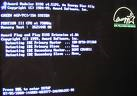
    Most PCs display the BIOS version upon initial boot up. Watch the monitor as the system boots up. The BIOS information is frequently one of the first things to appear. Press the Pause/Break key during this display to freeze the screen so that you can make note of the BIOS version number.
  • Motherboard Model Number:
    Many vendors post lists of the BIOS version provided with various system models on their corporate web sites.
  • Software Utilities:
    Use a software based reporting utility, such as Belarc Advisor or others.
Read More

Hard Drive Data Recovery On a Desktop or Laptop Computer

Laptop Data Recovery When a laptop hard drive becomes “unbootable“, and you are unable to repair it, you can often save the data on the hard drive by using a “slave drive” recovery method on a desktop computer. As long as the laptop hard drive has not been mechanically broken and the disk is still “readable“, you should be successful in accessing and preserving the valuable data on the drive.

I know the frustration when you delete something you shouldn’t have, or your hard drive is corrupted. I will show you how to do a data recovery and hard drive recovery from a desktop computer or on a laptop computer. There is some software you can use to undelete software, or even recover corrupted sectors, this is not always going to work, but worth a try when you need your data back. The ultimate recovery, unfortunately, would be to send your disk to a professional data recovery or hard drive recovery place.

  1. If you have deleted something by accident, you can try to recover that file from the recycle bin in Windows. If you have emptied the recycle bin, you may be thinking it is lost forever, but you can try to do data recovery using software that is free. Data recovery is not always going to work, if the hard drive has written over that sector with data from another program, it might be unattainable using home based software.
  2. You can try however to do data recovery using this simple program “Undelete-All“, I have posted it in resources.
  3. If your hard drive crashed and the sectors were corrupted, again a professional hard drive recovery place would be the best, but if you don’t have thousands to spend, you can try a few things that are free.
  4. First you will want to restart and make sure the hard drive is being detected by BIOS, when it restarts press f2, or esc, or del to enter BIOS, every computer is different on how to get in, usually it will say at the bottom of the screen.
  5. Once in BIOS you will see a summary screen, if your hard drive is detected, great! Proceed on to the next steps, if, however, your hard is not showing, I am afraid to say but more then likely it has died, and it would definitely take a professional place to recover, what they do is take the hard drive platter out, and mount it onto a professional machine to recover the data, again this can costs thousands (I’ve checked into it before). There could though be other reasons a hard drive is not showing, such as, loose cables, BIOS not updated, etc. But if it was working, and nothing has changed, and you haven’t rattled the computer around like laptop computers, this you would want to check for loose wires, otherwise it is probably dead.
  6. What you can do to try to get data recovery if it is still detected, and this works for desktop computers or laptop computers, would be to set up the old corrupted drive as a slave disk to the new disk.
  7. What you would need to do is buy a new disk, install the new OS, be it Windows Vista, XP, etc, and then attach the old drive to the 2nd cable in the computer. There will be jumpers if your drives are IDE, every drive is different, and you will have to look that up, it might be on the drive itself. You will want the new drive as master, the old drive as slave. If your drives are SATA, no matter, it will do this automatically.
  8. If you have a laptop computer, this will be a different procedure, you would need either an external enclosure for your old drive to attach it to your laptop via USB, or a desktop computer that you can hook it to.
  9. Since laptop computers can have either IDE or SATA, this might pose a difficulty if your desktop only takes SATA and your laptop is IDE, you would need an enclosure for this to hook it up via USB. If your laptop computer is SATA, you can hook this up to any desktop that has SATA, same with IDE.
  10.   Once the drive is hooked up, and shows in Windows, you can begin the process of getting your files back. The main files on your desktop will be located in a USER file in Windows Vista c:\(user name)\desktop, in XP c:\documents and settings\(user)\desktop.
  11. . I hope this article sheds some light on data recovery, hard drive recovery, and deleted files in laptop computers, and desktop computers. I hope if this has happened to you, that you will be able to get your data back! I always, always suggest that you backup your data using an external hard drive connected via USB, better to be safe then sorry! 🙂
Read More

RAID Data Recovery Service in Los Angeles

RAIDrecovery 1. Secure Hard Drive RAID Data Recovery Services
Tel: (323) 944-0822
Address: 8271 Melrose Ave Ste 205, Los Angeles, CA
Website: www.securedatarecovery.com

Why Secure RAID Data Recovery Service:

  • Free Data Recovery Diagnostics
  • No Data No Recovery Fee
  • 24/7 Emergency Expert Services

Secure Data Recovery Services professional team in Los Angeles, CA are hard drive data recovery experts in providing advanced disk data recovery solutions. Secure Data Recovery Services of Los Angeles, CA hard drive data recovery specialists provide: fast, friendly, accurate and reliable data recovery service and specialize in: Raid Recovery, Hard Drive Data Recovery, Apple Mac Data Recovery, SQL Data Recovery and Tape Recovery Services.

Customer Reviews:

I gratefully thank you. Secured Data Recovery Services used specialty tools, procedures and security measures at their phenomenal high tech facility to perform a RAID 1 Data Recovery for our firm with outstanding results. Our critical data vanished overnight when a major power surge zapped our RAID back up system and the technicians in the building could not get it working again. The next day it still was not working and we could not access our information. We called Secured Data Recovery Services who came to our rescue. By the end of the day, everything was working fine, all of our data had been returned, the RAID back up system was fixed and life was good again. I gratefully thank you and all the employees thank you also.

2. 24 Hour Data Los Angeles RAID Data Recovery

Tel: (310) 601-7373
Address: 445 South Figueroa, Suite 2700 Los Angeles, CA 90071
Website: www.24hourdata.com

3. SalvageData RAID Data Recovery

Tel: (213) 550-4427
Address: 355 South Grand Avenue, Suite 2450 Los Angeles, CA 90071
Website: www.salvagedata.com

Find more RAID data recovery service providers in Los Angeles:


View Larger Map

Read More

Hitachi Hard Disk Drive Business is now Western Digital

Hitachi Hard Disk Drive Business is now Western DigitalMarch 7, 2011 –  Hitachi transfers hard disk drive business to Western Digital.

Western Digital will acquire all shares of Hitachi Global Storage Technologies’s holding company, Viviti Technologies Ltd. The proposed combination will result in customer-centric storage company, with significant operating scale, strong global talent and the industry’s broadest product lineup backed by a rich technology portfolio.

Under terms of the agreement, WD will acquire Hitachi GST for $3.5 billion in cash and 25 million WD common shares valued at $750 million, based on WD closing stock price of $30.01 as of March 4, 2011. Hitachi will own approximately ten percent of WD shares and hold two seats on the WD board of directors. Steve Milligan, president and chief executive officer of Hitachi GST, will join WD’s existing senior management team as president.

The acquisition of Hitachi GST is a unique opportunity for WD to create further value for our customers, shareholders, employees, suppliers and the communities in which we operate. We believe this step will result in several key benefits-enhanced R&D capabilities, innovation and expansion of a rich product portfolio, comprehensive market coverage and scale that will enhance our cost structure and ability to compete in a dynamic marketplace. The skills and contributions of both workforces were key considerations in assessing this compelling opportunity. We will be relying on the proven integration capabilities of both companies to assure the ongoing satisfaction of our customers and to bring this combination to successful fruition.” – said John Coyne, president and chief executive officer of WD.

“This combination will bring together two industry leaders with consistent track records of strong execution and industry outperformance, together we can provide customers worldwide with the industry’s most compelling and diverse set of products and services, from innovative personal storage to Solid State Drives for the Enterprise.” – said Steve Milligan, president and chief executive officer, Hitachi GST.

Read More

Use External Hard Drive as an Internal Hard Drive

Hi guys. Hard drive prices as you all know have been hiked up terribly. Here in South Africa, internal hard drives 1Tb was R600 = $75. The world shortage caused the hard drives to skyrocket in price from R600 to R1800. That’s a $150 price increase!

Now down to business. I have an external hard drive. Samsung Story. 1TB. I would just like to know what the possibility is, to take the hard drive out of it’s enclosure, connecting it via a SATA port and using it as the internal hard drive. (booting windows, installing games and programs)

You should easily be able to do this, however, I would be careful when removing the case. A lot of them are made not to come off, so be careful not to damage the drive when removing the case. It should be a standard hard drive inside. You might want to make sure it’s out of warranty before opening the case though. Also, I don’t think the enclosure’s controller is doing anything funny with the data, but if it is, you may need to reformat the drive once it’s in your computer.

Use Internal Hard Drive as an External Hard Drive

It is easy and inexpensive to convert an internal hard drive to an external one. All you need is a hard drive enclosure that fits your existing internal hard drive. Hard drive enclosures are widely available at computer stores and online. Prices range from as little as five dollars for a basic one-drive USB 2.0 enclosure to over a hundred dollars for enclosures that hold multiple internal drives in RAID arrays with eSATA interfaces. You probably don’t need to spend more than $20 for a basic one-drive enclosure.

Removing a hard drive from a laptop or desktop is easy. Power down and unplug the computer. On most laptops, you’ll remove a plastic panel from the underside of the laptop with one or two small screws. Remove the drive by gently tugging it free from the connectors, and you’re done. On a desktop, open the system case, and locate the hard drive in its metal bay. Disconnect the power and data cables, remove the screws holding the drive in the bay, and slide it out. Just remember, you’re removing the hard drive, but NOT opening it up. Doing so will damage the sensitive internal components.

You do need to make sure you buy the right kind of drive enclosure kit, so it will be compatible with the drive you’ve removed from the desktop or laptop.

The first consideration is the size of your hard drive. Laptop drives are all 2.5 inches, while desktop drives are usually 3.5 inches. Determine the size of your internal hard drive and shop for a hard drive enclosure into which it fits. Note that 3.5 inch drives generally require an external power supply, while 2.5 inch drives can pull their power from the computer to which they connect.

The drive interface is another critical factor. Old hard drives may use an IDE interface. Many new drives use the speedier SATA interface. Make sure the enclosure you select supports your internal hard drive’s interface. If you have any confusion about the size or interface for your drive, just Google the name. For example, I have an old hard drive that I pulled from a defunct desktop computer. The markings on the drive say “WD Caviar 36400” so a quick search for that phrase tells me it’s a 6.4GB Western Digital, 3.5 inch, IDE drive.

Use internal hard drive as an external drive

Connecting the External Hard Drive to Your Computer

The connector on a hard drive enclosure is the means by which it is connected to your computer. USB 2.0 is a common connector because most computers support it. Firewire is another option if your computer has an available Firewire port. An eSATA connector is faster than USB 2.0 or Firewire, but relatively few computers and enclosures support eSATA at this time.

The enclosure box may be made of aluminum, plastic, or some other material. A box sporting LED indicators helps you observe drive activity. Other bells and whistles are optional.

Installing an internal drive is into an enclosure is easy. You may need a screwdriver, but no special tools are required. Just avoid static electricity and don’t force any connectors. If you are enclosing an IDE drive, make sure to set its master/slave jumpers to the positions recommended in the enclosure’s instructions. SATA drives do not require jumper settings.

Connect the enclosure’s interface cable to the internal hard drive’s interface connector. Plug the enclosure’s power cable into the drive. Fasten the drive into the enclosure with the fasteners provided. Close up the enclosure.

If necessary, plug in the external drive’s power cord. If you don’t need external power, just plug the connector cable into the appropriate USB, Firewire, or eSATA port on your computer. Mac and Windows computers should recognize the new drive automatically. It should appear in your drives list with its own drive letter. Copy a few files to and from the new drive to make sure everything is working. Then enjoy your new external hard drive!


Read More