

Jumper settings for Seagate and Maxtor ATA hard drives
 Master or single drive. If you are installing your Seagate hard drive as the only drive in the system or if it will be the primary boot drive for the system, the jumper should be set as Cable Select. If you are connecting the drive to an older system that has a pre-UDMA Mode 3 ATA controller, or you are connecting this to a cable with a slave device that doesn’t have a cable select jumper setting, jumper the drive as Master instead by putting a jumper on the first vertical set of pins closest to the data cable.
Drive as slave
If you are installing the drive as an additional drive in your system, the drive should be set as Cable Select. If you are connecting the drive to an older system that has a pre-UDMA Mode 3 ATA controller, or you are connecting this to a cable with a master device that doesn’t have a cable select jumper setting, jumper the drive as Slave instead by removing the jumper from the drive.
Cable Select
This setting is the default setting for ATA drives. With the Cable Select jumper set, the BIOS determines whether a drive is a master or a slave by its position on the UltraATA cable. If the drive is jumpered as cable select and is connected to the black connector on the end of the cable, it is recognized as the master drive for that ATA controller. If the drive is jumpered as cable select and is connected to the grey connector on the middle of the cable, it is recognized as the slave drive for that ATA controller.
Drive as master with a non-ATA-compatible slave
On Seagate drives only, set a jumper on pins 5 and 6 and a jumper on pins 7 and 8. Use this jumper setting only if the drive does not work as a master or cable select.
Limit drive capacity (or CLJ)
Use this on computers manufactured before November 1998 when either you start up your computer and see the message, “Hard disc drive controller failure”, your computer does not recognize your newly installed hard drive, or your system stops responding during the boot process after installing this new drive.
Seagate recommends the use of newer UltraATA cables to achieve the best performance from your new Seagate hard drive. These UltraATA cables have 3 colored connectors, each connector has a specific purpose. Be sure to plug the correct connector into the correct device.
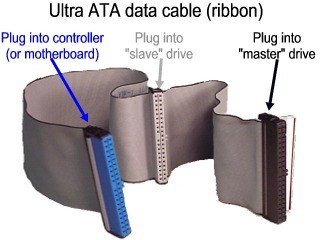
- The blue connector is for your host bus adapter (using a connector on your motherboard).
- The black connector at the other end is for your master device, usually the hard drive you boot from.
- The gray connector is for an optional slave device if you have a second hard drive.
Other devices like CD-ROM drives, tape drives and CD burners are usually plugged into a separate cable which also connects to the motherboard.
Seagate U-Series and Barracuda ATA drive families (ie, most ATA drives above 20 GBytes) follow the jumper configuration noted below:
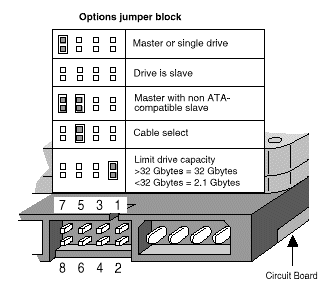
Maxtor (and Quantum) drives follow the jumper configuration noted below:

The drive is configured at the factory for a cable select setting. This allows the drive to assume the proper role of master or slave based on the connector used on the cable (see the UltraATA cable figure above). For the cable select setting to work properly, the cables you are using must support the cable select feature. Current UltraATA cables with the 3 colored connectors do support this feature.
 Every IT professional can tell a horror story about an upgrade, roll-out, or migration gone awry. So many factors are involved; hardware, software, compatibility, timing, data, procedures, security protocols, and of course the well-meaning but imperfect human.