Articles

Data Recovery Glossary (Letter T)

TPI (Tracks per inch)
The number of tracks written within each inch of the disk’s surfaces, used to measure how closely the tracks are packed on a disk surface. Also known as track density.

Tagged Queuing
The ability of the drive to receive multiple I/O processes from each initiator.

Task File
The set of I/O Host Interface Registers used to transfer status, commands, and data between the host and the drive for the EIDE interface.

Thin Client Architecture
A computer system in which data is stored centrally, with only limited storage capacity at the various points of use.

Thin Film
A type of coating deposited on a flat surface through a photolithographic process. Thin film is used on disk platters and read/write heads, as well as on the write element of MR heads.

Thin-Film Inductive Head (TFI)
A head technology that uses a thin-film inductive element to read and write data bits on the magnetic surface of the disk.

Time-to-Capacity
Getting to market first with the next highest capacity hard drive.

Time-to-Market
The time it takes to bring a product from concept to market. Generally first-to-market is the desired time-to-market goal.

Time-to-Quality
The time required to bring a new product to market with the best possible level of quality and reliability.

Time-to-Volume
The time required to begin producing a new product in sufficiently high volume to fill commercial requirements.

Track
A concentric magnetic circle pattern on a disk surface used for storing and reading data.

Track-to-track Seek Time
The time that elapses when the read/write heads move from one track to an adjacent track.

Transfer Rate
The rate at which the hard drive sends and receives data from the controller. Processing, head switches, and seeks are all figured into the transfer rate in order to accurately portray drive performance. The burst mode transfer rate is separate from transfer rate, as it refers only to the transfer of data into RAM.

Translating BIOS
A system BIOS that allows access to EIDE drives larger than 528 MB.

Data Recovery Glossary (Letter T) Read More »

Data Recovery Glossary (Letter S)

SCA-2
SCA-2 (Single Connector Attach) interface incorporates a grounding contact, blindmate connector, direct plug misalignment tolerance, ESD protection, hot swap capability, and backplane connector options for SCSI devices. SCA-2 is commonly called the 80-pin SCSI connector.

SCSI Configure Automatically (SCAM)
Allows users to attach SCSI devices without worrying about configuration options.

SCSI-1
The Small Computer System Interface (ANSI document X3.131-1986).

SCSI-2
The Small Computer System Interface (ANSI document X3.131-1994).

SCSI-3
The ANSI X3T10 Working Documents (under development).

SCSI device
A host computer adapter, a peripheral controller, or an intelligent peripheral that can be attached to a SCSI bus.

SPC
SCSI Primary Commands.

Small Computer System Interface (SCSI)
An interface between a computer and peripheral controllers. Commonly used in enterprise computing and in Apple Macintosh systems. Usually pronounced as “scuzzy.” The equivalent interface system in most personal computers is Enhanced Integrated Drive Electronics, usually called EIDE.

Sector
A 512-byte packet of data in EIDE and SCSI hard drives. This is the smallest amount of data that can be read or written to the drive from the host interface. On Macintosh and Unix drives, sectors are usually grouped into blocks or logical blocks that function as the smallest data unit permitted. Since these blocks are often defined as a single sector, the terms block and sector are sometimes used interchangeably in this context. (Note: The meaning of the term block in connection with the physical configuration of the disk is different from its meaning at the system level. (See also block and cluster.)

Sector Slipping
A technique used to push-down defective sector sites during a format or reassignment operation to maintain sequential order of the data. Spares are located throughout the disk for this purpose.

Seek
The movement of a set of read/write heads to a desired location. The actuator moves the heads to the cylinder containing the track and sector where the data is stored.

Seek Time
A measure (in milliseconds) of how fast the hard drive can move its read/write heads to a desired location.

Self-Monitoring, Analysis, and Reporting Technology (S.M.A.R.T.)
A technology to assist the user in preventing possible system down time due to hard drive failure by attempting to predict imminent hard drive failure before it occurs.

Sequential Access
The reading or writing of data in a sequential order as opposed to random access. Magnetic tape drives store data in sequential blocks.

Serial Storage Architecture (SAA)
The general name given to a set of standards being developed by an ANSI-approved X3 group. The set of standards defines a new serial interface that provides a flexible addressing scheme.

Server
A computer used primarily to store data, providing access to shared resources. Usually contains a network operating system.

Servo Burst
Provides positioning information to the actuator arm, found at equal intervals on each disk surface (embedded servo) or on an entire surface (dedicated servo).

Single-ended SCSI
The standard electrical interface for SCSI. Single-ended means an interface with one signal and one corresponding ground line for each SCSI signal. Used primarily in applications requiring cable lengths under 19 feet (6 meters).

Slave
The second drive in a dual drive combination.

Soft Error
An error that does not repeat when the same location is re-read.

Soft Sectored
A technique that allows the controller to determine the beginning of a sector by reading the format information from the disk.

Spindle
The center, rod-like axle on which the disks are mounted.

Spindle Motor
The motor that rotates the spindle and ultimately the disks.

Spindle Speed
See RPM.

Spindle Synchronization
A feature that causes SCSI hard drives in multiple-drive systems to rotate to the same address location at the same time.

Storage Capacity
The amount of data that can be stored on a hard drive.

Sub-1000 PC
The series of personal computers being designed for sale at prices at or below $1,000 each.

Subsystem
A secondary or component part of a system, as a hard drive is a subsystem of a personal computer.

Surface
The top or the bottom side of a platter coated with a magnetic material required to record data. A platter may use one or both surfaces to store data.

Synchronous Transmission
Transmission in which the sending and receiving devices operate continuously at the same frequency and are held in a desired phase relationship by a correction device.

System Files
The files needed to run an operating system.

System Integrator
An independent professional who specifies and provides the necessary combinations of hardware and software in response to an end user’s needs.

Data Recovery Glossary (Letter S) Read More »

Data Recovery Glossary (Letter R)

RLL (Run Length Limited)
An encoding scheme used during write operations to facilitate data readback.

ROM (Read Only Memory)
Integrated circuit memory chip containing programs and data that the computer or host can read but cannot modify. The computer can read instructions out of ROM, but cannot store data in ROM.

RPM (Revolutions per Minute)
Rotational speed of the media (disk), also known as the spindle speed. Hard drives typically spin at one constant speed. The slower the RPM, the higher the mechanical latencies. Disk RPM is a critical component of hard drive performance because it directly impacts the rotational latency.

Radial Path
The straight-line path from the center of the disk to the outer edge of the disk.

Random Access Memory (RAM)
Memory that allows any storage location to be accessed randomly, as opposed to tape drives, which are sequential access devices.

Read Channel
Performs the data encoding and conversions the drive needs to write computer generated information onto a magnetic medium and then read that information back with a high degree of accuracy.

Read Verify
A data accuracy check performed by having the disk read data to the controller, which in turn checks for errors but does not pass the data on to the system.

Read/Write Head
See Head.

Recoverable Error
A read error that the drive can correct by ECC recovery or by re-reading the data.

Redundant Arrays of Independent Disks (RAID)
Groupings of hard drives in a single system to provide greater performance and data integrity.

Rotational Latency
The amount of delay in obtaining information from a disk due to the rotation of the disk. For a disk rotating at 5200 RPM, the average rotational latency is 5.8 milliseconds. See also Mechanical Latency.
Data Recovery Glossary (Letter R) Read More »

Hard Drive Data Recovery On a Desktop or Laptop Computer

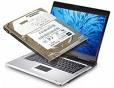
Laptop Data Recovery When a laptop hard drive becomes “unbootable“, and you are unable to repair it, you can often save the data on the hard drive by using a “slave drive” recovery method on a desktop computer. As long as the laptop hard drive has not been mechanically broken and the disk is still “readable“, you should be successful in accessing and preserving the valuable data on the drive.

I know the frustration when you delete something you shouldn’t have, or your hard drive is corrupted. I will show you how to do a data recovery and hard drive recovery from a desktop computer or on a laptop computer. There is some software you can use to undelete software, or even recover corrupted sectors, this is not always going to work, but worth a try when you need your data back. The ultimate recovery, unfortunately, would be to send your disk to a professional data recovery or hard drive recovery place.

  1. If you have deleted something by accident, you can try to recover that file from the recycle bin in Windows. If you have emptied the recycle bin, you may be thinking it is lost forever, but you can try to do data recovery using software that is free. Data recovery is not always going to work, if the hard drive has written over that sector with data from another program, it might be unattainable using home based software.
  2. You can try however to do data recovery using this simple program “Undelete-All“, I have posted it in resources.
  3. If your hard drive crashed and the sectors were corrupted, again a professional hard drive recovery place would be the best, but if you don’t have thousands to spend, you can try a few things that are free.
  4. First you will want to restart and make sure the hard drive is being detected by BIOS, when it restarts press f2, or esc, or del to enter BIOS, every computer is different on how to get in, usually it will say at the bottom of the screen.
  5. Once in BIOS you will see a summary screen, if your hard drive is detected, great! Proceed on to the next steps, if, however, your hard is not showing, I am afraid to say but more then likely it has died, and it would definitely take a professional place to recover, what they do is take the hard drive platter out, and mount it onto a professional machine to recover the data, again this can costs thousands (I’ve checked into it before). There could though be other reasons a hard drive is not showing, such as, loose cables, BIOS not updated, etc. But if it was working, and nothing has changed, and you haven’t rattled the computer around like laptop computers, this you would want to check for loose wires, otherwise it is probably dead.
  6. What you can do to try to get data recovery if it is still detected, and this works for desktop computers or laptop computers, would be to set up the old corrupted drive as a slave disk to the new disk.
  7. What you would need to do is buy a new disk, install the new OS, be it Windows Vista, XP, etc, and then attach the old drive to the 2nd cable in the computer. There will be jumpers if your drives are IDE, every drive is different, and you will have to look that up, it might be on the drive itself. You will want the new drive as master, the old drive as slave. If your drives are SATA, no matter, it will do this automatically.
  8. If you have a laptop computer, this will be a different procedure, you would need either an external enclosure for your old drive to attach it to your laptop via USB, or a desktop computer that you can hook it to.
  9. Since laptop computers can have either IDE or SATA, this might pose a difficulty if your desktop only takes SATA and your laptop is IDE, you would need an enclosure for this to hook it up via USB. If your laptop computer is SATA, you can hook this up to any desktop that has SATA, same with IDE.
  10.   Once the drive is hooked up, and shows in Windows, you can begin the process of getting your files back. The main files on your desktop will be located in a USER file in Windows Vista c:\(user name)\desktop, in XP c:\documents and settings\(user)\desktop.
  11. . I hope this article sheds some light on data recovery, hard drive recovery, and deleted files in laptop computers, and desktop computers. I hope if this has happened to you, that you will be able to get your data back! I always, always suggest that you backup your data using an external hard drive connected via USB, better to be safe then sorry! 🙂

Hard Drive Data Recovery On a Desktop or Laptop Computer Read More »

Data Recovery Glossary (Letter P)

PC
Personal computer.

PRML (Partial Response Maximum Likelihood)
A read channel using sampled data, active equalization and Veterbi detection to accurately retrieve the user data off the disk.

Partition
A way to logically divide a hard drive so that an operating system treats each partition as a separate hard drive. Each partition has a unique drive letter.

Passive Termination
A termination architecture that is used to match the impedance at the end of the SCSI bus by using a voltage divider network of passive resistors.

Peripheral
A device that performs a function and is external to the system board. Peripherals include displays, disk drives, and printers.

Platform
A basic design from which a series of products is engineered and produced.

Platter
An actual metal (or other rigid material) disk that is mounted inside a fixed-disk drive. Many drives consist of multiple platters mounted on the spindle to provide more data storage surfaces. Each platter may use one or both surfaces to store data.

Port
A connection or socket on the motherboard or controller card. A motherboard may have one or two ports (primary and secondary). If your motherboard has only one port, you may need to add a controller card to create a secondary port.

Pre-fetch
Instructions that are loaded into a queue when the processor’s external bus is otherwise idle.

Primary Partition
The partition where the operating system files are stored. To start your operating system from a hard disk, it must have a primary partition. You must also make the primary partition active.

Product Road Map
A company’s plan for the introduction of new products.

Protocol
A convention of data transmission that defines timing, control format, and data representation.

Programmed I/O
In a disk drive with an AT interface, data transfers between the drive and host using programmed I/O (PIO). The host uses PIO to write to the Command Block Registers (CBRs) when transmitting control information, such as the location of a read command.

Proximity Recording
A recording technology that increases recording density by allowing the read/write head to come in close proximity to the disk surface.

Data Recovery Glossary (Letter P) Read More »

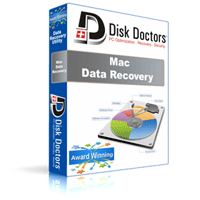
Mac Recovery: Disk Doctors Mac Data Recovery Software

Mac Recovery: Disk Doctors Mac Data Recovery Software Disk Doctors Mac Data Recovery software recovers lost and deleted data from HFS+, HFSX file systems on Mac OS X 10.4 and above, which includes LEOPARD.

Recover Lost Data When:

  • A volume has been formatted or reformatted
  • Volume is inaccessible after re-partitioning or any sort of corruption causing inaccessibility to the volume
  • Volume is not getting mounted
  • Files and folders are accidentally deleted, Apple partition map is corrupted
  • Apple catalog file is corrupted
  • Drive has been initialized
  • Disk verify and repair fails
  • Any sort of corruption causing inability to boot your operating system

Disk Doctors Mac Data Recovery Software Features:

  • Simple and intuitive user interface
  • Supports recovery of deleted files from “Journalized Volume” only
  • Powerful volume search that helps to locate lost or missing volumes from drives
  • Two methods of disk volume processing to yield best data recovery results
  • Extremely fast, disk recovery and scanning algorithms
  • Presents recovered hierarchical data tree and find option similar to Mac OSX “Finder”
  • Selective find and save option
  • Save Scan Information feature helps to avoid rescanning a drive, this features comes in handy
  • when evaluating demo version. The save scan information can be used with full version to recover data without rescanning the drive
  • Preview features helps in evaluating the files before recovery of files
  • Preserves the date, name and other attributes of recovered files after recovery
  • Universal application compatible with both Intel and PowerPC
  • Supports raw recovery of files using signature search in case of severe corruption to the volume

System Requirements:

  1. Mac OS X 10.4 and above (including Leopard)
  2. Intel or Power PC based Apple Macintosh
  3. 256MB RAM
  4. Enough storage to save your recovered data, and application after installation
  5. Live connection to internet

Useful Links:

  • More Details:
  • Disk Doctors Mac Data Recovery Software Demo Download
  • Disk Doctors Mac Data Recovery Software FAQS
  • Disk Doctors Mac Data Recovery Software Screenshots

Mac Recovery: Disk Doctors Mac Data Recovery Software Read More »

Data Recovery Glossary (Letter M)

MB (Megabyte)
One megabyte as 1,000,000 (one million) bytes.

MFM (Multiple Frequency Modulation)
A method of encoding analog signals into magnetic pulses or bits.

MR Heads (Magneto-resistive Heads)
MR heads were developed to increase area density and improve drive performance. MR heads use separate read and write elements, as opposed to traditional inductive thin-film read-write heads. MR heads use an inductive element for writing data, and a separate magneto-resistive element for reading information. The read element has a magnetically sensitive material that detects data recorded on the magnetic disk surface. MR head construction results in a stronger signal than that produced by inductive thin-film read-write heads, which permits it to read higher area density data. Since the magneto-resistive element can only read data, a conventional thin-film inductive element writes data to the disk.

MTBF (Mean Time Between Failure)
A measure of reliability. The MTBF is the number of failures divided by the number of hours the component has operated. The longer the time span between failures, the more reliable the device.

MTTR (Mean Time to Repair)
The average time it takes to repair a drive in the field. In the field, only major subassemblies are changed (the PCB, sealed housing, etc.), excluding component level repairs as these are not performed in the field.

Magnetic Flux
The pattern of magnetic pole directions of the bits written on the disk.

Manufacturing Yield
The portion of unit production of a manufacturing process that is usable, saleable product; usually expressed as a percent of total output of that product.

Master
The first drive in a dual drive combination. A master drive by itself (with no slave) is called a single drive.

Media
In hard drives, the disks and their magnetic coatings; sometimes refers to the coating material alone.

Mechanical Latencies
Include both seek time and rotational latency. Mechanical latencies are the main hindrance to higher performance in hard drives. The time delays of mechanical latencies are one hundred times higher than electronic (non-mechanical) latencies associated with the transferring of data. See also Seek Time, Rotational Latency.

Memory
A device or storage system capable of storing and retrieving data.

Millisecond (ms)
1/1,000 (one-thousandth) of a second. Hard disks are rated in milliseconds. Higher numbers mean slower performance.

Multi-media
A simultaneous presentation of data in more than one form, such as by means of both visual and audio.

Multi-user
In information technology, a system that enables more than one user to access data at the same time.

Data Recovery Glossary (Letter M) Read More »

Incident Response and Computer Forensics (Second Edition)

Incident Response and Computer Forensics (Second Edition) Incident Response and Computer Forensics, Second Edition by Chris Prosise, Kevin Mandia, Matt Pepe.

  • Paperback: 507 pages
  • Publisher: McGraw-Hill/Osborne; 2 edition (July 17, 2003)
  • Language: English
  • ISBN-10: 007222696X
  • ISBN-13: 978-0072226966
  • Product Dimensions: 9.1 x 7.3 x 1.2 inches
  • Shipping Weight: 2 pounds
  • Popular: 4.5 out of 5 stars

Description:

A strong system of defenses will save your systems from falling victim to published and otherwise uninventive attacks, but even the most heavily defended system can be cracked under the right conditions. Incident Response aims to teach you how to determine when an attack has occurred or is underway–they’re often hard to spot–and show you what to do about it. Authors Kevin Mandia and Chris Prosise favor a tools- and procedures-centric approach to the subject, thereby distinguishing this book from others that catalog particular attacks and methods for dealing with each one. The approach is more generic, and therefore better suited to dealing with newly emerging attack techniques.

Anti-attack procedures are presented with the goal of identifying, apprehending, and successfully prosecuting attackers. The advice on carefully preserving volatile information, such as the list of processes active at the time of an attack, is easy to follow. The book is quick to endorse tools, the functionalities of which are described so as to inspire creative applications. Information on bad-guy behavior is top quality as well, giving readers knowledge of how to interpret logs and other observed phenomena. Mandia and Prosise don’t–and can’t–offer a foolproof guide to catching crackers in the act, but they do offer a great “best practices” guide to active surveillance. –David Wall

Topics covered: Monitoring computer systems for evidence of malicious activity, and reacting to such activity when it’s detected. With coverage of Windows and Unix systems as well as non-platform-specific resources like Web services and routers, the book covers the fundamentals of incident response, processes for gathering evidence of an attack, and tools for making forensic work easier. –This text refers to an alternate Paperback edition.

Price:

List Price: $52.99 Price: $33.38 You Save: $19.61

Incident Response and Computer Forensics (Second Edition) Read More »

Data Recovery Glossary (Letter L)

Landing Zone
The heads move to this location on the inner portion of the disk when commanded, or when the power has been turned off. User data is not stored in this area of the disk.

Laser Textured Media
Laser textured disks minimize the wear and friction on a hard drive. The precision and consistency of the laser zone texturing process is a major contributor to the robustness of newer model hard drives.

Latency
The period of time that the read/write heads wait for the disk to rotate to the correct position to access the desired data. For a disk rotating at 5200 RPM, the average latency is 5.8 milliseconds; or, the average time delay between the head arriving on track and the data rotating to the head. (Calculated as one-half the revolution period.)

Local Area Network (LAN)
A system in which computer users in the same company or organization are linked to each other and often to centrally-stored collections of data in LAN servers.

Logical Address
A storage location address that may not describe the physical location; instead, it used as a means to request information from a controller. The controller converts the request from a logical to a physical address that is able to retrieve the data from an actual physical location on the storage device.

LBA (Logical Block Addressing)
A method of addressing the sectors on a drive. Addresses the sectors on the drive as a single group of logical block numbers instead of cylinder, head and sector addresses. It allows for accessing larger drives than is normally possible with CHS addressing.

Logical Drive
A logical drive is a section of the hard disk that appears to be a separate drive in a directory structure. You create logical drives on the extended partition of a hard disk. While 26 letters exist for logical drives, the first three are reserved. A and B are reserved for floppy disk drives, and C is reserved for the first primary DOS partition. Therefore, you can create up to 23 logical drives on your extended partition. Logical drives are usually used to group directories and files.

Logistics Model
The systems by which a company organizes the physical distribution of its products. A hard drive manufacturer’s model might include portions to OEM customers, to distributors, to retail chains or to all of these.

Low-level formatting
The process of creating sectors on the disk surface; this permits the operating system to use the regions needed to create the file structure. Also called initialization. Low-level formatting is often performed at manufacturing facilities or in highend technciacl data facilities. There is no need (in most scenarios) for a typical consumer to low-level format a hard drive.

Low profile (LP)
Standard 3.5-inch hard drives are available in heights of 1.0-inch and 1.6-inches. Low-profile hard drives measure 1.0-inches in height.

Data Recovery Glossary (Letter L) Read More »

How to Upgrade Hard Drive Firmware?

Upgrade Hard Drive Firmware Firmware is a type of software stored directly inside hardware components, such as hard disk drives or motherboards, that tells the hardware how to interact with your computer’s operating system. You would typically only need to upgrade your hard drive’s firmware if you installed a new motherboard or upgraded to a new operating system that the drive was not originally intended to interact with. Firmware upgrades are meant to be administered through a floppy disk, but with some extra work you can also apply them with a standard CD as well.

Note: Save a backup copy of each of your important files to an external source before attempting to update the firmware of your hard drive. If you stop the upgrade process before its finished or accidentally install the wrong version of the firmware, your hard drive may stop functioning properly and you could lose all of your data.

  1. Open your web browser and navigate to the website for the manufacturer of your hard drive (see “Resources” below). Access the support or downloads section and search for the model number of your computer or the hard drive itself.
  2. Click on the download link to download the firmware upgrade. Insert a 3.5 inch floppy disk into your computer’s floppy disk drive if it has one or instead insert a rewritable CD into the computer’s CD drive. Transfer the firmware upgrade file to the floppy disk.
  3. Return to your web browser if you are using a rewritable CD instead of a floppy disk. Navigate to a website that offers ISO software such as “MagicISO” or “PowerISO” (see “Resources” below). Access the downloads section of the website and download the program’s installation file.
  4. Double-click on the file you downloaded and follow the instructions on the screen to install the ISO program. Open the program once it’s installed and follow its ISO burning procedures to burn a copy of the firmware upgrade to the rewritable CD.
  5. Leave the CD or floppy disk in the appropriate disk drive and re-start the computer. Wait for a new menu screen to appear and scroll down through the options using the arrow keys on the keyboard. Highlight the hard disk drive you need to update and hit the “Enter” key.
  6. Wait for the operating system to finish loading and then open the “My Computer” icon on the desktop. Navigate to the floppy disk drive or CD-RW drive. Double-click the executable file saved on the disk and then follow the instructions that will appear on the screen to upgrade the hard disk drive’s firmware.

Useful Links:

  • IBM Hard Drive Firmware Downloads
  • HP Hard Drive Firmware Downloads
  • Download MagicISO
  • Western Digital Firmware Downloads
  • Download PowerISO

How to Upgrade Hard Drive Firmware? Read More »

Scroll to Top