Articles

Does USB 2.0 and USB 1.1 hardware work interchangeably?

USB Devices You may have heard that USB 2.0 is “backward-compatible” with USB 1.0/1.1 (Full-Speed USB). While that’s true, USB 1.1 is also forward-compatible with USB 2.0.

Whenever a system has USB 2.0 ports, you’ll find the “Enhanced” USB controller in Device Manager, but you will also find two other USB controllers. These two to mantain backward compatibility to USB 1.1 devices. Each USB 2.0 host actually has 3 chips onboard. The USB controller routes signals to the correct controller chip depending on how a device is recognized. Where a device is physically plugged in has no bearing on how it is routed. All ports on a USB 2.0 motherboard can host any USB devices at all as long as the system and devices are healthy.

The vast majority of USB 2.0 devices will work on older PCs and Macs. None should flat-out fail unless there are other issues with the system. Hi-Speed USB devices will revert to Full-Speed operation when connected this way. Understand that Hi-Speed is at least ten times faster than Full-Speed in actual operation, so the speed difference is quite noticeable.

Does USB 2.0 and USB 1.1 hardware work interchangeably? Read More »

What is the procedure for disconnecting an external hard drive?

External Hard Drive It is important to follow the appropriate steps when disconnecting the hard drive. If the proper procedure is not followed then data may be lost.

In Windows a small icon appears in the system tray (next to the clock) . this is the dismount icon that allows you to safely disconnect hot pluggable devices.

To dismount the drive before removing it follow these steps:

  1. Right click the icon. This give you the options to safely remove each hot plug device attached to the system.
  2. Choose to remove the external drive. Once you click the choice another window will open allowing you to select which device to remove.
  3. Click the Stop button then you will be prompted for confirmation.
  4. Windows OS displays a message when it is safe to turn off the drive.
  5. Once the drive is turned off, disconnect the interface cable.

If the device is busy then the request to stop the device will be rejected. Be sure to close any applications that are using data from the external drive then attempt to stop the device again. Usually the Windows Explorer will be open and will be the application keeping the drive busy.

In Mac OS the drive appears as an icon on the desktop. Before unplugging the drive the drive needs to be dismounted by dragging the drive to the Trash Can. Wait a few seconds after the drive has gone into the Trash Can, once the activity light has gone out you can safely remove the drive. Once the drive is turned off, disconnect the interface cable.

Note: MacOS users should always dismount the drive before shutting down (or powering off) their computer. If the drive is not properly dismounted there is a chance of data loss.

What is the procedure for disconnecting an external hard drive? Read More »

Top 10 External Hard Drives

External Hard Drives An external hard disk drive is a type of hard disk drive which is externally connected to a computer. Modern entries into the market consist of standard SATA, IDE, or SCSI hard drives in portable disk enclosures with SCSI, USB, IEEE 1394 Firewire, eSATA client interfaces to connect to the host computer.

External hard drives are certainly known for their memory storage capacity. They allow one to store data up to four thousand gigabytes, along with easy portability. There are many external hard drives available in the market which have unique features and functions. When external hard drives were newly launched, they were very expensive. However, due to their wide demand and use, the prices have lowered significantly. Let’s take a look at some of the best external hard drives available.

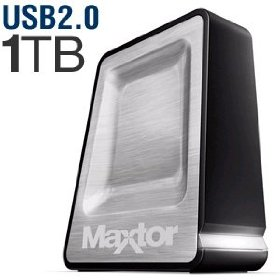
1. Maxtor OneTouch 4 Plus 1 TB 3.5″ USB 2.0

  • 1 TB external hard drive connects to your computer via USB cable or FireWire 400
  • Simple Maxtor user interface for drive management, security, and backup scheduling
  • Two levels of security against unauthorized use – Maxtor DrivePass¿ and data encryption
  • Sync data between 2 or more computers on the same operating system
  • Drive and power management utilities; 5-year limited warranty Price: $119.99

2. Western Digital My Passport Elite Portable 500 GB USB 2.0 Hard Disk Drive (Titanium)

  • Luxurious Soft-touch Finish
  • Capacity gauge
  • Backup and Sync Software
  • Powered directly from the USB port on your PC. No separate power supply is needed
  • Remote access – Connect My Passport to any PC and run MioNet® Key software to remotely access files, music, and photos from any of your computers with MioNet software installed. Free for the life of the drive (Windows only) Price: $134.95

3. Seagate FreeAgent Go 500 GB USB 2.0 Portable External Hard Drive

  • 5,400 RPM Spin Speed, 8 MB Cache Buffer
  • USB 2.0: up to 480 Mb/s
  • Sync and back up quickly at your desktop without having to search for cables.
  • Guard the privacy of important files and folders.
  • Get your storage solution up and running quickly. Price: $114.97

4. LaCie Hard Disk 1 TB USB 2.0 External Hard Drive

  • 1 TB USB external hard drive with a stunning design by Neil Poulton
  • Fast USB 2.0 interface offers connectivity and transfer rates of up to 480 Mbps
  • Plug and Play functionality for both Macs and Windows
  • Includes one-year online backup service providing unlimited off-site backup storage
  • Measures 4.6 x 1.8 x 7.6 inches (WxHxD); 2-year limited warranty Price: $119.99

5. Maxtor 320GB Black Armor 2.5-Inch External Hard Drive

  • Box Content – BlackArmor external hard drive with pre-loaded security and backup software, Quick Start guide, USB 2.0 cable, and Protective slip case
  • Protected by Seagate Secure hardware based encryption technology delivering Government certification as the strongest data security available for an external storage device
  • Removal of the USB cable from your computer auto locks the drive
  • No tedious manual security procedures found in software-based encryption technology
  • Hint feature offers a reminder in the event of a forgotten password Price: $89.99

6. Toshiba 320 GB USB 2.0 Portable External Hard Drive

  • USB Powered for Portability/ 320GB Capacity/ Up to 480Mb/s Speed
  • Small Size Saves Desktop Space/ Compact/ Lightweight/ Just 6 oz./ Black and Grey
  • Internal Shock Sensor and Ramp Loading Technology
  • Simple Solution for Backup or Increasing Computer Storage
  • Perfect for Music/ Movies/ Photos/ Games/ Large Business Files/ Etc. Price: $82.51

7. Seagate FreeAgent Desk 1 TB USB 2.0 External Hard Drive

  • USB 2.0: up to 480 Mb/s
  • Rotational Speed: 7200 RPM
  • Simple software, energy efficient, and encryption
  • Dynamic display, ultra stylish, brushed metal, and flexible Price: $119.99

8. Western Digital 1TB My Passport Studio II

  • Box Contents – Dual-drive storage system, FireWire 800 cable, FireWire 800 to 400 cable, USB cable, AC adapter, Software CD, Quick Install Guide, 5-Year Limited
  • Lightning-fast FireWire 800 combined with RAID 0 (Striped) yields the speed you need for smooth video editing, rendering complex 3D objects or special effects and saving huge blocks of data in record time
  • Designed to use only WD’s GreenPower drives, this system uses about 30% less energy than standard systems and runs quietly because it doesn’t need a fan
  • 1TB = 1000GB Hard Drive Capacity
  • Pre-configured to RAID 0 (Striped) Price: $223.96

9. LaCie Rugged All-Terrain Hard Disk 320 GB

  • 320 GB external hard disk with rugged, shock resistant case
  • Triple interface including FireWire 800, FireWire 400, and USB 2.0 for speed and universal connectivity
  • Bus-powered so no bulky power adapter required
  • Includes one-year online backup service providing unlimited off-site backup storage
  • Measures 3.5 x 1.0 x 5.7 inches (WxHxD); backed by a 3-year warranty Price: $119

10. Iomega Prestige 500 GB USB 2.0 Desktop External Hard Drive

  • Easy-to-use: simple USB 2.0 interface; just plug and play
  • Stylish and durable: stylish drive – available in a dark silver brushed finish; sturdy aluminum construction with included stand
  • Secure: EMC retrospect HD (PC) license is included for easy file backup (software available via easy download)
  • Energy efficient: powered by an Energy Star qualified adapter for a better environment Price: $79.95

External hard drives aren’t as fast as internal models, but they are great for backups and are easy to install.
Top 10 External Hard Drives Read More »

What are the hardware and software requirements for USB 2.0 PCI Card?

USB 2.0 PCI Card System Requirements For PC Users:

  • Available PCI expansion slot
  • Pentium Class II processor or higher
  • Minimum 32 MB RAM
  • Windows ® 98 Second Edition/Millennium/2000/XP
  • CD-ROM drive

Included in the Kit:

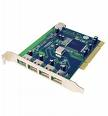
  • USB 2.0 PCI Adapter Card
  • Installation guide
  • Installation software
  • 1-Year warranty

Features:

  • Perfect for today’s new-generation USB devices, such as printers, scanners, cameras, MP3 players and storage devices
  • Add four external and one internal USB 2.0 port
  • Data speeds up to 40 times faster than USB 1.1
  • Supports both USB 2.0 and 1.1
  • Easy installation
  • PC compatible

What are the hardware and software requirements for USB 2.0 PCI Card? Read More »

How to disable S.M.A.R.T.?

S.M.A.R.T. monitoring can only be disabled from the system BIOS. S.M.A.R.T. remains enabled on the drive. If S.M.A.R.T. is disabled from the system BIOS it will not poll the hard drive for S.M.A.R.T. attributes during system startup.

If you cannot find the S.M.A.R.T. option in the system BIOS please consult your system manufacturer or manual.

How to disable S.M.A.R.T.? Read More »

What is the difference between a Microsoft Basic Disk and a Dynamic Disk?

There are two different types of disk storage available to the Windows Vista, XP and 2000 environment:

  • Basic Disk Storage
  • Dynamic Disk Storage

The number of partitions (on basic disks) and volumes (on dynamic disks) that each can contain are the primary differences.  Single drive systems with one drive letter C: are typical basic disks.  A server that needs to be divided up into several parts may benefit from a dynamic disk configuration.  Some versions of Windows will convert a basic disk into a dynamic type.

Basic Disk Storage
Basic storage uses partition tables that are supported by MS-DOS, Microsoft Windows 95, Microsoft Windows 98, Microsoft Windows Millennium Edition (Me), Microsoft Windows NT, Microsoft Windows 2000, and Windows XP. A disk initialized for basic storage is called a basic disk. A basic disk contains basic volumes, such as primary partitions, extended partitions, and logical drives.

Dynamic Disk Storage
Dynamic storage is supported by both Windows 2000 and Windows XP Professional. A disk that is initialized for dynamic storage is called a dynamic disk. A dynamic disk contains dynamic volumes, such as simple volumes, spanned volumes, striped volumes, mirrored volumes, and RAID-5 volumes.

What is the difference between a Microsoft Basic Disk and a Dynamic Disk? Read More »

Can I use DiscWizard to setup my Seagate external hard drive?

DiscWizard DiscWizard can be used not only to format ATA and SATA drives, but external Seagate drives connected to the computer through USB, Firewire, or eSATA as well.  Though the setup procedure is almost the same as that used with internal drives, you want to be aware of a few of things:

  1. Unlike previous versions of DiscWizard, in addition to being able to use DiscWizard for Windows to set up an external hard drive, you can now also use the bootable version of DiscWizard for the same purpose.
  2. The external drive(s) can be identified by its interface type, which is listed in the “Interface” column of the Add New Disc Wizard.
  3. DiscWizard can only be used in Windows 2000, XP, and Vista.  For Windows 98 and Me, you will need to use FDISK and FORMAT instead.
  4. Because their connections have slower sustained transfer rates than internal ATA and SATA connections, partitioning and formatting USB and Firewire hard drives may take longer than usual.
  5. All other step are the same that you would see when preparing an internal hard drive.

Can I use DiscWizard to setup my Seagate external hard drive? Read More »

How to Use SeaTools for DOS to Set the Drive Size

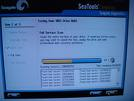
Seatools For DOS Sometimes it’s necessary to use the SeaTools for DOS software to get the drive back to its native capacity.  For example, if the drive is showing up as a smaller capacity in the BIOS (i.e. 137GB or 32GB) and it’s a computer that should support a drive that large, then this would be a time to set the drive size.

Once booted from the SeaTools for DOS disk the computer should be at screen with a license agreement.

  1. Click “I agree” to the license agreement.
  2. Now choose which drive to set the size of.  Look at the bottom portion of the window to see what drives are listed and what device number they are.  You can see what device is selected by looking in the middle of the screen.  The model number of the drive currently selected is displayed here.  If this is not the current drive click the “D – Drive” button in the upper left until you see the drive you want to test displayed in the middle of the screen.
  3. Click “C – Set Capacity” at the top of the screen.
  4. Click the “R – Reset to Maximum” button.

If you get an OK message in white in the middle of the screen then the process was successful.  Power off the computer for a few seconds and check in the BIOS to check the capacity of the drive again.

If there was a message in red, then this was an error.  Make sure the drive is connected directly to the motherboard and not to a third-party controller card.  If the drive is on a controller card then it’s possible that the set drive size command may not work.  Once it’s connected directly try to go through this procedure again.

Another option is to try a quick zero-fill from the main menu and then to try a C – Set Capacity again.

How to Use SeaTools for DOS to Set the Drive Size Read More »

What is the CMOS memory?

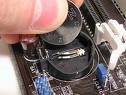
CMOS Memory CMOS is an abbreviation for Complementary Metal Oxide Semiconductor. CMOS uses a complimentary arrangement of both NMOS and PMOS, negative and positive Metal Oxide transistor circuits. CMOS memory draws very little current (nano-Amps). Values stored in it can be maintained for very a long period of time while the computer is off with a rechargeable lithium battery. The CMOS memory is used to store system configuration information, such as disk drive parameters, memory configuration, and the date-time, some of which you enter in the CMOS Setup program, . It is used by the Basic Input Output System (BIOS), a program permanently stored in the flash memory on recent motherboards and in read-only memory (ROM) on older motherboards, to configure the computer. The CMOS Setup is part of the BIOS program. The CMOS memory is usually located with the real-time clock in the motherboard chipset or in a separate real-time clock chip. It is located in the chipset on most recent motherboards. For example, the CMOS memory is located in the VT82C596B Southbridge chip in the VIA MVP3C chipset on the Epox MVP3G2 Super7 Motherboard and in the AMD-756 Southbridge in the AMD-750 chipset on the MSI MS-6167 Athlon motherboard.

What is the CMOS memory? Read More »

SCSI Levels

SCSI Levels SCSI – Small Computer System Interface

An intelligent peripheral interface characterized by its use of high level communication between devices. Communications are defined as being between an “Initiator” and a “Target”. The Initiator is normally a computer, and the Target is normally a peripheral. Data may be transferred in asynchronous (not clocked) or synchronous (clocked) mode. All messages and commands are always transferred in asynchronous mode.

This term is often used to describe the published ANSI standard now called SCSI-1 (X3.131-1986).

SCSI-2

This is a term describing the published ANSI standard (X3.131-1994). SCSI-2 was an upgrade from the original SCSI interface. Changes included faster data rates and mandated message and command structure to improve compatibility. Synchronous data transfer rate for SCSI-2 is 2.5 to 10 Mbytes/sec for an 8-bit data bus (N/ND models), and 5.0 to 20 Mbytes/sec for a 16-bit data bus (W/WC/WD/DC models).

SCSI-3

This term describes a set of related ANSI standards that are currently being developed for the SCSI bus. The SCSI-2 document is very large (400+ pages) and covers the full range of topics. SCSI-3 split this large document into a series of smaller documents, each covering a “layer” of the interface definition.

The basic layers are:

physical (connectors, pin assignments, electrical specifications)

protocol (physical layer activity is organized into bus phases, packets, etc.)

architecture (a description of how command requests are organized, queued, and responded to by any protocol)

primary commands (description of commands that must be supported by all SCSI devices)

device specific commands (commands that are specific to a particular class of devices; CD-ROMs or -WORM drives, for example)

The set of standards needed to do a SCSI-3 parallel interface disc drive implementation are:

SPI (SCSI Parallel Interface) for the physical layer
SIP (SCSI Interlocked Protocol) for the protocol layer
SAM (SCSI Architecture Model) for the architecture
SPC (SCSI Primary Commands) for the primary command set
SBC (SCSI Block Commands) for the disc drive specific command set
The SCSI-3 standards are layered in this manner to allow substitution of parts of the structure as new technology emerges. For example, a comparable set of standards for a SCSI Fiber Channel interface disc drive replaces the physical and protocol layers with new documents but uses the same documents for the other 3 layers. The main point to remember here is that the terms SCSI-2 or SCSI-3 do not imply any particular performance per se, rather they refer to the generation of documents to which a product conforms. Since the newest features are only in SCSI-3 and tend to be higher performing, SCSI-3 devices should demonstrate better performance than SCSI-2 in most cases.

SCSI FAST

This refers to timings defined in SCSI-2 for a 10 MegaTransfer/sec transfer rate. A “MegaTransfer” (MT) is a unit of measure referring to the rate of signals on the interface regardless of the width of the bus. For example, a 10 MT/sec rate on a 1 byte wide (narrow) bus results in a 10 Mbytes/sec transfer rate, but on a 2 byte (wide) bus, it results in a 20 Mbytes/sec transfer rate.

SCSI FAST-20

This refers to timings defined in SCSI-3 SPI for a 20 MT/sec transfer rate, which achieves data rates twice as fast as SCSI FAST rates. For example, a 20 MT/sec rate on a 1 byte wide (narrow) bus results in a 20 Mbytes/sec transfer rate, but on a 2 byte (wide) bus, it results in a 40 Mbytes/sec transfer rate.

SCSI FAST-40

This refers to timings being defined for a future revision of the SCSI-3 SPI that achieve 40 MT/sec, which is twice as fast as SCSI FAST-20 rates. For example, a 40 MT/sec rate on a 1 byte wide (narrow) bus results in a 40 Mbytes/sec transfer rate, but on a 2 byte (wide) bus, it results in an 80 Mbytes/sec transfer rate. For more information, see Ultra2 SCSI.

SCSI FAST-80

This refers to timings being defined for a future revision of the SCSI-3 SPI that achieve 80 MT/sec, which is twice as fast as SCSI FAST-40 rates. For example, an 80 MT/sec rate on a 1 byte wide (narrow) bus results in an 80 Mbytes/sec transfer rate, but on a 2 byte (wide) bus, it results in a 160 Mbytes/sec transfer rate.

Ultra SCSI

This is a term describing the latest published ANSI standard (X3T10/1071D rev. 6), commonly known as Fast-20. Ultra SCSI, like all synchronous transfers, is a negotiated clock rate. For more information, see The UltraSCSI Buzz.

Ultra2 SCSI

This is a term describing the latest published ANSI standard (X3T10/1071D rev. 6), commonly known as Fast-40. Ultra2 SCSI, like all synchronous transfers, is a negotiated clock rate.

SCSI Narrow

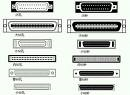
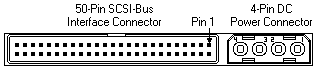
This term refers to the 1 byte wide data bus on a 50-pin parallel interface that is defined in the ANSI standard SCSI-1 (X3.131-1986).  The narrow bus consists of 8 data lines with parity, a series of control lines and the matching ground lines.  Seagate designates a narrow SCSI interface with an “n” in the model number.

image

SCSI WIDE

This term usually refers to the 2 byte wide data bus on a 68 pin parallel interface that is defined in the SCSI-3 SPI document. The term can be generically applied to any implementation wider than 1 byte, but at the time of this writing, there are no implementations wider than 2 bytes. Future implementations may include more data bytes because FAST transfer rates are giving plenty of life to 2 byte transfers until serial interfaces (like Fibre Channel or FireWire) become more popular. Seagate designates a wide SCSI interface with a “w” in the model number.

image

SCSI FAST-WIDE

This refers to a combination of a FAST transfer rate with a 2 byte wide connector, resulting in an increased data transfer rate. Wide FAST-20 (40 Mbytes/sec) products will be available in the year of this writing. Wide FAST-40 (80 Mbytes/sec) and FAST-80 (160 Mbytes/sec) products will be available in the near future.

Differential or High Voltage Differential (HVD)

Differential (D, ND, WD, WDC) is a logic signal system used in some SCSI drives. It uses a paired plus and minus signal level to reduce the effects of noise on the SCSI bus. Any noise injected into the signal would be present in both a plus and minus state, thereby being canceled. Seagate designates a differential (high voltage) SCSI interface with a “d” in the model number.

Due to changing definitions, Differential is now often referred to as High Voltage Differential (HVD).

Low Voltage Differential (LVD)

Low Voltage Differential is a differential logic scheme using lower voltage levels than HVD. For more information, see Ultra2 SCSI. Seagate designates low voltage differential SCSI interface with an “l” in the model number.

Fibre Channel Arbitrated Loop (FCAL)

This is the formal name for the Fibre Channel system used by SCSI. It is more commonly known as Fibre Channel SCSI. The loop part of the name refers to the way the system is connected as one large ring. Because of the loop characteristics, this interface has more in common with local area networks than with parallel SCSI.

Fibre Channel SCSI

This refers to products with fibre channel physical and protocol layers using the SCSI command set. The Fibre Channel interface is completely different from parallel SCSI in that it is a serial interface, meaning command and data information is transmitted on one signal stream organized into packets. The fibre may be either a copper coaxial cable or a fiber optic cable. The signal on the first implementation of fibre channel uses a 1 GHz rate, thereby achieving 100 Mbytes/sec over the cable. Fibre channel also implements increased software control of configuration and pushes the total device count on the bus to 126 IDs, as opposed to only 8 or 16 on a parallel bus. For more information, see our Technology Paper on Fibre Channel. Seagate designates a fiber channel SCSI interface with an “fc” in the model number.

ASA-2 SCSI

This is a Seagate specific term describing the basic structure of the SCSI firmware included with a Seagate disc drive and standing for Advanced SCSI Architecture, generation 2. It provides better performance than ASA-1 code in certain user environments (such as sequential 1 block data transfers). The labels ASA-1 and ASA-2 can apply to code shipped on a wide range of products, meaning different products have firmware originating from the same base firmware, but such firmware is individually adapted to the particular servo and read/write channel hardware on that product. The performance of a disc drive is still primarily determined by the seek times and data transfer rates, but the code base label provides a level of commonality and lack of bugs assurance in SCSI features for all drives with that label.

The most attractive feature of a common code architecture is that most enhancements made on one drive (such as a Barracuda 4) can be quickly migrated to other drives (such as the Barracuda 2 or Hawk 4) developed from the same code base. All new products since January 1995 use the ASA-2 code base, and many older products developed with ASA-1 code have been updated to the new structure.

SCA-2

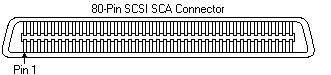
This is a miniature D style, 80 pin connector used on SCSI drives to plug to backplane connections. The SCA-2 connector provides grounds, voltage, and control lines needed to allow hot-plugging of parallel interface SCSI drives. Seagate designates an SCA-2 SCSI interface with a “c” in the model number.

image

SCSI Levels Read More »

Scroll to Top