Articles

Seagate And MusicSkins Join Forces To Add Custom Options To External Storage

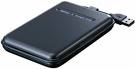
Seagate And MusicSkins Seagate, the world’s leading provider of hard drives and storage solutions, and MusicSkins LLC, the leader in music and music-related, high-quality, vinyl skin products, today announced a marketing partnership to add personal flair to the FreeAgent Go™ and FreeAgent Go™ for Mac external hard drives. With a wide range of skins from a vast catalog of licensed creative or customized designs, this partnership expands on the already extensive range of FreeAgent® drive color, size and capacity options that let people to put their personal stamp on their Seagate external storage devices.

MusicSkins’ utilizes a patented 3M® adhesive technology that prevents air bubbles and allows for both easy application and clean removal. These hassle-free, premium vinyl skins offer a distinctive look, and personal style to Seagate external drives, while also safeguarding the device with a durable anti-scratch, anti-UV coating to protect the exterior of the hard drive. From Bob Marley to John Lennon, Madonna to Lil Wayne, EXPLODINGDOG to Adult Swim, and even personal photos and images, there’s a MusicSkin to suit every personality.

“Our FreeAgent Go™ portable hard drives allow people to store their personal digital treasures in a slim, fashionable, easy-to-carry package. It makes sense that they would want to add their personal stamp to the drives, Your photos, music and movies are a reflection of who you are and through our partnership with MusicSkins, you can now have their drives reflect your personality, too.” said Terry Cunningham, senior vice president, Seagate Branded Solutions.

Tricking out your FreeAgent external portable drive is easy. Consumers can either purchase a skin directly from Seagate.com when purchasing a FreeAgent Go drive, or outfit a previously purchased drive by visiting www.seagate.com/musicskins and selecting a skin from the library of designs, or creating a uniquely designed personal piece with the online customization tool. The skins traditionally range in price from $15.00 to $30.00, depending on the selection and type of device, and arrive via mail in seven to ten business days(1). However, for a limited time(2), those who purchase a FreeAgent Go or FreeAgent Go for Mac drive at any Seagate retailer, can take advantage of a special email offer to receive 20 percent off any MusicSkin and 35 free songs from eMusic when they register their FreeAgent Go on Seagate.com. With even more options for tricking out a Seagate hard drive with fresh looks and favorite tunes, the FreeAgent Go drive makes the perfect addition to any back-to-school, gift or personal shopping list.

“As the leading manufacturer of premium quality vinyl skin products for an array of leading personal digital devices, we’re proud to be working with Seagate to tailor their award-winning FreeAgent Go™ drives to fit the personal style of their customers, People today are inseparable from the tools that give them access to content. They want it with them wherever they go, whether it’s on their phone, iPod, laptop or an external hard drive. They also like to put a personal mark on the device to make it their own.”  said Vince Bartozzi, president, MusicSkins LLC.

Seagate And MusicSkins Join Forces To Add Custom Options To External Storage Read More »

FAT 32 File System Frequently Asked Questions

FAT32 File System Microsoft’s FAT32 File System

Windows 95 OSR2 provides an updated version of the File Allocation Table file system called FAT32. This updated file system allows for a default cluster size as small as 4K, as well as support for EIDE hard disc sizes in excess of 2 Gbytes. FAT32 provides many enhancements over previous implementations of the FAT file system.

Cluster & Partition Sizes

FAT32 supports drives up to 2 terabytes in size. FAT32 uses smaller clusters (that is, 4K clusters for drives up to 8 Gbytes in size), resulting in 10 to15 percent more efficient use of disc space relative to large FAT16 partitions. FAT32 will only work on 512 Mbytes and larger drives. Microsoft’s bundled disc tools (Format, FDISK, Defrag, and MS-DOS based ScanDisk) have been revised to work with FAT32.

Note: Please backup all data.

1. QUESTION
When I try to format a FAT32 file system partition larger than 8025 Mbytes from within Windows 95, I receive the following error:

Verifying xxx.xx M
Invalid media or track 0 bad-disk unusable
Format terminated

REASON
This error occurs if there is a non-DOS partition preceding the extended DOS partition and the primary DOS partition has been formatted using the real-mode FORMAT.EXE command.

SOLUTION

  1. Click the “Start” button, click “Shut Down”, click “Restart The Computer In MS- DOS Mode”, and then click “Yes”.
  2. Type format c: (where c is the drive letter for the partition you want to format), and press >ENTER>.
  3. When the format is complete, type exit and press ENTER to restart Windows 95.

2. QUESTION
When I try to partition a drive that is larger than 8 Gbytes in size, the maximum partition size is still 8 Gbytes.

REASON
This can occur if the hard disc controller does not fully support the interrupt 13 extensions. In order for a hard disc that is both larger than 8 Gbytes and using the FAT32 file system to be fully addressed, it must support interrupt 13 extensions. The file IO.SYS tests for the presence of interrupt 13 extensions, and if they are not found, uses the default CHS LBA limit of 7.9 Gbytes. This information applies to both ATA and SCSI hard disc drives.

SOLUTION
Contact the drive controller’s manufacturer for information about a possible BIOS upgrade to a version of the BIOS that fully supports interrupt 13 extensions.

3. QUESTION
When I check in FDISK to see if my partition is FAT32, it only shows FAT16. How do I get my drive to be partitioned in FAT32?

REASON

  1. You are either using the real-mode FDISK, which does not contain the “enable large disk support” prompt, or you did not answer “y” for yes to “enable large disk support”; or
  2. The drive you are attempting to partition with FAT32 is smaller than 512 Mbytes.

SOLUTION
Run the FDISK tool which came with OSR2 on a system with a drive over 512 Mbytes. FDISK will ask whether you wish to enable large disc support. If you answer Yes, any partition you create larger than 512 Mbytes is marked as a FAT32 partition.

4. QUESTION
When I try to dual-boot Windows version 3.x on a computer running Windows OSR2, I receive one of the following error messages:

  • This version of Windows does not run on MS-DOS 6.x or earlier.
  • You started your computer with a version of MS-DOS incompatible with this version of Windows. Insert a Startup diskette matching this version of Windows and then restart.
  • The system has been halted. Press CTRL+ALT+DELETE to restart your computer.
  • This version of Windows cannot be run on this version of DOS.

REASON
Starting with OSR2, dual-booting Windows 3.x is not supported in Windows 95.

SOLUTION
To dual-boot between Windows 3.x and Windows 95, install the retail version of Windows 95. If you have FAT32 partitions, remove them and create a FAT16 partition with the Windows 95 or MS-DOS 6.x version of FDISK.EXE.

Neither MS-DOS 6.x nor the retail version of Windows 95 will recognize a FAT32 volume. Windows 3.x was designed to use the FAT12 and FAT16 file systems. It could potentially damage a FAT32 volume.

5. QUESTION
When I try to compress my drive with DriveSpace or DriveSpace 3, I get the following error:

Drive C cannot be compressed because it is a FAT32 drive.

REASON
DriveSpace was designed to work with the FAT12 and FAT16 file systems and cannot be used with drives using the FAT32 file system.

SOLUTION
None at this time.

6. QUESTION
When I try to defragment a FAT32 partition, I receive the following error:

Windows cannot defragment this drive. Make sure the disk is formatted and free of errors. Then try defragmenting the drive again.

REASON
This can be caused by running an earlier version of DEFRAG.EXE than the version included with OSR2.

SOLUTION
Extract a new copy of the DEFRAG.EXE file from your original OSR2 CD-ROM or discs. For additional information about how to extract or obtain the OSR2 version of DEFRAG.EXE, contact you OEM vendor or Microsoft technical support.

FAT 32 File System Frequently Asked Questions Read More »

Jumper Basics

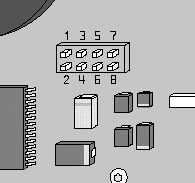
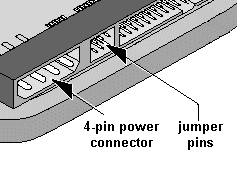
Jumpers are small metallic pins that protrude from the end of a hard disc drive or from its circuit board, as shown below. Jumpers are used to configure the hard disc drive’s options, such as defining master and slave or cable select.

Jumper Jumper

Every pin set has a specific numbering scheme, which is determined by its location on the drive. As shown above left, if the pins are on the circuit board, the pin number assignments are printed on the circuit board around the pins. As shown above right and below, if the jumper pins are on the end of the hard drive, Pin 1 will always be closest to the 4-pin power connector.

Jumper

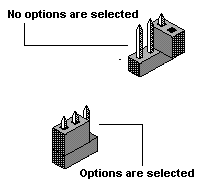
Below is a jumper shunt, which is used to connect two jumper pins. Connecting two jumper pins with a shunt completes an electrical circuit and enables or disables options of the hard drive. Extra shunts may be stored on a single pin as shown below because two or more pins must be connected by the shunt to complete the circuit and enable or disable options. When the shunt is only on one pin, it is not performing any function.

Jumper

Jumper Basics Read More »

What do I do if my hard drive reports bad sectors?

Fix Bad Sectors Bad sectors can often be corrected by using a spare sector built into the hard drive. However, any information written to a bad sector is usually lost.

There are several methods for finding and correcting bad sectors.

1. Use the Error Checking utility built in to Microsoft Windows.

  1. Double Click My Computer, and right-click the hard disk.
  2. On the shortcut menu, click Properties, and on the Tools tab in the Properties dialog box, click Check Now in the Error-Checking Status area.
  3. In the Check Disk dialog box, select the Automatically Fix File System Errors check box, select the Scan For And Attempt Recovery Of Bad Sectors check box, and then click Start.
    View Windows help on detecting and repairing disk errors for more information.

2. Use SeaTools diagnostics for Seagate and Maxtor drives and run a long test.  For Seagate SCSI drives, use Seatools Enterprise. For Maxtor SCSI drives, test with SCSIMax.

3. Erase the drive:

  1. For SCSI drives: Use Seatools Enterprise (for Seagate drives) or SCSIMax (for Maxtor-brand drives) to perform a low-level format on the drive.
  2. For external drives: Use DiscWizard or your external drive management software to zero-fill your external drive.
  3. For internal ATA/IDE and SATA drives:Use SeaTools for DOS to perform a full zero fill.
    This option will erase ALL data on the partitions on the drive.

What do I do if my hard drive reports bad sectors? Read More »

Formatting an Internal or External hard drive using Mac OS

A step-by-step guide to formatting an ATA hard drive with a Macintosh operating system(Mac OS).

  • Mac OS 8.x thru 9.x
  • Mac OS X or 10

Formatting an ATA hard drive in Macintosh operating system 8.X thru 9.X

Step1.
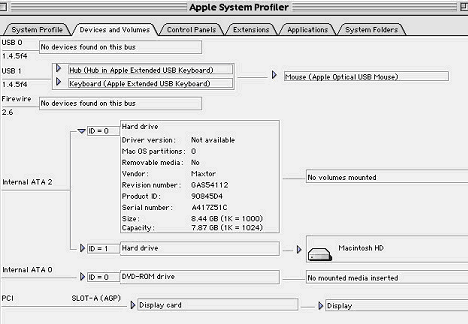
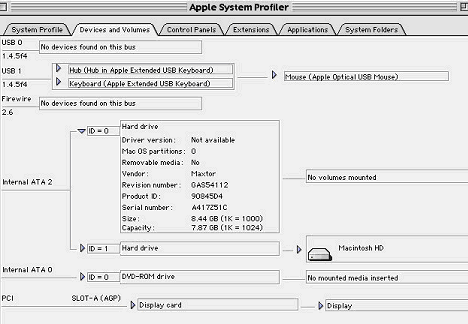
After hooking up the hard drive either boot off the CD or the main Macintosh HD then go to the Apple System Profiler located under the Apple menu. From there go to Devices and Volumes and check to see if the hard drive that is going to be formatted is properly displayed. If the drive is not displayed make sure that the drive is properly installed or connected.

Format hard drive using Mac OS

Step 2.
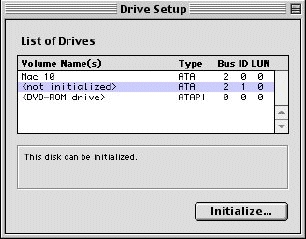
Once the drive is detected and determined to be the one that is to be formatted go to the System Folder, Utilities, Drive Setup, and ‘click’ on the “Drive Setup” icon.
Format hard drive using Mac OS

Step 3.
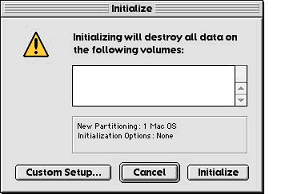
‘Click’ on the drive you want to format then ‘click’ Initialize.
Format hard drive using Mac OS

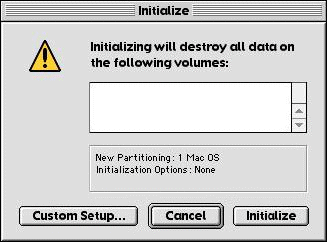
‘Click’ either on Initialize for a single volume format or ‘click’ on Custom Setup to specify type of format, partition, and size. For Custom Setup instructions go to Step 4.
Format hard drive using Mac OS

Step 4.
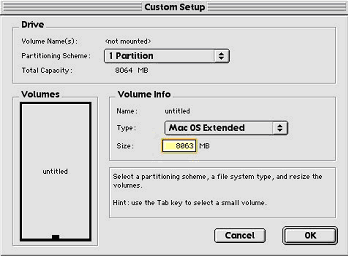
In Custom Setup select the Partition Scheme, the type of format, and the size. Then ‘click’ on OK.
Format hard drive using Mac OS

Step 5.
This will then take you to the Initialize screen. ‘Click’ on initialize. After the drive initializes it will be ready for use.
Format hard drive using Mac OS

Step 6.
To verify that the system recognizes the correct partitions, size, and format go back to Apple System Profiler and select the Devices and Volumes folder. Check the information from the pull downs.
Format hard drive using Mac OS

To format the drive for Mac OS X (Jaguar, Panther and Tiger)

Note: The way in which Mac OS X mounts the hard drive depends on the drive’s capacity.

Step 1. Plug your drive into the Macintosh.

Step 2. Launch the Disk Utility.
Format hard drive using Mac OS

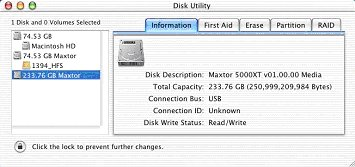
Step 3. Select your new drive from the list on the left. A description of the drive appears in the right window.
Format hard drive using Mac OS

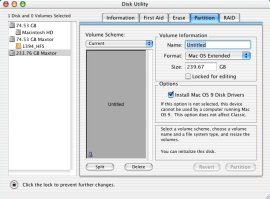
Step 4. Select the Partition tab at the top of the window.
Format hard drive using Mac OS

Step 5. You may partition the drive or just keep it to one volume. For each volume:.

  • Enter a name for your drive in the. Name field.
  • Select the Mac OS Extended from the Volume Format drop-down list.
  • Select the check box next to Install Mac OS 9 Drivers. This will allow your disk to be recognized if you start your system with Mac OS 9.
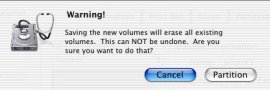
  • Click Partition to continue. An alert dialog appears to confirm the Partitioning/Formatting process.
    Format hard drive using Mac OS
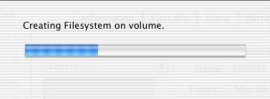
  • Click Partition to start the Partitioning/Formatting process.
    Format hard drive using Mac OS
  • When complete, the drive will mount to the Desktop.

Formatting an Internal or External hard drive using Mac OS Read More »

How to Troubleshoot SCSI/ATA hard drive combinations?

SCSI Hard Drive When SCSI drives are connected to the SCSI host adapter, with an ATA drive installed, you are unable to boot from the ATA drive.

The SCSI host adapter and the ATA port on the motherboard could be set for the same IRQ or address or both. Check the following:

  • For the primary port, the ATA ports on the motherboard will likely be set to IRQ 14, and the I/O address will likely be set to 1F0-1F7.
  • For the secondary port, the ATA ports on the motherboard will likely be set to IRQ 15, and the I/O address will likely be set to 170-177.
  • The SCSI host adapter’s IRQ and I/O address should not conflict with the above settings.
  • If using a plug-in controller or host adapter with a BIOS, make sure the BIOS address does not conflict with the address settings of other cards or devices.
  • Check the documentation for the motherboard or SCSI host adapter for detailed information on how to change these settings. If unavailable, contact the vendor of the ATA or SCSI host adapter.

Once these setting are properly implemented, your computer should be able to recognize available ATA and SCSI drives with no problem.

You are unable (or there is a long delay when trying) to boot from the SCSI drive.

 The motherboard’s BIOS might be “pinging” the ATA bus looking for an ATA drive. When using a SCSI drive as a boot device, there should not be an ATA drive physically attached as the Primary 0 (master) drive, and the CMOS settings for the Primary 0 drive should be set to “none” or “not installed”. In addition, check the CMOS settings for the Primary 1, Secondary 0, and Secondary 1 drives. If any of those drives are not physically present, the corresponding settings should be set to “none” or “not installed” as well.

If you are still unable to boot from the drive, make sure it has been properly prepared as a bootable drive – make sure it has been formatted and has active partitioning set.

The SCSI drive is not recognized at full capacity.

Make sure the SCSI host adapter’s setting for “above 1GB support” is enabled. For drives larger than 8.4 Gbytes, enable the BIOS’ INT13 Extensions.

If the drive is reporting less than its full factory capacity to the controller BIOS, it is possible that the drive may have been programmed to a smaller capacity (Seagate SCSI drives support a change capacity feature).

If this is the case, standard drives may be returned to full capacity (or reprogrammed to any capacity up to full capacity) using Seagate’s SeaTools utility.

The SCSI drive is not performing optimally.
Try the following:

  • Make sure your card and motherboard’s BIOS are optimally configured for performance. You might need to contact the manufacturer of the card for assistance with these options.
  • Check your SCSI cable and the drives’ ID, termination, and termination power settings.
  • Make sure the cable is of good quality and is not coiled up inside the computer.
  • Try to route SCSI ribbon cabling away from the power supply.
  • If this is the only device attached internally, set the ID to 0 and terminate the drive.
  • If there are 2 or more devices internally attached to the SCSI cable, set the boot drive to ID 0, set the other devices to any other unassigned SCSI ID (except 7, which is usually reserved for the SCSI host adapter), and terminate the drive that is physically at the end of the cable. Termination power should be set on both drives to match the requirements of the SCSI host adapter.

The following recommendation is DATA DESTRUCTIVE. Proceeding will ERASE ALL DATA FROM THE DRIVE.

    We recommend that you use the SCSI host adapter’s utility to low-level format (or initialize) the SCSI drive. This will help ensure that the drive is properly communicating and optimally synchronized to the host adapter. If possible, BACKUP the drive(s) before following this procedure.
  1. If this is not possible, and the data is needed, please consult a data recovery service to assist you in recovering your data.
  2. A low-level format typically takes 45 – 60 minutes per gigabyte. The larger the drive, the longer the time required for completion.
  3. DO NOT TERMINATE OR ABORT THE LOW-LEVEL FORMAT! The drive(s) can become permanently damaged.

After the low-level formats are completed, reboot the computer from a bootable system or recovery diskette and proceed to prepare the drive for use. In a DOS or Windows 95/98 environment:

1. Use FDISK to partition the drives as desired. Ensure that the C: partition is a “PRI-DOS, ACTIVE” partition.

2. After partitioning the drives, reboot the computer.

3. Use FORMAT to high-level format each partition on the SCSI drives.

a) Type format X:, where X is the drive letter of the drive you wish to format.

b) If you want to make the C: partition bootable, add the “/S” parameter to the end of the command to transfer the system files. (At the command prompt, type FORMAT C: /S)

Each partition should now be formatted to its full capacity, ready to store data.

How to Troubleshoot SCSI/ATA hard drive combinations? Read More »

Hard Disk Data Recovery Tips

Hard Disk Data Recovery Before you venture into hard disk data recovery business, it is necessary to know the causes of hard disk failure. The causes can be either logical failture, or electrical failture or mechanical failture.

  • Logical causes include problems with the boot sector of the hard drive which leads to non-booting of Windows. In this case, you would be able to you’re your computer from another disk. You can then investigate if you have problems with the boot sector or you have bad sectors on the disk itself. Hard disk data recovery in this case can be possible via Data Recovery Software.
  • Electrical causes include problems caused due to voltage problems which may have led to the burning of the circuit board. For this you may have to open your desktop’s ATX box or your laptop’s bottom cover. Ensure that you have shut off the electrical supply to your machine and are working in a static-free environment. You also need to wear an ESD wrist strap. Under no circumstances must you touch the circuit board as this might damage the disk head. Just try to see if you can see any signs of burnt components or any signs of burns on the circuit board. In this case, you can contact your hardware supplier or a service agent to figure out the next step.
  • Mechanical problems are caused when the hard drive and / or its parts have been physically damaged due to a number of causes. You may hear clicking sounds from the hard disk itself. This kind of failure can also be caused by dropping the hard disk or exposing it to water or humid atmospheres. Under no circumstances must you try to shake the hard disk or remove the hard disk cover. Most times, a physical repair of hard disks or their parts is not possible. You can find a data recovery service provider who may be able to help you with this problem. Look for service providers who have a ‘No Data, No Pay’ agreement.

Hard Disks of computers – either laptops or desktops – are susceptible to failure where the data that you have stored on it either disappears / cannot be found. The good news is that this data can often be recovered. There are various ways of doing so.

Here are some tips for general hard disk data recovery tips suggested by professionals in this field:

  • Always use firewalls and good virus protection programs for your computer.
  • Don’t run the disk defragmenter if you want to recover a file that you have ended up deleting. Use a Data Recovery Software first. Doing so will increase your chances of recovering the lost data.
  • Programs such as scandisk, chkdsk or Norton Disk Doctor will not help you with data recovery. In fact, they may often end up hinder the process of hard disk data recovery.
  • If your computer is not booting, you can try booting it in safe mode and try to disable or uninstall any recently installed programs which may have caused the problem. You can also try and see if running System Restore can solve the problem effectively.
  • Before you buy data recovery software, ensure that you know exactly what kind of data it recovers. Instead of trying out a variety of softwares, first know what kind of data you want to recover and then look for that data recovery software which will meet your needs.
  • Know what kind of file system your computer’s hard drive is using. This will help in locating the right kind of data recovery software for your computer data recovery process. Similarly, knowing the file system used by your laptop will help in the laptop data recovery process.
  • The best tip ever is to always keep a backup of your important data.
  • Sometimes it may not be possible to constantly keep backing up data, especially with recent files. If your hard disk crashes while you are working, don’t try to save the file as you may also end up losing data that has been saved earlier.
  • Before you go to the hard disk data recovery experts make sure that you know the relevant details such as the Operating System, the details of what happened before your hard disk failed, and if your computer still recognizes the drive or not.

Thus, based on the causes of hard disk failure you can find different methods of hard disk data recovery.

These tips will help you identify the problem with your hard disk and even help you with hard disk data recovery on your own. However, if you are unsure, then it is best that you find a data recovery service provider who offers a ‘No Data, No Pay’ agreement.

Hard Disk Data Recovery Tips Read More »

How to Make Custom iPhone Ringtones for Free

Iphone Ringtones You don’t have to pay for your songs twice to get a ringtone. There are many songs in your music library, but no way to make ringtones from any of them. Actually, with a little bit of trickery (nothing illegal) you can create ringtones from any of your non-DRM songs in your iTunes library easily, and for free. This works on both Mac and Windows PCs.

1. Open iTunes
2. Find the song that you want to make into a ringtone.
3. Listen to the song and find the part of it you want to use. The chorus may be a good place to start.
4. Write down the start and stop times of the clip.
5. Right-click the song and select “Get Info.”
6. Click the “Options” tab.
7. Type in the start time of your ringtone in the text box next to “Start Time” in the minutes:seconds (i.e. 2:01) format.
8. Type in the end time of your ringtone in the text box next to “Stop Time.” Make sure the ringtone is no more than 40 seconds long.
9. Click “OK”.
10. Right-click your song again and select “Convert Selection to AAC”. Wait for iTunes to convert your song. It will create a duplicate version.
11. Right-click the ringtone and select “Delete”.
12. Click on the “Keep Files” button.
13. Find the file. It’s usually in your User folder under Music > iTunes > iTunes Music and under the band’s name. It will have an extension of “m4a.”
14. Replace the “m4a” extension of your ringtone with “m4r”. You can either double-click slowly to re-name your file, or right-click and select “Get Info” on a Mac or “Rename” on a Windows PC.
15. Click “Use .m4r” or the PC equivalent when the system warns you that the change may affect the use of your file.
16. Double-click the ringtone file. ITunes will automatically add it to your ringtones folder in your iTunes Music Library.

17. Connect your iPhone and sync your ringtones.

Warnings

a. For everyone having problems syncing the ringtones to your iPhone: Find the ringtone in your Ringtones folder and change the extension back to .M4A & attempt to sync again.

b. Instead of deleting it, you can also drag the newly converted ringtone to your desktop from iTunes and follow the rest of the steps.

c. There may be some problems with the latest version of Leopard – renaming the file may not work properly, and you won’t be able to add it to the ringtones folder.

d. This will not work with songs bought at the iTunes store or that has DRM (copy-protection). Your best bet is to use a song that you have imported from a CD.

Tips:

1. For those of you using a PC who can not see the file extension m4a follow these instructions and you should be able to see it
1) Go to control panel
2) Double click the folder options icon
3) Click on the view tab
4) scroll down and uncheck the box “hide extensions for known file types
when you go back and view your converted song you should now see the file extension m4a this is what you need to change to m4r

2. The Import Settings dialog (go to Preferences -> General -> Import Settings…) controls the encoding method used by iTunes. Change it to AAC in the Import Settings dialog and the “Convert Selection to AAC” option will appear in the song’s context menu and in the Advanced menu.

3. pshaheen, there is right click functionality in Mac OS X. If you only have a one button mouse or a laptop trackpad, you can hold hold Control and then click which is the same thing as right click. This will allow you to access the menus you need.
Ctrl + Mouse Click = Right Click

How to Make Custom iPhone Ringtones for Free Read More »

How do I know if my PC supports USB?

USB To help determine your system’s USB capabilities you can download a free USB evaluation utility from the following site: www.usb.org

This program will examine your system and inform you of your computer’s USB capabilities.

For a general rule, if your PC was manufactured before 1996, it probably does not include USB. If the machine was manufactured in 1997 or later, it may support USB 1.0 . Most computers manufactured after 1998 support USB 1.0. Systems available since 2001 probably support USB 2.0.

With some PCs, you may need to connect an adapter (PCI or CardBus) to connect USB peripherals. Read your system documentation if you’re not sure there is a USB port.

How do I know if my PC supports USB? Read More »

Scroll to Top