Articles

SCSI controller card troubleshooting with Apple Macintosh

SCSI Controller Card I just installed a new hard drive, but now get intermittent lock ups on boot, error messages that I cannot read from the hard drive, or errors that show problems with the hard drive or file system. What should I explore first?

Note: This document applies to Mac OS 8.6 thru 9.x.

Some operating systems do not support all default SCSI drive features. If you are using a generic (not MAC branded) hard drive, the drive may behave erratically as it may not be optimized for the operating system. If you are seeing these symptoms, find out if SCSI Mode Page editing is supported by the SCSI controller. Disable Initiate Synchronous Negotiation and Disconnect/Reconnect if available at the SCSI controller. Also Unit Attention. Run the Media Verify option from the SCSI controller utilities, to verify data integrity on the hard drive.

These features may not be available at all SCSI controllers. Third party software may be needed to set the hard drive SCSI Mode pages for these features. You will need a SCSI Mode Page Editor tool. See your system manufacturer for SCSI tools.

Isolate the suspect drive to the only device on the controller and retest. Replace the data cable, devices, or external terminators. Verify that both ends of the SCSI bus are terminated. If the hard drive has an option for Termination Power–use it. Or confirm that the SCSI controller supports/supplies bus Termination Power. This is especially important with long cable runs or when using more than one SCSI device.

SCSI controller card troubleshooting with Apple Macintosh Read More »

Limitations of FAT32 File System

FAT32 File System The following limitations exist using the FAT32 file system with Windows operating systems:

  • Clusters cannot be 64 kilobytes (KB) or larger. If clusters were 64 KB or larger, some programs (such as Setup programs) might calculate disk space incorrectly.
  • A volume must contain at least 65,527 clusters to use the FAT32 file system. You cannot increase the cluster size on a volume using the FAT32 file system so that it ends up with less than 65,527 clusters.
  • The maximum possible number of clusters on a volume using the FAT32 file system is 268,435,445. With a maximum of 32 KB per cluster with space for the file allocation table (FAT), this equates to a maximum disk size of approximately 8 terabytes (TB).
  • The ScanDisk tool included with Microsoft Windows 95 and Microsoft Windows 98 is a 16-bit program. Such programs have a single memory block maximum allocation size of 16 MB less 64 KB. Therefore, The Windows 95 or Windows 98 ScanDisk tool cannot process volumes using the FAT32 file system that have a FAT larger than 16 MB less 64 KB in size. A FAT entry on a volume using the FAT32 file system uses 4 bytes, so ScanDisk cannot process the FAT on a volume using the FAT32 file system that defines more than 4,177,920 clusters (including the two reserved clusters). Including the FATs themselves, this works out, at the maximum of 32 KB per cluster, to a volume size of 127.53 gigabytes (GB).
  • You cannot decrease the cluster size on a volume using the FAT32 file system so that the FAT ends up larger than 16 MB less 64 KB in size.
  • You cannot format a volume larger than 32 GB in size using the FAT32 file system in Windows 2000. The Windows 2000 FastFAT driver can mount and support volumes larger than 32 GB that use the FAT32 file system (subject to the other limits), but you cannot create one using the Format tool. This behavior is by design. If you need to create a volume larger than 32 GB, use the NTFS file system instead.

NOTE: When attempting to format a FAT32 partition larger than 32 GB, the format fails near the end of the process with the following error:

Logical Disk Manager: Volume size too big.

FAT32 offers the best compatibility for PC and Mac operating systems, including cross-platform compatibility with the MAC OS X. However, FAT32 has inherent limitations in regards to file size, partition size, and performance.

Limitations under Windows, Mac OS 9, and Mac X:

  • A file cannot be transferred to a FAT32 partition if the file is larger than 4GB.
  • Apple’s Time Machine backup utility will not store data on FAT32 partitions.

Limitations under Windows 2000/XP/Vista:

  • A FAT32 partition cannot be created that is larger than 32GB.
  • A file cannot be transferred to a FAT32 partition if the file is larger than 4GB.
  • FAT32 file system performs more slowly than NTFS (Windows) or Mac OS Extended (HFS Plus, Mac).

Limitations of FAT32 File System Read More »

‘Disk Full’ Error When using Microsoft Backup

Microsoft Backup “Cannot copy filename. There is not enough free disk space.” or
“You have either run out of space, or the backup (.bkf) is too large for this disk. Note: If this is a disk formatted with FAT32, the maximum possible file size for the backup file is limited to 4GB.”

This error occurs due to a file system limitation within Microsoft. The file limitations are as follows:

Windows FAT 32 has a 4 GB limit.
Windows NTFS has a 2 TB (terabyte) limit using a Basic Partition. (Dynamic Volumes can be up to 16TB).

1394 and USB Personal Storage drives are pre-formatted in FAT 32. If the backup file is larger than 4 GB a file size error will occur. This is a Microsoft design and limitation. To backup or copy a file larger than 4 GB you must format the Personal Storage drive to NTFS. NTFS format only applies to Windows 2000 and XP. Use Disk Management in Windows 2000 and XP to format the drive. Windows 98 and Me users are limited to the FAT 32 file format and cannot format the drive to NTFS.

How to format the drive in NTFS under Windows 2000 and XP?

Note: This procedure is data destructive. Backup the data before performing this procedure.

  1. Access “Administrative Tools” through the “Control Panel”. XP user might have to click on “Performance and Maintenance” first to access “Administrative Tools”.
  2. In “Administrative Tools” click on “Computer Management”, “Storage”, and “Disk Management”.
  3. Right-click on the Drive Letter assigned to the Personal Storage device.
  4. Select “Delete Partition…” and “Yes”
  5. Right-click on the “Unallocated” space.
  6. Select “New Partition”.
  7. In the “New Partition Wizard”, click Next. Select the type of partition you want and follow all on-screen instructions.

‘Disk Full’ Error When using Microsoft Backup Read More »

Locating & Correcting Disk Space Problems on NTFS Volumes in Windows 2000/XP/Vista

NTFS Volumes Problem:
At times, Windows 2000, XP, and Vista misreport the amount of Free Disk Space on a hard drive – whether it is an internal drive or external drive.

Cause:
There are several causes for this:

  • The cluster size of the NTFS volume is too large for the average-sized files that are being stored.
  • File attributes or NTFS permissions prevent files or folders from being either displayed or accessed when you use either Microsoft Windows Explorer or a Windows command prompt.
  • The folder path exceed 255 characters.
  • Folders or files contain invalid or reserved file names.
  • NTFS metafiles (such as the Master File Table [MFT]) have grown and cannot be unallocated.
  • Files or folders contain alternate data streams.
  • NTFS corruption causes Windows to report free space as being in use.
  • Other NTFS features cause file-allocation confusion.

Solution:
Microsoft provides various solutions for symptom identified. Reference Microsoft Knowledge Base Articles 315688 (for Windows XP) and 303079 (for Windows 2000) for more information.

Locating & Correcting Disk Space Problems on NTFS Volumes in Windows 2000/XP/Vista Read More »

Terminating the SCSI Bus

Terminating The SCSI Bus What is Termination?

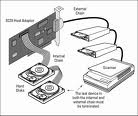
Cables make up the physical connections of the SCSI bus. Since the SCSI bus is a chain of devices on a cable rather than a loop, the two ends of the bus must be terminated. Every wire in the cable has a specific impedance, or resistance to the passing of electrical signals. When signals reach the end of the cable that makes up the SCSI bus, they encounter the air, which has very high impedance and acts as a wall of infinite resistance. The problem with high impedance is that any signal coming down the bus is reflected back in the other direction once it hits this barrier. Terminating both ends of the cable prevents the signal from being reflected.
You terminate the bus by attaching a circuit, the terminator, to the physical ends of the SCSI bus. The terminator provides an impedance that matches the cable’s, thereby preventing the signal from bouncing back. The terminators use power, and the power to operate them comes from the SCSI interface card through the termination power wire on the bus.

What is Passive Termination?

Passive Termination is the oldest method of termination, defined in the specs for SCSI-1. Basically, a passive terminator sits on the bus to minimize reflections at the end of the cable. The terminator doesn’t really do any work to regulate power for termination; it relies on the interface card to provide steady power. A passive terminator simply provides impedance that’s close to the impedance of the cable.

What is Active Termination?

Active termination works to control the impedance at the end of the SCSI bus by using a voltage regulator, not just the power supplied by the interface card. Because it is active, regulating the power that it gets from the interface card, active termination is more stable than passive termination.

What is Forced Perfect Termination (FPT)?

Forced perfect termination is the most complex of the terminators, going beyond merely stabilizing the power applied to the terminator. It can actually alter its impedance to compensate for variations in impedance among many different cables, devices, and terminators. It is usually used in high-speed SCSI systems that have many different devices, cables, and terminator types. The complexity of such a system can cause impedance mismatches that degrade the signals sent through the bus. FPT actively compensates for these impedance variations by means of diode switching and biasing to force the impedance of the cable to match each device.

How do I terminate Seagate SCSI disc drive?

If you are installing a Seagate drive in a system that has other SCSI devices installed, terminate only the end devices on the SCSI chain. A SCSI “device” is any disc drive, scanner, tape backup unit, or other piece of hardware connected to your system using the SCSI bus.

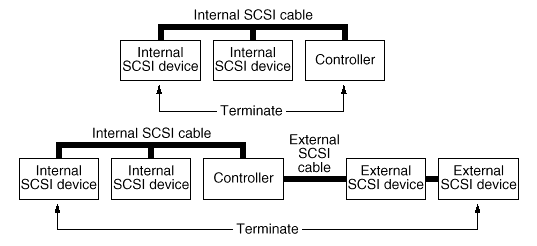
Terminating The SCSI BUS

The example above shows an internal hard disc at one end of the SCSI bus with the SCSI controller at the other end (both are terminated). The bottom example shows two additional SCSI devices connected externally-this means the SCSI controller is no longer on the end of the SCSI chain and should not be terminated.

Note: Some controllers prefer to remain terminated even if they are in the middle of the chain. Also, some controllers treat the internal and external chains as separate logical buses. This means you may need to terminate both the first and last devices on both logical buses to achieve proper termination. If necessary, refer to your system or controller documentation to see how this is handled in your particular system.

Terminating the SCSI Bus Read More »

Serial ATA (SATA) data cable lengths

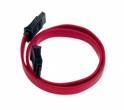
SATA Data Cable Lengths Serial ATA cables are available in many lengths up to 1 meter. Minimum cable length is 12 inches, using shorter cables can cause timing, or noise interference on the cable. The same conditions apply to cables that are too long. Though the Serial ATA specification calls out supporting cable lengths up to 1 meter or 39.37 inches, PCB traces from the cable connection to the host and drive controllers ASIC, adds length to the bus.

Example: SATA drive installed with a 40 inch cable. PCB trace from Serial host connector to the serial hosts ASIC = 3 inches. The same 3 inch PCB trace applies to the hard disk. This configuration gives you a bus length of about 46 inches. If you are having performance or data corruption issues, try using a shorter cable or different manufacturer of cable. Cable quality can vary between vendors.

Serial ATA (SATA) data cable lengths Read More »

How to terminate A SCSI hard drive?

SCSI Hard Drive With today’s high speed hard drives combined with long cable runs, only use high quality ‘twisted pair’ cable and external active (cable end) terminators. Active termination boosts data integrity and reliability. With active termination, a 110-ohm resistor on each signal line connects to a voltage regulator. The regulator ensures signal quality over the entire length of the SCSI bus. This reduces under and overshoot signals typically found on passive resistor termination schemes.

Passive termination draws its electrical power from the SCSI host adapter. A 220/330-ohm resistor is used to provide the necessary impedance to prevent the data signal from ‘reflecting’ back. Fluctuations in termination power (or failing cables) can show up as error symptoms in the drive, yet do not originate there. In general we recommend you enable SCSI Termination Power if available.

  • Maxtor (and Quantum) SCSI disk drives have either onboard active termination (jumpers). Older drives (circa 1994) enable active termination by two removable (10-pin) termination resistors. Some use passive termination with three removable (8-pin) terminating resistor packs. Seagate does not supply terminating resistor packs for older drives.
  • SCSI Single Ended Hard drives using active onboard termination have a jumper setting labeled ‘TE’ to control the termination setting.
  • All Quantum Single-Ended SCSI drives ship defaulted to provide SCSI Termination Enable.
  • SCSI LVD(low voltage differential) drives do not supply SCSI Termination Enable. Refer to the drive configuration guides for proper setting of this feature.Notes:
    1. Some Quantum SCSI disk drives are available in both Single-Ended and LVD versions. Specifically, the Atlas III and Viking II drives offer both types of termination. Atlas III Narrow (50 pin) drives are Single-Ended, while the Wide (68 pin) and SCA (80 pin) versions are LVD models. Viking II Wide drives are available in both SE and LVD models. The part number for an SE drive will contain “W”, and the LVD will contain a “L” (e.g. PX09L011 would be LVD). All Viking II SCA drives are LVD models. All fifty pin Quantum SCSI drives are all SCSI Single-Ended.
    2. LVD cables and SCSI bus terminators can be purchased from TMC (The Mate Co.) or a local retailer.
    3. Use due diligence when installing or adding SCSI devices. Unlike most electronic devices, SCSI may operate if improperly terminated, but performance and reliability will be seriously at risk.

How to terminate A SCSI hard drive? Read More »

Volume Size Too Big Error During Windows XP Installation

Volume Size Too Big Error Why do I get a “Volume size too big” error message during the installation of Windows XP?

You cannot format a volume larger than 32 GBytes in size using the FAT32 file system during the Windows XP installation process. Windows XP can mount and support FAT32 volumes larger than 32 GB (subject to the other limits), but you cannot create a FAT32 volume larger than 32 GB by using the Format tool during Setup. If you need to format a volume that is larger than 32 GB, use the NTFS file system to format it. Another option is to start from a Microsoft Windows 98 or Microsoft Windows Me Startup disk and use the Format tool included on the disk.

Volume Size Too Big Error During Windows XP Installation Read More »

Scroll to Top