Articles

Linux Network Management

Names

dnsdomainname
Show the systems DNS domain name

domainname
Show or set the systems domain name

hostname
Used to show or set the name of your machine for networking

nisdomainname
Show or set systems NIS/YP domain name

nodename
Show or set the systems DECnet node name

ypdomainname
Show or set the system’s NIS/YP domain name

Network setup and commands

arp
This program lets the user read or modify their arp cache.

dig(1)
Send domain name query packets to name servers for debugging or testing.

finger
Display information about the system users.

ftp
File transfer program.

ifconfig
Configure a network interface.

ifdown
Shutdown a network interface.

ifup
Brings a network interface up. Ex: ifup eth0

ipchains
IP firewall administration used to set input, forward, and output rules.

netconf
A GUI interactive program to let you configure a network on Redhat systems.

netconfig
Another GUI step by step network configuration program.

netstat
Displays information about the systems network connections, including port connections, routing tables, and more. The command “netstar -r” will display the routing table.

nslookup
Used to query DNS servers for information about hosts.

pftp
Same as ftp.

ping
Send ICMP ECHO_REQUEST packets to network hosts.

portmap
DARPA port to RPC program number mapper. Must be running to make RPC calls.

rarp
Manipulate the system’s RARP table.

rcp
Remote file copy. Copies files between two machines.

rexec
Remote execution client for an exec server. The host uses the rexecd server.

ripquery
Query RIP gateways. Request all routes known by an RIP gateway by sending an RIP request.

rlogin
Starts a terminal session on a remote host.

route
Show or manipulate the IP routing table.

rsh
Executes command on remote host.

rup
Displays summary of current system status of a remote host or all hosts on the network.

ruptime
Show host status of local machines.

rwhod
System status server, maintains database used by rwho and ruptime.

showmount
Show mount information for an NFS server.

tcpd
Access control facility for internet services. Can be set up to monitor requests for Telnet, finger, ftp, exec, rsh, rlogin, tftp, talk, comsat. It filters access for these requests.

tcpdchk
Tcp wrapper configuration checker.

tcpdump
Dump traffic on a network. Prints out headers of packets that match the boolean expression.

tcpdmatch
Predicts how the tcp wrapper will handle a specific request for a service.

Telnet
User interface to the TELNET protocol, setting up a remote console session.

traceroute
Print the route that packets take to the specified network host.

ipx_configure
Tool to setup Netware access.

ncpmount
Netware filesystem mounting program.

nprint
Novell print command.

pqlist
Netware printer list for a given server.

pserver
Netware print server.

slist
Netware server list.


Communications commands (includes mail)

biff
Notifies the system if mail arrives and who it is from.

comsat
Biff server to receive reports of incoming mail.

expire
Used to purge old news articles.

elm
Electronic mail.

ftp
File transfer protocol.

mailx
Berkley mail program.

metasend
Interface for sending non-text mail.

nn
Net news.

pine
Program for internet news and e-mail, Can send documents, graphics, local & remote messages.

sendmail
A popular Unix, Linux mail message transfer agent.

smail
A popular mail message transfer agent which is easier to set up than sendmail.

talk
Lets two parties talk simultaneously.

telnet
Allows a user to have a login session across a network on a remote host.

tin
Net news reader.

write
Allows users to directly interact with other users via terminal number (one way at a time).

Linux Network Management Read More »

Iphone 3Gs is coming!

Iphone 3Gs 1. Fastest!
Everything you do on iPhone 3G S is up to 2x faster and more responsive than iPhone 3G.

2. Video
You can shoot video, edit it, and share it

3. Megapixel Camera
Built-in autofocus and a handy new feature that lets you tap the display to focus on anything

4. Voice Control
Voice Control recognizes the names in your Contacts and knows the music on your iPod

5. Compass
Built-in digital compass, iPhone 3G S can point the way. Use the new Compass app, or watch as it automatically reorients maps to match the direction you’re facing.

6. Cut, Copy & Paste
Cut, copy, and paste words and photos, even between applications. Copy and paste images and content from the web, too.

7. Landscape Keyboard
Rotate iPhone to landscape to use a larger keyboard in Mail, Messages, Notes, and Safari.

8. Messages
Send messages with text, video, photos, audio, locations, and contact information.

9. Search
Find what you’re looking for across your iPhone, all from one convenient place.

10. Accessibility
IPhone 3G S offers accessibility features to assist users who are visually or hearing impaired.

11. Internet Tethering
Now you can share the 3G connection on your iPhone with your Mac notebook or PC laptop.

12. Voice Memos
Capture and share a thought, a memo, a meeting, or any audio recording on the go with the new Voice Memos application.

13. Nike + iPod
IPhone includes built-in Nike + iPod support. Just slip the Nike + iPod Sensor (available separately) into your Nike+ shoe and start your workout.

14. Stocks
Stocks on iPhone shows you charts, financial details, and headline news for any stock you choose.

15. YouTube
Watch YouTube videos wherever you are.

Meet the fastest, most powerful iPhone yet. iPhone 3G S features video recording, Voice Control, up to 32GB of storage, and more.

Iphone 3Gs is coming! Read More »

What Should You Do Before a Computer Crash

data backupDo you has the experience a computer crash or data loss? We know that once it happens there is very little we can do about it. Just can pay a data recovery company hundres or thousands of dollars to recover the data or lose the data forever.

What should you do before a computer crash?

Find all of the documents, pictures and other files that are important to you and move them to a central location on your computer. Having documents on your desktop and root folder of your C drive and all kinds of miscellaneous folders is not only a headache when you try to find something, but it will make backing up even harder and waste a lot of space.

The most important part of preparing for a computer crash is to save copies of your work on more than just your single hard drive. You can backup your data by Manual Backup, Backup Software or Backup Media.

Manual Backup.
This is the cheapest option in the short run. However, if you forget to make a regular backup yo u will loose some of your work. This option will likely also take you more time.

Backup Software
You can also choose from several pieces of software that will automate the process and make it much simpler and faster. The big advantage for this is that you can set backups to run at varying frequencies and at times while you aren’t using the computer. See the resource area for several backup solutions.

Backup Media
Regardless of how you backup your computer files, you must have a place to back up your files. You can look for online backup websites that will give you so much space to use for free or a small price. The problem with this is that it can be very slow depending on the speed of your ISP. The biggest advantage however, is that they are likely to have backup servers themselves. You’re next likely choice is to buy a second hard drive. You can buy an internal or external drive. This will give you the quickest way to backup your files on a regular basis. Finally, you can also prepare for a crash by saving your files onto CD or DVD. You will need a CD or DVD writer but these are common on most computers. Optical media like CDs or DVDs however, have a limited lifetime and can get scratched or lost. This is a good secondary backup source but shouldn’t be your own or primary source. A portable USB drive is a very good place to save files to also, but it has the same risks of an optical device. It can be lost or broken.

Regularly check your backups to make sure they will work when you use them. You can do this by opening your files and make sure they work but if you are using a program test it out, make sure you protect your files in at least one other place in case the backup software has a problem and corrupts your files.

Make a list of all the software you have installed on your computer. Find this software and make sure you have a working copy and have the serial number. This is also a good idea to make a backup of your programs.

What Should You Do Before a Computer Crash Read More »

Choosing a Data Recovery Company, You should do

data recoveryFirst, you should consider what kind of service you are going to need from a data recovery company.

1) Local Company: you can physically take the hardware to them.

2) A company that can recover your data using remote sources.

Also you should determine how much money you are willing to spend to recover your data. Recovery rates will vary depending on whether you need remote, in-lab or on-site recovery services.

Second, use an internet “Search Engine” to find websites for data recovery companies. Search specifically for local companies if you are going to need in-lab or on-site service.

Third, visit the websites of potential data recovery companies. Make note of each company’s available services, pricing system and testimonials or references. Feel free to eliminate any companies that don’t offer the services you are looking for or whose prices are not close to what you are willing to spend. Many websites will list testimonials, but the testimonials are more dependable if they are from a recognizable company. Any company that lists a Fortune 500 company as a client should top your list of candidates. Check the “Privacy Policy” of any company you are considering. Many companies have specific privacy policies and some will follow your specific instructions on handling your recovered data.

Fourth, call the data recovery companies that you feel offer the service you need at a price you can afford. Eliminate companies that cannot be reached over the phone. You will want a company you know you can contact when necessary.

Fifth, verify with each company the service provided, whether remote, in-lab or on-site, and pricing structure that you are looking for. Answers that differ from what is stated on the company’s website should be looked into further. Consistency in policy is something you should look for in a trustworthy data recovery company.

Sixth, ask the phone representative for each company about their success rate. Any company which claims a 100% success rate is either not being honest with you or has not been in business very long. Also, ask about any service guarantees and whether or not the rates are determined by the amount of data recovered. Finally, ask about the equipment they will use in the data recovery process. The equipment of companies to be considered for in-lab services will use a class 100 clean room and nondestructive methods.

Last, consider your findings with each company and decide which company is trustworthy to recover your lost data.

Choosing a Data Recovery Company, You should do Read More »

Linux Help Commands, Job Management, Process management

1. Linux Help Commands

Linux management apropos        apropos keyword – Show all commands with the keyword in their description. The same as the “man -k” command.
help        Bash shell help for the bash builtin command list. The help command gets help for a particular command.
man        Get help from the manual for a command.
man        man -k keyword – Show all commands with the keyword in their description
“man 2 kill” – Display page 2 of the kill command
manpath        Determine user’s searchpath for manpages.
info        Documentation on Linux commands and programs similar to the man pages but navigation is organized different.

2. Linux Job Management

at        Similar to cron but run only once.
atq        Lists the user’s pending jobs. If the user is the superuser, everybody’s jobs are listed.
atrm        Deletes at jobs.
atrun        Run jobs queued for later execution
batch        Executes commands when system load levels drop below 0.8 or value specified in atrun invocation.
cron        A deamon used to set commands to be run at specific times. Starts the commands in the crontab file. Used to clean up temporary files periodically in the /var/tmp and /tmp directories.
nice        Run a program with modified scheduling priority.
nohup        Run a command immune to hangups, with output to a non-tty.
watch       Execute a program periodically showing output full screen.

3. Linux Process management

bg        Starts a suspended process in the background
fg         Starts a suspended process in the foreground
gitps        A graphical process viewer and killer program.
jobs        Lists the jobs running
kill        Ex: “kill 34” – Effect: Kill or stop the process with the process ID number 34.
killall        Kill processes by name. Can check for and restart processes.
pidof        Find the process ID of a running program
ps        Get the status of one or more processes. Options:

* u (more info)
* a (see all)
* -l (technical info)

Meanings:

* PPID-parent process ID
* PID-process ID

ps ax |more to see all processes including daemons
pstree        Display the tree of running processes.
sa        Generates a summary of information about users’ processes that are stored in the /var/log/pacct file.
skill        Report process status.
snice        Report process status.
top        Display the processes that are using the most CPU resources.
CTRL-C        Kills the current job.
&         At the end of the command makes it run in the background.

Linux Help Commands, Job Management, Process management Read More »

The New Movement Of Data Recovery

data recovery From a Global Monthly Search Volume by Google: computer repair 823,000; data recovery, 2,240,000; file recovery, 673,000; recovery software, 368,000; disaster recovery, 301,000.  We can obviously see there are more and more people reverting their attention to data recovery field.

Above numbers of statistics are still increasing and such numbers bring a prosperous employment and development to IT industry. Especially under the pressure of financial crisis, many IT companies are adding some new services of Data recovery. Therefore, many new data recovery companies are set up and even many personal IT engineers are looking for data recovery training to be a qualified data recovery engineer.

This is a great, increasing and potential market full of competition! So, what is the new movement of big data recovery companies?

The new movement of Data recovery Services providers

These companies are mainly providing data recovery services to personal computer users, data related companies, institutes, educational centers, police and even government, depending on their marketing network and skills level. Such data recovery companies usually have many offices in different cities of different countries. They are now managing to provide a wider range of data related services, such as Hard Drive Recovery, Laptop Recovery, Desktop Recovery, Server Recovery, RAID Recovery, Tape Recovery, Mobile Device Recovery and other types of recovery services. These companies are also buying and taking advantages of more of the current best data recovery tools from different manufacturers. These tools contain data recovery software, data recovery equipment (usually hardware and software complex tools) and data recovery hardware. More tools and more services need a big market to digest and then they are taking some measures to expand themselves. For example, on April 13th, Stellar Acquired RSE Data Recovery Services B.V..  “We are delighted about this acquisition, which will further pave the way for our growth in the European market. Stellar would now also be able to serve its MNC customers with European presence more effectively. This acquisition offers us an excellent opportunity to tap into the knowledge and experience of RSE Data Recovery and springboard our growth plans.” informed Sunil Chandna, CEO, Stellar Information Systems Ltd.

“We have been offering data recovery services to European customers for over 10 years. We will be bringing in invaluable market knowledge and expertise. This acquisition will be invaluable to the development & growth of Stellar and will bring in lot of value to the customers of both the companies,” commented Ernst Eder, COO, RSE Data Recovery Services. However, these expansions don’t mean there’s no space for small and middle sized data recovery services providers, big companies charge usually much higher and many end users can not afford to it.

So only if you can provide professional data recovery services with professional data recovery equipment and you are able to have a seat in this great market.

The new movement of Data recovery tools manufacturers

According to a search in Google and other data recovery forums, we can find out some good data recovery equipment providers like ACE laboratory, SalvationDATA, Atola, Stellar Data recovery, Ontrack Data recovery, X-ways software, DeepSpar, etc. Among them, ACE and SalvationDATA are manufacturing some familiar tools for firmware repair and Data extraction, Atola as well. Their tools are usually data recovery equipment mentioned above, hardware and software complex tools. There’s one tool called HD HPE PRO other manufacturers don’t have provided by SalvationDATA to disassemble the disks(Supporting 2.5″ and 3.5″) and remove heads or multiple platters. Other manufacturers are mainly providing data recovery software.

These manufacturers are now working hard to compete and survive with their own advantages. They are now managing to add more disk manufacturers, disk models, more medias supported and more failures to handle, Like SD added spacer solution to HD HPE PRO, HFS+/HFSX and EXT2(3) file systems and RAID recovery supported by Data Compass, flash doctor to be available in July. ACE is going to add RAID soon, to add new Toshiba SATA Hard Disk drives support in PC-3000 UDMA utility. ACE is also cooperating with Deepspar in Canada. Anyway, it’s hard to find data recovery tools manufacturers to combine, with technologies shared. Nobody has all the best data recovery technologies and solutions. That’s why it is necessary if you have the budget to consider more tools from different manufacturers. This does adds to our cost. I hope one day, some of the best can truly be hand in hand and create some universal and friendly data recovery tools for all people to use.

Actually, Data recovery to Data Loss is like Doctors to diseases.

We can keep fit but we cannot dismiss the doctors. It’s the same thing. We can backup all important files but data recovery field is still growing.

The New Movement Of Data Recovery Read More »

RAID 6 — Do you really like it?

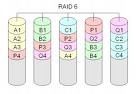
RAID 6For several years now RAID 5 has been one of the most popular RAID implementations. Just about every vendor that supplies storage to enterprise data centers offers it, and in many cases it has become — deservedly – a well-trusted tool. RAID 5 stripes parity and blocks of data across all disks in the RAID set. Even though users now must devote about 20% of their disk space to the parity stripe, and even though read performance for large blocks may be somewhat diminished and writes may be slower due to the calculations associated with the parity data, few managers have questioned RAID 5’s usefulness.

There are however, two major drawbacks associated with using RAID 5. First, while it offers good data protection because it stripes parity information across all the discs within the RAID set, it also suffers hugely from the fact that should a single disc within the RAID set fail for any reason, the entire array becomes vulnerable — lose a second disc before the first has been repaired and you lose all your data, irretrievably.

This leads directly to the second problem. Because RAID 5 offers no protection whatsoever once the first disc has died, IT managers using that technology have faced a classic Hobson’s choice when they lose a disc in their array. The choices are these. Do they take the system off-line, making the data unavailable to the processes that require it? Do they rebuild the faulty drive while the disc is still online, imposing a painful performance hit on the processes that access it? Or, do they take a chance, hold their breath, and leave the drive in production until things slow down during the third shift when they can bring the system down and rebuild it without impacting too many users?

This choice, however, is not the problem, but the problem’s symptom.

The parity calculations for RAID 5 are quite sophisticated and time consuming, and they must be completely redone when a disk is rebuilt. But it’s not the sophistication of all that math that drags out the process, but the fact that when the disk is rebuilt, parity calculations must be made for every block on the disk, whether or not those blocks actually contained data before the problem occurred. In every sense, the disk is rebuilt from scratch.

An unfortunate and very dirty fact of life about RAID 5 is that if a RAID set contains, say, a billion sectors spread over the array, the demise of even a single sector means the whole array must be rebuilt. This wasn’t much of a problem when disks were a few gigabytes in size. Obviously though, as disks get bigger more blocks must be accounted for and more calculations will be required. Unfortunately, using present technology RAID recovery speed is going to be constant irrespective of drive size, which means that rebuilds will get slower as drives get larger. Already that problem is becoming acute. With half-terabyte disks becoming increasingly common in the data center, and with the expected general availability of terabyte-sized disks this fall, the dilemma will only get worse.

The solution offered by most vendors is RAID 6.

The vendors would have you believe that RAID 6 is like RAID 5 on steroids: it eliminates RAID 5’s major drawback – the inability to survive a second disk failure – by providing a second parity stripe. Using steroids of course comes with its own set of problems.

RAID 6 gives us a second parity stripe. The purpose of doing all of the extra math to support this dual parity is that the second parity stripe operates as a “redundancy” or high availability calculation, ensuring that even if the parity data on the bad disk is lost, the second parity stripe will be there to ensure the integrity of the RAID set. There can be no question that this works. Buyers should, however, question whether or not this added safety is worth the price.

Consider three issues. RAID 6 offers significant added protection, but let’s also understand how it does what it does, and what the consequences are. RAID 6’s parity calculations are entirely separate from the ones done for the RAID 5 stripe, and go on simultaneously with the RAID 5 parity calculations. This calculation does not protect the original parity stripe, but rather, creates a new one. It does nothing to protect against first disk failure.

Because calculations for this RAID 6 parity stripe are more complicated than are those for RAID 5, the workload for the processor on the RAID controller is actually somewhat more than double. How much of a problem that turns out to be will depend on the site and performance demands of the application being supported. In some cases the performance hit will be something sites will live with, however grudgingly. In other cases, the tolerance for slower write operations will be a lot lower. Buyers must balance the increased protection against the penalty of decreased performance.

Issue two has to do with the nature of RAID 5 and RAID 6 failures.

The most frequent cause of a RAID 5 failure is that a second disk in the RAID set fails during reconstruction of a failed drive. Most typically this will be due to either media error, device error, or operator error during the reconstruction – should that happen, the entire reconstruction fails. With RAID 6, after the first device fails the device is running as a RAID 5, deferring but not removing the problems associated with RAID 5. When it is time to do the rebuild, all the RAID 5 choices and rebuild penalties remain. While RAID 6 adds protection, it does nothing to alleviate the performance penalty imposed during those rebuilds.

Need a more concrete reason not to accept RAID 6 at face value as the panacea your vendor says it is?  Try this.

When writing a second parity stripe, we of course lose about the same amount of disk space as we did when writing the first (assuming the same number of disks are in each RAID group). This means that when implementing RAID 6, we are voluntarily reducing disk storage space to about 60% of purchased capacity (as opposed to 80% with RAID 5). The result: in order to meet anticipated data growth, in a RAID 6 environment we must always buy added hardware.

This is the point at which many readers will sit back in their chairs and say to themselves, “So what?  Disks are cheap!” And so they are — which naturally is one of the reasons storage administrators like them so much. But what if my reader is not in storage administrator? What if the reader is a data center manager, or an MIS director, or a CIO, or a CFO? In other words, what if my reader is as interested in operational expenditures as in the CAPEX?

In this case, the story becomes significantly different. Nobody knows exactly what the relationship between CAPEX and OPEX is in IT, but a rule of thumb seems to be that when it comes to storage hardware the OPEX will be 4-8 times the cost of the equipment itself. As a result, everybody has an eye on the OPEX. And these days we all know that a significant part of operational expenditures derives from the line items associated with data center power and cooling.

Because of the increasing expense of electricity, such sites are on notice that they will have to make do with what they already have when it comes to power consumption. Want to add some new hardware?  Fine, but make sure it is more efficient than whatever it replaces.

When it comes to storage, I’m quite sure that we will see a new metric take hold. In addition to existing metrics for throughput and dollars-per-gigabyte, watts-per-gigabyte is something on which buyers will place increased emphasis. That figure, and not the cost of the disk, will be a repetitive expense that managers will have to live with for the life of whatever hardware they buy.

If you’re thinking of adding RAID 6 to your data protection mix, consider the down-stream costs as well as the product costs.

Does RAID 6 cure some problems? Sure, but it also creates others, and there are alternatives worth considering. One possibility is a multilevel RAID combining RAID 1 (mirroring) and RAID 0 (striped parity), usually called either RAID 10 or RAID 1+0. Another is the “non-traditional” RAID approach offered by vendors who build devices that protect data rather than disks. In such cases, RAID 5 and 6 would have no need for all those recalculations required for the unused parts of the disk during a rebuild.

RAID 6 — Do you really like it? Read More »

The advantages and disadvantages of RAID 5EE

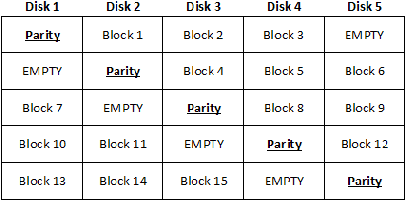
RAID 5EE is very similar to RAID 5E with one key difference — the hot spare’s capacity is integrated into the stripe set. In contrast, under RAID 5E, all of the empty space is housed at the end of the array. As a result of interleaving empty space throughout the array, RAID 5EE enjoys a faster rebuild time than is possible under RAID 5E.

RAID 5EE has all of the same pros as RAID 5E but enjoys a faster rebuild time than either RAID 5 or RAID 5E. On the cons side, RAID 5EE has the same cons as RAID 5E, with the main negative point being that not a lot of controllers support the RAID level yet. I suspect that this will change over time, though.

As is the case with RAID 5E, RAID 5EE requires a minimum of four drives and supports up to eight or 16 drives in an array, depending on the controller. Figure C shows a sample of a RAID 5EE array with the hot spare space interleaved throughout the array.


A RAID 5EE array with five drives A RAID 5EE array with five drives

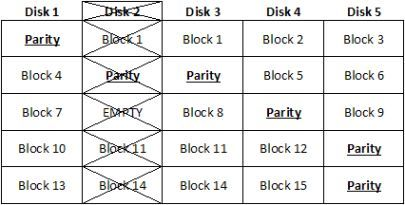
When a drive fails, as shown in Figure D, the empty slots are filled up with data from the failed drive.

empty slots are filled up with data from the failed drive.

The advantages and disadvantages of RAID 5EE Read More »

Hard Drive Firmware Update/Recover by Yourself

firmware update We know that up to 60% of hard disk drive failures are caused by firmware corruption. Just a little damage is enough to render a hard drive totally unusable. In such cases hard drive becomes inaccessible and sometimes can completely disappear from the system.

“For example, a hard drive can lose its parameters such as device model number and capacity. When it happens, there is no access to partitions and files. In most cases the problem is caused by firmware damage.”

What is firmware?
Firmware is software which is embedded in a piece of hardware. You can think of firmware simply as “software for hardware”.

Where the firmware stores?
Modern disks normally have their firmware codes located on data platters and also the PCB board.

Why firmware is so important?
Without the firmware, no communication will be possible between the PC system and the hard disk. If the firmware area is corrupted, the drive will appear to have failed even all the electrical and mechanical components are still fully functional.

The symptoms of firmware corruption:
1. Drive powers up, but is not recognized /defected by the computer
2. Drive powers up, but is recognized wrongly, sometimes with nonsensical characters, manufacture alias (Such as N40p for Maxtor 6Y and etc ;);
3. Drive freezes during booting up;
4. Drive detect in wrong Capacity, such as 80 GB detected as 1Mb;
5. S.M.A.R.T error;
6. Drive is locked by human error; such as Hitachi hard drive by a drop; it is a self protection method of HDD design;
7. Drive clicking ;( it can be caused by firmware too, the heads try to read the SA on platters and can not positing)

How to update/recover hard drive firmware by yourself?

In fact, in many drives the firmware can be updated under software control, very much the same way that a flash BIOS works. Unlike the system BIOS, this is only very rarely done, when a particular sort of problem exists with the firmware logic that can be fixed without requiring a physical hardware change. You can check the drive manufacturer’s web site for more details. For Example: Seagate Barracuda 7200.11 Command Queuing

If you don’t want to spend a lot of money on the expensive data recovery tools, such as PC3000 or HD Doctor Suite, how do you recover hard drive firmware corruption? Here are some free firmware recover tools , hope them can help you:

A-FF Repair Station

  • Diagnoses the Firmware Area and hard drive mechanics and displays a short summary of hard drive’s health;
  • Reads the Firmware Area;
  • Extracts and analyzes all firmware structures;
  • Rebuilds damaged parts and writes the firmware back to the drive.

All the operation is absolutely safe to the data (partitions and files) and takes no more than 20 minutes.

Maxtor Firmware Repair 2.0
Aiming at solution for typical firmware malfunction of Maxtor 541DX (2B020H1 2B010H1), which may manifest itself as follows:

  • HDD is not identified or identified by its factory alias “Maxtor Athena”;
  • HDD starts the motor and then hangs.

Seagate Firmware Repair 5.0
Aiming at one-key solution towards typical firmware malfunction of Seagate Barracuda VII drives, which may manifest itself as follows:

  • HDD is not identified or identified incorrectly;
  • HDD starts the motor and then hangs.

Please share your ideas here!

Hard Drive Firmware Update/Recover by Yourself Read More »

the advantages and disadvantages of RAID 5E

RAID 5E with an E that stands for Enhanced, RAID 5E is a RAID 5 array with a hot spare drive that is actively used in the array operations. In a traditional RAID 5 configuration with a hot spare, the hot spare drive sits next to the array waiting for a drive to fail, at which point the hot spare is made available and the array rebuilds the data set with the new hardware. There are some advantages to this operational method:

  • You know for a fact that the drive that would have been used as a hot spare is in working order.
  • There is an additional drive included in the array, thus further distributing the array’s I/O load. More spindles equals better performance in most cases. RAID 5E can perform better than typical RAID 5.

There are a few disadvantages associated with RAID 5E as well:

  • There is not wide controller support for RAID 5E.
  • A hot spare drive cannot be shared between arrays.
  • Rebuilds can be slow.

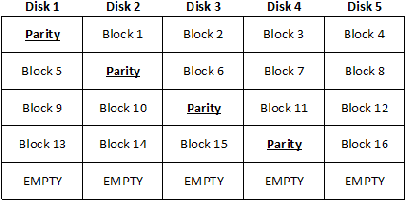
The capacity of a RAID 5E array is exactly the same as the capacity of a RAID 5 array that contains a hot spare. In such a scenario, you would “lose” two disks’ worth of capacity — one disk’s worth for parity and another for the hot spare. Due to this fact, RAID 5E requires that you use a minimum of four drives, and up to eight or 16 drives can be supported in a single array, depending on the controller. The main difference between RAID 5 and RAID 5E is that the drive that would have been used as a hot spare in RAID 5 cannot be shared with another RAID 5 array; so that could affect the total amount of storage overhead if you have multiple RAID 5 arrays on your system. Figure A gives you a look at a RAID 5E array consisting of five drives. Take note that the “Empty” space in this figure is shown at the end of the array.

A RAID 5E array with five drives

A RAID 5E array with five drives

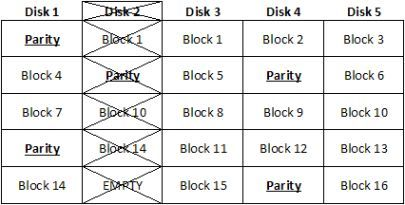
When a drive in a RAID 5E array fails, the data that was on the failed drive is rebuilt into the empty space at the end of the array, as shown in Figure B. When the failed drive is replaced, the array is once again expanded to return the array to the original state.


Fig_B_Lowe052307

A RAID 5E array that has been rebuilt into the hot spare space

the advantages and disadvantages of RAID 5E Read More »

Scroll to Top