Articles

Basic Information of Hard Disk Drive (Part III)

Firmware ‘overlay’ code are specific code functions. Why not just put all firmware code into one section? Well, since the RAM in the drive is a limited resource, they’ve put some code into ‘overlay files’, so that this specific code can be swapped into RAM when that specific function is needed. When the function is not needed, it can be swapped out of ram and some other function can be swapped into it again.

The firmware update files from Maxtor (I think the same goes for the other vendors) are not scrambled/encrypted/packed in anyway. In fact, you can find the exact same code in these files also in the ‘*.RPM’ files that PC3K produces for example.

Maxtor distributes their firmware file in a so called “.DMC” file. This DMC file is a package of 4 files, a ‘.Bxx’ file, a ‘.cxx’ file, a ‘.bbr’ file and a ‘.cbr’ file. Like I mentioned, this DMC container is not packed or scrambled in anyway. You can just cut the files out of it. The first 0x150 bytes of this file is the header. This header contains the four filenames, the offsets at which bytes in the package these files can be found, the length of the files and a checksum (not 100% sure about the checksum though). The ‘.bxx’ file is the biggest file and contains the overlay modules. You can find all code overlay modules by looking for ‘MO’ in the file. Right after this 2 byte string, you’ll find the hexadecimal overlay module ID. The ‘.bbr’ file contains the main firmware code. The last 2 files are very small, not sure what they contain, probably some checksums for the firmware and overlay modules.

Like said, the firmware code and overlay modules can also be found in the ‘*.RPM’ files of course, since this represents the firmware code on disk. So, you can look through these RPM files and scan for the ‘MO’ string to find any specific overlay module.

So, in short, if a vendor has released a firmware upload tool (most vendors have), BUT haven’t released a firmware file for your specific drive type, you could create your firmware, if you have the dumped modules (for example, obtained from this site). You could rip the main code and overlay modules and paste them into an existing DMC package. However, since I don’t know the checksum calculation and the meaning of these .cxx and .cbr files (probably checksums), you’d have to do more research, but in theory, it would be possible to create your own firmware files and flash them with such standard Vendor program to disk, so you wouldn’t need to buy an expensive tool like PC3000 (at least not if your sole goal was to upload a new firmware).

Of course, you could also create your own flasher program, instead of using the one supplied by the vendor. However, since vendors use specific versions of the ‘download microcode’ ATA command, you’d have to do research into this.

Furthermore, you could create a program that does EVERYTHING that a tool like PC3000 does. However, like pointed out, you’ll need very detailed information on the vendor specific ATA commands and the structure of the SA for that specific drive type and since this info is not made public by anyone, this means a LOT of work. “But hey, the PC3000 tool features a special hardware PCI card!” Yes, but as you’ll understand by now, you can think of that card as nothing more than a copy protection. They could have perfectly created the tool without it, but I guess they would have sold quite some copies less So you really can’t blame them for it, in fact, I think it’s quite a smart move to stop piracy.

Basic Information of Hard Disk Drive (Part III) Read More »

Basic Information of Hard Disk Drive (Part II)

If a drive has damaged data in the SA, for example in the firmware code module, it might become unusable. To repair these disks, the HDD can be switched to a so called ‘safe mode’, by setting specific jumpers on the drive. If the drive is operating in safe mode, it bypasses its own firmware. Instead, it wants the user to upload firmware to its ram. If the user uploads a correct ‘temporary’ firmware to RAM, it starts executing that firmware. If this uploaded RAM code (the ‘loader’) starts operating, the user can then start to issue ATA commands to the drive to modify the damaged modules.

Firmware files that you can find on a site like this contain a lot of files. First, there is the ‘loader’ file (*.LDR). This file is the ‘temporary’ firmware code, that’s being uploaded to the RAM (so, it’s not being written to disk). Then, there are a lot of ‘*.RPM’ files. These files represent the different modules, which can be written to the SA. The filenames consist of 8 numbers. The first 4 numbers specify the (hex) UBA and the second 4 numbers represent the hexadecimal module size in sectors (each sector normally contains 512 bytes, so for example, if a filename ends in 0002, then that module is 1024 bytes long). So, in short, after uploading the loader to RAM, the user can start replacing damaged modules by overwriting them with correct ones.

BTW, please note that the term ‘firmware’ for the packages on this site is not very well chosen, since these packages contain all needed modules to repair a HDD and not just the firmware (=code) module.

Anyway, if you’re looking for a specific firmware module, you can do 3 things:

1) rip the firmware modules from the SA of an identical HDD
2) get these modules from a friend (or for example, from the files section on this site: www.firmwarebase.com)
3) use a firmware update program from the vendor.

About this last option: firmware updates from vendors are pretty rare, since firmware code almost never needs to be replaced. However, Maxtor for example, had some problems with the firmware code on some Diamondmax HDD models. So, they issued a firmware update. This update consists of 2 files:

1) the executable file that issues the ATA ‘download microcode’ command to upload the firmware files to the HDD
2) The firmware code, consisting of the ‘main’ firmware code and ‘overlay’ code modules.

Basic Information of Hard Disk Drive (Part II) Read More »

The Solutions for Clicking Noise HDD

First of all you need to find out what is the real problem with your drive. You have to be 100% sure that you diagnosed the hard drive correctly. And serial port (so-called “Terminal”) is the only “proper” way to diagnose the hard drive. Forget about swapping heads until you are absolutely sure they are the problem. There is no room for mistake.

There are lots of reasons why a hard drive can make clicking noise, and yes, the most common reason is malfunctioning head stack (either a head itself or the preamplifier chip that is located on the head stack). But there are chances that the problem is not the head stack. You need to find that out via hard drive’s serial port.

Again, never open a drive unless you are 100% sure that the problem is inside. This applies to everyone, including all data recovery people out there.

Now, speaking about heads, it is possible to change the head stack without damaging platters. Cool guys somehow manage to swap 14+ heads head stacks without it being something very special to them. You just need some good experience. I believe it’s been told hundreds of times, but it is worth repeating: good data recovery people spent years to gain the knowledge and experience needed to perform something that is slightly more than just swapping PCBs and using Winhex.

Hope this will give you some better understanding of the situation.

The Solutions for Clicking Noise HDD Read More »

Basic Information of Hard Disk Drive (Part I)

Modern hard disks feature an area that contains information that the CPU on the HDD logic board uses to operate the drive. The area is called the “system area” (“SA”). This area contains for example the drive ‘microcode’ (a.k.a. firmware), HDD Configuration Tables, Defect sector tables, SMART information, Security info (drive passwords etc), Disk ID info and more. These categories of information are called ‘modules’. So the SA contains a module for the firmware code, a module for the SMART info etc.

The SA is stored on ‘negative cylinders’ of the HDD and therefore is not accessible by normal read commands. However, the area can be accessed with other ATA commands. An example of a (more or less) ‘standard’ ATA command that can access info on the SA is the ‘download microcode’ ATA command that can be used to update information in the firmware code module. However, most of the commands that can be used to access the SA are vendor specific. Since vendors (obviously) don’t want users to mess around with the SA, these commands are generally not made public. However, these commands can be deduced by, for example, reverse engineering the firmware code itself.

This reverse engineering has been done and led to development of tools that can issue these (vendor specific) ATA commands and can read/write almost all sectors in the SA. One example of such tool is PC3000 (‘PC3K’). A tool like this contains tables per HDD model, containing these vendor specific ATA commands and also tables with sector numbers on which the different modules are stored, also per HDD model. SA Sector numbers are counted in “UBA’s”. For example, one specific HDD might use UBA 4 to store the ‘DISK ID’ module, where another HDD model might use another sector for this module.

So in short, to create a tool that can read/write data in the SA, you need to:

1) know (and understand) the (vendor-) specific ATA commands that can be used to access this area and

2) know on which UBA sector the specific modules are stored.

Basic Information of Hard Disk Drive (Part I) Read More »

New Seagate Replica PC Backup Appliance

SeagateSeagate introduced a new backup appliance that completely eliminates the need to manually learn, manage, or dedicate any time to the backup process. The new Seagate® Replica™ backup appliance is a complete PC backup system, which automatically and continuously stores up-to-date copies of everything on a PC, including installed applications, operating system, e-mail, pictures, music, movies, Internet bookmarks and settings. Available in two configurations, the Seagate Replica solution delivers seamless backup for either a single PC or multiple PCs in a household.
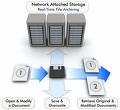
The multi-PC version of Seagate Replica backup appliance includes a dock and is available for homes with two or more PCs for a manufacturer’s suggested retail price (MSRP) of $199.99. A single-PC version of the Seagate Replica is recommended for use with individual laptop or desktop computers and is available for a manufacturer’s suggested retail price (MSRP) of $129.99. Seagate Replica Backup System will be available in May.

New Seagate Replica PC Backup Appliance Read More »

Tape services – Beyond Just Data Recovery

What happens when you need to access files from an old backup tape that is no longer compatible with your back up system, tape drive or backup software?

The rapidly changing world of IT means that new innovations are constantly replacing the latest technology. With changes to back up regimes, old tapes become redundant despite requests for old files to be restored. Furthermore, data compliance regulations require businesses to retain data for many years, often longer than the availability of the technology used to store it.

Causes of tape failure and data loss
•    Corruption – operational error, mishandling of the tape or accidental overwrites caused by inserting or partially formatting the wrong tape.
•    Physical damage – broken tapes, dirty drives, expired tapes and damage caused by fire, flood or other natural disaster
•    Software upgrades – inability for data on tape to be read by new application or servers

Tape recovery process
•    Tape recoveries are performed in dust-free cleanroom environments
•    Tapes and tape drives are carefully dismounted, examined and processed
•    Proprietary tools can “force” the drive to read around the bad area to recover your data successfully
•    Drives are imaged and a copy of the disk is created and transferred to new system

Tape services – Beyond Just Data Recovery Read More »

Storage Server Data Disasters – Common Scenarios (Part I)

When a data loss occurs on something as valuable as a server, it is essential to the life of your business to get back up and running as soon as possible.

Here is a sampling of specific types of disasters accompanied with actual engineering notes from recent Remote Data Recovery jobs:

Causes of partition/volume/file system corruption disasters:
•    Corrupted file system due to system crash
•    File system damaged to automatic volume repair utilities
•    File system corruption due partition/volume resizing utilities
•    Corrupt volume management settings

Case study
Severe damage to partition/volume information to Windows 2000 workstation; had used 3rd party recovery software – didn’t work, reinstalled OS but was looking for 2nd partition/volume, found it and it was a 100% recovery.
Evaluation time: 46 minutes (evaluation time represents the time it takes to evaluate the problem, make necessary file system changes to access data, and to report on all of the directories and files that can be recovered)

Causes of specific file error disasters:
•    Corrupted business system database; file system is fine
•    Corrupted message database; file system is fine
•    Corrupted user files

Case study
Windows 2000 server, volume repair tool damaged file system; target directories unavailable. Complete access to original files critical. Remote data recovery safely repaired volume; restored original data, 100% recovery.
Evaluation time: 20 minutes

Exchange 2000 server, severely corrupted information store; corruption cause unknown. Scanned information store file for valid user mailboxes, results took up to 48 hours due to the corruption. Backup was one month old/not valid for users.
Evaluation time: 96 hours (1.5 days)

Storage Server Data Disasters – Common Scenarios (Part I) Read More »

Storage Server Data Disasters – Common Scenarios (Part II)

Possible causes of hardware related disasters:
•    Server hardware upgrades (storage controller firmware, BIOS, RAID firmware)
•    Expanding storage array capacity by adding larger drives to controller
•    Failed array controller
•    Failed drive on storage array
•    Multiple failed drives on storage array
•    Storage array failure but drives are working
•    Failed boot drive
•    Migration to new storage array system

Case study
Netware volume server, Traditional NWFS, failing hard drive made volume inaccessible; Netware would not mount volume. Errors on hard drive were not in the data area and drive was still functional. Copied all of the data to another volume; 100% recovery.
Evaluation time: 1 hour

Causes of software related disasters:
•    Business system software upgrades (service packs, patches to business system)
•    Anti-virus software deleted/truncated suspect file in error and data has been deleted, overwritten or both

Case study
Partial drive copy overwrite using third party tools, overwrite started and then crashed 1% into the process, found a large portion of the original data. Rebuilt file system, provided reports on recoverable data; customer will be requiring that we test some files to verify quality of recovery.
Evaluation time: 1 hour

Causes of user error disasters:
•    During a data loss disaster, restored backup data to exact location, thereby overwriting it
•    Deleted files
•    Overwritten operating system with reinstall of OS or application software

Case study
User’s machine had the OS reinstalled – restore CD was used; user looking for Outlook PST file. Searched for PST data through the drive because original file system completely overwritten. Found three potential files that might contain the user’s data, after using PST recovery tools we found one of those files to contain all of the user’s email; there were missing messages, majority of the messages/attachments came back.
Evaluation time: 5 hours

Causes of operating system related disasters:
•    Server OS upgrades (service packs, patches to OS)
•    Migration to different OS

Case study
Netware traditional, 2TB volume, damage to file system when trying to expand size of volume, repaired on drive, volume mountable. Evaluation time: 4 hours

When a data loss occurs on something as valuable as a server, it is essential to the life of your business to get back up and running as soon as possible.

Storage Server Data Disasters – Common Scenarios (Part II) Read More »

Computer Data Storage Tips

data storageSuccessful server recoveries: Preventing further damage when a server goes down

Despite the industry improvements in backup systems or storage array systems, server failures are a common occurrence that can leave a business paralyzed. Whether the failure is hardware-related, software-related, the result of human error or due to a natural disaster, the number of data loss events is increasing as businesses rely on their corporate server structure and document storage volumes.

How to increase the chances of a successful recovery:

•    Use a volume defragmenter regularly: A defragmenter moves the pieces of each file or folder to one location on the volume, so that each occupies a single, contiguous space on the disk drive. This helps improve the quality of recovery, making files and folders easier for data recovery specialists to locate. Do not run defragmenter utilities on suspected bad drives – if drives are bad, this could have damaging effects

•    Perform a valid backup before making hardware or software changes

•    If a drive is making unusual mechanical noises, turn it off immediately and get assistance from your data recovery company

•    Before removing drives, label the drives with their original position and RAID array

•    Never restore data to the server that has lost the data – always restore to a separate server or alternate location

•    In Microsoft Exchange or SQL failures, never try to repair the original information store or database files – make a copy and perform recovery operations on the copy

•    When replacing drives on RAID systems, never replace a failed drive with a drive that was part of a previous RAID system – always zero out the replacement drive before using

•    In a power loss situation with a RAID array, if the file system looks suspicious, is uncountable or the data is inaccessible after power is restored, do not run volume repair utilities. Do not run volume repair utilities on suspected bad drive

Computer Data Storage Tips Read More »

Hardware Life Cycle Management(Part I)

hardware life cycleEvery IT professional can tell a horror story about an upgrade, roll-out, or migration gone awry. So many factors are involved; hardware, software, compatibility, timing, data, procedures, security protocols, and of course the well-meaning but imperfect human.
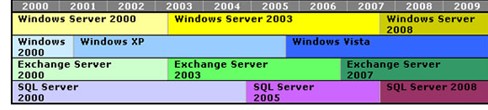
Over 2008, IT departments and staff can look forward to a number of upgrade projects for their computer system infrastructure. According to Gartner, Inc., the number of PC shipments during fourth quarter 2007 increased 13.1% over the same period in 2006. Global PC shipments during 2007 increased 13.4% over 2006 – equating to 271.2 million units in 2007.

While a slower economy than in previous years may lower the number of units, the fact that organizations have been investing in new units shows that Hardware Life-cycle Managementis still a mainstay of corporate IT’s responsibilities and will continue to be such.

IT professionals realize that scheduled change is a pattern for the industry. Whether this change involves accommodating new users, replacing old servers, or upgrading staff to newer systems, there is always change within the computer organization. Sometimes it is easy to only rely on hardware or software budgets for your roadmap. However, these budgets may be short-sighted and lack proper planning. Using accounting budgets alone to manage hardware may not take into consideration the overall life span of the equipment.

Equipment/software life-cycles and your road map
Managing IT equipment and product life-cycles is an important function of IT department staff. As a goal, equipment life-cycle management should reduce failures and data-loss because computer equipment is replaced before it fails, and it should reduce the total cost of equipment management over its lifetime. Depending on the organization, equipment life-cycles are based on different criteria.

•    Warranty expiration: If your IT infrastructure has a mix of equipment in place, with different makes and types of equipment, then your warranty-based product life-cycle management will be complicated. Using this approach is not only short-sighted, it also mirrors the first time you bought the equipment. Consider the expanding department who needs to plead with the CFO or budgetary manager for a non-planned equipment purchase. Three years later when the warranty expires, the department will be back again on their knees begging for replacements or an extension to the expiring warranties. Whichever the case, it will be an unplanned expense.

•    Waiting until equipment fails: In our economy, budgets are tight and management rightfully wants to get the most production or usage out of a piece of equipment before having to replace it. This approach is very risky and will usually cost more in the end.  IT equipment rarely fails at a “convenient” time.  If you’re lucky, the failure occurs during a slower period and your IT department is equipped to get you back up and running quickly.  In reality, this is not usually the case. Consider the real cost of equipment failure if it is month-end or year-end and the server with the financial data crashes; or a company has just secured a large contract and at the eleventh hour, one or more workstations fails or becomes intermittent causing wasted downtime on the project and inefficient use of personnel resources.

•    Capital expense budgets: Some IT departments base their product life-cycles on departmental accounting policies for capital expense purchases. Of course, this alternative method can have a knock-on effect when there is a business need for expansion and this wasn’t considered in the fiscal budget. Additionally, in larger user environments, departments may have control of their own capital expense budgets, so there may be many departments with different budget needs. When the life-cycle of one department’s equipment is complete, the number of fragmented purchases may actually reduce your company’s buying power. In contrast, a more structured approach would concentrate equipment purchases to various times throughout the year. This method is preferred by CFO or budget managers who will use a predefined purchase allocation per business unit or department to facilitate budget planning for the next year.

Hardware Life Cycle Management(Part I) Read More »

Scroll to Top