Articles

Comparison of Software RAID on Windows versus Linux

The basic idea of RAID (Redundant Arrays of Inexpensive Disks) is to combine multiple small, independent disk drives into an array of disk drives which yields performance and recoverability exceeding that of a Single Large Expensive Drive (SLED). Redundancy is also provided (unless RAID 0) which allows easy and often automatic recovery from hard disk crash. With the reduction in price of ATA and SATA drives it is often a good idea, even for desktop computers, to setup a RAID 1 system to allow you to function in the event of hard disk failures. In RAID 1 two hard disks (or portions of them) mirror each other. RAID 1 is essential for our environment. I have tested both Windows software RAID facility as well as Linux RAID capability. Linux RAID support is way superior to Windows and should by itself be the reason to switch to Linux. I have given 4 reasons to support my claim below.

Linux supports RAID on block devices. So you can setup RAID between two partitions on the same hard disk or even on two RAID 0 arrays, effectively creating RAID 10 array. Windows simply supports RAID 0 and GBOD (known as linear on Linux) only for non-server users. Linux support all RAID variants. Even Windows server doesn’t support the intermediate RAID variants.

In Linux as well as Windows you can create RAID arrays spanning machines.

In Windows you cannot install the operating system on RAID. In Linux you can even install the operating system on RAID file system. This means if one of the hard disk dies you can easily boot from the other hard disk (assuming you transferred the MBR earlier).

If you have spare hard disks, Linux will automatically configure it and add to the RAID array, should one of the RAID disks fail. This is to my knowledge not possible in Windows.

Linux RAID can be easily configured during installation. All the partitions (/, /opt and even swap) can and should be RAID enabled. Windows RAID is harder to configure and is done after installation of the OS, from disk management.

Comprehensive RAID support by itself (not to mention security) should be reason enough for SMB servers to switch to / use Linux.

Comparison of Software RAID on Windows versus Linux Read More »

Linux Configuration Files

linux Configuration filesprofile
System wide environment and startup script program.

/dev/MAKEDEV
The /dev/MAKEDEV file is a script written by the system administrator that creates local only device files or links such as device files for a non-standard device driver.

/etc/aliases
Where the user’s name is matched to a nickname for e-mail.

/etc/bootptab
The configuration for the BOOTP server daemon.

/etc/crontab
Lists commands and times to run them for the cron deamon.

/etc/dhcpd.conf
The configuration file for the DHCP server daemon.

/etc/ethers
File for RARP mapping from hardware addresses to IP addresses. See the man page ethers(5).

/etc/exports
The file describing exported filesystems for NFS services.

/etc/fdprm
The floppy disk parameter table. Describes the formats of different floppy disks. Used by setfdprm.

/etc/filesystems
Can be used to set the filesystem probe order when filesystems are mounted with the auto option. The nodev parameter is specified for filesystems that are not really locally mounted systems such as proc, devpts, and nfs systems.

/etc/fstab
Lists the filesystems mounted automatically at startup by the mount -a command (in /etc/rc or equivalent startup file).

/etc/group
Similar to /etc/passwd but for groups rather than users.

/etc/groups
May contain passwords that let a user join a group.

/etc/gshadow
Used to hold the group password and group administrator password information for shadow passwords.

/etc/host.conf
Specifies how host names are resolved.

/etc/hosts
List hosts for name lookup use that are locally required.

/etc/HOSTNAME
Shows the host name of this host. Used for support of older programs since the hostname is stored in the /etc/sysconfig/network file.

/etc/inittab
Configuration file for init, controls startup run levels, determines scripts to start with.

/etc/inetd.conf
Sets up the services that run under the inetd daemon.

/etc/issue
Output by getty before the login prompt. Description or welcoming message.

/etc/issue.net
Output for network logins with LINUX version

/etc/ld.so.conf
Configuration file for ld.so, the run time linker.

/etc/lilo.conf
Configuration file for LILO.

/etc/limits
Limits users resources when a system has shadow passwords installed.

/etc/localtime
In Debian the system time zone is determined by this link.

/etc/login.defs
Sets user login features on systems with shadow passwords.

/etc/logrotate.conf
Configures the logrotate program used for managing logfiles.

/etc/magic
The configuration file for file types. Contains the descriptions of various file formats for the file command.

/etc/motd
The message of the day, automatically output by a successful login.

/etc/mtab
A list of currently mounted file systems. Setup by boot scripts and updated by the mount command.

/etc/named.conf
Used for domain name servers.

/etc/networks
Lists names and addresses of your own and other networks, used by the route command.

/etc/nologin
If this file exists, non-root logins are disabled. Typically it is created when the system is shutting down.

/etc/nsswitch.conf
Name service switch configuration file.

/etc/passwd
The user database with fields giving the username, real name, home directory, encrypted password and other information about each user.

/etc/printcap
A configuration file for printers.

/etc/profile, /etc/cshlogin,/etc/csh/cshrc
Files executed at login or startup time by the Bourne or C shells. These allow the system administrator to set global defaults for all users.

/etc/protocols
Describes DARPA internet protocols available from the TCP/IP subsystem. Maps protocol ID numbers to protocol names.

/etc/rc or /etc/rc.d or /etc/rc?.d
Scripts or directories of scripts to run at startup or when changing run level.

/etc/rc.d/rc0.d
Contains files used to control run level 0. Usually these files are softlink files.

/etc/rc.d/rc1.d
Contains files to control run level 1. Scripts beginning with an S are for start, K for kill.

/etc/rc.d/rc.sysinit
Init runs this when it starts.

/etc/resolv.conf
Configures the name resolver, specifying the address of your name server and your domain name.

/etc/securetty
Identifies secure terminals from which root is allowed to log in.

/etc/services
Lists the network services that the system supports.

/etc/shadow
Shadow password file on systems with shadow password software installed. Shadow passwords move the encrypted password files from /etc/passwd to /etc/shadow which can only be read by root.

/etc/shadow.group
Systems with shadow passwords may have this file.

/etc/shells
Lists trusted shells. The chsh command allows users to change their login shell to shells listed only in this file.

/etc/skel/.profile
Can be used by administrator to set the editor environment variable to some editor that is friendly to new users.

/etc/sudoers
A list of users with special privileges along with the commands they can execute.

/etc/smb.conf
The configuration file for setting up Samba services.

/etc/sysconfig/amd
Used to configure the auto mount daemon.

/etc/sysconfig/clock
Used to configure the system clock to Universal or local time and set some other clock parameters.

/etc/sysconfig/i18n
Controls the system font settings.

/etc/sysconfig/init
This file is used to set some terminal characteristics and environment variables.

/etc/sysconfig/keyboard
Used to configure the keyboard.

/etc/sysconfig/mouse
This file is used to configure the mouse.

/etc/sysconfig/network-scripts/ifcfg-interface
Defines a network interface.

/etc/sysconfig/pcmcia
Used to configure pcmcia network cards.

/etc/sysconfig//routed
Sets up dynamic routing policies.

/etc/sysconfig/static-routes
Configures static routes on a network.

/etc/sysconfig/tape
Used for backup tape device configuration.

/etc/X11/XF86Config
The configuration file for the X server.

/etc/syslog.conf
Configuration file for the syslogd daemon.

/etc/termcap
The terminal capability database. Describes by what “escape sequences” various terminals can be controlled. See terminfo, termcap, curs_termcap man pages.

/etc/terminfo
Details for terminal I/O.

/etc/usertty
This file is used to impose special access restrictions on users.

$HOME/.bashrc
User aliases, path modifier, and functions.

$HOME/.bash_profile
Users environment stuff and startup programs.

$HOME/.bash_logout
User actions to be done at logout.

$HOME/.hushlogin
When this file exists in the user’s home directory, it will prevent check for mail, printing of the last login time, and the message of the day when the user logs in.

$HOME/.inputrc
Contains keybindings and other bits.

$HOME/Xrootenv.0
Has networking and environment info.

/proc/cpuinfo
Information about the processor such as its type, make and performance.

/proc/devices
A list of devices configured into the currently running kernel.

/proc/dma
Shows which DMA channels are being used at the moment.

/proc/filesystems
Filesystems that are configured into the kernel. The file used to detect filesystems if the /etc/filesystems does not exist.

/proc/ioports
Shows which I/O ports are in use at the moment.

/proc/interrupts
Shows which interrupts are in use and how many of each there have been.

/proc/kcore
An image of the physical memory of the system.

/proc/kmsg
Messages output by the kernel. These are also routed to syslog.

/proc/ksyms
Symbol table for the kernel.

/proc/loadavg
The load average of the system.

/proc/meminfo
Information about memory usage, both physical and swap.

/proc/modules
Which kernel modules are currently loaded.

/proc/mounts
Contains information on filesystems currently mounted, similar to /etc/mtab

/proc/net
Contains status information about network protocols.

/proc/self
A symbolic link to the process directory of the program that is looking at /proc. When 2 process look at proc, they get different links.

/proc/stat
Various statistics about the system such as the number of page faults since the system was booted.

/proc/uptime
The time the system has been up.

/proc/version
The kernel version.

/tmp/fvwmrca01339
FVWM-M4 defines. Contains networking, Xwindows, other setup info.

/usr/lib/zoneinfo
Time zone datafiles are stored here on the Debian system

/var/log/lastlog
Used by finger to tell when a user was last logged in.

/var/log/wtmp
Binary info on users that have been logged on. The last command uses this info.

/var/run/utmp
Contains information about users currently logged in. Who and w commands use this file.

/var/named/root.hints
Used for domain name server. Placed here optionally, but this is the normal location.

/var/named/*
Files used by domain name server. Placed here optionally, but this is the normal location.

/var/log/btmp
Used to store information about failed logins. This file must be first created to activate it.

/var/log/lastlog
Contains information about the last time a login was done on the system. Works with lastb(1).

/var/log/maillog
The normal system mail log file.

/var/log/messages
The main system message log file.

var/log/secure
System tracking of user logins. Check this file periodically.

/var/spool/mail
Where mailboxes are usually stored.

Linux Configuration Files Read More »

Linux File Structure

linux file structureLinux file structure files are grouped according to purpose. Ex: commands, data files, documentation. Parts of a Unix directory tree are listed below. All directories are grouped under the root entry “/”.

root – The home directory for the root user
home – Contains the user’s home directories along with directories for services

  • ftp
  • HTTP
  • samba
  • george

bin – Commands needed during bootup that might be needed by normal users
sbin – Like bin but commands are not intended for normal users. Commands run by LINUX.
proc – This filesystem is not on a disk. It is a virtual filesystem that exists in the kernels imagination which is memory.

  • 1 – A directory with info about process number 1. Each process has a directory below proc.

usr – Contains all commands, libraries, man pages, games and static files for normal operation.

  • bin – Almost all user commands. some commands are in /bin or /usr/local/bin.
  • sbin – System admin commands not needed on the root filesystem. e.g., most server programs.
  • include – Header files for the C programming language. Should be below /user/lib for consistency.
  • lib – Unchanging data files for programs and subsystems
  • local – The place for locally installed software and other files.
  • man – Manual pages
  • info – Info documents
  • doc – Documentation
  • tmp
  • X11R6 – The X windows system files. There is a directory similar to usr below this directory.
  • X386 – Like X11R6 but for X11 release 5

boot – Files used by the bootstrap loader, LILO. Kernel images are often kept here.
lib – Shared libraries needed by the programs on the root filesystem

  • modules – Loadable kernel modules, especially those needed to boot the system after disasters.

dev – Device files
etc – Configuration files specific to the machine.

  • skel – When a home directory is created it is initialized with files from this directory
  • sysconfig – Files that configure the linux system for devices.

var – Contains files that change for mail, news, printers log files, man pages, temp files
file

  • lib – Files that change while the system is running normally
  • local – Variable data for programs installed in /usr/local.
  • lock – Lock files. Used by a program to indicate it is using a particular device or file
  • log – Log files from programs such as login and syslog which logs all logins and logouts.
  • run – Files that contain information about the system that is valid until the system is next booted
  • spool – Directories for mail, printer spools, news and other spooled work.
  • tmp – Temporary files that are large or need to exist for longer than they should in /tmp.
  • catman – A cache for man pages that are formatted on demand

mnt – Mount points for temporary mounts by the system administrator.
tmp – Temporary files. Programs running after bootup should use /var/tmp.

Linux File Structure Read More »

Raid Data Recovery Softwares

1. RAID Reconstructor
Company: Runtime Software
Supported RAID Type: RAID 0, RAID 5
Supported Working Modes: Automatic Analysis

Runtime’s RAID Reconstructor will help you recover data from broken: RAID Level 5 Array consisting of 3 to 14 drives, RAID Level 0 Array (Striping) consisting of 2 to 14 drives. Even if you do not know the RAID parameters, such as drive order, block size and direction of rotation, RAID Reconstructor will analyze your drives and determine the correct values. You will then be able to create a copy of the reconstructed RAID in a virtual image (.vim), an image file (.img) or on a physical drive.

2. DiskInternals Raid Recovery
Company: DiskInternals Data Recoverysoftware
Supported RAID Type: RAID 0, 1, JBOD, RAID 5, and 0+1
Supported Working Modes: Automatic Analysis

Recover corrupted RAID arrays in a fully automatic mode. Raid Recovery is the first tool to automatically detect the type of the original RAID array while still allowing for fully manual operation. Raid Recovery is no doubt a highly valuable tool for users of all types of RAID arrays, whether hardware, native, or software. The drag-and-drop user interface allows specifying parts of the RAID array by simply dragging and dropping icons representing the disks.

3. Quick Recovery RAID
Company: Unistal Immortalizing Information
Supported RAID Type: RAID 0, RAID 5
Supported Working Modes: Manual Analysis

Quick Recovery RAID is a do-it-yourself non-destructive raid data recovery software. There are just two steps to perform the complete operation. Analysis, Select & Save. Analysis is the most important aspect of data recovery. Quick Recovery RAID’s unique Guided File Excavation Technology (GFETCh) helps in locating files and folders lost behind overwritten partitions too.

4. RAID Recovery Presentation
Company: R-Studio
Supported RAID Type: RAID 0, RAID 1, RAID 5
Supported Working Modes: Manual Analysis

R-Studio detects and treats valid software or hardware RAIDs as regular drives/volumes. But what to do if you have only drives or drive images of a faulty RAID? R-Studio can still help you to get the data back provided that the drives necessary for the RAID to operate are working or you have the images of those drives. The number of drives enough to get data back depends on the RAID layout. For example, for a mirror (RAID 1) of two drives, at least one must be valid, whereas for a RAID5 of 3 disks, the number of valid drives should be two.

5. RAID recovery
Company: Zero Assumption Recovery
Supported RAID Type: RAID 0,  RAID 5
Supported Working Modes: Manual Analysis

This tutorial describes the data recovery procedure used to recover a RAID0 or RAID5 array if the controller failed and the array parameters are lost Windows software-based RAID configuration data is damaged.

6. Getway Raid Recovery

Company: Getway Recovery LTD
Supported RAID Type: RAID 0, Raid 5,Raid 5E,Raid 5EE,Raid 6
Supported Working Modes: Smart Mode,Manual Mode,User-define Mode

Getway Raid Recovery is the professional raid recovery software which can extract data from multiple Hard disks in a RAID system, and rebuild the correct data. It can get data back from various types of arrays, including RAID 0, RAID 5, RAID 5E, RAID 5EE and RAID 6.

Raid Data Recovery Softwares Read More »

Raid 1 Data Recovery

1. Raid 1 Data Recovery FAQ

Q: What is the definition of a “RAID 1” volume?
A: “RAID 1” refers to a “Redundant Array of Inexpensive (or Independent) Disks” that have been established in a Level 1, or mirrored, drive set. A RAID 1 volume is a set of disk drives that are configured for data to be written to 2 volumes simultaneously. This configuration provides complete data redundancy in the event of a drive failure.

Q: What is meant by the term “mirroring”?
A: Within a mirroring (RAID 1) volume, the exact same information that is written to one disk is also written to a second disk, creating a “mirror image”, or clone, of the orginal hard drive.

Q: What number of drives are needed for a RAID 1 volume?
A: A minimum of at least two (2) hard drives are required to create and maintain a RAID 1 volume. Unlike some other RAID configurations, RAID 1 volumes require an even number of drives to be used.

Q: What are the differences between “hardware” and “software” RAID 1 configurations?
A: With a software-based RAID 1 volume, the hard disk drives use a standard drive contoller and a software utility provides the management of the drives in the volume. A RAID 1 volume that relies on hardware for management will have a physical controller (either as an expansion card or as a part of the motherboard) that provides for the mirroring of data across the hard drives in the volume.

Q: What are the positive reasons for configuring drives as a RAID 1?
A: A RAID 1 (mirroring) set will provide redundancy, or protection against one of the drives failing during use. With a RAID 1 disk volume, information is written to the first drive and then to a second (or “mirror”) drive at the same time. If one of the hard drives in the mirror volume fails, the remaining hard drive can be placed in service as a single drive with no loss of information. Similar to a RAID 0 (striped) volume, RAID 1 volumes require a minimum of two (2) drives.

Q: What are the arguments against RAID 1 configurations?
A: RAID 1 (mirroring) results in loss of half of the physical storage capacity of the drives comprising the volume. For example, if two (2) 500GB hard drives are configured as a RAID 1 volume, only 500GB is available for data storage. Using the same drives in a RAID 0 (striped) configuration, total data storage would equal 1000GB (or approximately 1 terabyte). Also, if damaged or corrupted data is written to one drive, it is also written to the second drive. Many people mistakenly assume that they are totally protected against data loss with a RAID 1 volume, but nothing could be further from the truth. A RAID 1 volume provides a measure of protection against data loss, but it does not eliminate the need for regular backup of critical data.

Q: Can RAID 1 be combined with another type of RAID, such as RAID 0?
A: The combination of a mirrored configuration with striping added is referred to as RAID 1+0 (also called RAID 10). In this scenario, the configuration will provide mirroring (RAID 1) across two (2) or more drives and will “stripe” the data in real-time to a second mirrored drive set. This unique combination will provide data redundancy and some speed advantages, but it does so at the expense of usable storage space. A volume established as a RAID 1+0 volume provides a little more data protection than a RAID 0+1, and will need four (4) hard drives at a minimum to be configured.

Q: Can data be recovered from a re-formatted RAID 1 volume?
A: Many times information is still recoverable, depending on how the drives were re-formatted. A high-level re-format (using Windows, for example), will create what will appear to be a new “clean” volume – but the original data will still be on the disk in the “free and available” space. A low-level format routine (as performed using the controller software) will overwrite every sector, and in the process destroys the original data.

Q: Could data recovery software utilities be used to recover my RAID 1?
A: Perhaps, but it wouldn’t be the safest approach. Most data recovery software will require the read / write heads to constantly travel over areas of the original disk that, if there is any physical damage, could render the surfaces useless and beyond recovery. The safest method of recovering data from a failed or corrupted RAID 1 volume (or with any storage device) is to create a block-level copy of every sector on each hard drive. The copied image is then used to reconstruct the original volume and rescue the required files and directories. This approach, while more time consuming, maintains and preserves the physical integrity of the drive media and limits the number of times that the original drive needs to be accessed.

Q: With RAID 1, if both mirrored drives fail, can data still be recovered?
A: In many situations, data will be recoverable. The quality and integrity of the data recovered will depend on the extent of the damage incurred to each failed storage device. If the mirrored volume was operating properly up to the point of failure, then there should be identical copies of the data on at least two (2) drives which will provide 2 chances to recover the same data.

2. How Raid 1 Data Recovery?

RAID 1 creates an exact copy (or mirror) of a set of data on two or more disks. This is useful when write performance is more important than minimizing the storage capacity used for redundancy. This is thought to be a foolproof method of data protection, but we commonly receive RAID 1 arrays that have failed due to:

  • corrupted mirrors
  • bad data from one drive moves to the other drive
  • mirror breaks, and does not allow system to boot
  • improper rebuild

The array can only be as big as the smallest member disk, however. A classic RAID 1 mirrored pair contains two disks, which increases reliability by a factor of two over a single disk, but it is possible to have many more than two copies. Since each member can be addressed independently if the other fails, reliability is a linear multiple of the number of members. To truly get the full redundancy benefits of RAID 1, independent disk controllers are recommended, one for each disk. Some refer to this practice as splitting or duplexing.

When reading, both disks can be accessed independently. Like RAID 0 the average seek time is reduced by half when randomly reading but because each disk has the exact same data the requested sectors can always be split evenly between the disks and the seek time remains low. The transfer rate would also be doubled. For three disks the seek time would be a third and the transfer rate would be tripled. The only limit is how many disks can be connected to the controller and its maximum transfer speed. Many older IDE RAID 1 cards read from one disk in the pair, so their read performance is that of a single disk. Some older RAID 1 implementations would also read both disks simultaneously and compare the data to catch errors. The error detection and correction on modern disks makes this less useful in environments requiring normal commercial availability. When writing, the array performs like a single disk as all mirrors must be written with the data.

RAID 1 has many administrative advantages. For instance, in some 365*24 environments, it is possible to “Split the Mirror”: declare one disk as inactive, do a backup of that disk, and then “rebuild” the mirror. This requires that the application support recovery from the image of data on the disk at the point of the mirror split. This procedure is less critical in the presence of the “snapshot” feature of some filesystems, in which some space is reserved for changes, presenting a static point-in-time view of the filesystem. Alternatively, a set of disks can be kept in much the same way as traditional backup tapes are.

Raid 1 Data Recovery Read More »

RAID 3 Data Recovery

This level uses byte level striping with dedicated parity. In other words, data is striped across the array at the byte level with one dedicated parity drive holding the redundancy information. The idea behind this level is that striping the data increasing performance and using dedicated parity takes care of redundancy. 3 hard drives are required. 2 for striping, and 1 as the dedicated parity drive. Although the performance is good, the added parity does slow down writes. The parity information has to be written to the parity drive whenever a write occurs. This increased computation calls for a hardware controller, so software implementations are not practical. RAID 3 is good for applications that deal with large files since the stripe size is small. Since this level is so rare, we have not come up with a recovery procedure for this RAID level. Recovery is possible by finding the parity disk using the image compression technique, then removing it and treating the RAID as a stripe.

RAID 3 Data Recovery Read More »

How To Diagnose a Noisy Hard Drive

Hard drives are usually nearly silent but some do make a muted clicking sound when they’re being accessed – this is normal. On the other hand, if you start hearing noises only occasionally or noises that you’ve never heard before – like clicking, grinding or squealing – your hard drive may be failing.

The steps below will help you determine what to do next before all of your precious data is gone for good.

  • Run free hard drive diagnostic software, already available on most PCs or available on the Internet. Additionally, more advanced diagnostic software is available for a cost from third party software developers.Note: At best, diagnostic software will only mark the areas of the hard drive that are failing as “bad” and prevent the computer from using them in the future. It will not truly fix a hard drive that is physically failing.
  • If any corrections made by the diagnostics software do not temporarily resolve the hard drive noise, do a complete backup of your system and replace the hard drive immediately.
  • If the diagnostics software helps resolve the clicking, grinding or squealing noises keep in mind that this is only a temporary solution. Chances are, the hard drive will continue to fail until it is completely unusable. The permanent solution is to do a complete backup of your system and replace the hard drive as soon as possible.

Tips:
Since there is no good way to repair a failing hard drive, protecting your data by performing regular backups is essential. With an up-to-date backup, recovering from a hard drive failure is as simple as installing a new drive and restoring your data.

How To Diagnose a Noisy Hard Drive Read More »

RAID 5 Data Recovery

1.  RAID 5 Data Recovery FAQ

Q: What is the definition of a “RAID 5” volume?
A: “RAID 5” refers to a “Redundant Array of Inexpensive (or Independent) Disks” that have been established in a Level 5, or striped with parity, volume set. A RAID 5 volume is a combination of hard drives that are configured for data to be written across three (3) or more drives.

Q: What is “parity” or “parity data”?
A: In a RAID 5 configuration, additional data is written to the disk that should allow the volume to be rebuilt in the event that a single drive fails. In the event that a single drive does fail, the volume continues to operate in a “degraded” state (no fault tolerance). Once the failed drive is replaced with a new hard drive (of the same or higher capacity), the “parity data” is used to rebuild the contents of the failed drive on the new one.

Q: What the minimum drive requirements to create a RAID 5 volume?
A: RAID 5 volume sets require a minimum of at least three (3) hard drives (preferably of the same capacity) to create and maintain a RAID 5 volume. If one drive is of a lower capacity than the others, the RAID controller (whether hardware or software) will treat every hard drive in the array as though it were of the same lower capacity and will establish the volume accordingly.

Q: What are the differences between “hardware” and “software” RAID 5 configurations?
A: With a software-based RAID 5 volume, the hard disk drives use a standard drive contoller and a software utility provides the management of the drives in the volume. A RAID 5 volume that relies on hardware for management will have a physical controller (commonly built into the motherboard, but it can also be a stand-alone expansion card) that provides for the reading and writing of data across the hard drives in the volume.

Q: What are the advantages of RAID 5 volumes?
A: A RAID 5 volume provides faster data access and fault tolerance, or protection against one of the drives failing during use. With a RAID 5 disk volume, information is striped (or written) across all of the drives in the array along with parity data. If one of the hard drives in the array becomes corrupted, drops out of a ready state or otherwise fails, the remaining hard drives will continue to operate as a striped volume with no parity and with no loss of data. The failed drive can be replaced in the array with one of equal or larger capacity, and the data it contained will be automatically rebuilt using the parity data contained on the other drives. Establishing a RAID 5 volume requires 3 disk drives as a minimum requirement.

Q: What are the disadvantages of RAID 5 configurations?
A: There are several disadvantages. RAID 5 results in the loss of storage capacity equivalent to the capacity of one hard drive from the volume. For example, three 500GB hard drives added together comprise 1500GB (or roughly about 1.5 terabytes) of storage. If the three (3) 500GB drives were established as a RAID 0 (striped) configuration, total data storage would equal 1500GB capacity . If these same three (3) drives are configured as a RAID 5 volume (striped with parity), the usable data storage capacity would be 1000GB and not 1500GB, since 500GB (the equivalent of one drives’ capacity) would be utilized for parity. In addition, if two (2) or more drives fail or become corrupted at the same
time, all data on the volume would be inaccessible to the user.

Q: Can data be recovered from a re-formatted RAID 5 volume?
A: Many times information is still recoverable, depending on how the drives were re-formatted. Re-formatting a volume using Windows, for example, will create what will appear to be a new “clean” volume – but the original data will still be on the disk in the “free and available” space. However, a low-level format (usually performed through an on-board RAID controller utility) will “wipe” or overwrite every single block on a drive. Unlike an O/S (or “high-level”) format, a low-level format normally is slower, takes a considerable amount of time and destroys the original data.

Q: Can I run recovery software utilities to recover my RAID volume data?
A: The safest approach to data recovery with a RAID volume (or with any media) is to capture every storage block on each device individually. The resulting drive “images” are then used to help rebuild the original array structure and recover the necessary files and folders. This approach limits continued interaction with the media and helps to preserve the integrity of the original device. One of the dangers in using data recovery software is that it forces the read / write heads to travel repeatedly over areas of the original media which, if physically damaged, could become further damaged and possibly unrecoverable.

Q: If a RAID 5 volume will not mount, should I allow a “rebuild” to run?
A: If one drive fails in a RAID 5 configuration, the volume still operates – but in a degraded state (it no longer writes parity information). The important data should be backed up immediately and verified to be usable before any rebuild operation is started. When it comes to critical data, anything that is used to read or write to the original volume represents a risk. Is the hardware operating properly? Are all other drives in the volume functioning correctly? If you are the least bit unsure, a rebuild should not be performed.

Q: If multiple drives fail in a RAID volume all at once, is the data still recoverable?
A: In many cases, the answer is yes. It usually requires that data be recovered from each failed hard drive individually before attempting to address the rest of the volume. The quality and integrity of the data recovered will depend on the extent of the damage incurred to each failed storage device.

2. How Raid 5 Data Recovery?
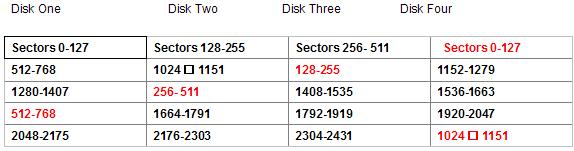
RAID 5 is a very popular RAID level that uses block level striping and distributed parity. This level tries to remove the bottleneck of the dedicated parity drive. With the use of a distributed parity algorithm, this level writes the data and parity data across all the drives. Basically, the blocks of data are used to create the parity blocks which are then stored across the array. This removes the bottleneck of writing to just one parity drive. However, the parity information still has to be written on a separate disk whenever a write occurs, so the slowdown involved with that still applies. There is also a small calculation that must take place for every write. The fault tolerance is maintained by separating the parity information for a block from the actual data block. This way when one drive fails, the array goes into degraded mode and begins reading and writing to the parity areas on the other disks in place of that bad drive. When a new disk is placed back into the RAID, the controller or software begins copying the parity data back to the new drive until complete, then the array will kick out of degraded mode. Recovery is more complicated than usual because of the distributed nature of the parity. Many RAID cards and software use separate and sometimes proprietary algorithms to generate the parity stripes. On illustration A you see just one example of RAID 5, generally referred to as standard or straight RAID 5. Many times you can get the striping pattern from the RAID card or software manufacturer.

raid 5 data recovery
As you can see in the illustration above, there is a clear pattern. The sectors in the virtual disk are striped evenly across the disks, but every fourth stripe is dedicated to parity. Red denotes parity data.

Controller Requirements: Supported by most hardware controllers, both SCSI and IDE/ATA, and also most software RAID solutions.

Hard Disk Requirements: Minimum of three hard. Any type may be used, but they should be of identical type and size for best performance and to eliminate “waste”.

Array Capacity: (Size of Smallest Drive * Number of Drives Smallest Drive).

Fault Tolerance: Any one drive may fail and the array continues to operate (in fact, it operates faster in degraded mode!) Failure of another drive results in loss of all data, which is why you paid the big bucks!

Storage Efficiency: 75% if identical drives are used.
Availability: Loss of one disk = continued server functionality.
Rebuilding (Scrubbing) and Degradation: Rebuilding takes place automatically with most RAID cards and software.
Random Read Performance: Excellent
Random Write Performance: Moderate
Sequential Read Performance: Moderate
Sequential Write Performance: Very good.

RAID 5 uses a distributed parity algorithm, this level writes the data and parity data across all the drives. The blocks of data are used to create the parity blocks which are then stored across the array. Block size can be anything, but is typically 64kB (128 sectors) Disk 0 will contain the first sector 0 through 127, disk 1 will contain sectors 128 through 255, and this will continue to alternate until you reach the last disk of the set, and this disk will be the parity disk. The parity disk will rotate based on the parity rotation algorithm for that particular RAID card or software. One complication can be expected in some cases, and that is the presence of an offset. An offset is a number of sectors before the first striped block. The presence of an offset is common in Adaptec cards. The offset can easily be found by searching for the partition table. When found, simply take the sector number where the partition table is located, and clone the disk to a file starting with this sector. Repeat on all drives and you have a starting point!

The next step is to find the stripe size. This is a very critical step and you must be absolutely sure. Typically the stripe size will be the same as the default setting for the card that was used. For instance, a Dell PERC 2 adaptec RAID card has a stripe size of 32K (64 sectors) and an offset of 64K (128 sectors). Use this as your starting point if possible. If you do not know the card type used, it is wise to use 64K (128 sectors) as your starting point as this is most common among all cards.

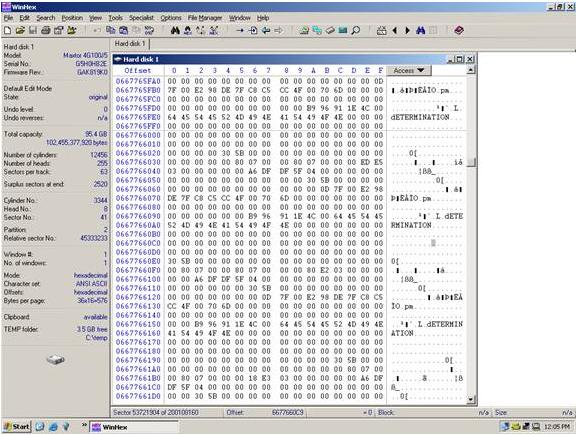
Now use Winhex to find a location on the disk that is easy to see a pattern. See the example below. Notice how we have text, apparently from a database of some sort. This text can be used to identify a data pattern. Now look at the current sector (53,721,904). Divide this number by the suspected stripe size in sectors. In this case the stripe size we are attempting to validate is 128 sectors. The resulting number will probably not be a whole number. In this case it is 419702.375. Take the whole number of 419702 and multiply this by the suspected stripe size (128). The resulting number is what we will refer to as the stripe break point. It is necessary to know this simple calculation for all types of RAID except RAID 1 (mirroring).

Find the break point:
53721904/128=419702.375419702*128 = 53721856

Answer: A break point is located at sector 53, 721, 856

raid 5 data recovery
Notice above how we have text, apparently from a database of some sort. This text can be used to identify a data pattern.

raid 5 data recovery
Notice how at the exact break point of 53, 721, 856 we have a definite difference of data. This is because the stripe is from a separate area of the volume. Not all break points will be this easy. In some cases you will have to look at the actual data and determine if consistency exists. Train your eyes to catch a break point while you are scrolling the sectors using the page down function, and you will become very proficient. You will often have to repeat the steps above on different areas of the disk if the data is too inconsistent to determine the break point.

Once the break point is discovered, you will then be able to start the RAID 5 de-striping process.

The best starting point is to clone all disks twice (to be sure) into image files on separate disks. Obtain the original card or find out the card make and model and purchase this.

Assuming you have no idea where the disks belong in the RAID then you must find a point on the disk where the data is sequential. This is very difficult unless the volume is formatted with NTFS, FAT32, or FAT16. In this case, you can use the Master boot record and NTFS/FAT32/FAT16 boot record to find the location of the MFT files or FAT tables.

RAID-5 Parity Rotation
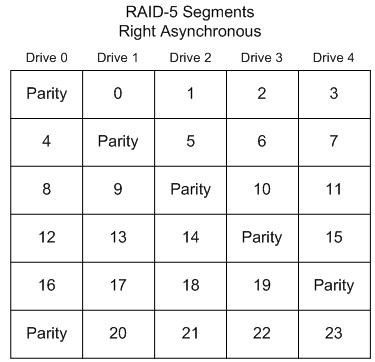
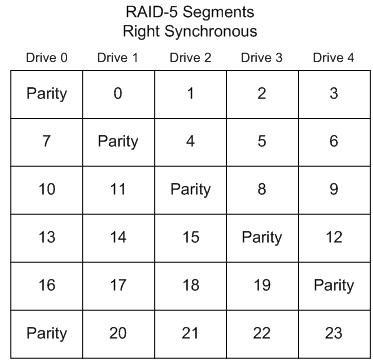
RAID-5 under any operating system can use one of four algorithms for the placement of segments among the disks in the array. -Keep in mind in your troubleshooting that there may be an offset throwing everything off. Find the partition table or OS identifier and us this as your definite sector 0. In a RAID 5 there should be two drives with a partition table. One is the first drive in that array and one is the last drive in the array.

Right Synchronous
Left Synchronous,
Left Asynchronous
Right Asynchronous

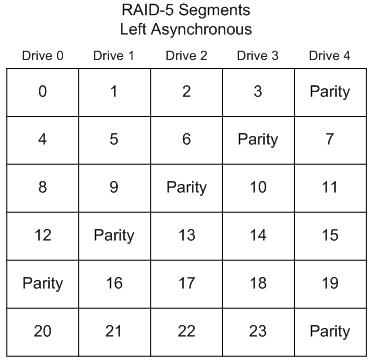
Left Asynchronous (Backwards Parity Rotation, Standard)
In this layout, the segments are numbered sequentially, starting with the first non-parity drive in the stripe. The parity drive starts at the last drive, and moves backwards one drive per stripe. While this is the hardware ‘standard’ RAID-5 layout, it is not the default for Linux or Windows 2000, 2003 Server. This is sometimes called backwards parity or standard Rotation R-studio supports this mode.

raid 5 data recovery
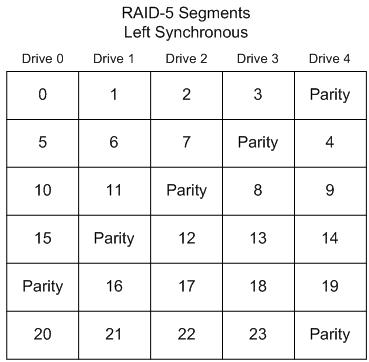
Left Synchronous
In this layout, the segments are numbered sequentially, starting with the first drive in the stripe after the parity. The segments wrap. The parity drive starts at the left-most drive, and moves right one drive per stripe. This is the default RAID-5 segment layout under Linux.

For large reads, this segment layout is the fastest. This is because each consecutive group of segments that is no larger than the total number of disks in the array, will use all the disks in the array.raid 5 data recovery

Right Asynchronous (Forward Parity Rotation)
In this layout, the segments are numbered sequentially, starting with the first non-parity drive in the stripe. The parity drive starts at the right-most drive, and moves left one drive per stripe.

raid 5 data recovery
Right Synchronous
In this layout, the segments are numbered sequentially, starting with the first drive in the stripe after the parity. The segments wrap. The parity drive starts at the right-most drive, and moves left one drive per stripe.

raid 5 data recovery
Refer to the partition and boot sector repair section of this manual if the disk is not mountable, or review the stripe break points.

Recommended RAID 5 Recovery Software: Getway Raid Recovery Software

RAID 5 Data Recovery Read More »

Hard drive diagnostic software:Western Digital Data Lifeguard Diagnostics

Western Digital Data Lifeguard Diagnostic is free hard drive testing software designed for Western Digital branded hard drives. Data Lifeguard Diagnostic will also run diagnostics on hard drives from other manufacturers as long as the primary drive is Western Digital.

The Western Digital Data Lifeguard Diagnostic software installs on Windows operating systems and allows for a number of hard drive tests. See the installation instructions from Western Digital in the link below for details.

Download: Western Digital Data Lifeguard Diagnostics

How to test a drive for problems using Windows Data Lifeguard Diagnostics?

How can you use Windows Data Lifeguard Diagnostics to do the following:

  • Perform a quick test on a drive for problems
  • Get the serial number of a drive
  • Write zeros to a drive
  • Peform a full media scan on the drive for bad sectors

The Windows version of the Data Lifeguard Diagnostics utility can perform drive identification, diagnostics, and repairs on a Western Digital FireWire, EIDE, Serial ATA, and USB drive. In addition, it can provide you with the drive’s serial and model numbers.

To use the utility:

  1. Download Windows Data Lifeguard Diagnostics. You may need to extract this using an extraction utiltiy such as WinZip.
  2. Run the program, windlg.exe. If you’re running this under Windows Vista, you will need to Right-click on the windlg.exe file and select Run As Administrator.
  3. Read and accept the license agreement to continue.
  4. On the main program screen, there are two windows. In the top window, you will see the drives in your system that are available for testing. The model number, serial number, and capacity of each drive will be displayed. In the bottom window, the partition information for the selected drive will be displayed.
  5. Double-click the drive to be tested in the top window.
  6. The DLGDIAG – Select an Option window appears.
  7. You will see the following options:

    QUICK TEST – performs SMART drive quick self-test to gather and verify the Data Lifeguard information contained on the drive.

    EXTENDED TEST – performs a Full Media Scan to detect bad sectors. Test may take several hours to complete depending on the size of the drive.

    WRITE ZEROS – writes zeros to the drive with options of Full Erase and Quick Erase. File system and data will be lost.

    VIEW TEST RESULT – displays the latest test results.

  8. Select the test you wish to perform and click the Start button.
  9. When the test completes, you will be notified. Click the Close button.
  10. A web page will display the test results for the drive.

Note: Windows Data Lifeguard Diagnostics will test internal hard drives contained within a WD My Book Premium II and WD My Book Pro Edition II storage system. The RAID Array on these units does not need to be broken in order to test the internal drives. The only feature that will not be available with the diagnostics is the SMART data. The diagnostics will not read SMART data from the drives.

Related Links:

Hard drive diagnostic software:Western Digital Data Lifeguard Diagnostics Read More »

Scroll to Top