Articles

Hard drive diagnostic software:Windows Error Checking

1. Microsoft Windows Built-In Error Checking
Error Checking, sometimes referred to as chkdsk, is a hard drive diagnostic tool that comes with Microsoft Windows that can scan your hard drive in search of a wide range of errors. This tool can also attempt to correct a number of hard drive problems.

2. How To Scan Your Hard Drive Using Error Checking
Scanning your hard drive using Error Checking can help diagnose and even correct a wide range of hard drive errors. Error Checking replaces older Windows hard drive diagnostics such as “scandisk” and “chkdsk“.

Here’s How:
1. Open My Computer by double-clicking on the icon on the desktop.
2. Right-click on the drive letter that you wish to check for errors (usually C:) and click on the Properties menu item.
3. Choose the “Tools” tab and click on the Check Now… button.
4. Two options are available in the next window:

  • Automatically fix file system errors will correct many file system errors detected. This is highly recommended.
  • Scan for and attempt recovery of bad sectors will perform a search for areas of the hard drive that may be damaged or unusable. If found, this tool will mark those areas as “bad” and prevent your computer from using them in the future. This is a very useful feature but may extend the scan time as much as a few hours.

5. Click Start.
6. Allow the Error Checking program to run its course until complete.
7. Restart the PC if prompted to do so.

Hard drive diagnostic software:Windows Error Checking Read More »

Iphone Recovery Mode

We all know that restoring the iPhone using iTunes is a troubleshooting lifesaver as it helps resolve most of the documented errors on the iPhone faced so far, especially important if you have tried one of those iPhone hacks which has caused your iPhone to behave abnormally. However, what does one do when restoring itself does not work, there is no reason to panic, as here is an iPhone tip to get you out of exactly that situation.

It is the iPhone’s “Recovery Mode“, which is a mode in which you can force the iTunes to restore the iPhone to resolve any of the errors. You need to follow these steps to put the iPhone in recovery mode:

How to Put an iPhone Into Recovery Mode?
1. Open iTunes and connect the iPhone to your Mac.

Iphone Recovery Mode

2.Press and hold the Home button and the Sleep/Wake button at the same time.

Iphone Recovery Mode

3. AS soon as the screen goes black release the Sleep/Wake button. Continue holding the home button until you iTunes pops up a message telling you that it has detected an iPhone in recovery mode.

Iphone Recovery Mode

The iPhone will look like this:

iphone recovery mode

Iphone Recovery Mode Read More »

Freeware Partition Manager

The partition table tools listed below allow you to create, resize, move, concatenate, copy, undelete (unerase) the partitions on your hard disk.

1. Gnome Partition Editor
GParted is a well-known Linux application that allows you to create, delete, resize (some partition types), move (some partition types), copy and check partitions on your hard disk. This version of GParted comes in the form of an ISO for a CD, which you can burn to your CD to create a bootable CD from which you can modify your hard disk partitions. GParted supports the following partition types to varying degrees: ext2, ext3, FAT16, FAT32, NTFS, HFS, HFS+, JFS, linux swap, ReiserFS, Reiser4, and XFS.

2. Partition Logic
Current version: 0.7
Partition Logic is a free hard disk partitioning and data management tool.  It can create, delete, format, defragment, resize, and move partitions and modify their attributes.  It can copy entire hard disks from one to another.

3. SwissKnife
Current version: 3.22
You can create, delete and format partitions on your hard disk drives in one smooth, simple process. While the product has been tested up to 400GB, it should support hard disks of up to 2048GB. SwissKnife allows creation of FAT32 & NTFS partitions. FAT16 option is provided for compatibility. Supports Internal interfaces such as IDE and SCSI and External interfaces such as Hi-Speed USB, Parallel port, PCMCIA, USB On-The-Go, Firewire®, SATA interfaces etc. Creates Fixed and Removable Disk Format types.

4. Ultimate Boot CD
Current version: 4.1.1
Ultimate Boot CD is a bootable CDROM for PCs that contain a variety of software for diagnosing and fixing problems on your computer, managing your hard disk partitions (including creating, resizing, copying, moving, etc), imaging or cloning your hard disk partitions.

5. Ranish Partition Manager
Current version: 2.44
Ranish Partition Manager is a powerful hard disk partitioning tool.It gives users high level of control for running multiple operating systems,such as Linux, Windows 98/XP, FreeDOS, and FreeBSD on a single disk.

Partition Manager can create, copy, and resize primary and extended partitions.It includes command line interface and simulation mode that works with large filesso you can safely experiment before working on the real hard drive partition tables.

6. The Partition Resizer
Current version: 1.3.4
The Partition Resizer resizes and moves your existing partitions for hard disks up to 2 TB (that is, 2 terabytes). It can handle both primary and extended partitions. It is able to move your data (where necessary) so as to make space for (say) an expanded FAT which may be needed if you are increasing the partition table. You can resize (expand or shrink) or move FAT partitions (including FAT32 partitions) and move NTFS partitions (though not resize). The program is a DOS program, and you can put it on a startup disk, reboot to it, and work on your system from there.

7. NTFS Resize
NTFS Resize is a Linux program that non-destructively resizes NTFS partitions (enlarges and shrinks). It supports all NTFS versions, including those created and used by Windows NT, 2000, XP (both 32-bit and 64-bit versions), 2003 and Longhorn.

8. TestDisk
TestDisk is a tool to check and undelete partitions. It essentially searches for lost partitions, and allows you to repair errors in the partition table, create a partition table, create a new MBR, etc. It works with FAT32, FAT16, FAT12, NTFS (Windows NT, If you have accidentally lost (or deleted) a partition, you might want to try TestDisk to see if it can find the partition and recover it. 2000, XP), ext2, ext3, BeFS (used by BeOS), BSD disklabel, CramFS, IBM Multiboot, JFS, Linux swap (versions 1 and 2), NSS (Netware), ReiserFS 3.5 and 3.6, and XFS. The program runs under DOS, Windows 9x/NT/2000/XP/2003, Linux, FreeBSD, and Sun Solaris. It is licensed under the GNU GPL.

9. Extended FDISK
Extended FDISK allows you to create and delete partitions and logical disks on your hard disk. It appears to come with a boot manager (that allows you to choose between multiple operating systems when you boot).

10. EASEUS Partition Master
Current version: 3.0
EASEUS Partition Master Home Edition is a FREE disk partitioning utility that offers a powerful range of functions such as resizing partitions, copying partitions, creating new partitions, deleting partitions, formatting partitions, hiding partitions, changing drive letters, setting active partitions, and a handful of other functions.

it works perfectly with hardware RAID and Windows 2000/XP/Vista (32 bit) Operating Systems. ONLY supports 32 bit Windows systems。

If you wish to create more partitions from the existing one that you already have on your hard disk, these tools will allow you to resize the existing partition to make space for more partitions without losing your data that is currently on your existing partition. They can also assist you in creating, and sometimes also formatting, new partitions. Some of the tools may have the ability to slide your partition, that is move your existing partition from one location on the disk to another location, without losing data, as well as convert a partition from one type to another (for example, converting from NTFS to FAT32 or vice versa). Still others may be able to help you recover partitions that you have already deleted, that is unerase or undelete partitions.

11. Partition Wizard Home Edition
Current version: 1.0
Partition Wizard Home Edition is a free partition manager designed by MT Solution Ltd. It supports 32/64 bit Windows Operating System including Windows XP, Vista and Windows 7. Home users can perform complicated partition operations by using this powerful but free partition manager to manage their hard disk partition such as Resizing partitions, Copying partitions, Create partition, Delete partition, Format partition, Convert partition, Explore partition, Hide partition, Change drive letter, Set active partition and Partition Recovery.Partition Wizard Home Edition is designated for home user only, to use Partition Wizard in a business envirnoment, Partition Wizard Business Edition is required.
Freeware Partition Manager Read More »

Hard drive diagnostic software:Seagate Seatools

Seagate creates two free hard drive diagnostic softwares – SeaTools for DOS and SeaTools for Windows. Both diagnostic tools are excellent.

1. SeaTools for Windows
SeaTools for Windows has replaced SeaTools Online and PowerMax. SeaTools for Windows is a comprehensive, easy-to-use diagnostic tool that helps you quickly determine the condition of the disc drive in your external hard drive, desktop or notebook computer. It includes several tests that will examine the physical media on your Seagate or Maxtor disc drive and any other non-Seagate disc drive.

SeaTools for Windows tests USB, 1394, ATA (PATA/IDE), SATA and SCSI drives. It installs onto your system. SeaTools for Windows is completely data safe.

User Guide about SeaTools for Windows.
Download SeaTools for Windows

2. SeaTools for DOS
SeaTools for DOS has replaced SeaTools Desktop and PowerMax. SeaTools for DOS can test Seagate or Maxtor Parallel ATA (PATA and IDE) and Serial ATA (SATA) interface disc drives. Because the software boots to its own operating system you can test your drive regardless of the OS installed on it.  You can even test a new or completely blank drive.  SeaTools for DOS will instruct the drive to run its built in Drive Self Test (DST) and give either a pass or fail status.  If you are troubleshooting your disc drive and the DST passes, then you have a good drive!

User Guide about SeaTools for DOS.
See the tutorial on the usage of SeaTools for DOS.
Download SeaTools for DOS

Pros
• Two versions are available depending on needs
• Both versions are easy to use once installed and are completely FREE
• SeaTools for Windows tests hard drives no matter the manufacturer
• SeaTools for DOS contains a highly useful “acoustic test” for noise troubleshooting
• SeaTools for DOS is OS independent so it’s automatically compatible with ALL operating systems

Cons
•  SeaTools for DOS requires ISO image burner software that novice users may have difficulty using
•  SeaTools for DOS handles a maximum of only 100 errors, at which point testing has to begin again

Description
• Seagate SeaTools is available in both a Windows version and a stand-alone, bootable version for maximum flexibility.
• Tests in both SeaTools versions are easy to understand and run.
• SeaTools for Windows can test all types of internal drives including SCSI, PATA, SATA, etc.
• SeaTools for Windows can also test external drives like those based on the USB or FireWire standards.
•SeaTools for DOS features an Acoustic Test to help you determine if a noise is from your hard drive or another component.

3. Guide Review – Seagate SeaTools
Seagate’s SeaTools hard drive testing programs are some of the easiest to use of any I’ve ever worked with. The test are basic, easy to run, and generally pretty fast in my tests.

The SeaTools hard drive testing software comes in two different versions. SeaTools for Windows runs on Windows 2000, XP or Vista. SeaTools for DOS runs outside of the operating system so the tool will work on your PC no matter what OS you use.

SeaTools for Windows can perform several basic tests that can help determine the health of your hard drive. Your available hard drives and tests are easy to see when the program opens and can be ran with just a few clicks of the mouse.

You can test hard drives from any manufacturer and of any type, including PATA, SATA, and SCSI internal drives along with USB and FireWire external drives. To begin, simply download the software from Seagate’s site and install in Windows.

SeaTools for DOS can also perform the several basic tests that SeaTools fro Windows can run but it can also run a very useful Acoustic Test. This test can really save you a lot of time during the troubleshooting of a noisy internal component. It will spin the drive down until it’s completely idle, making the drive nearly silent. If you no longer hear the strange noise, the hard drive was the culprit!

With SeaTools for DOS, you can only test hard drives from Seagate and Maxtor. To begin, download either the Floppy Diskette Creator to make a bootable floppy disk (this is the easier option) or the ISO CD-ROM Image to burn to a CD. If you need help burning the CD, check out How to Burn an ISO Image File to a CD or DVD.

So if you’re comfortable burning ISO images and you want a slightly more powerful test, use SeaTools for DOS. If you’re more of a novice or you just want a quick and basic hard drive test, give SeaTools for Windows a try.

Both softwares are completely free and I highly recommend them. If you suspect that your hard drive may be failing, one or both of these tools from Seagate will help you determine what’s wrong.

Hard drive diagnostic software:Seagate Seatools Read More »

RAID Data Recovery

Raid Data Recovery1. Why RAID data recovery?
As we know, RAID recovery is one of the most complicated and challenging recovery procedures, and therefore, the cost is always very expensive. RAID systems are susceptible to the same ailments that plague single hard drive like logical problems, human error, viruses and physical damage. Otherwise, they may suffer from RAID array failure, controller failure, server registry configurations lost, accidental reconfigurations of RAID drives, multiple drive failure, and so on.

Well, any RAID system may be fault-tolerant, but they are not fault proof. More often than not, most commercial RAID implementations can tolerate the loss of a single hard drive by providing increased data security. In case bad things happen to the RAID controller or configuration (lost, damaged and rebuild by mistake…), your data may be compromised, thus data recovery is necessary.

2. How RAID data recovery works?
The utility will extract the data from multiple HD in a RAID system, and work to rebuild the correct data according to a variety of RAID data array, independent from hardware array card or server system. The essence of the RAID recovery procedures is to crack the algorithm of a variety of RAID cards, or simulate the RAID card to read data scattering among multiple segment hard drives and recompose it in a correct form to a new storage medium by analyzing the data structures of the multiple segment hard drives in the RAID system directly.

Many RAID data recovery companies out there claims to recover lost or deleted data when RAID servers are down using their tools. Several excellent RAID recovery software utilities currently available in the market like WINHEX, Run Time, and R-Studio for example, are prominent at some points.

The merits of these software utilities are well talked most of the time amongst professionals and common users worldwide. Here the list of reviews collected based on in-depth analysis.

WINHEX
With manual analysis available; complicated operations are always in need of experience and expertise.

Run Time
With automatic analysis available; users can not have DirectView of the rebuilt data; inconvenient operation.

R-Studio
With manual analysis available; complicated operations are always in need of experience and expertise.

Getway Raid Recovery Tool
Get your data back from various types of arrays, including RAID 0, RAID 5, RAID 5EE and RAID 6.

3. Raid Data Recovery Case Studies:

RAID Data Recovery Read More »

CD Optical Storage

Optical storage is a term from engineering referring to the storage of data on an optically readable medium. Data is recorded by making marks in a pattern that can be read back with the aid of light. A common modern technique used by computers involves a tiny beam of laser light precisely focused on a spinning disc. An older example, that does not require the use of computers, is microform. There are other means of optically storing data and new methods are in development. Optical storage differs from other data storage techniques that make use of other technologies such as magnetism or semiconductors.

The term optical drive usually refers to a device in a computer that can read CD-ROMs or other optical discs.

CD Optical Storage Read More »

RAID 0 Data Recovery

Raid1. RAID 0 Data Recovery FAQ:

Q: What is a “RAID 0” configuration?
A: A RAID 0 (zero) volume set is a group of hard disk drives that are combined and accessed together based on a pre-defined configuration to allow for “data striping” across multiple drives. The term “RAID” refers to a “Redundant Array of Inexpensive (or Independent) Disks”. RAID 0 drive sets are also described as “striped without parity” and “non-redundant” volumes.

Q: What is meant by the term “disk striping”?
A: Within a disk striping (RAID 0) volume, information will be written evenly , or “striped”, over at least 2 (if not more) disk drives.

Q: How many drives are needed for a RAID 0 volume?
A: To establish a RAID 0 volume, a minimum of at least 2 hard disk drives ar required. Unlike RAID 1, the number of drives used in the array can be an odd or even number.

Q: What is the difference between “hardware” and “software” RAID 0 configurations?
A: Hardware-based RAID 0 uses a physical controller (either as a separate plug-in board or as part of the motherboard) that provides for the striping of data across the drives in the volume. With a software-based RAID 0 volume, the drives are attached to a normal drive contoller and software controls the order and writing to drives in the volume set.

Q: What are the benefits of using drives set up as a RAID 0?
A: A RAID 0 (disk striping) set will use the maximum amount of available storage capacity of each drive in the array, and allows for faster access and retrieval of data.

Q: What are the negatives associated with RAID 0?
A: RAID 0 (disk striping) does not provide any protection against drive failures. If one or more drives fail, all of the information contained on the volume becomes totally inaccessable. On the other hand, with a mirrored disk volume (RAID 1), information is written to the first drive and then to a second (or “mirror”) drive at the same time. If one of the hard drives in the mirror volume fails, the remaining hard drive can be placed in service as a single drive with no loss of information. Similar to a RAID 0 volume, RAID 1 volumes require a minimum of two (2) drives.

Q: Can RAID 0 be combined with another type of RAID, like RAID 1?
A: The combination of striping and then mirroring is referred to as RAID 0+1. In this scenario, the configuration will provide disk striping (RAID 0) across 2 or more drives and will “mirror” the data in real-time to a duplicate drive set (RAID 1). This unique combination will provide fault tolerance, but it does so at the expense of usable storage space. A volume established as a RAID 0+1 volume will need four (4) hard drives at a minimum to be configured.

Q: Can data be recovered from a re-formatted RAID 0 volume?
A: Many times information is still recoverable, depending on how the drives were re-formatted. Re-formatting a volume using Windows, for example, will create what will appear to be a new “clean” volume – but the original data will still be on the disk in the “free and available” space. A low-level format to “wipe” or overwrite every single block takes a considerable amount of time and destroys the original data.

Q: Could data recovery software utilities be used to recover my RAID 0?
A: Perhaps, but it wouldn’t be the safest approach. Most data recovery software will require the read / write heads to constantly travel over areas of the original disk that, if there is any physical damage, could render the surfaces useless and beyond recovery. The safest method of recovering data from a failed or corrupted RAID 0 volume (or with any storage device) is to create a block-level copy of every sector on each hard drive. The copied image is then used to reconstruct the original volume and rescue the required files and directories. This approach, while more time consuming, maintains and preserves the data integrity of the drive media and limits the number of times that the original drive needs to be accessed. It also protects against any writing to the original media, which could result in an inadvertent overwrite of the data that needs to be recovered.

Q: With RAID 0, if one or more drives become corrupted or fail, is data recoverable?
A: In most situations, data will be recoverable. The quality and integrity of the data recovered will depend on the extent of the damage incurred to each failed storage device. The drives will need to be addressed and recovered individually before attempting to address the set as a volume.

2. How Raid 0 Data Recovery?

Use at your own risk, and always make backups of your disks before performing any data recovery procedure.

RAID 0 is simply blocks of data striped between two disks. Block size can be anything, but is typically 64kB (128 sectors) Disk 0 will contain the first sector 0 through 127, disk 1 will contain sectors 128 through 255, and this will continue to alternate throughout the entire virtual disk. One complication can be expected in some cases, and that is the presence of an offset. An offset is a number of sectors before the first striped block. The presence of an offset is common in Adaptec cards. The offset can easily be found by searching for the partition table. When found, simply take the sector number where the partition table is located, and clone the disk to a file starting with this sector.

The next step is to find the stripe size. This is a very critical step and you must be absolutely sure. Typically the stripe size will be the same as the default setting for the card that was used. For instance, a Dell PERC 2 adaptec RAID card has a stripe size of 32K (64 sectors) and an offset of 64K (128 sectors). Use this as your starting point if possible. If you do not know the card type used, it is wise to use 64K (128 sectors) as your starting point as this is most common among all cards.

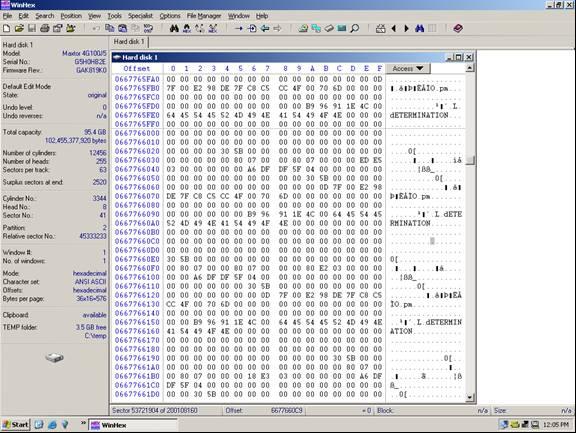
Now use Winhex to find a location on the disk that is easy to see a pattern. See the example below.

Raid 0 data recovery

Notice above how we have text, apparently from a database of some sort. This text can be used to identify a data pattern. Now look at the current sector (53,721,904). Divide this number by the suspected stripe size in sectors. In this case the stripe size we are attempting to validate is 128 sectors. The resulting number will probably not be a whole number. In this case it is 419702.375. Take the whole number of 419702 and multiply this by the suspected stripe size (128). The resulting number is what we will refer to as the stripe break point. It is necessary to know this simple calculation for all types of RAID except RAID 1 (mirroring).

Find the break point:
53721904/128=419702.375
419702*128 = 53721856

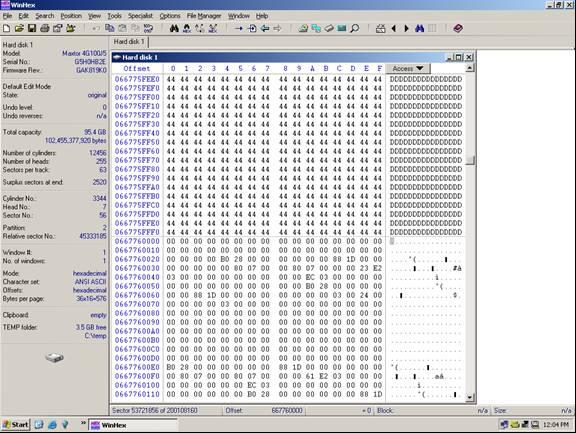
Answer: A break point is located at sector 53, 721, 856 (see illustration below)

raid level 0 data recovery

Notice how at the exact break point of 53, 721, 856 we have a definite difference of data. This is because the stripe is from a separate area of the volume. Not all break points will be this easy. In some cases you will have to look at the actual data and determine if consistency exists. Train your eyes to catch a break point while you are scrolling the sectors using the page down function, and you will become very proficient. You will often have to repeat the steps above on different areas of the disk if the data is too inconsistent to determine the break point.

Once the break point is discovered, you will then be able to start the de-striping process. Using a software utility, such as the hex editor Winhex, place the disk images in the proper order, adjust the stripe size, and clone to a hard disk. Once complete, the disk should be mountable. Refer to the partition and boot sector repair section of this manual if the disk is not mountable, or review the stripe break points.

RAID 0 Data Recovery Read More »

Online Data Recovery

1. What we usually do after data loss?
After data loss, we usually go to the web to find some solutions. Some people will try themselves to do recovery. But most of us do the follows: try to find some recovery freeware or to buy a recovery shareware and get the professional tech support. However, is there any other method you know? Yes, you are right. You can choose online data recovery.

2. What online data recovery can help you?
Recover lost data, including deleted files, damaged or deleted partition, format, Fdisk, corrupt or missing operating system files, corrupt files, missing partitions etc.

3. What should you do during online data recovery?

  • An internet connection (Preferably high speed)
  • A secondary storage device like an External USB hard drive, mapped network drive, secondary data drive or Zip drive(To save your recovered data to).
  • A secondary computer to connect your drive to. (You must avoid writing data to the drive you want recovered at all costs to eliminate the risk of overwriting the files you want to get back)

4. Why we should choose online data recovery?

  • Save time
  • Save money

5. How Online Data Recovery Service Work?

  • They will connect to your computer over the internet using a secure connection (Such as Team Viewer)
  • Once connected, they will perform some basic diagnostics tests to determine the proper steps and procedures to safeguard your data and prevent further damage.
  • They begin rebuilding file structures and looking for your most important files.
  • They will go through the recoverable files with you to verify their integrity
  • You will be provided with a list of recoverable files an a total price
  • You authorize recovery and they begin saving your files
  • Depending on drive size, internet connection speed and type of damage your files can be recovered in 1 to 2 hours.

6. Some Online data recovery companies:

  • http://www.webrecover.com/
  • http://www.recoverdatatools.com/remote-data-recovery.html
  • http://onlinedatarecovery.net/

Online Data Recovery Read More »

3D Data Recovery

1. What is “3D” Data Recovery?
DeepSpar Data Recovery Systems pioneered the 3D Data Recovery process – a professional approach to data recovery centred on three phases (listed below). DeepSpar has developed training materials, professional services, and industrial hard drive data recovery tools to deal with the challenges of all three phases.

2. Why 3D Data Recovery?
Data recovery industry was in need of a structured, multi-dimensional approach to drive restoration, disk imaging, and data retrieval. Many companies were claiming to do “full” data recovery, but were in fact only using software processes to gather the easiest layer of available data while leaving behind, or worse, destroying, data trapped at deeper levels. The DeepSpar 3D Data Recovery approach addresses drive-level, disk-level and data-level issues so that the maximum amount of data is retrieved.

3. 3D Data Recovery Details:

Phase I:Hard Drive Diagnostics and Repair:
This phase deals with drives that are not responding, and drives that appear functional and can be imaged, but produce useless data.

The solution is to diagnose the drive for damage and make repairs as necessary.

3 types of drive-level problems:

  • Mechanical problems. Most professional data recovery companies have tools and methods for addressing mechanical problems.
  • Electronic problems. Most professional data recovery companies have only a partial solution for addressing electronic problems.
  • Firmware problems. Only the top data recovery companies have the experience and the resources to fix firmware problems.

The DeepSpar 3D Data Recovery Process complements your current methods with a tool that diagnoses mechanical and electronic issues and fixes up to 80%-90% of firmware problems.

Fixing Phase I problems:
DeepSpar recommends PC-3000 Drive Restoration System by ACE Laboratory Russia, which can identify damage using diagnostics, reporting, and specialized utilities.

Phase II:Hard Drive Imaging / Disk Imaging:
This phase deals with drives that have read instability problems, bad sectors or are in danger of failure.

In this phase, the contents of the repaired drive are read and copied to another disk using disk imaging software and hardware. Disk imaging prevents further data loss caused by working with an unstable drive during the subsequent data retrieval phase.

Phase II problems
Most Data Recovery companies are using imaging tools that are designed only for use on “good” drives. This does not provide maximum data for three reasons:

  • The imaging software processes are so intense that they further damage hard drives.
  • The imaging software skips bad sectors and only copies good sectors.
  • The imaging software takes days or weeks to image bad drives.

DeepSpar Data Recovery Systems provides hardware and software imaging tools that handle disk-level issues.

Fixing Phase II problems:
DeepSpar recommend Disk Imager for this phase, because it uses lighter, faster operations to minimize disk degradation, even when reading bad sectors.

Phase III :File System Recovery and Data Retrieval:
In this phase, original files that were copied to the image drive are retrieved using software.

Phase III problems
Using generic data retrieval / file system recovery tools, data recovery companies typically run into the following areas of difficulty:

  • They can’t retrieve files because of a corrupt file system.
  • They can’t guarantee the integrity of the files they have recovered.
  • They can’t handle corrupted files that have been retrieved.

The DeepSpar 3D File System Recovery Process provides tools that address drive-level, disk-level and data-level issues so that the maximum amount of data is retrieved.

Fixing Phase III problems:
DeepSpar Data Recovery Systems offers a number of tools to address the issues that arise in Phase III:

* File system recovery: Corrupted file system structures such as corrupted directories or boot sectors are rebuilt using PC-3000 Data Extractor.

* File verification: Recovered files are tested for potential corruption. DeepSpar provides a file verification tool that generates a report which can be delivered to the client.

* File repair: If necessary, corrupted files are repaired if data could not be fully restored in previous phases, or if corruption has occurred because of partial restoration, disk imaging is repeated to retrieve more sectors.

Related Links:

3D Data Recovery Read More »

The advantages of USB Flash Drive

USB Flash DriveA USB flash drive is a NAND type flash memory. The NAND type flash memory was designed for the exchange and saving of data as alternative to the magnetic disk. The NAND type flash memory has the capacity to hold large volumes of data. The writing and erasing speed is also fast. The USB drive can be easily inserted into the USB port of the computer. With the help of USB flash drive, data can be safely and easily transferred. The USB drive is more reliable and safer than the floppy disks. The USB drives are small and compact.

A USB flash drive is a NAND type flash memory. The NAND type flash memory was designed for the exchange and saving of data as alternative to the magnetic disk. The NAND type flash memory has the capacity to hold large volumes of data. The writing and erasing speed is also fast. On the other hand the random access is rather slow because it uses block as a unit for the purpose of writing and reading.

The USB drive is made up of secure case small circuit board and is integrated with a universal serial bus connector. The secure case is typically made up of rubber or metal. This secure case protects the circuit board of the USB drive from damage and increases the robustness. The USB drives are very much smaller than the floppy disks and are rewritable.

The USB drive can be easily inserted into the USB port of the computer. With the help of USB flash drive, data can be safely and easily transferred. The USB drive is more reliable and safer than the floppy disks. The USB drives are small and compact, therefore the users can carry them easily in their pockets or they can attach it with their key chains as well.

The USB drives are more reliable when huge amounts of data has to be moved. Some of the USB drives allow 1 million erase or write cycles. The USB Memory card readers have a removable flash memory card. The USB flash drives provide more benefits to its users than the other storage devices. Almost all the computers and laptops have the USB ports, therefore the users can easily transfer the data. Most of the modern operating systems have the USB mass storage standard which is required by the USB flash drives to operate.

The USB 2.0 are much faster than the optical disk in terms of the data storage in much smaller space. The name “drive” is given to the USB flash drive because the USB flash appears to the OS of the computer like a mechanical drive and the method of access is also the same.

The USB connector must be protected and kept safe using a removable cap or by retracting the USB connector into the body of the USB flash drive. The USB flash drives use all the power supply from the host connection. Some high speed USB drives may require more power supply than provided by the bus powered USB hub. Therefore these drives will function when they are directly plugged into the self powered hub or the host controller.

The USB drives are most often composed of three components, the male connector type A, crystal oscillator and the USB mass storage controller. The function of the type A connector is to interface with the system of the host computer. While on the other hand the USB mass storage controller helps in balancing and storage of the data. The USB mass storage controller enhances and carries out smooth processing of the decoding, encryption and transfer of the data between the systems. The function of the crystal oscillator is to make sure that the output of the flash drive is of the best quality.

The reason that the USB drives became more popular is that the floppy drives were most of the time failed to read the data from the floppy disk. Therefore, the users had problems while transferring the data using the floppy disks. The USB flash drives do not have movable parts like the floppy disks had.

The advantages of USB Flash Drive Read More »

Scroll to Top