Windows – I want to expand a partition on my boot SSD, but there is a Recovery Partition and EFI System Partition in the way. How can I get around this?

Here is a screenshot in Windows Disk Management showing the partition layout on my disk: I wish to expand the Windows partition (C: drive, “Boot”) into the 16 GB of unallocated space. However, Windows has “helpfully” put a Recovery Partition and EFI System Partition in the way, preventing me from expanding the Boot partition. Neither…

Read More

Primary Partition On A Hard Drive Must be Active! Why?

Why must the primary partition on a hard drive be active?

The primary partition must be set to a status of Active, otherwise it is not possible to boot off that primary partition. Please note that only the primary partition on the primary Master drive can be set to a status of Active.

To check whether your partition is active, or to activate the partition if it is not active, use FDISK.

  1. Boot your system with a Windows startup disk and type FDISK at the A:\ prompt and press ENTER.
  2. If your partition is not active, you will see a warning message at the main menu of FDISK stating Warning – No active partitions set at the bottom of the screen.
  3. To set the partition as active, select 2 Set Active Partition and choose Partition 1 when prompted to select the partition.
Read More

How to restore lost data from my Mirra to my newly rebuilt OS?

restore lost data My system has crashed. How do I restore lost data from my Mirra to my newly rebuilt Operating System?

Here’s the best way to restore your data after a system disk crash or the re-installation of your operating system onto your computer.

Note: In the context of these instructions, the term new computer can refer to a new computer that has replaced a failed or retired unit or to the same computer after you’ve replaced the disk drive or reinstalled an operating system. In both cases, Mirra will see it as a new and different computer.

Before you begin, consider how much data you intend to recover. If you’re planning to recover a significant amount of data (we consider more than 10GB or 20,000 files to be significant), remember that the Mirra has limits in terms of how many tasks it can perform can do at any one time. Therefore, since recovering your data is of highest importantance, you should temporarily disconnect any other computers from the Mirra so that it can devote its full resources to the restoration of your data.

  1. To temporarily disconnect a computer from the Mirra, turn it off, disconnect your Ethernet cable, or stop the Mirra service.To stop the Mirra service on a PC,
    • Go to Start > Run.
    • In the Run window, type net stop mirra.service.

    To stop the Mirra service on a Macintosh,

    • Go to Applications > Utilities > Activity Monitor.
    • In the pop-up menu at the top of the Activity Monitor window, select All Processes.
    • Select Mirra Service from the list of processes and click Quit Process in the menu bar.
    • In the Quit Process window, click Force Quit.
    • When prompted, enter your Administrator password.
  2. On the new computer, install the Mirra software but do not select any folders for backup. If you’re already backing up data from this computer, make sure all those backups have completed before you start to restore your data.
  3. Go to the Backup & Restorescreen. Listed are the computers previously backed up to the Mirra, each with the individual backups that came from that computer.
    • Select a backup from the old computer and click Save As… on the Restore Tasks menu.
    • In the Browse for Folder window, choose a location at which to save the selected backup.
      A new folder will be created at the selected destination with the same name as the original backup unless one already exists. If the destination folder already exists, any existing files with the same name will be overwritten with files restored from the backup. Wait for all the data for this backup to be copied to the computer before starting another operation.
    • When the selected backup has been copied to the new location, repeat the previous step until all your backups have been restored.
  4. Restored folders are not automatically backed up. After you’ve restored all your folders, select them for backup again from the new computer to the Mirra.
  5. If you’ve manually stopped the Mirra software on other computers connected to your Mirra, restart it by launching the Mirra application from either the desktop or the Start menu.
Read More

What Are You Lack To Be The Top Data Recovery Company?

There are lots of data recovery companies in the world. They have the best data recovery softwares, excellent engineers, first-class cleanroom, etc. However, these companies are difficult to become the top data recovery companies like Ontrack, CBL, SalvageData, etc.

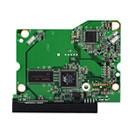
Most data recovery companies can exactly diagnose problems of the Hard Disk Drives. And definitely know how to get the data back. Sometimes the problems can be easily resolved by replacing the damaged parts, like exchange the damaged heads, exchange the damaged PCB, repair the firmware, etc. Sometimes the companies can’t finish the easy operations. Because they don’t have the matching HDD accessories in hand.

If you also encountered these problems, please don’t worry now. We can offer all of the matching HDD accessories which you want. You just need to contact us and issue your detailed requirements. We can send your required HDD accessories with best price to you in short time.

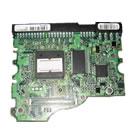
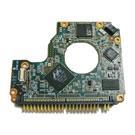
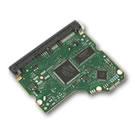
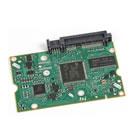
Excellent working condition PCB Logic Boards:
Maxtor, Western Digital, Seagate, IBM, Samsung, Fujitsu, Hitachi, Quantum and many more Manufacturers.

  • Usual sizes start from 10GB and up to 500GB.
  • Prices start from $8.00 for 20GB, 40GB Drives and up to $50.00 for Top of the line drives.
  • We cannot guarantee your drive to be repaired by replacing the board, but we do guarantee our boards in good working condition.
  • With your request, send us a details of your hard drive. Every info that you will provide about your drive will help us serve your needs better.
  • Min Order: 200 pieces

Please do not hesitate to contact us by Email: info@hddzone.com

Read More