Hard Disk Details(7)

Slide 3791: The cause of the click is from four possible areas, all resulting in the SA not being able to be read.

1.    System Area of the drive cannot be read because the platter is scratched.
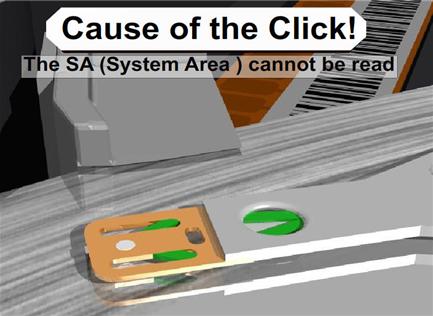
2.    The head itself has a problem and cannot read the SA area.
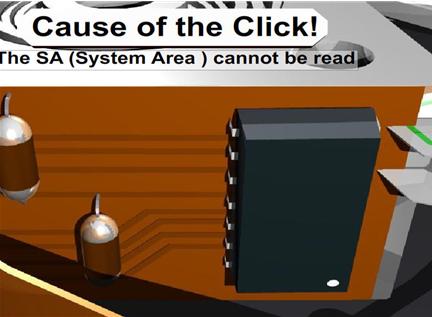
3.    Preamp on Actuator to the Head has gone bad and is not passing the correct signal to the electronics
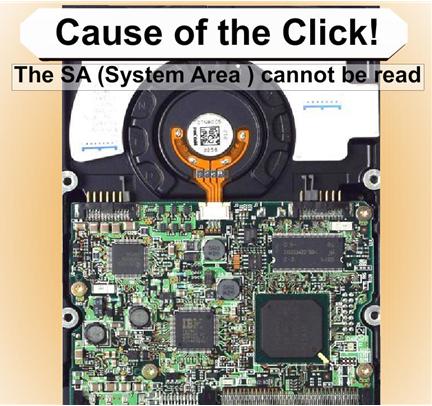
4.   The firmware on the board is damaged and does not initialize. This is sometimes caused by static electricity walking across the carpet to install the drives, or there is a short on the board, and additionally I see where someone has allowed the board on the bottom of the drive to touch metal cause it to burn.

All will result in the same problem and will sound like the Click of Death. Recovery Software will not help you correct any of these until after you have repaired the drive and it is running again.

Correcting Problems
Now we move on to some of the things you can do about it on your own.  The click of death is a very difficult problem to solve and in some cases will not be able to be solved especially without some very high end and expensive equipment. But I will tell you what I have been able to fix without that equipment.

Slide 4009: Swapping the PCB (printed circuit board) Live to get around a SA area that cannot be read.
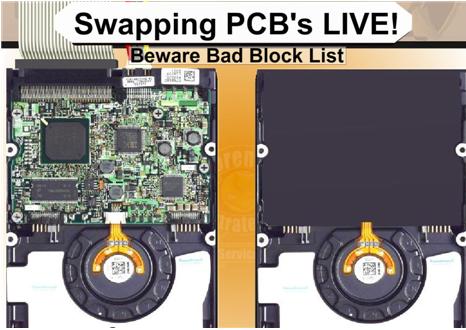
I have done this process several times successfully. It is not perfect but it is a possible chance you will have to recover your data. The first step is to get a hard drive as close to identical as the bad drive you have that is a working drive. At the bottom of this paper you will find help about matching hard drives and serial numbers. If the System Area is badly damaged or corrupt and for some reason the drive will not read the System Area you can attempt to do a live swap. What this means is that you can hook up the good drive, then you use software or windows and tell the drive to go to sleep.  This will cause the drive to spin down but will still be live and powered up and mounted.  Once the drive goes to sleep and the drive stops spinning you can unscrew the board, carefully so as not to let the screws roll around on the board, and disconnect the board and connect it to the bad drive. I suggest that once you do this, you go after the files you need very quickly. It’s possibly you will be able to make an image of the drive.  Keep in mind, that whatever bad blocks that the drive had assigned to the other drive will be bad here as well.  You could try to use some software to clear bad blocks before attempting this, however I don’t suggest it in most cases. That is because it is one more possible item that might cause failure. I would prefer to use the drive that was working and lose a few blocks. After you get what you can then you can attempt to make changes and go back for more data. This is a concept that works about 25% of the time.

Slide 4199: Imaging in Reverse
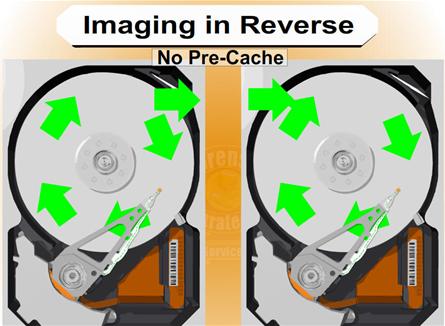
In dealing with damaged hard drives, I have run into many problems with cache memory on the drive. The problems will often show up as timeouts or ECC failures as well. For example, I try to read from a drive with16 megs of ram for cache and receive errors but the drive is otherwise appears ok. If there is an error 16 megs away from the sector I am reading my drive will die. As of now there is no way to turn off this cache.  However, if you can image your drive backwards there is no cache. Memory on a drive only caches data forward. There are only three ways I know of to image a drive backwards. The first is free, and it is to use dd_rescue. dd_rescue has a special setting for imaging a drive backwards. There is also a special script for dd_rhelp to control dd_rescue for the purpose of data recovery. You can use this on Linux and it works on drives regardless of the operating system on the drive you are recovering from. Typically you will start at the MaxLBA number and work backwards down to 0 LBA. It works quite well and will work on a surprising number of drives that cannot be read any other way. Your other two choices are Media Tools Pro from RecoverSoft (http://www.recoversoft.com/) for Windows, which is about $400, or a piece of hardware which is extremely efficient at doing this type of recovery called Deepspar Disk Imager (http://www.deepspar.com/products-ds-disk-imager.html), which will cost between $3000 and $4000 depending on configuration. But you should contact each of these vendors for pricing, or use the free option!

Read More

Top 5 Online Backup Services

Top 5 Online Backup Services Where’s the best place to keep your data? Online backup services will keep your data safe no matter what sort of disaster strikes your local computers. Online backup services work much like regular backup software. With an online backup service, however, your important data is transmitted over the Internet and securely stored on a server in a professional data center instead of being stored on your own CDs, DVDs, or backup tapes. Most of us still waste time doing this manually which means we often don’t have a backup of our most recent work.

Ten of the top choices for online backup service are:

1. Mozy

Mozy offers reasonably priced unlimited online backup that’s highly configurable, but it could stand some usability improvements.

2. Carbonite

Carbonite tries to make remote backup simple and affordable. Setting it up is a breeze, and restoring a file here or there is also a snap. But restoring a lot of data to a different PC presented some obstacles.

3. SOS Online Backup

This is another backup service that offers a lot of additional features for those users who want to do a lot with the service. It tends to be more user-friendly than IDrive according to most people, though, so you may find that it’s the better of the two choices if you’re just starting out and aren’t quite confident in your own tech-savvy skills. It’s received numerous awards so it’s certainly a good choice.

4. IDrive

There are several reasons that you might enjoy this backup service. It’s got some storage offered entirely for free so it’s great if you’re just starting to figure out whether online backup is even for you or not. It’s also got a lot of great additional features (like advanced search functions and drag-and-drop restoration) that can be used by people who do already like online backup and who want to be able to do more with it.

5. HP Upline

This easy-to-use, reasonably priced online backup service also lets you do local media backups and file sharing, but it lacks important features, like version saving, open-file backup, and the ability to resume interrupted file uploads

The type of online backup service that you want to get is really going to depend a lot on what you need it for. If you’re storing a lot of media then you want a service with a lot of storage. If you’re storing documents that you share with others then you want a backup service that has collaboration features. These five choices are a good place to start in your search for online backup options.

Read More

Fundamentals of searching for malfunctions

The description above should demonstrate that a HDD is a sophisticated software and hardware device combining electronic and mechanical parts and utilizing the most recent achievements of microelectronics, micromechanics, automatic control theory, magnetic recording theory, and coding theory. HDD repair is impossible without specialized knowledge, special equipment, instruments and tools, and without a specifically equipped location (clean room). However, an expert in computer hardware can perform primary diagnostics of HDD and repair simple failures, perform operations over BAD sectors using software offered by HDD manufacturers.

In the absence of special diagnostic equipment and software HDD diagnostics should begin with connection to an individual PC power supply unit. Operator’s hearing is the diagnostic tool in that case. At power-up a HDD spins up the spindle motor, sound level increases for 4 – 7 sec., then a click follows (heads are moved from the parking zone) and very specific recalibration crackling noise that lasts 1-2 sec. It is easy to get used to such drive behaviour by connecting a known good HDD to a power supply unit.

Recalibration procedure performed by a drive demonstrates at least operability of the reset circuit, its clock, microcontroller, spindle motor control circuit and positioning system, data conversion channel, normal status of magnetic heads (at least one of them, the one used for the initialization process) and drive firmware data.

For further diagnostics a HDD has to be connected to the Secondary IDE port and automatically detected in BIOS through the SetUp procedure. If the model of the HDD being checked is recognized, the operating system loads and computer starts diagnostic software. OS can be started from a working HDD connected to Primary IDE port or from a floppy disk. The easiest diagnostics would be an attempt to create a partition on the drive being checked using FDISK procedure and subsequent formatting procedure with Format d:/u command. Formatting in DOS or Windows OS does not accomplish the actual “formatting”, instead the OS performs surface verification, creating in the end a file system structure selected for the partition. If formatting (verification) reveals any defects, they will be displayed on-screen as BAD sectors. Of course, such diagnostics is primitive and aimed rather towards checking HDD operability than discovery of malfunction causes or, moreover, their elimination. More detailed diagnostics can be performed using utilities recommended by manufacturers and available from their web pages.

Thus, for Fujitsu drives we can recommend a whole section devoted to diagnostic software:

http://www.fel.fujitsu.com/home/drivers.asp?L=en&CID=1

For Western Digital drives:

http://support.wdc.com/ru/download/

For Samsung drives:

http://www.samsung.com/Products/HardDiskDrive/utilities/index.htm

For Seagate drives:

http://www.seagate.com/support/software/

For Maxtor drives:

http://www.maxtor.com/en/support/downloads/powermax.htm

For IBM drives offered under a new HGST brand:

http://www.hgst.com/hdd/support/download.htm

All the above utilities perform testing in regular user mode and do not switch drives to factory mode; therefore their features are rather limited. Specialized diagnostic utilities are not offered for free; instead they are distributed to special service centers and dealers of drive manufacturers.

Let us show an example of searching for malfunction in the spindle motor control circuit of a Caviar HDD manufactured by Western Digital.

The layout scheme below is used in WDAC32500 and WDAC33100 drive families and takes into account all ratings and serial numbers of components, but it is also applicable for repair of WDAC2340, WDAC2420, WDAC2540, WDAC2700, WDAC2850, WDAC33100, WDAC31200, WDAC21200, and WDAC31600 drive families if you ignore serial numbers of components and assume that some ratings differ from the values shown in the layout scheme (Figure 5).

If at HDD power-up its spindle motor does not start you should first make sure that the HDA is operational by connecting it to a known good PCB. If there is no such opportunity you should check the resistance of coils (phases) of the spindle motor, it should correspond to ~ 2 Ohm relatively to middle output; then continue to look for the malfunction on the PCB. (Inability to start a spindle motor frequently results from sticking of magnetic heads to disks).

In order to check a PCB for failed components, you should remove it from the HDA, connect to an external power supply and position it on the worktable with electronic components facing up. Further operations will require an oscilloscope with sweep frequency up to 50 MHz.

First of all, you should switch on power and check the feed +5 V and +12V voltages at outputs from the U3 and U6 chips (see layout scheme), check excitation of quartz resonator at outputs 24 and 33 from U6 chip. Then check for presence of clock pulses supplied to the U9 control microprocessor and U11 reading channel to 57 and 13 outputs respectively. After that make sure that there is no RESET signal (active level О). If all the requirements are met then the control microprocessor will start and perform the initialization procedure programming all chips connected to the internal data bus. You can check microprocessor operability indirectly judging by the presence of control pulses: ALE, RD#, WR#, data bus pulses, etc.

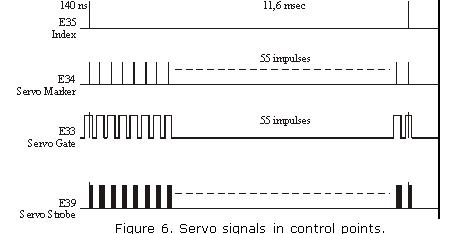
To check the spindle motor control circuit you should trigger 10 ms/div oscilloscope sweep with 2V/div amplification (it is advisable to use 1:10 multiplier). After power-up check for presence of motor start pulses with 11 – 12 V amplitude for three phases (connections J14, J13, J12). The control circuit will try to start the motor for 1 – 2 min., then it will discontinue the attempts. After that you should switch power off/on or send a RESET command by short-circuit of lines 1 and 2 in IDE interface connector using tweezers. If voltage is lower than 10 V for any phase, then U3 chip is malfunctioning. As a result of such failure the spindle motor most likely spins up but remains unable to gain rated rotational speed and, consequently, magnetic heads cannot be shifted from the parking zone. Rotational speed of spindle motor can be controlled using the INDEX pulses at the Е35 control point (if a PCB is connected to the HDA). The frequency of INDEX pulses is ~12 ms, width of INDEX pulses is – 140 nanoseconds. U3 chip is controlled by the U6 synchronization controller chip and the SPINDLE START signal of the spindle motor. For motor start SPINDLE START = 1, for motor stop it is = 0.

Phase distribution is controlled by the U6 chip through its Fc1 – Fc6 outputs; it uses TTL range of control signals. Feedback of rotational speed is accomplished through the 32Р4910А U11 reading channel chip using the SERVO READ DATA line. In its turn, the U6 synchronization controller chip generates the signal for servo field search (SERVO GATE) for U11 chip.

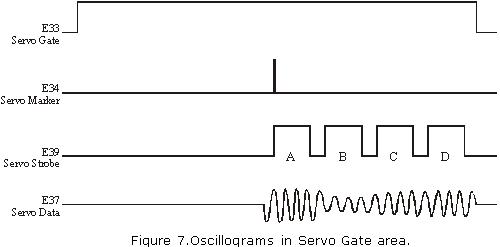
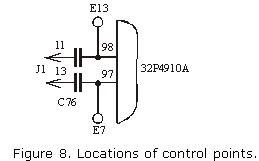
Servo signals and numbers of control points are indicated in the figure 6 and 7. The signals can be viewed more conveniently using oscilloscope with 100 MHz or greater sweep range since INDEX pulses and servo marker last for about ~140 nanoseconds (it is also advisable to use 1:10 multiplier). Monitoring should be performed using two sources, synchronizing the oscilloscope by INDEX or by servo marker. It may be interesting to watch not only servo signals at the Е37 control point but also data reading signals in general at the Е13 and Е7 control points, where one can see all synchronization fields, sectors, etc. (See figure 8).


Details on functioning of control microprocessor, data reading channel and spindle motor control chip are available at web sites of Intel, Silicon Systems Incorporation and SGS-Thomson respectively: www.intel.com and www.st.com.

Read More

Gigabyte to Terabytes

For fun, here is a comparison of some old storage media with something in our data recovery lab right now.

Gigabyte-to-Terabytes

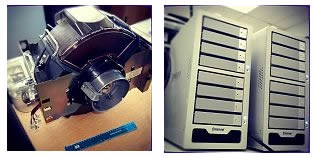
On the left is an IBM 3380 ‘direct storage access device’ circa 1980. Capacity: 1 GB. On the right, a RAID recovery on one of our lab workbenches, set up in a couple of storage cases.
Capacity: 48 TB.

The cases and the old IBM device are about the same size… ~30cm across, but of course 30 years difference.

Gigabyte:

The gigabyte is a multiple of the unit byte fordigital information storage. The prefix giga means 109 in the International System of Units (SI), therefore 1 gigabyte is1000000000 bytes. The unit symbol for the gigabyte is GB or Gbyte, but not Gb (lower case b) which is typically used for the gigabit.

Terabytes:

The terabyte is a multiple of the unit byte digital information. The prefix tera means 1012 in the International System of Units (SI), and therefore 1 terabyte is 1000000000000 bytes, or 1trillion (short scale) bytes, or 1000 gigabytes. 1 terabyte in binary prefixes is 0.9095 tebibytes, or 931.32 gibibytes. The unit symbol for the terabyte is TB or TByte, but not Tb(lower case b) which refers to terabit.

Read More

Two Useful Tools For Online/Remote Troubleshooting

Remote Troubleshooting Sometimes our customers need a online data recovery or remote PC troubleshooting. Here are two useful tools may help you, with a few simple steps, you’ll learn how to troubleshoot someone else’s computer remotely.

TeamViewer

Step 1. Visit the TeamViewer home page to begin troubleshooting. Once the page has opened, click the “Start Full Version-It’s Free” button to start the download. Click the “Save File” button located in the pop-up window. Open the TeamViewer application by double clicking the downloaded file. You’ll have two options to choose from when setting up the TeamViewer application. The first option will fully install the program on your computer system. If you’d rather not do this, select the second option that will allow you to use the TeamViewer program without installing it.

Step 2. Click “Next” to move forward. You’ll also be prompted to enter information about how TeamViewer will be used. If you’ve decided to install the application, choose between a normal installation or for it to start with Windows. With the non-installation of TeamViewer, just click “Run.” You’ll still be able to troubleshoot a computer remotely. Start your troubleshooting session by opening the TeamViewer application. Pick one of two options to connect to someone. The first requires you to advise the other person of your TeamViewer ID and password. The other allows you to initiate a troubleshooting session by entering their assigned ID and selecting a command. A few commands to choose from include “Remote Support,” “Presentation,” “File Transfer” and “VPN.”

Step 3. Advise the other computer user to navigate to the TeamViewer homepage and click on the “Join Session” button. A pop-up window will appear for them to save the file to their computer system. After this has been done, the TeamViewer application will automatically open with their personal ID and password for the session. This information will be needed for both of your computers to communicate with each other. Ask the other person for their TeamViewer ID and password.

Step 4. Enter the information into the “Create Session” section of the TeamViewer window. Choose “Remote Support” to start controlling and troubleshooting their computer. Click “Connect to Partner” to begin. When prompted, enter the session password and click “LogOn.” Within a few seconds, a pop-up window will appear and allow you to control all computer functions. Inform the other person to sit back and let you perform the necessary troubleshooting steps to fix their computer system.

Step 5. Press the “Extras” link and choose from available options. Keep track of the entire troubleshooting session by clicking “Record.” If you’d like to communicate with the other person, select “Chat” to begin talking. Choose “Actions” to perform a remote rebooting of the computer system or even to switch sides with the other person. Add necessary computer files from your computer to the other computer by picking “File Transfer.” A window will appear that represents your computer and theirs. Click the “X” when you’ve completely finished. The session will immediately end.

SkyFex

Step 1. Navigate to the SkyFex homepage to sign up for a new account. Click “Registration” located at the top of the page. Enter details such as an email address, name, contact information and answer a few other questions. After registering for your account, you’ll receive an email confirming your registration. Click the activation link included in the email to gain full access to your SkyFex account.

Step 2. Log into your SkyFex account from the home page by entering your registered email address and password. Click the purple “Provide Assistance” button when finished. You’ll be instantly prompted to install the “SkyFex Remote Assistant Expert” add-on for your Internet Explorer browser.

Step 3. Advise the person you’re helping to visit skyfex.com to get a specific “Client ID” for the troubleshooting session (see link in Resources). You’ll need this in order to troubleshoot the problems with their computer system. After you’ve received the “Client ID,” enter it in the appropriate location at the top of your SkyFex window and click “Connect Client” next to it. You’ll be able to instantly see the other person’s computer desktop.

Step 4. Request control over the other person’s computer by clicking “Remote Control.” A request will be sent to them, and they’ll need to accept it. The free version of SkyFex has a limit of time to provide assistance. If you’d like unlimited time sessions, purchase the pro version. Choose “Start Chat” at the top of the page, if you’d like to have an open line of communication. Exchange files from your computer system to theirs by clicking “Send File.” An automatic prompt will be sent to the other person for them to click “Yes.”

Step 5. Make the necessary changes to the other computer system by launching applications, removing them or changing settings. When you’ve finished troubleshooting, click “Disconnect Client” and then “End Session.” Enter your personal feedback about the session in the available space and submit it to SkyFex.

Read More