

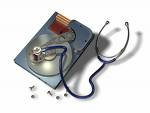
Hard Drive Crash

Hard Drive Crash Sometimes a hard drive may experience failure or sudden crash without any warning, but many times there are warning signs that will let you know when to take action. Changes in performance, intermittent failures, or unexpected blue screens are major signs that the hard drive may be dying out permanently. The most obvious warning sign with a hard drive is unusual clicking, grinding, or scraping noises.

In practice, the term hard drive crash often refers to both mechanical or electrical failue and logical failure. The case of mechanical / electrical hard drive crash is the worst, it requires professional help of data recovery service, recovery programs won’t help.

Hard Drive Crash Signs

If your PC is experiencing any of the following signs of impeding doom then you must run (not walk) and grab CDs to burn backups of all your essential data.

Sign 1 – You hear high-pitched whining, loud clicking or grinding noises coming from the drive
A normally operating drive will make a smooth “whirling” sound as is spins up or down. But if a drive has a grinding or clicking sounds (the Read/Write heads scraping too close to the magnetic platters), then your drive is sick and is on the way out.

Sign 2 – You see the infamous “Blue Screen of Death“, repeatedly
BSODs (Blue Screens of Death) are actually called “Stop” errors and they only appear when your Windows system is experiencing severe software or hardware issues. Often BSODs can cured with a careful “Repair Install” of the Windows operating system or by removal of a bad device driver. But if these software fast fixes don’t seem stick, then your hard drive is usually on its last legs

Sign 3 – Your computer keeps re-booting on its own
I admit, I have only seen this problem a few times in my 18+ year career and in all instances it was due to hardware issues. Once it was a dust covered motherboard, and another time an overheating processor. But all the other times it was due to bad drives.

Sign 4 – Your system keeps having frequent freezes or hang ups
You are working along just fine, and then suddenly everything comes to a halt. The program freezes up on you. Your mouse and keyboard seem to stop responding. The only solution is to reboot.

Sign 5 – Error message: hard drive is not formatted
This a fun message that you will get when you start up your machine. You maybe able to restart and get it to boot into Windows a few more times but this error is “fur-sure” sign that you drive is very close to death. And by the way don’t try to format the drive! You will lose all your data.

Sign 6 – Error message: boot drive or device not found or drive cannot be accessed
This is another favorite of mine. You can check the CD/DVD trays or the floppy drive to make sure no stray disks are stuck inside. You can also check the BIOS to make sure the system is booting from the hard drive first. If all these tests are no-good, then the drive is a goner.

Sign 7 – Errors: Operating system not found or Missing Operating System
This is a bad one. Even the Microsoft technical support knowledgebase has only got a few causes for this error message. Basically your PC can no longer detect the hard drive or the drive is too severely damaged to read (DOA).

What to do if your drive has any of these signs?

1) First, listen up, if possible, BACKUP YOUR FILES NOW!
2) Create a boot disk and run Windows Scandisk and set it to automatically fix errors. If it finds more than a few bad sectors then see the point above
3) If possible download and use a hard drive diagnostic program. All the major hard drive manufacturers have free utilities on their websites.

WARNING:

You should never open the cover of a failed hard disk drive in attempt to repair, salvage or recover data. Today’s hard disk drives tolerances are very tight and the materials used inside are so technologically advanced that even the smallest speck of dust, contaminants or even gaseous can disrupt the delicate balance of the drives ecosystem. Any such disruption not only destroys the drive but all the data contained on it.

Read More

Seagate FreeAgent GoFlex for Mac Storage System FAQs

1. What is special about GoFlex™ for Mac family?
The FreeAgent® GoFlex™ for Mac storage family delivers an easy-to-use, plug-and-play external hard drive experience while offering the flexibility and upgradability that many people are now demanding due to the evolving nature of how mobile and active people’s lives are becoming. With different options of external drives, cables, desktop adapters, and edge devices, the entire family of GoFlex drives can be customized to fit your lifestyle needs – whether with your PC, on your TV, over your network, or on-the-go. GoFlex interface cables are about providing the speed, performance and connectivity that consumers are demanding today. With the explosive growth of video-on-demand, multimedia streaming and growing personal digital libraries, consumers are now moving multi-GB-sized files at a time. These trends are driving demand for high-capacity, high performance storage. USB 2.0 is still adequate for most people, but as more and more video content is stored and moved around, USB 3.0 will become more attractive for consumers. As the world’s most upgradable external drive, the GoFlex ultra-portable drive can be paired with any GoFlex upgrade cable to enhance the transfer speeds or can be used with a GoFlex device to gain access to your digital life from your TV or over your network.

In addition to offering the option of changing the speed and performance to move and read files more quickly, each GoFlex drive is part of the GoFlex Storage System, which allows it to work with any other product within a broader ecosystem. Products within the GoFlex Storage System include:

  • GoFlex™ ultra-portable drive (14.5mm and 23mm versions)
  • GoFlex™ Pro ultra-portable drive
  • GoFlex™ ultra-portable drive (drive-only version)
  • GoFlex™ Cable – USB 2.0
  • GoFlex™ Upgrade cable – USB 3.0
  • GoFlex™ Upgrade Kit – USB 3.0 kit
  • GoFlex™ Upgrade cable – FireWire® 800
  • GoFlex™ Upgrade cable – Auto Backup
  • GoFlex™ Intelligent dock
  • GoFlex™ TV HD media player
  • GoFlex™ Net media sharing device

2. Why is GoFlex for Mac unique?
Aside from the GoFlex eco system and the ability to take advantage of all the tools available from the Mac OS, the GoFlex for Mac drives can also be used interchangeably with PCs without reformatting the drive. Simply install the HFS+ driver, available for download, on the PC and use the drive on both platforms. There are no file size restrictions or performance hits.

3. Is GoFlex for Mac compatible w/ Time Machine?
Yes, all of the external hard drives in the GoFlex for Mac family are formatted to HFS+ out of the box, which is fully compatible with Time Machine software.

4. What is the difference between GoFlex for Mac and GoFlex Pro for Mac?
The GoFlex Pro for Mac features a faster 7200RPM drive. Since this drive has a faster spin speed, it takes further advantage of the faster FireWire 800 interface.

5. If the activity lights are distracting, can I turn the LEDs on/off?
Yes, via the downloadable program from Seagate’s support website. This program will also allow users to perform drive tests to assure the drive is working properly.

6. How is the GoFlex series of products different from other available external hard drive solutions?
The GoFlex family of drives is different from other standard hard drives available today in that it provides more than just a way to store, backup and protect your digital content. FreeAgent GoFlex drives deliver:

  • Flexibility: You can use one drive in many different ways within the GoFlex family, including on your computer, on your TV, over your network, or on-the-go.
  • Interoperability: Use the same drive on both Mac and PC interchangeably.
  • Upgradable: Use the included plug-and-play FireWire 800 or USB 2.0 interface now and have the option to upgrade to either USB 3.0 or powered eSATA (portables only) later.

7. Is USB 3.0 backward compatible with USB 2.0?
Yes, USB 3.0 is fully backwards compatible with USB 2.0. It is however limited to USB 2.0 speeds.

8. Can I interchange cables and adapters between GoFlex for Mac, GoFlex Pro for Mac and GoFlex Desk for Mac?
It is possible to interchange all cables and adapters between the portable solutions – GoFlex for Mac and GoFlex Pro for Mac – however, you cannot use a portable solution cable with the GoFlex Desk for Mac because the power requirements of the GoFlex Desk for Mac exceed what can be supplied through a USB, eSATA or FireWire port. Therefore it is necessary to use GoFlex Desk for Mac power adapters that are designed to draw power from a standard AC power outlet.

9. Can I plug any bare drive into Seagate’s GoFlex cables? Will they function properly?
While the GoFlex cables are capable of plugging directly into our Seagate Barracuda and Momentus drives and used with a laptop or desktop, we do not recommend or support their use with an exposed drive. The added benefit of the GoFlex solutions is to have a durable enclosure that allows for portability, use with other products in the ecosystem and delivers all the added physical protection you would want to keep your most precious data safe and secure.

10. What does upgradeable mean? Can I increase the capacity of my drive?
While it is not possible to increase the capacity of your GoFlex drive, the unique and seamless GoFlex cable system transforms the GoFlex and GoFlex Pro for Mac ultra-portable drives into truly upgradable solutions in that you can access the content on your drive with any interface you would like, all by simply selecting the cable that matches your interface of choice. Each GF for Mac drive comes standard with FireWire 800 and USB 2.0 adapters and cables for a complete out-of-the-box experience. However, by simply changing the cable, you can upgrade the speed and performance of your interface to faster powered eSATA (portable models only), or USB 3.0.

11. Why is there no power button on GoFlex Desk for Mac?
There is no need for an on/off button on the drive since the option to put the drive to sleep when not in use can be managed through the system preferences of the computer.

12. What are the model numbers of GoFlex accessories?
This table provides the various GoFlex accessory model numbers.

Family
Model Number
GoFlex Upgrade CableUSB 2.0 STAE100
GoFlex Upgrade Cable KitUSB 3.0 STAE101
GoFlex Upgrade CableFireWire 800 STAE102
GoFlex Upgrade CableUSB 3.0 STAE104
GoFlex Desk Desktop AdapterFireWire 800/USB 2.0 STAE105
GoFlex Desk Desktop AdapterUSB 3.0 STAE106
GoFlex Desk Desktop Adapter KitUSB 3.0 STAE107

13. Can the USB 3.0 adapter be used with a Mac computer?
Yes, it will work in USB 2.0 mode. Mac computers do not currently offer USB 3.0 support. However, the USB 3.0 connector will work with a USB 2.0 port.

Note: The optional USB 3.0 PCI Express or PC Express cards will not work with Mac OS since a driver is not available.

14. Can the FreeAgent GoFlex Net be used with Mac OS?
Yes, the GoFlex Net works with 10.5 (Leopard) and 10.6 (Snow Leopard). There was an issue with Mac OS 10.6.3 when using the WFS (Windows File Sharing) feature, but an update to Mac OS 10.6.4 resolves that issue.

Read More

Stunning Features of Stellar Phoenix File Undelete Software

Have you recently deleted any important files or folders from hard drive but wants to get it back? Don’t get panic because there is a simple solution to all your file data loss problems which becomes life savior for your deleted files and can bring it back to life.

Whatever the data loss situations and type of deleted files, Stellar Phoenix provides a series of data recovery software to efficiently recover them all from almost any platform like Windows, MAC, Linux, Unix. Most of the software’s from stellar are certified and tested by software giants like CNET, laptop mag, top ten reviews etc.

Below are some interesting features of Stellar Phoenix undelete software which is hard to met in any recovery software:

  • Multiple OS Support: Software can successfully perform data recovery from Windows, MAC and Linux.
  • Multiple File System Support: Easy data recovery from Ext1, Ext2, Ext3, Ext4, FAT12, FAT16, FAT32, HFS, HFS+, NTFS, NTFS5 and many more.
  • Free Evaluation: You can download any of the undelete software for free and scan the media for recovery. However, full recovery is not possible in the free version.
  • Supported Media File Types: Software will provide the standard scan on the media and enables you to recover almost any type of Emails, Photos, Videos, Text, Office documents etc.
  • Worldwide Presence: Stellar Data Recovery products have huge presence worldwide and its products are already listed on top software reviewing firm like CNET, Laptop mag, Top Ten Reviews etc.
  • Microsoft Gold Certified Partner: Stellar is Microsoft gold certified partner which makes it a leading competitor in the field of data recovery software and services.
  • 30 Days Money Back Guarantee: In any case, the software can’t able to perform its intended purpose, you can place money back request any time.
  • Large Customer Base: Stellar undelete software’s are used worldwide and widely accepted. So as, Stellar recently touched a great milestone of having more than 1 million of satisfied customer worldwide. Moreover, Stellar runs affiliates and partner program to deliver products to its needy customer in more than 137 countries.
  • Excellent Support: You will get 24*5 support of product sales related queries, software troubleshooting or anything you want to get helped.

That’s all about Stellar undelete software killing features. From time to time, Stellar runs great offers for their worldwide selling products and surveys to meet the exact needs of its customers.

About the Author

Abhayjeet is a data recovery expert and part time technical writer. He would love to write article on the topic that he had discovered or found useful from the user perspectives. Oliver has recommendation about undelete software to easily recover data that got deleted or formatted accidentally.

Read More

Ipod Manuals

These are lastest ipod manuals you can free download~
iPod nano Armband (4th generation)
Nike + iPod User Guide (including safety information)
iPhone and iPod touch Enterprise Deployment Guide
iPod classic (120GB) User Guide
iPod nano (4th generation) User Guide
iPod touch Important Product Info & Safety Guide (with iPhone 2.1 Software)
iPod touch User Guide (with iPhone 2.1 Software)
iPod touch Important Product Info & Safety Guide (with iPhone 2.0 Software)
iPod touch User Guide (with iPhone 2.0 Software)
AppleCare Protection Plan for iPod
iPod touch Features Guide
iPod touch Important Product Info Guide (with safety information)
iPod classic Features Guide
iPod nano (3rd generation) Features Guide
Apple Component AV Cable for iPod
iPod shuffle (2nd generation) Features Guide (Manual)
iPod Hi-Fi User’s Guide
iPod Hi-Fi Safety and Regulatory Compliance Information (Manual)
iPod Safety Guide (Manual)
iPod nano (2nd generation) Dock (Manual)
iPod nano Safety Guide (Manual)
Fifth Generation iPod Late 2006 Features Guide
iPod nano (2nd generation) Lanyard Headphones (Manual)
iPod nano (2nd generation) Features Guide (Manual)
iPod USB Power Adapter (Manual)
iPod nano Features Guide
iPod Features Guide
iPod mini (2nd generation) User’s Guide
iPod with color display User’s Guide
iPod shuffle User’s Guide (Manual)

Read More