Top 10 Data Recovery Softwares (6): Stellar Phoenix Windows Data Recovery

Tops 10 data Recovery software(6): Stellar Phoenix Windows Data Recovery – Recover lost partition, data, photos, music, and documents from Windows-formatted storage.

Price: Free to try (Recovery-disabled); $99.00 to buy
Operating system: Windows 2000/NT/XP/2003/Vista/Windows 7

Stellar Phoenix Windows Data Recovery is a complete data recovery solution that helps you to search, locate and recover your lost, missing, inaccessible or deleted data. This Non destructive and read-only utility helps you to recover your data lost due to accidental format, virus problems, software malfunction, file/directory deletion, unexpected shutdown, or even sabotage.

Stellar Phoenix Windows Data Recovery recovers data from Compact Disk (CD) and Digital Versatile Disk (DVD). The software also supports recovery of Photo from all major digital camera. Create image features of the software helps you to recover your data when your hard drive contains bad sectors. It takes the sector by sector image of the specified area of the logical drive.

Customer Reviews:

1. I had a most pleasant and satisfactory experience with your dta recoery software. It was efficient, easy to use and saved me a great deal of stress in recovery the information before me. I unhesitatingly recommend it to users.

2. I have no hesitation in recommending Stellar Phoenix for data recovery. I had a windows partition with a highly corrupted directory. Multiple programs that I tried could not reconstruct any of the original structure.

Stellar Phoenix was able to read the partition and recover over 80% of the original file structure as well as filenames. The final result was that I was able to save all the critical data that we thought was lost!

Useful Links:

  • Web site: http://www.stellarinfo.com
  • Free download Stellar Phoenix Windows Data Recovery Now!
  • Buy Stellar Phoenix Windows Data RecoveryOnline!Publisher Profile:

    Stellar is an ISO 9001:2000 certfied company specialising in data recovery software and data recovery solutions. Stellar has over 12 years experience in this field and have over 100,000 registered users across 125 countries. Stellar offer the WIDEST range of data recovery tools on all popular platforms.

Read More

Lindsey Harper Mac

photorecHere’s a scenario many computer users are familiar with: You’re sitting at your computer late at night (or early in the morning) trying to finish up a term paper you have submit for your Online MBA when suddenly your computer crashes. You restart your computer only to see what every college student dreads—your paper has gone missing. This is an all too common occurrence. Sometimes it’s an entire music library instead of a class paper, but the result is still the same: your data is gone. Luckily there are numerous tools to help you recover your files. Many of them cost an exorbitant amount of money, but there’s a simple, open source tool that will make short work of any missing data: PhotoRec.

Features

PhotoRec can operate under all contemporary operating systems, including all versions of Windows, Linux and BSD, Solaris and Mac OS X. Additionally, the source code for the program can be compiled on nearly all Unix systems, making it a universal file recovery tool. It ignores the file system and can recover lost files from FAT, NTFS, EXT2/EXT3 and HFS+ filesystems, even if they’re damaged. It can also recover from virtually any media, including hard disks, CD-ROMS, memory cards, portable media players and some cameras. The total list of file formats that PhotoRec can recognize and recover encompasses over 300 file extensions.

How to Use PhotoRec

When files are lost, users need to be aware that they should not save any data to the disk drive until the files are recovered. Recovering files with PhotoRec is an incredibly simple process, unless the files have been overwritten. Also, because PhotoRec recovers files as it’s scanning the disk drive, there should be a secondary drive attached to store the recovered data. There are different steps that need to be taken if data is to be recovered from an iPhone or CD/DVD, but the following steps will work for virtually all other media in a Windows environment.

1) Download and install PhotoRec

The program should be downloaded onto the secondary drive that will be used to store the recovered data. This can be a flash drive, external backup drive or a separate internal drive with enough space to store the missing files. If there is an unaffected partition on the same drive, that partition can be used instead of a secondary drive.

2) Run the PhotoRec program

In Windows Vista or 7, PhotoRec must be run by an account with Administrator access. Right-click the executable and select “Run as administrator”.

3) Select the disk and partition to recover from

Drives will be labeled according to the Linux labeling scheme (/dev/sda, /dev/sdb, etc.) and will display their total space, free space, make and model. Select the proper drive, and then select the partition table type. If using Windows or Linux, the partition table type will be Intel. After this, select the partition the missing files are located on. The PhotoRec user will need to know how the system is partitioned in order to recognize which partition to select.

4) Select options (optional)

At the bottom of the partition selection screen, the user can choose from options that will affect the recovery process. Most users should leave the settings alone and should only change them if they are fully aware of what they do.

5) Select file types to recover (optional)

Also on the bottom of the partition selection screen of the File Opt menu, which allows users to select which file types PhotoRec will attempt to recover. If only music files are missing, the user can disable all file types and only select audio file types.

6) Select Partition type

After all settings have been selected, users will be required to select the partition’s filesystem type. If the filesystem is ext2/ext3/ext4 (Linux), the user should select the ext2/ext3 option. If the filesystem is of another type, the user should select Other. After this, the user must tell PhotoRec whether to scan the entire partition or only the sections of the partition that are currently marked as empty. If no files have been written since the data was lost, scanning the free space should be enough.

7) Select the disk and partition to store recovered data

The user will be asked to select a drive (if there is more than one available), partition and directory in which to store the recovered information. By selecting a separate drive or partition, the recovered data is guaranteed not to overwrite any further missing data.

8) Wait

Depending on the size of the disk and the options selected, the recovery process can take as little as a few minutes or as long as several hours. When the recovery is finished, a summary will be displayed showing the total number of recovered files and their files types. Recovered files will be stored on the destination drive under recup_dir.1, recupt_dir.2, etc. sub-directories. The file names will not be recovered, but the full files should be available.


Read More

How to repair Vista startup problems

VistaThe Windows Vista Recovery Environment can be useful in restoring system files affecting startup.

To use this feature:

1. Boot from the Vista Boot DVD

2. scroll through to choose a recovery tool

3. Statup repair can replace or repair corrupted system files. This is the first option shown

If startup repair is not able to resolve the issue and allow you to boot into Windows you will see the a dialogue window explaining that the repair was not successful along with problem details.

At this point you should contact your IT Admin or call tech support.

Read More

How to access Disk Management in Windows

Disk Management Disk Management is a utility built into WIndows 2000, XP, and Vista which can be used to create, delete, and format partitions.

To access Disk Management in WIndows 2000 and XP please follow the instructions below:

  1. From the desktop or Start Menu of Windows, right-click on My Computer.
  2. Left-click Manage.
  3. Left-click Disk Management.

To access Disk Management in Windows Vista, and Windows 7 please follow the instructions below:

  1. From the desktop or Start Menu of Windows, right-click on the Computer icon and then left-click on Manage from the dropdown list.
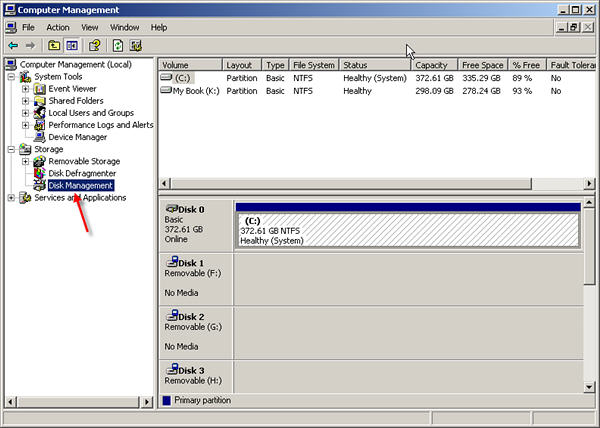
  2. Once you’re in Computer Management, you will see Disk Management on the left side. Click on Disk Management to open it up on the right side of the Computer Management window.
  3. You can also click on Start, Control Panel, System and Maintenance, Administrative Tools, and then double-click on Computer Management and then click on Disk Management under the Storage Navigation pane.

Note: Disk Management can also be used to view partitions and their formatted file systems on the hard drive

Read More

Tips For Replacing A Hard Drive From A Failed RAID

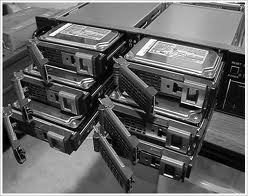
Tips For Replacing A Hard Drive From A Failed RAIDThere are some items to consider when replacing a hard drive from a failed RAID. If you are building a new RAID, then all hard drives in the array should be the identical model if at all possible. However, if you must replace a failed hard drive, it can sometimes be difficult to find the same model if that model is out of production.

Below are some tips to follow when selecting a replacement:

Keep in mind that the controller may or may not allow different models in a RAID, so check the RAID controller documentation.

Product life: What is the expected life of the remaining drives? If the other drives are approaching the end of their useful life, then it may be time to replace the entire RAID.

Capacity: The replacement drive should be the same or higher capacity than the original drive. Do not just look at the capacity on the box, since a few megabytes could make the difference between whether the drive will work or not.

(You should check the number of LBAs (or sectors) on the hard drive. Some RAID controllers will allow you to substitute larger drives if the exact capacity is not available, while other controllers require an exact match. Check with the controller manufacturer if the documentation doesn’t make it clear!)

Performance: The replacement drive should match the performance of the remaining drives as closely as possible. If your failed drive was 15,000 RPM, avoid replacing it with a 10,000 RPM drive. RAID arrays depend on the timing between drives to write data. Thus, if one drive doesn’t keep up, it may cause the entire array to fail or at least experience irritating problems.

Interface: Make sure the replacement drive uses the same type of interface connection as the failed drive. If the failed drive used a SCSI SCA (80-Pin) interface then don’t try to replace it with a 68-pin SCSI interface. With Seagate products the last two digits of the model number indicate the interface. For example: LW = 68-Pin, LC = 80-Pin.

The 80-pin LC drives are hot-swappable with backplane connections.

Cache Buffer: It is recommended that the cache buffer for each drive be the same value.  Most RAID controllers will consider drives with mismatching cache buffers to be ineligible for addition to a striped or parity array.

Read More

WD Hard Drive Interface Guide For Compatible Cable Connections Part II

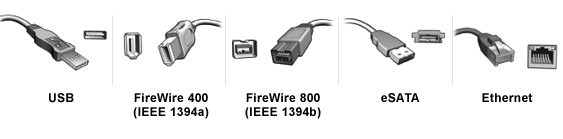
Which external drive interface is the right choice: USB, FireWire, eSATA, or Gigabit Ethernet?

Each interface has its strengths, which are explained in detail below. The right choice depends on compatibility with your computer and how you want to use your device. First, look at the connections on your computer.

Wd Hard Drive Interface Guide

USB

USB 2.0 is the industry standard peripheral connection for most Windows-based computers. This connection transfers data at a maximum rate of 480 Mb/s. Sustained data transfer rates, usually from 10 to 30 MB/s, vary depending on many factors including the type of device, data being transferred, and computer system speed. If your USB port is an earlier version, USB 1.0 or 1.1, you can use a USB 2.0 hard drive, but transfer rates default to the slowest version. If you don’t know the version of your computer’s USB ports, refer to your computer documentation or contact the manufacturer.

FireWire

FireWire, also called IEEE 1394, is a high-performance connection standard for personal computers and consumer electronics. This interface uses a peer-to-peer architecture in which peripherals negotiate bus conflicts to determine which device can best control a data transfer. FireWire has two configurations:

  • FireWire 400, also called IEEE 1394a, transfers large amounts of data between computers and peripheral devices at rates up to 400 Mb/s. With higher bandwidth, longer distances, and a higher-powered bus, this interface is suitable for hard drives, digital video, professional audio, high-end digital still cameras, and home entertainment devices.
  • FireWire 800, also called IEEE 1394b, provides the highspeed connection and bandwidth required for multiple-stream, uncompressed digital video and noise-free, high-resolution digital audio. It offers maximum flexibility with long-distance cabling and configuration options not available with USB.

eSATA

SATA is very effective for external storage applications, and the external SATA (eSATA) cable and connector application provides a physically secure and fast connection for external hard drives. With up to 3 Gb/s data transfers, this interface is suitable for hard drives, home networking, digital video, and home entertainment devices such as set-top boxes and personal video recorders. eSATA and internal SATA cables and connectors cannot be used interchangeably. This is an important feature since eSATA cables and connectors are designed for 5000 insertion and removal cycles while internal SATA cables and connectors are designed for only 50 insertion and removal cycles. To achieve eSATA connectivity with an external SATA drive, a SATA PCI card must be installed on the host computer.

Note: SATA cables with an L-shaped connector are incompatible with WD eSATA devices.

Gigabit Ethernet

Ethernet is a standard method of connecting computers to a local area network (LAN) using coaxial cable. As an external hard drive interface, it is most often used for network attached storage (NAS) applications in which files can be shared across a network.

Gigabit Ethernet, with its data transfer rate of 1000 Mb/s, is the latest and fastest Ethernet standard that evolved from the earlier Fast Ethernet (100 Mb/s) and Ethernet (10 Mb/s) standards. Benefits of Gigabit Ethernet include increased bandwidth, quality of service (QoS) features that promote smooth transmission of audio and video, and compatibility with existing Ethernet and Fast Ethernet networks.

USB 2.0FireWire 400 FireWire 800 eSATAGigabit Ethernet
Hot-swappable (attach a device without rebooting the system)Hot-swappable (attach a device without rebooting the system)Hot-swappable (attach a device without rebooting the system)Hot-swappable (attach a device without rebooting the system)Can attach a device to a system’s network adapter, router, switch, or hub port
480 Mb/s maximum burst transfer rate400 Mb/s maximum sustained transter rate800 Mb/s maximum sustained transfer rate; twice as fast as FireWire 400Up to 3000 Mb/s maximum sustained transfer rate1000 Mb/s maximum sustained transfer rate; ten times as fast as Fast Ethernet
Best for connecting to different systems quickly and easilyBest for transferring large amounts of data frequently or for audio/video programsBest for multiple-stream digital video and high-resolution digital audioBest for transferring large amounts of data frequently or for audio/ video programsBest for sharing large amounts of data and/or large audio/video files across a network
More popular for PCsMore popular for Macintosh® computersMore popular for Macintosh computersMore popular for PCsMore popular for PCs

Note: For convenience and flexibility, choose a WD hard drive with both USB and FireWire interfaces
(available in dual and triple interface configurations) or with both USB and eSATA interfaces.

Read More