Does USB 2.0 and USB 1.1 hardware work interchangeably?

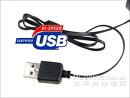
USB Devices You may have heard that USB 2.0 is “backward-compatible” with USB 1.0/1.1 (Full-Speed USB). While that’s true, USB 1.1 is also forward-compatible with USB 2.0.

Whenever a system has USB 2.0 ports, you’ll find the “Enhanced” USB controller in Device Manager, but you will also find two other USB controllers. These two to mantain backward compatibility to USB 1.1 devices. Each USB 2.0 host actually has 3 chips onboard. The USB controller routes signals to the correct controller chip depending on how a device is recognized. Where a device is physically plugged in has no bearing on how it is routed. All ports on a USB 2.0 motherboard can host any USB devices at all as long as the system and devices are healthy.

The vast majority of USB 2.0 devices will work on older PCs and Macs. None should flat-out fail unless there are other issues with the system. Hi-Speed USB devices will revert to Full-Speed operation when connected this way. Understand that Hi-Speed is at least ten times faster than Full-Speed in actual operation, so the speed difference is quite noticeable.

Read More

What is the difference between a Microsoft Basic Disk and a Dynamic Disk?

There are two different types of disk storage available to the Windows Vista, XP and 2000 environment:

  • Basic Disk Storage
  • Dynamic Disk Storage

The number of partitions (on basic disks) and volumes (on dynamic disks) that each can contain are the primary differences.  Single drive systems with one drive letter C: are typical basic disks.  A server that needs to be divided up into several parts may benefit from a dynamic disk configuration.  Some versions of Windows will convert a basic disk into a dynamic type.

Basic Disk Storage
Basic storage uses partition tables that are supported by MS-DOS, Microsoft Windows 95, Microsoft Windows 98, Microsoft Windows Millennium Edition (Me), Microsoft Windows NT, Microsoft Windows 2000, and Windows XP. A disk initialized for basic storage is called a basic disk. A basic disk contains basic volumes, such as primary partitions, extended partitions, and logical drives.

Dynamic Disk Storage
Dynamic storage is supported by both Windows 2000 and Windows XP Professional. A disk that is initialized for dynamic storage is called a dynamic disk. A dynamic disk contains dynamic volumes, such as simple volumes, spanned volumes, striped volumes, mirrored volumes, and RAID-5 volumes.

Read More

How can I test my hard drive for defects or problems in a Mac?

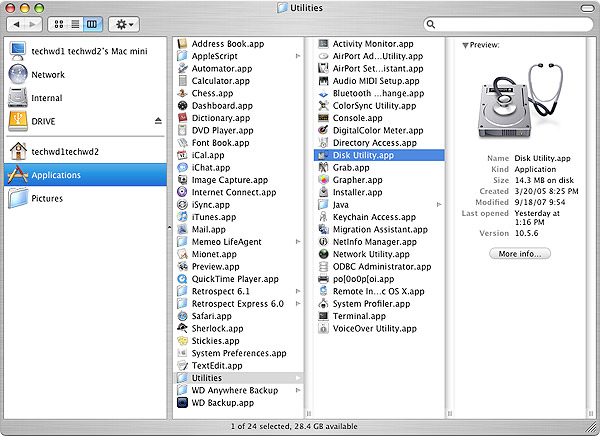
Mac systems have an excellent diagnostic utility included in the operating system called Disk Utility. You can find Disk Utility within the Utilities folder inside the Applications folder on the boot drive. You can also find this utility by booting directly to the operating system installation CD/DVD.

1. Go to Disk Utility and click on it.

Disk Utility

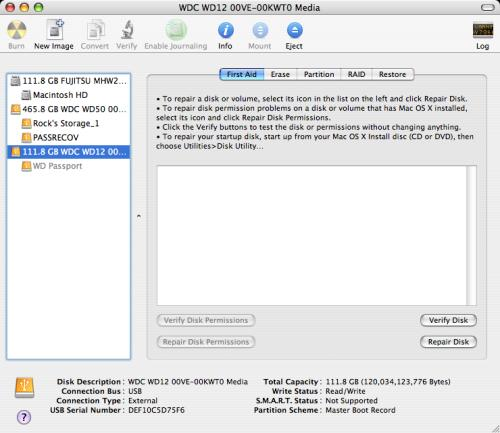
2. Choose the drive you wish to test by selecting the drive or partition on the left window pane and then selecting the First Aid tab.

Disk Utility

3. Click Verify Disk to check a drive/partition for errors but not repair them.
4. Click Repair Disk to check a drive/partition for errors and repair any that it finds.
5. Click Verify Disk Permissions to check the permissions on a drive/partition but not repair any errors.
6. Click Repair Disk Permissions to check the permissions on a drive/partition and repair any errors.

Note: You cannot check or repair permissions on a FAT32 (MS-DOS) partition. Only the Mac OS Extended (HPFS+) file system supports permissions.

Read More

Glossary of Western Digital Hard Disk Drive (Letter N)

NAS
Network attached storage. Hard disk storage that is set up with its own network address rather than being attached to the computer that is serving network workstation users.

NAT
Network Address Translation. Used in gateway devices that form the boundary between the public Internet and the private LAN. As IP packets from the private LAN traverse the gateway, NAT translates a private IP address and port number to a public IP address and port number, tracking those translations to keep individual sessions intact.

NCQ
Native command queuing. A command protocol implemented only on native SATA hard drives. It allows multiple commands to be outstanding within a drive at the same time. Drives that support NCQ have an internal queue where outstanding commands can be rescheduled and re-ordered dynamically, along with necessary tracking mechanisms for outstanding and completed parts of the workload. NCQ also has a mechanism that allows the host to issue additional commands to the drive while the drive is seeking data for another command.

NetCenter™
Trade name for WD’s first generation external network hard drive.

network computer
A computer with limited data storage capacity that communicates with a central data storage facility such as a server or RAID system.

NFS
NT file system. A file system, designed for Windows® NT, that supports long filenames, security access control, recovery, and other features.

NTFS
NT file system. A file system, designed for Windows® NT, that supports long filenames, security access control, recovery, and other features.

Read More

Is SSD The Future Of Storage?

Guest post by: Peter Lee @ Computer How To Guide

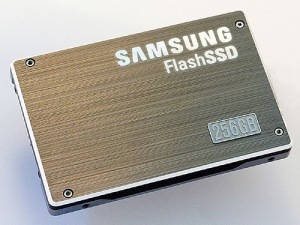
Is SSD The Future Of Storage?Solid State Drives (SSD) are storage devices like that of Hard Disc Drives or HDDs. But, the technology used is considerably different. The SSDs do not, like in the case of HDDs and other magnetic storage media, use movable heads and instead use non volatile micro memory chips for storage.

Performance Advantage
Solid State Drives are faster when compared to the traditional Hard Disc Drives. The performance advantage can be attributed to various factors which affect the speed of accessing the information from the disc.
To understand the intricacies involved in the process of computing data, let us first try and understand the way a computer processes data, in brief.

How Data Is Computed
One needs to understand that all the data that is processed by the computer is only done in its RAM i.e. Random Access Memory, which is a volatile storage device. When a request is sent to the computer, it needs to fetch the operands (the variables that are required in the computation) from the non volatile storage and then send it to the RAM, where the request is processed.

The performance of the auxiliary storage device, in this case HDD or SSD, depends on how fast it can retrieve the information and send it to the primary storage i.e. the RAM.

Factors Affecting Performance
There are two factors that affect this time. One is the access time and the other is the latency.

Latency
Latency, in case of HDDs, is the amount of time that is required by the read/write head to position itself to the sector where the information is available.

Access Time
Access time, which includes latency, is the total amount of time that is required to access the information.

SSD vs HDD
Comparing SSD with HDD, we can say that the access time and latency of SSDs are much lower than those of HDDs, thus giving it a performance advantage. This could be attributed to the lack of a moving head in the SSDs.

Durability
HDDs have a read/write head which moves at 5000 to 7000 rpm (revolutions per minute). The read/write head is the most susceptible part of the HDDs, leading to head crash, which may prove fatal to your data. Though there are other ways in which a HDD may crash, a head crash is the most common and it results in the loss of your data. Data recovery techniques are extremely expensive and it advisable to avoid losing data.

Cost Comparison
SSDs were a lot expensive when they first rolled in. There has been a considerable decrease in the prices of the SSDs. Though there has been a decrease in the cost of these devices, SSDs are still costly.

Although the prices of SSDs and HDDs are comparable, the effective price of the device per one gigabyte of storage in case of SSDs is much higher than the price per GB in case of HDDs i.e. you could get a 500 GB hard disc for $100 whereas you’d only 60GB SSD for $100.

Is SSD The Future Of Storage?
Both, yes and no. While SSDs are fast compared to HDDs, they are expensive. SSDs have almost reached their threshold price i.e. cost reduction in case of SSDs is hard, if not impossible.
HDDs, on the other hand, have been evolving and their speeds have considerably increased.
HDDs can be used in arrays called the redundant array of inexpensive discs (RAID), by connecting them in a form of arrays. This technique, though, may seem somewhat unachievable by the masses, is quite common in the computing field and in fact, is easy. It offers higher speeds, more reliability as there are multiple devices in which your data is stored.

Recommendation
As the SSDs are expensive, it would be better if they are used wisely. Also, there is a lot of demand for storage today. So, it would be advisable to have an SSD as well as a HDD. The SSD can be for the OS and other installation files, and the hard disc can be used for storing content like audio and video files. By having this combination of storage drives, you can even format your drives separately, not worrying about your data.

This way, you would save money while having faster accessible speeds.

Read More