Free Hard Drive Tools (Part I)

1. Hard Drive Capacity Restore Tool

License: Freeware
Author: Atola Technology
Operating System: MS Windows 2000/2003/XP
Hard Drives Supported: All hard drives
Version: 1.2

HDD Capacity Restore Tool allows you to restore factory capacity of all hard drives.
Sometimes you can use HDD Capacity Restore Tool to actually increase the capacity of a hard drive (if it was limited by the distributor; for example, Hewlett-Packard sometimes sells 80-GB hard drives but sets a 40-GB limit. You can restore the full 80-GB capacity in this case).

Download HDD Capacity Restore v1.2
Capacity restore guide

2. Partition Find and Mount

License: Freeware
Author: Atola Technology
Operating System: MS Windows 2000/2003/XP
File Systems Supported: NTFS all versions, FAT12 (floppy), FAT16, FAT32

Partition Find and Mount allows you to recover deleted partitions.
What’s special in Partition Find and Mount is that it allows you to mount lost partitions right into the system, so the operating system sees that lost partition like a good one. It also has the possibility to create and mount images of the entire hard drive or separate partitions.

Download Partition Find and Mount

3. Wipe Hard Drive Tool
License: Freeware
Author: HDDGURU.COM
Operating System: MS Windows 2000SP4/2003/XP
Hard Drives Supported: All hard drives
Version: 2.35 build 1178

HDD Wipe Tool is a freeware utility for low-level hard drive erasing.
•    Supported interfaces: S-ATA (SATA), IDE (E-IDE), SCSI, USB, FIREWIRE. Big drives (LBA-48) are supported.
•    The program also supports low-level erasing of FLASH cards using a card-reader.

HDD Wipe utility will erase and re-certify a SATA, IDE or SCSI hard disk drive with any size of up to 281 474 976 710 655 bytes. Work with USB and FIREWIRE external drive enclosures. Low-level erasing of Flash Cards is supported too.
HDD Wipe Tool will clear partitions, MBR, and every bit of user data. The data cannot be recovered after using this utility. The program utilizes Ultra-DMA transfers when possible.
WARNING: After running this free wipe tool, the whole disk surface will be fully erased. Therefore, data restoration will be impossible after using this utility!

Download HDDGURU HDD Wipe Tool ver.2.35 build 1178

4. Hard drive firmware update utility (Bootable CD ISO)
This utility, on the bootable CD, will then examine your system, detect all 2.5/1.8 inch hard drives installed, and then check the firmware revision of the drive. If required, it will prompt you to run the appropriate firmware update program for your drive.
Supported drives:
IBM DARA-2x, IBM DJSA-2x, IBM IC25NxATDA04, IBM IC25TxATDA05
IBM IC25NxATCS04, IBM IC25TxATCS05, IBM IC25NxATCS05

HITACHI DK2x7A-x, HITACHI DK2x8A-x, HITACHI DK2x9A-x
HITACHI DK23AA-x, HITACHI DK23BA-x,HITACHI DK23CA-x
HITACHI DK23DA-x, HITACHI DK23EA-x, HITACHI DK23FB-x
IBM/HITACHI IC25NxATMR04, HITACHI HTS54xM9AT, HITACHI HTS72xM9AT
HITACHI HTS42xM9AT, HITACHI HTS54xG9AT,HITACHI HTS7210xxG9AT00
HITACHI DK1xFA

TOSHIBA MKx09MAT, TOSHIBA MKx19GAX, TOSHIBA MKx26GAX
FUJITSU MHN2xAT, FUJITSU MHR2xAT, FUJITSU MHT2xAT
FUJITSU MHT2xAH

This package is compiled into an ISO format, which is compatible with CD writing software and writable to a CD-R or a CD-RW disc.
Any hard drive password must be removed prior to running this utility.

A written CD-R or CD-RW disc will be bootable. It will boot from your ThinkPad optical disc drive and run the update utility program.

Download Hard drive firmware update utility release FWHD41 (ISO image to burn a CD)

Read More

Data recovery apparatus and method used for flash memory

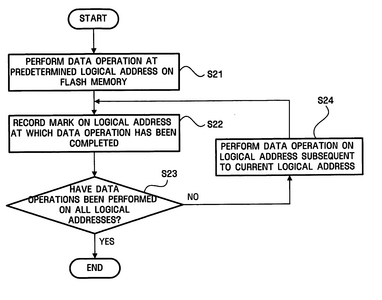
Flash data recovery1. A data recovery apparatus used for a flash memory that includes data areas and index areas in which values indicating whether data stored in the respective data areas are valid are recorded, comprising: a controller that performs a data operation at each of a plurality of logical addresses, and if the data operations performed at the plurality of logical addresses are successful, records a mark value in a last index area of a plurality of index areas respectively corresponding to the plurality of logical addresses.

2. The data recovery apparatus of claim 1, wherein the data operation is first performed on a middle portion of the flash memory and then on other portions of the flash memory, and the mark value is recorded in one of the index areas corresponding to the middle portion of the flash memory.

3. The data recovery apparatus of claim 1, wherein said plurality of logical addresses are consecutive logical addresses.

4. A data recovery apparatus used for a flash memory that includes data areas and index areas in which values indicating whether data stored in the respective data areas are valid are recorded, comprising: a controller that determines whether data respectively stored at a plurality of logical addresses prior to a predetermined logical address, through a data operation, are valid based on a mark value recorded in an index area corresponding to the predetermined logical address.

5. The data recovery apparatus of claim 4, wherein the mark value is recorded in index areas respectively corresponding to first and last logical addresses of the plurality of logical addresses when performing the data operation first on a middle portion of the flash memory and then on other portions of the flash memory, and determining whether data respectively stored at at least one of the plurality of logical addresses between the first and last logical addresses are valid based on the index areas in which the mark value is stored.

6. The data recovery apparatus of claim 5, wherein it is determined whether data stored at the predetermined logical address is valid based on whether data exists at a logical address subsequent to the predetermined logical address.

7. The data recovery method of claim 4, wherein said plurality of logical addresses are a plurality of consecutive logical addresses.

8. A data recovery method used for a flash memory that includes data areas and index areas in which values indicating whether data stored in the respective data areas are valid are recorded, the data recovery method comprising: performing a data operation at each of a plurality of logical addresses; and recording a mark value in a last index area of a plurality of index areas respectively corresponding to the plurality of logical addresses.

9. The data recovery method of claim 8, wherein, in the recording of the mark value, if the data operation is performed first on a middle portion of the flash memory and then on other portions of the flash memory, the mark value is recorded in an index area corresponding to the middle portion of the flash memory.

10. The data recovery method of claim 8, wherein said plurality of logical addresses are a plurality of consecutive logical addresses.

11. A data recovery method used for a flash memory that includes data areas and index areas in which values indicating whether data stored in the respective data areas are valid are recorded, the data recovery method comprising: identifying a mark value recorded in an index area corresponding to a predetermined logical address; and determining whether data respectively stored at a plurality of logical addresses prior to the predetermined logical address, through a data operation, are valid based on the mark value.

12. The data recovery method of claim 11, wherein in the determining operation, it is determined whether the data respectively stored at the plurality of logical addresses are valid based on a mark value recorded in an index area corresponding to one of the plurality of logical addresses where the data operation has performed most recently.

13. The data recovery method of claim 12, wherein, in the determining operation, if the data operation is performed first on a middle portion of the flash memory and then on other portions of the flash memory, it is determined whether data stored in the flash memory are valid based on the mark value recorded in the index area corresponding to the middle portion of the flash memory.

14. The data recovery method of claim 12, wherein it is determined whether data stored at a predetermined logical address is valid based on whether data exists at a logical address subsequent to the predetermined logical address.

15. The data recovery method of claim 13, wherein it is determined whether data stored at a predetermined logical address is valid based on whether data exists at a logical address subsequent to the predetermined logical address.

16. The data recovery method of claim 12, wherein said plurality of logical addresses are a plurality of consecutive logical addresses.

Read More

HDD malfunctions

 “Nothing is eternal” – that expression applies also to hard disk drives. No matter how reliable a HDD is still it is degraded with time by destructive processes.

 First, a drive is a mechanical and electronic device but all mechanical parts gradually wear out. With time connections between mechanical parts become slack. Numerous ascensions and descents of magnetic heads which occur during each start and stop of magnetic disk rotation destroy the protective layer coating the heads. However, modern manufacturing technology guarantees rather long life for hard drives. Thus, according to the information from the technical manual for operation of Western Digital drives (Caviar BB/JB family) the minimum number of contacts between magnetic heads and disk surface during start/stop (Contact Start/Stop Cycles – CSS) is at least 50000 cycles, while unrecoverable reading errors (Error Rate – Unrecoverable) appear less frequently than once per 10 bytes raised to the 14th power. If we translate those figures into generally understandable terms we receive the following: minimum time before any deterioration in the quality of heads or surfaces because of their contacts provided that the drive is switched on and off ten times daily will be 14 years; and one error will occur during reading of more than 32 TB of data (that approximately corresponds to viewing movies in MP4 format non-stop for 7 – 10 years).

Still, in real life we frequently face a totally different situation when a brand new drive purchased recently goes out of order after a few months of operation. Numerous drives even do not endure the warranty period defined by their manufacturing factory. We have to note that all manufacturers except for Samsung have decreased that period from 3 years to one. What are the reasons of such situation?

Normal HDD ageing malfunctions
 During correct operation of a properly assembled drive performed in conformity to all requirements of its Technical Reference Manual with time you can observe normal ageing process. It tells most badly on magnetic disks. First, with time the magnetization of minimum magnetic “prints” – dibits – decreases and a drive has to re-read some portions of disks, which used to read flawlessly, or they even begin to produce reading errors. In the second place, the magnetic layer on disks also deteriorates gathering scratches, chippings, cracks, etc. All of the above cause appearance of BAD sectors.

The process of normal drive ageing is quite long and usually it takes 3-5 years. We have to note that for a HDD non-stop mode of operation is even more favourable than a mode, when a drive starts and stops frequently. Thus drives function quite long in dedicated servers operating round-the-clock and located in a separate premise or a box with obligatory normal climate control.

Malfunctions resulting from incorrect mode of operation
 The most frequent cause of HDD malfunctions has to deal exactly with incorrect manner of their operation, its main destructive factors include: overheating, mechanical impacts and voltage jumps of HDD power supply.

Overheating is caused by insufficient cooling of drive case and PCB. According to the technical reference manual for Western Digital drives (Caviar BB/JB family) the allowed operational drive temperature ranges from 5 С to 550 С provided that air circulates around all the time. The latter condition is determined by the fact that some chips on the control board become much warmer than the above temperature (motor controllers, etc.) and heat dissipation must be arranged for them. Now let us imagine that it is summer time, temperature inside may reach 30 С, within computer case it will grow to the extreme values – by another 20 – 250 С – while there is no normal air circulation because there is only one blow-out fan in the power supply clogged with dust, flat cables inside form a tight knot and the drive is blocked from both sides between a CD drive and FDD. An open computer case at that does not remedy the situation because it does not facilitate air flow around HDD.

Another important temperature value is its gradient, which should not exceed 200 С per hour during operation and 300 С during downtime. When the latter is exceeded, it is very dangerous for drive mechanics; that phenomenon is called thermal shock. Thus if you bring a HDD during winter time from a store or from a friend (where you had to read some necessary data) and it is frosty outside and 200 С inside, then if you power-up the drive immediately it causes sudden local heating of separate mechanical HDA parts, which may cause micro deformations of precise drive mechanics. Such a drastic temperature drop is very harmful for electronic components, too.

The same holds true regarding mechanical influence over HDA, i.e. impacts which are also very dangerous for precise mechanical parts of a drive. During operation as described in the previous article, spring-loaded magnetic heads fly at a low height above disks rotating at a rather high speed. An impact against HDA in that situation will cause inevitable vibration of heads which will produce a series of hits against disks, which in turn are sure to cause chipping both on disk surface and on the surface of magnetic heads.

Very serious danger for HDD electronics is manifested by power supply units powering the whole PC and the drive respectively. In order to make their price lower manufacturers frequently do not install filtering circuitry both in the primary 220 V chain and in secondary circuit. Very frequently rated power does not correspond to the actual values and stabilized voltage turns out to be not so stable although those parameters are strictly regulated for disk drives. Thus, according to the technical reference manual for Western Digital drives (Caviar BB/JB family) allowed power supply voltage is +5 V +- 5% and +12 V +- 10%, allowed fluctuation is 100 mV in +5V circuits and 200 mV in 12 V circuits. Most specialists servicing computer equipment use only voltage meters while testing power supply units, but one should keep in mind that voltage fluctuations, which are an important parameter can be checked with an oscilloscope only.

Construction-related malfunctions
 Quality of HDDs has decreased lately; that fact is confirmed by reduction of warranty period by many manufacturers. To some extent it is caused by stiff competition between them and the resulting race for production of cheap drives. It is also connected with growing technological standards, a sort of a race for density increase and achievement of higher capacity per disk. As a consequence vendors frequently use in their HDDs solutions, materials and technologies, which have not been thoroughly tested and verified; thus imperfect products appear in the market and then in possession of end users. After some time manufacturers analyze malfunctions of drives returned during their warranty period and attempt to eliminate drawbacks in their construction, but those attempts are not always successful.

Theoretically such approach to drive design and production may cause problems with any drive part. We can single out the most frequent troubles:

Bad contact in pin connector between PCB and preamplifier chip connected to magnetic heads’ assembly. The consequences of a poor contact may be quite numerous. First of all, it causes appearance of bad sectors. But those sectors differ from common defects caused by poor surface quality. The difference manifests itself in the fact that the surface remains intact but bad contact causes recording of invalid data to service bytes of some sectors, e.g. to the field containing CRC code of the sector. The problem may also lead to corruption of firmware data, which cannot be restored by the drive itself during the next power-up; besides, there is no user mode for such restoration. Firmware data of a drive can be restored in the factory mode only.

Poor quality of chips’ soldering at the factory. Such workmanship flaw becomes obvious as a rule approximately after a year of drive operation. It is usually manifested in lack of contact, i.e. after some period of normal operation a drive either switches off and does not start again (“hangs”) or begins to produce knocking sounds with its heads; the latter situation may result in damage to its mechanical parts. Just like the previous flow it may also cause firmware corruption.

Insufficient quality of chips becoming defective even at heating values, which do not exceed allowed limits. The fault can be repaired by replacing the defective chip with an identical operational one.
Imperfect construction of fluid dynamic bearings, which causes accumulation of scrap particles in the grease resulting in spindle motor seizure.

There are also cases when disks are not fixed on a spindle properly, as a result disk beating grows increasingly and causes bearing destruction in spindle motor. Considerable noise begins to accompany drive operation and after some time defective sectors appear because disk beating leads to incorrect reading of some tracks.

Poor quality of Flash ROM chips, which may lose the firmware code stored therein because of charge leakage when heated. ROM can be overwritten either in a special ROM chip programmer or using the drive itself in the factory mode.

Errors in drive firmware microcode. Manufacturers do not make public the information about the nature of such errors keeping it secret. However, firmware updates are issued quite regularly. It would be a mistake to believe that the errors do not influence drive’s operability in any way because in some cases they may result in damage to drive mechanics.


Read More

Usb Flash Drive Data Recovery

USB Flash Drive Data Recovery USB flash drives have become one of the major sources of data transferring sources since 2000. And along with this, the rate of data failure due to virus attacks and device failures is also increasing day by day. Many data recovering software products are available in the market but due to the lack of knowledge and mishandling even a simple recovery becomes a nightmare for the user.

Many a time we lose important information from the USB flash drive by accident. Find out here how to do a USB Flash Drive Data Recovery by using some simple methods.

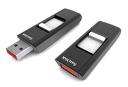
Most of us use the USB (Universal Serial Bus) flash drive for storing necessary data that has to be transferred from one system to another. A USB flash drive is an external data storage device that allows the user to store data temporarily. This data can be transferred from one system to another by connecting the flash drive to a particular system’s external hard drive port, i.e. the USB port. A USB flash drive is popularly known as a pen drive. It is a very convenient and handy device but sometimes the USB flash drive fails to operate due to some unknown reasons. Given below are some methods for USB flash drive recovery.

Tips for USB Flash Drive Data Recovery

Many times your USB flash drive does not open when you click on the icon that appears in the windows browser after you connect the USB flash drive to the USB port of the CPU. This may happen if the USB drive is corrupted or if some computer virus has entered the drive. In such cases, the first thing to try is to right click and select Open/Explore.

If neither of the two options work, then try scanning the drive with an antivirus software. If the pen drive is not working due to virus, scanning the pen drive with an effective antivirus is a good option for USB flash drive data recovery and can restore the USB.

If scanning also does not help, the only option left is to format the drive. Formatting will erase all the files from the drive, therefore, before formatting, create a backup of all your important files. To format the drive, right click on the drive icon, select format, select quick format option on the format window, follow the ‘prompt’ messages (something like a warning message saying that ‘if you format your drive, all the data stored in it will be lost’), select OK or Cancel (this will stop the format process). The quick format takes few minutes, depending on the size of the data to be erased. Once the formatting is done, your USB will become as good as new and you can use it as before.

Well, I hope you know how to format your computer ’cause sometimes even this option fails and you have to format the flash drive in a more tedious way. For this method, you will need a bootable CD (compact disk) of your operating system. Restart your desktop computer after you have inserted the bootable operating system CD in the CD drive and let the USB flash drive be connected to the USB port. When the computer is restarting, press F8/F2/Del key (depending on your configuration) immediately. Browse to the booting configuration options and change the first bootable device to your CD drive. Now, save the changes and restart your computer. Your PC will start booting from the CD and the installation process will begin. Follow the ‘prompt’ messages till the point where the window will display the names and sizes of all the existing drives. Here you have to select the drive indicating your USB drive and select format option. The USB will get formatted. Now, if you want to continue with the installation process, go ahead, else repair the existing operating system or you can quit. Be assured your flash drive will be formatted and will work fine.

If the matter is more serious than this, search for the warranty card (hope you can find it and hope the warranty period is not expired) and take the USB flash drive straight to the dealer.
That was a brief about the methods of USB flash drive data recovery. However, to avoid any of the above situations, treat your USB flash drive well. Do not remove the drive without stopping it. Always go to the lower right side of your screen on the taskbar where a green arrow appears after you have connected the USB, click on it and click on your USB flash drive name. Only after the message ‘Remove Drive Safely’ appears, physically remove your USB drive, else go to the icon of the USB drive, right click on it and select ‘Eject’. Also, never remove the USB while some data transfer is going on from a computer to USB or vice-versa. Doing so may corrupt your data. Never leave any file or folder of the USB open when you want to disconnect or remove the USB flash drive. This can also cause some serious problems to the data as well as to the drive.

Hope the above USB flash drive data recovery methods will help you in your attempts at repairing your USB! And if you have any experiences or additional methods of repairing the USB, please feel free to share them here.

Data recovery handled professionally is the best solution for any kind of data loss from your pen drive, hard drive, memory stick or any other storage device. A systematic scan of the damaged device is essential for starting the right type of action for each attempt at data recovery. Depending on your file system combination, the drives operating system and document types there are different ways to handle data loss.

It is always best to consult with expert guidance for scanning and determining your data loss type and severity because even a minor mistake can permanently erase your files and data forever.

Read More