How to access Disk Management in Windows

Disk Management Disk Management is a utility built into WIndows 2000, XP, and Vista which can be used to create, delete, and format partitions.

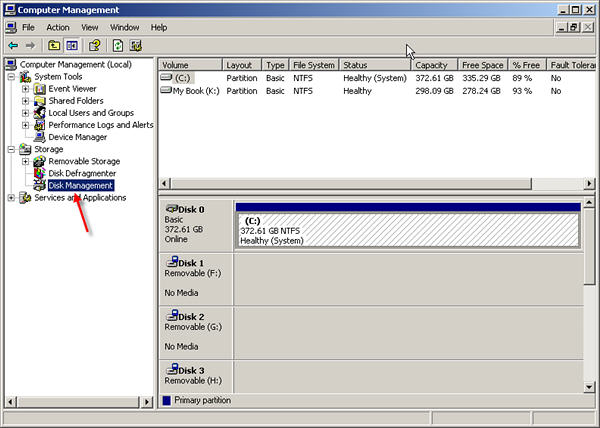
To access Disk Management in WIndows 2000 and XP please follow the instructions below:

  1. From the desktop or Start Menu of Windows, right-click on My Computer.
  2. Left-click Manage.
  3. Left-click Disk Management.

To access Disk Management in Windows Vista, and Windows 7 please follow the instructions below:

  1. From the desktop or Start Menu of Windows, right-click on the Computer icon and then left-click on Manage from the dropdown list.
  2. Once you’re in Computer Management, you will see Disk Management on the left side. Click on Disk Management to open it up on the right side of the Computer Management window.
  3. You can also click on Start, Control Panel, System and Maintenance, Administrative Tools, and then double-click on Computer Management and then click on Disk Management under the Storage Navigation pane.

Note: Disk Management can also be used to view partitions and their formatted file systems on the hard drive

Read More

Is SSD The Future Of Storage?

Guest post by: Peter Lee @ Computer How To Guide

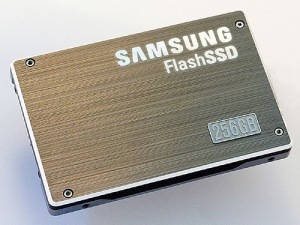
Is SSD The Future Of Storage?Solid State Drives (SSD) are storage devices like that of Hard Disc Drives or HDDs. But, the technology used is considerably different. The SSDs do not, like in the case of HDDs and other magnetic storage media, use movable heads and instead use non volatile micro memory chips for storage.

Performance Advantage
Solid State Drives are faster when compared to the traditional Hard Disc Drives. The performance advantage can be attributed to various factors which affect the speed of accessing the information from the disc.
To understand the intricacies involved in the process of computing data, let us first try and understand the way a computer processes data, in brief.

How Data Is Computed
One needs to understand that all the data that is processed by the computer is only done in its RAM i.e. Random Access Memory, which is a volatile storage device. When a request is sent to the computer, it needs to fetch the operands (the variables that are required in the computation) from the non volatile storage and then send it to the RAM, where the request is processed.

The performance of the auxiliary storage device, in this case HDD or SSD, depends on how fast it can retrieve the information and send it to the primary storage i.e. the RAM.

Factors Affecting Performance
There are two factors that affect this time. One is the access time and the other is the latency.

Latency
Latency, in case of HDDs, is the amount of time that is required by the read/write head to position itself to the sector where the information is available.

Access Time
Access time, which includes latency, is the total amount of time that is required to access the information.

SSD vs HDD
Comparing SSD with HDD, we can say that the access time and latency of SSDs are much lower than those of HDDs, thus giving it a performance advantage. This could be attributed to the lack of a moving head in the SSDs.

Durability
HDDs have a read/write head which moves at 5000 to 7000 rpm (revolutions per minute). The read/write head is the most susceptible part of the HDDs, leading to head crash, which may prove fatal to your data. Though there are other ways in which a HDD may crash, a head crash is the most common and it results in the loss of your data. Data recovery techniques are extremely expensive and it advisable to avoid losing data.

Cost Comparison
SSDs were a lot expensive when they first rolled in. There has been a considerable decrease in the prices of the SSDs. Though there has been a decrease in the cost of these devices, SSDs are still costly.

Although the prices of SSDs and HDDs are comparable, the effective price of the device per one gigabyte of storage in case of SSDs is much higher than the price per GB in case of HDDs i.e. you could get a 500 GB hard disc for $100 whereas you’d only 60GB SSD for $100.

Is SSD The Future Of Storage?
Both, yes and no. While SSDs are fast compared to HDDs, they are expensive. SSDs have almost reached their threshold price i.e. cost reduction in case of SSDs is hard, if not impossible.
HDDs, on the other hand, have been evolving and their speeds have considerably increased.
HDDs can be used in arrays called the redundant array of inexpensive discs (RAID), by connecting them in a form of arrays. This technique, though, may seem somewhat unachievable by the masses, is quite common in the computing field and in fact, is easy. It offers higher speeds, more reliability as there are multiple devices in which your data is stored.

Recommendation
As the SSDs are expensive, it would be better if they are used wisely. Also, there is a lot of demand for storage today. So, it would be advisable to have an SSD as well as a HDD. The SSD can be for the OS and other installation files, and the hard disc can be used for storing content like audio and video files. By having this combination of storage drives, you can even format your drives separately, not worrying about your data.

This way, you would save money while having faster accessible speeds.

Read More

Hard Drive Platters

Platters in physical
The physical material of Platters: Aluminum alloy comprises the physical material of the platter. It is rigid, easy to work with, lightweight, stable, inexpensive and readily available. The speed that the platters spin is increasing to store data much quicker and in intensive tracks, it is creating more demands on the platter material itself. That’s why the first glass Platters of IBM HDD failed to dominate the market;

Media Layer: The physical material (Aluminum alloy) of which the platters are made forms the base upon which the actual recording media is deposited. The media layer is a very thin coating of magnetic material which is where the actual data is stored, typically only a few microinches in thickness. The media layer is usually comprised of a special alloy. That’s why the data will lose or inaccessible by ages of using. It is because the thin media layer become dull or damaged and can’t react the signals from the HDD or commands from a PC;

Does it make any sense to wash Platters with distilled water or alcohol?
You must laugh at my silly question. But it happened, someone told me before that He did wash the platters with pipe water because there are many fingerprints on them, and, huh, according to his words, he had fixed it and that drive got working.

Can we put the hard drive near with some magnetic materials?
People put the hard drive in some antistatic storage and they avoid to put their credit cards and other magnetic cards together.

Protective Layer: The surface of each platter is normally covered with an extra-thin, protective, lubricating layer, on top of the magnetic media layer itself. This material is used to protect the disk from damage caused by accidental contact from the heads or other foreign matter that might get into the drive. That’s why you can use your HDD to store data for years, not for a couple of months;

Platters in Logically
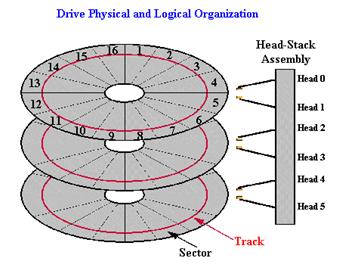
Platters Divisions: The platter is divided into Tracks and Sectors and is read by Zone Recording or Clusters.

Tracks:
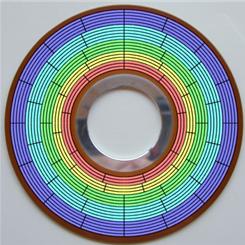
Platters are organized into specific structures to enable the organized storage and retrieval of data. Each platter is broken into several thousand tracks, which are   tightly-packed concentric circles. (These are similar in structure to the annual rings of a tree.,see the circle in red of the Picture).

But, you will find that the ones on the outside of the platter are much larger than the ones on the inside–typically double the circumference or more. Since there is a constraint on how tight the inner circles can be packed with bits, they were packed as tight as was practically possible given the state of technology, and then the outer circles were set to use the same number of sectors by reducing their bit density. This means that the outer tracks were greatly underutilized, because in theory they could hold many more sectors given the same linear bit density limitations.

To eliminate this wasted space, modern hard disks employ a technique called zoned bit recording (ZBR), also sometimes called multiple zone recording or even just zone recording. With this technique, tracks are grouped into zones based on their distance from the center of the disk, and each zone is assigned a number of sectors per track. As you move from the innermost part of the disk to the outer edge, you move through different zones, each containing more sectors per track than the one before. This allows for more efficient use of the larger tracks on the outside of the disk.

Read More

Two mechanisms of defect relocation

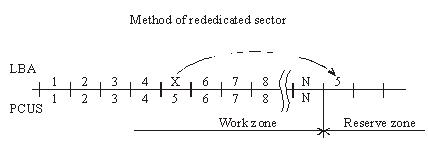
When the substitution (Assign) mechanism is used in a drive the latter records to the ID field of a BAD sector the flag of the relocated sector and writes to the data field the number of the reserved sector, i.e. the one, which should be accessed for data recording or reading. As a rule, it is the first available sector after user data area. (figure 2.).

Figure 2. Method of rededicated sector.
During data read/write operations accessing the defective sector drive controller will read the flag and assigned address and reposition the heads to the reserved zone in order to perform reading/writing from/to a good sector. Defective sectors in that case will disappear, but the drive will perform positioning to the reserved area each time it has to address a defective sector. The procedure is accompanied with clicking sounds and slight slow-down. The “Assign” procedure allows relocation only for defects in data fields. Errors pertaining to corruption of ID fields or servo fields cannot be relocated using the “Assign” method.

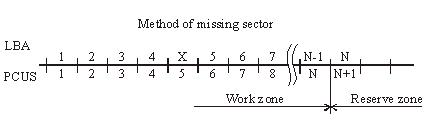
Another mechanism used for hiding defective sectors at manufacturing factories is skipping of defective sectors. When that method is used, the defective sector is skipped, its number is assigned to the following sector (and so on), and the last sector is shifted to the reserved zone. (figure 3.).

Figure 3. Method of missing sector.
Such method of sector hiding disrupts the continuous integrity of low-level format; the system of LBA conversion to PCHS should also take into account BAD sectors while skipping them. Therefore the method requires obligatory recalculation of translator tables and low-level formatting making it impossible to preserve user data if the method is employed. Exactly for that reason the said method of relocation is applied only in special factory mode of drive operation. It is used in the FUJFMT.EXE utility designed for relocation of defects in FUJITSU drives.

Read More