Windows file systems and Mac File Systems

Windows file Systems And Mac File Systems This article provides a brief history and description of Windows file systems and Mac file systems.

File Systems
A file system organizes large numbers of files on some sort of recording medium (most commonly a disk drive or cd-rom). Mac and PC computers use different primary file systems which is why a program like TransMac is necessary.

The two common versions of Mac file systems (or volume formats) are standard HFS and Mac OS Extended (or HFS+). HFS came about early on in the life of the Macintosh line when disks had relatively small capacities. Limitations appeared in this format when disk drives grew very large in size. Mac OS Extended (or HFS+ as it was originally called) is similar to HFS but some of its internal structures were changed to accommodate the changing needs of modern personal computing. The major differences between the two are outlined below. HFS is best for small volumes or those that may be used on older systems (before OS 8.1). Mac OS Extended is best for larger volumes as long as they will not be used on older systems.

Standard HFS:

  • Compatible with all Mac OS versions
  • File names limited to 31 characters
  • File sizes limited to 2GB
  • Large volumes with small files waste a lot of space.

Mac OS Extended (HFS+):

  • Compatible with Mac OS 8.1 and later
  • 255 character Unicode file names
  • No file size limit
  • Less wasted space

Windows uses two primary types of file systems FAT (File Allocation Table) and NTFS (New Technology File System).

FAT:
There are three variations of the FAT file system: FAT12, FAT16 and FAT32. FAT12 and FAT16 originated in the DOS days. They had the same sort of problems HFS had due to growing  disk sizes. FAT32 was created to alleviate some of these problems, but it still has limitations like a maximum file size of 4GB.

NTFS:
NTFS was created for Windows NT. It does not have as many limitations as the FAT systems and also includes much needed security and reliability features. Recent versions of Windows (NT, 2000, XP, etc.) support both file system types, but older versions of Windows (95, 98, Me) do not natively support NTFS.

Read More

Some Considerations Before Choosing A Data Protection Solution

Many network administrators are considering an all-in-one data protection solution because it can greatly simplify data protection process. These solutions also tend to be less expensive than buying each component separately, and they provide a single point of contact for all their support needs.

In a recent survey it was found that over half of the respondents indicated that they would prefer to rely on a single vendor for their data protection solutions whenever possible.

An all-in-one Data Protection solution the purposes of this article includes the hardware components and necessary backup software to backup an organization’s critical data, maintain the backup data both on-site and at secure off-site locations, monitor the system 24X7, provide server virtualization, and data restoration so the data network can be up and running as soon as possible.

There are a few things to consider before making a decision about going with a particular data protection solution.

1. What software is included?

There is client software loaded on the server for the backup process. The resident NAS software is used for compression, encryption, bare-metal recovery, and continuous data protection.

2. What type of hardware is being used?

A network attached storage (NAS) server with internal storage capacity is attached to the network and the server hard drive is mirrored in the NAS storage.

3. Is the solution secure?

Most solutions offer encryption. Encryption is critical component in backup data protection. The solution should support AES-level encryption. The backup data should be encrypted on site and while in transit to the off-site location and at the hosted site.

4. Is offsite backup included in the solution?

Most companies today need not only onsite backup, but they also need the capability to have a redundant copy of their backup data stored off-site so the data can be recovered in the event their site was unusable. Both on-site storage and remote storage should be part of the solution.

5. Can the solution scale to data storage demands?

The data protection solution should be capable of running efficiently and scale without a lot of specialized hardware

6. How often is the data backed up?

The frequency of the data backup determines how much data will be lost. If the data is only backed up once a day then 24 hours of data will be lost. Most businesses could not accept that kind of loss. They require a shorter recovery point. Most solutions provide backups take place every 15 minutes. The best practice is to determine an acceptable recovery point and pick a solution that meets that objective.

There are a lot of all-in-one data protection solutions. Some companies prefer to purchase deploy, and maintain the solution themselves. An in-house also requires the labor and expertise to administer the system. Some solution providers bundle the data protection equipment and software into a bundle that also includes the labor to monitor the system 24X7 as well as the labor to maintain and respond to notifications and outages. The system should be flexible enough to scale as needs change and provide a one-point-of contact when there is a need for service.

Terry Mayfield is a Business Continuity expert with 19 years experience in the field. Mr. Mayfield has helped his clients evaluate potential data loss threats and formulate data protection and recovery strategies. He is available by phone (205-290-8424) or email (terrym@askbts.com). Visit http://www.gosleepez.com to download a complimentary copy of Mr. Mayfield’s whitepaper “What Every Business Must Know About Protecting And Preserving Their Critical Data”


Read More

Ubuntu – Linux Group Permissions not being enforced correctly.

I am running Ubuntu 10.04 server and am having some very counter-intuitive experiences with users/groups. For example: sudo touch test_file                    # create empty filesudo groupadd test                      # create ‘test’ groupsudo chown root:test test_file          # change group of file to ‘test’sudo chmod g+rwx test_file              # give write permissions to groupsudo usermod -a -G test {my-user}       #…

Read More

How to Perform a Software Update on Your Maxtor Fusion

Maxtor Fusion Software Update The following procedure shows you how to perform a software update on your Maxtor Fusion. During the update process, the Maxtor Fusion will be unavailable to active users. Please notify these users before proceeding.

  1. Download the FUSION-x.xx.pkg (where “x” equals the numbers for the update) file to your supported, Windows or Macintosh Client computer.
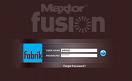
  2. Launch the Fusion’s Web User Interface (Web UI). From the Login Page, login as admin and provide the admin password to authenticate.
  3. From the admin’s home page, click Set Preferences.
  4. From the Admin Applet, click SYSTEM SETTINGS.
  5. The SYSTEM SETTINGS Applet opens. Click the Update button.
  6. You will be prompted to choose an update file. Click the Browse button to locate and select the FUSION-x.xx.pkg (where “x” equals the numbers for the update) file located on your client.
  7. Once selected, click the Update button.
  8. A window opens informing you that the, “Update process has started”. This process will take approximately 5 minutes to complete and during this time, the Fusion will NOT be available to users. Click OK.
  9. At this point the FUSION-x.xx.pkg (where “x” equals the numbers for the update) Update will be loaded to the Maxtor Fusion. When finished, a window opens informing you, “Update complete”. Click OK.
  10. The software update is complete. You can now Logout of the Fusion’s Web UI.

Additional Information:

To confirm that the Update was successful:

  1. Launch the Fusion’s Web User Interface (Web UI). From the Login Page, login as admin and provide the admin password to authenticate.
  2. From the admin’s home page, click Set Preferences.
  3. From the Admin Applet, click ABOUT.
  4. The ABOUT Applet opens. In the upper-left corner of the Applet, you will see (for example if you loaded the FUSION-1.52.pkg):
    Maxtor FusionTM
    Software version FUSION – 1.52

Flash Video that shows you how to perform a Software Update on Your Maxtor Fusion.

Read More

Maliciously deleted data recovery for former employees

Case:A company maliciously deletes the company’s documents due to the resignation of cultural personnel, and has undergone coverage. Solution:The main required documents that need to be recovered. The number of large amounts covers 5G through the underlying analysis. Manual repair. It is important that the file extraction is successful, the customer can accept the results…

Read More

Hard Drive Data Recovery in Adelaide (Australia)

Looking for a professional data recovery service in adelaide south Australia area? In adelaide area there are many recovery companies and here is a list just for your referance:

Data Recovery Adelaide:

Data Revival
datarevival.com.au‎
3/97 Pirie Street, Adelaide SA 5000, Australia
1300 656 071

Adelaide Business Computer Services
abcs.com.au‎
1/186B Pulteney Street, Adelaide, SA 5000, Australia
(08) 8378 3432

CompuSolve Pty Ltd
csolve.com.au‎
459 North East Road, Hillcrest SA 5086, Australia
(08) 8369 1344

Computer Troubleshooters
technology-solved.com.au‎
Koomooloo Crescent, Hallett Cove SA 5158, Australia
(08) 8387 3889

If you are living in Adelaide area maybe you have heard about one or some all of them, they are all top-customer-reviews recovery companies that can help you so much. If you also know other companies can provide professional recovery services please feel free to contact me, I can list them here in time. Thank you!

Read More