 Serial ATA interface disk drives are designed for easy installation. It is not necessary to set any jumpers, terminators, or other settings on this drive for proper operation. The jumper block adjacent to the SATA interface connector on SATA 150MB/s drives is for factory use only. The jumper block adjacent to the SATA interface connector on SATA 300MB/s drives can be used to force the drive into SATA 150MB/s mode for use with older SATA controllers that only work with SATA 150MB/s drives.
With a Serial ATA interface, each disk drive has its own cable that connects directly to a Serial ATA host adapter or a Serial ATA port on your motherboard. Unlike Parallel ATA, there is no master-slave relationship between drives that use a Serial ATA interface.
You can use a Serial ATA drive in the same system with Parallel ATA drives as long as both interfaces are supported on the motherboard or with a host adapter. This makes it easy to add Serial ATA compatibility to your existing system without removing existing Parallel ATA disk drives.
What You Need?
- A Phillips screwdriver and four 6-32 UNC drive mounting screws.
- A Serial ATA interface cable (sold separately). Maximum length is 39 inches (1 meter).
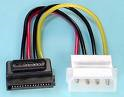
- A Serial ATA-compatible power cable or adapter (sold separately).
- A system with a motherboard that has a Serial ATA connector on it, or a Serial ATA host adapter and available PCI slot in which to install the adapter.
Refer to your computer system documentation to see if your system supports Serial ATA on the motherboard and to locate the Serial ATA connector. If your system does not have a Serial ATA connector on the motherboard, you must purchase a Serial ATA host adapter that is compatible with your computer and operating system and install it with the appropriate device driver according to the host adapter manufacturer’s installation instructions.
Handling Precautions
- Disc drives are fragile. Do not drop or jar the drive. Handle the drive only by the edges or frame. Keep the drive in the protective anti-static container until you are ready to install it to minimize handling damage.
- Drive electronics are extremely sensitive to static electricity. While installing the drive, wear a wrist strap and cable connected to ground.
- Turn off the power to the host system during installation.
- Do not disassemble the drive. Doing so voids the warranty.
- Do not apply pressure or attach labels to the circuit board or to the top of the drive.
See your Power Mac or Macintosh Server documentation for information about internal storage options and installation instructions.
Note: You must purchase and install a Mac OS-compatible Serial ATA host adapter into an open PCI slot to install this drive in your Macintosh.
Mounting the Drive
- Turn off your computer.
- Open your computer case (See your computer manual for instructions).
- Slide your new drive into an open drive bay.
Orient the drive with the drive label facing up and the PCB facing down. You may find it easier to attach cables to your new drive before installing it. If so, follow the cabling steps below, and then return to this step to install the drive. - Use four (4) mounting screws to secure your drive.
If you want to mount your new Seagate drive in a 5.25-inch drive bay, you must purchase drive rails at a computer supply store.
Attaching the Cables
- Attach the cables to your new drive.
Attach the Serial ATA interface and power-adapter cables. Connect either end of the interface cable to the drive. Both connectors are keyed the same to ensure proper orientation. You can connect only one end of the power-adapter cable to the drive. That connector is also keyed to ensure proper orientation.
Note: Do not disturb the power and interface cables that are attached to your existing drive. - Attach the Serial ATA interface cable to your computer.
Connect the open end of your Serial ATA interface cable directly to your motherboard if your computer supports Serial ATA. If not, you must have an open PCI slot on your motherboard into which you install a Serial ATA host adapter (sold separately). - Connect your power-adapter cable
Connect the open end of the Serial ATA power-adapter cable to any available connector from your computer’s power supply. If none is available, you can purchase a Y-adapter cable to convert any one existing power connector into two, one of which you can use to power your new drive.
Initialize Your Drive
Use one of the following Apple utilities to initialize your new drive:
Mac OS X
Use Apple’s Disk Utility application.
Mac OS 9
Use Apple’s Drive Setup application.
These applications are normally located in your Applications/Utilities folder.
Note: DiscWizard is a PC (Windows/DOS) application. You do not need DiscWizard to install your drive in a Macintosh system.
Troubleshooting
If your drive is not working properly, these troubleshooting tips may help solve the problem.
- Does the drive spin up?
A spinning drive produces a faint whine and clicking noise. If your drive does not spin, check that the power connector and interface cable are securely attached. - Does the computer recognize the drive?
Verify that the drive is enabled in the system CMOS or setup program. If not, select the autodetect option and enable it. If your drive has a problem, it may not be recognized by the system. If the operating system does not recognize the drive, you need to load your host adapter drivers. - Why does my computer hang on startup?
Verify that your system is Serial ATA compatible. You need either a Serial ATA 1.0-compatible motherboard connector or Serial ATA host adapter to use this drive.


 Linux file structure files are grouped according to purpose. Ex: commands, data files, documentation. Parts of a Unix directory tree are listed below. All directories are grouped under the root entry “/”.