

Hard Drive Data Recovery In Miami Florida
datarecoverymiamiLooking for a professional data recovery service in Miami area? In Miami area there are many recovery companies and here is a list just for your referance:

1. Secure Data Recovery Services
80 S.W. 8th Street, Suite 2000, Miami, FL 33130
(786) 372-0656
securedatarecovery.com

Performs professional data recovery for businesses and individuals for over 14 years backed by over 25,000 successful data recovery operations.

Services Specialize in‎ Hard Drive Recovery, Raid Data Recvery, Mac Data Recovery, SQL Data Recovery, Laptop Data Recovery, Raid Repair, Hard Drive Repair, Server Data Recovery Services

They recovered all the data from my damaged external hard drive. Hard Drive Data Recovery Raid Services – Miami did an outstanding job and helped me in a way I didn’t think was possible. My dog tipped over my external disk and I got the click of death. The drive was no longer accessible and made a constant clicking sound.I took it to a few places before coming across Hard Drive Data Recovery Raid Services – Miami. I had them take a look at it. I felt confident and decided to proceed with this company once I received the diagnostics results. I have all my data back and now keep my pets out of my work space.I had great communication with the staff and honestly the level of service in some points exceeded my expectation. I would def use them again, but I hope a hard drive never fails on me and I now backup my important information.

2. Data Recovery Miami
5068 Northwest 74 Avenue, Miami, FL 33166
(305) 228-6163
acedatalab.com

Data Recovery, $199 Flat Rate, 24/7, No Data, No Recovery Fee.

Happy To Have Them! I would like to give my heartfelt thanks to the people at Computer Based Associates. Frankly I am an IT manager but I even did not backup my home computer. Suddenly, my 500 GB Western Digital hard drive did not spin up any more. I lost everything that was important to me. One of my co-workers gave me the phone number for them since he got data recovered there from a smoking hard drive. They fixed the hard drive, I don’t know how they did it, and got all my data. They have their own clean room and facility instead of sending hard drives to other locations.

3. Data Recovery Hialeah
801 Brickell Avenue, Suite 900, Miami, FL 33131
(305) 537-5000
datarecoveryhialeahfl.com

Provides data recovery services that includes: Mac Data Recovery and Repair, Hard Drive Recovery, Raid Data Recovery and Repair and Laptop Data Recovery Services in Hialeah, FL. Florida.

Data Recovery Services‎‎: Hard Disk Drives, RAID Arrays, Servers, Laptops, Tape Drives, Flash Media.

Full Recovery I had the pleasure of using Data Recovery services of Hialeah to retrieve data off of 4 flash drives that my nephew destroyed. They got most of the pictures off of it, and much of my work data. I’m happy to recommend them to anyone for their professionalism and work. Thanks

4. Data Recovery Miami
9100 South Dadeland Boulevard, Miami, FL 33156
(786) 372-0656
datarecoverymiami.com

Hard Drive Data Recovery‎, Raid Data Recovery‎, Server Data Recovery‎, Apple Data Recovery‎, Mac Data Recovery‎, Database Data Recovery‎, Tape Data Recovery‎, Flash Data Recovery‎, Usb Data Recovery‎, Sql Data Recovery‎, Oracle Data Recovery‎, Dbase Data Recovery‎, Unix Data Recovery‎, Novell Data Recovery‎, Windows Data Recovery‎, Sharepoint Data Recovery‎, Cd Data Recovery‎, Dvd Data Recovery‎, Bluray Data Recovery

Grateful for excellent service. My external drive went out after I caught a malware virus and it started messing with my files. I shipped my drive to Hrad Drive Data Recovery Services Miami and they removed the malware for me, restored and backed up my documents.

If you are living in Miami Florida area maybe you have heard about one or some all of them, they are all top-customer-reviews recovery companies that can help you so much. If you also know other companies can provide professional recovery services please feel free to contact me, I can list them here in time. Thank you!
Read More

RAID Array & Server Glossary of Computer Terms (Letter F)

Failback
Restoring a failed system component’s share of a load to a replacement component.

Failover
A mode of operation for failure tolerant systems in which a component has failed and a redundant component has assumed its functions.

Failover Port
A fibre channel port capable of assuming I/O requests for another, failed port on the loop. During normal operation, a failover port may be active or inactive. Failover ports assume the same loop ID and, optionally, the same node from the failed port.

Failure
A detectable physical change in hardware, requiring replacement of the component.

Fault Tolerance, Failure Tolerance
The ability of a system to continue to perform its function even when one of its components has failed. A fault tolerant system requires redundancy in disk drives, power supplies, adapters, controllers, and cabling. Mylex RAID controllers offer high levels of fault tolerance.

Failed-drive mode
A mode of reduced-performance operation that a disk array is in after a drive failure.

Failover
The automatic replacement of a failed system component with a properly functioning one. Most often used in the context of redundant external array controllers. If one of the controllers fails, failover enables the second controller to take over the failed controller’s I/O load.

Fault tolerance
The ability of a system to continue to perform its functions, even when one or more components have failed

Fibre Channel
Technology for transmitting data between computer devices at a data rate of up to 2 Gbps (two billion bits per second), especially suited for connecting computer servers to shared storage devices and for interconnecting storage controllers and drives.

Fibre Channel is expected to replace the Small System Computer Interface (SCSI) as the transmission interface between servers and clustered storage devices. It is also more flexible: devices can be as far as ten kilometers (about six miles) apart. The longer distance requires optical fiber as the physical medium; however, fibre channels also work using coaxial cable and ordinary telephone twisted pair wires.

Flash ROM
Memory on an adapter containing software that can be reprogrammed without removing it from the board.

Read More

Backup Now! Free Backup Softwares Roundup

Free Backup Softwares Roundup! Freeware backup software is finally becoming more common — perhaps because of the explosion of large storage devices. Whatever backup option you choose, make sure you choose one and get started early. You can always use another backup method later as your needs grow. The tools below are some of my favorite free backup softwares.

Free Backup Softwares:

  • Autobackup: is considered to be one of the best no-frills freeware tool for backup. You need a create a list of paths that have to be checked and a backup mirrored copy is created of all the files that are found in those files and have been modified since the last backup.
  • TaskZip: is a small little tool that runs as a system agent. It automatically archives all specified files and folders into a single zip file. You can also specify a password for the zip file. Unfortunately, this tool does not provide the feature of restoration.
  • Lou Backup: is a very easy to use backup tool that is meant to backup Visual C source code files but can also be used to backup folder structures. It also supports the backup of multiple projects, directories and provides features of folder exclusion and backup of only modified files.
  • Comparator: is optimized for use on a single computer and provides the feature of folder monitoring and data synchronization. Although the data backup and data restore features are excellent, the amount of input it requires is a little more than desirable.
  • NTI BackupNow: has an excellent user interface when compared to most of the freeware tools. The only drawback of this tool is that you will have to specify the exact location of the files that you need to copy. For example, there is no option of selecting that you need a backup of your emails. You will have to provide the path of your PST or any equivalent file. Further, no encryption is present; hence it may not be suitable for some users.
  • Genie Backup Manager: is a very fast tool that is capable of backing up the Windows registry, favorites, Outlook data and other system files along with all regular data. The latest version of the tool has a disaster recovery option that allows the user to backup and restore the Windows Operating System along with all the data. As per a review that I was reading, there as are so many flexible options available, it ends up confusing the users!
  • SyncBack: is the freeware version of the commercial backup software ‘SyncBackSE’ and does not require installation. This tool can take all kinds of backups and also features a built in FTP engine which can store the backed up data on an FTP site. However, there are few features like network optimization which are disabled due to the fact that this is a freeware.
  • EASEUS Todo Backup: can backup your system partition to quickly get the system up and running in the event of a system crash or hardware failure. It allows you to backup and restore disks or partitions after viruses a attack, unstable software crash, hard drive failure, etc. It is also useful when you want to upgrade an older smaller hard drive without reinstalling the operating system and applications.

One great idea that I think will become commonplace soon is that of remote backup or online backup.

Remote Backup Softwares
Remote backup software work like any regular backup software. The important difference is that instead of storing the backup on a tape drive or a separate location, these softwares send the backup over the Internet or Intranet to online backup servers. The backup can be scheduled during the time frame when the computer is not in use. The entire process is completely automated and most employees do not even realize that such a process is in place. These kinds of backups are usually a part of the disaster recovery plan of large organizations.

Depending on your needs and the needs of your organization, it is very vital that you have a scheduled backup process in place. For some of us, the data that is stored in the computers help us earn our daily bread and water and there is no way to afford the loss of the data. If your organization is a little big in size and can afford a licensed version of a backup software, then it is more advisable as you will also receive all the newer versions and patches when you purchase the software. Backup your data and sleep soundly.

Read More

Fujitsu malfunctions

Fujitsu, M1638TAU drive family
Malfunction signs: The spindle motor does not start
The connection scheme of VCM (Voice Coil Motor) & SPM (Spindle Motor) controller is practically identical for the following drive families: M1614TAU, M1638TAU, MPA30xxAT, MPB30xxAT and MPC30xxAT.

VCM&SPM controller regulates 3-phase motor; it is programmed by the MB9004 processor produced by Fujitsu. There are three modes of spindle motor control: start mode, acceleration mode and stable rotation mode. In the start mode at power-up Power Monitor (MP3771) sends a “reset” signal to the microprocessor (MB9004) and the VCM & SPM controller. Microprocessor uses a serial channel to program internal registers of VCM & SPM controller for a start and charges the pump capacitor of the controller using the “Charge pump” signal. Charge volume determines the current which will flow to the spindle motor. As soon as the start-up capacitor is charged sufficiently the microprocessor programs SPM controller for a start mode, then ~ 1,3А current flows to the spindle motor. Controller generates phase switching signals. The spindle motor at that begins rotation generating self-induced EMF. The controller detects EMF and notifies the microprocessor about that; the latter uses the signal for rotation control. In the acceleration mode the microprocessor speeds up phase switching and measures spindle motor rotational speed until it reaches 5400 RPM. When the speed is reached the controller switches to stable rotation. In that mode microprocessor calculates the time required for one spindle motor revolution on the basis of the phase signal and adjusts the rotational speed charging or discharging the pump capacitor. Adjustment control (charge/discharge) is performed every 1/6 spindle revolution.

The complexity of diagnostics is determined by the fact that SPM controller monitors EMF generated during spindle rotation and at an attempt of spindle spin-up it makes just 2 – 3 phase switches which are difficult to track using oscilloscope. If the spindle does not begin rotation (for whatever reason) the controller, as a rule, either switches off or retries its attempt after some time. Thus, if you use a regular oscilloscope, you can see only presence of pulses falling within a certain range, which is insufficient for complete diagnostics. In an ideal case we would recommend using 3-channel oscilloscope with memory function operating in the automatic recorder mode. Probably such device is not really commonplace. Therefore it is possible just to check the presence of pulses for motor phases.

VCM & SPM controller is a quite reliable microchip and it rarely goes out of order. More frequently a spindle motor does not start because of other malfunctions. Still, if the chip fails such failure is usually caused by overheating with clearly visible traces on chip case. During repair of the start circuit you should check the Stop Spindle signal from the MB3771 chip. The signal forces parking of magnetic heads and stops the spindle motor with keys Q8 and Q9. Active level of that signal in the parking mode is “1”, in the operational drive mode it is “0”. If a spindle motor begins to spin up you can check the operation of output keys of HA13525A chip controlling phase signal with oscilloscope. To do so select 10 ms/div sweep with 2V/div amplification (it is advisable to use the 1:10 multiplier). A phase may be diverted by a disrupted Q8 or Q9 key. HA13525A and HA13525B chips are compatible from top downward, i.e. in models belonging to the M1638TAU and MPA drive families both of those chips can be used. In MPB and MPC drive families only HA13525B is allowed.

Manufacturer: Fujitsu, drive families: MPB, MPC
Malfunction signs: A drive begins to detect a higher own capacity than the actual rated value, the so-called “megalomania”.

That malfunction is quite frequent in the above-mentioned drive families; it is caused by corruption of firmware in Flash ROM chip on the control board of the drive. Those drive families employ Flash ROM chips using 64К structure based on 16-bit words, programming voltage is 5 or 12 V, package type is PLCC44.

Elimination of that malfunction requires just reprogramming of Flash chip by recording a known good firmware of the corresponding version. Version number in Fujitsu drives is indicated in the lower right corner of the label over HDA below bar code and it looks like: xyy-zzzz, where x –means the month when the drive was manufactured in hexadecimal notation, yy – means version prefix and zzzz – means the actual firmware version, e.g.: С02-2009. For version compatibility in MPB and MPC drive families just the actual version match is sufficient, the prefix and month of manufacture are not important.

Manufacturer: Fujitsu, MPG3xxxAT/AH drive family
Malfunction signs: Quite unexpectedly for user and user data a drive is no longer identified in PC BIOS.

We should note that this very drive model has broken all records of failures, which happen in most cases after a year of operation, just after completion of the warranty period. The main cause of the malfunction was in the Cirrus Logic CL-SH8671-450E chip. It can hardly be replaced with a working chip because those microcircuits were produced for a special Fujitsu order and the manufacture of that drive family was discontinued long ago. However, there is a method of “revival” and “revitalizing” a malfunctioning chip which allows extending HDD life a little. However, if you ignore drive “hangings” and do not take due steps (at least backup valuable data) the table of S.M.A.R.T. logs in firmware zone will be gradually overfilled and the drive will additionally corrupt its modules in firmware zone, which cannot be restored without specialized software.

One of the versions explaining the cause of problems with those chips is the use of a new polymer compound during production of chip case. The compound decomposes under the influence of increased temperature in humid conditions producing phosphoric acid. But it is just a version; we may never learn whether it is so or not. However, one thing is known for sure: if you unsolder that chip, remove old solder from its pins and contact pads on the board, flush the location for the chip and then solder it back the drive will begin to work properly.

Read More

Hard Drive Data Recovery On a Desktop or Laptop Computer

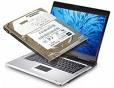
Laptop Data Recovery When a laptop hard drive becomes “unbootable“, and you are unable to repair it, you can often save the data on the hard drive by using a “slave drive” recovery method on a desktop computer. As long as the laptop hard drive has not been mechanically broken and the disk is still “readable“, you should be successful in accessing and preserving the valuable data on the drive.

I know the frustration when you delete something you shouldn’t have, or your hard drive is corrupted. I will show you how to do a data recovery and hard drive recovery from a desktop computer or on a laptop computer. There is some software you can use to undelete software, or even recover corrupted sectors, this is not always going to work, but worth a try when you need your data back. The ultimate recovery, unfortunately, would be to send your disk to a professional data recovery or hard drive recovery place.

  1. If you have deleted something by accident, you can try to recover that file from the recycle bin in Windows. If you have emptied the recycle bin, you may be thinking it is lost forever, but you can try to do data recovery using software that is free. Data recovery is not always going to work, if the hard drive has written over that sector with data from another program, it might be unattainable using home based software.
  2. You can try however to do data recovery using this simple program “Undelete-All“, I have posted it in resources.
  3. If your hard drive crashed and the sectors were corrupted, again a professional hard drive recovery place would be the best, but if you don’t have thousands to spend, you can try a few things that are free.
  4. First you will want to restart and make sure the hard drive is being detected by BIOS, when it restarts press f2, or esc, or del to enter BIOS, every computer is different on how to get in, usually it will say at the bottom of the screen.
  5. Once in BIOS you will see a summary screen, if your hard drive is detected, great! Proceed on to the next steps, if, however, your hard is not showing, I am afraid to say but more then likely it has died, and it would definitely take a professional place to recover, what they do is take the hard drive platter out, and mount it onto a professional machine to recover the data, again this can costs thousands (I’ve checked into it before). There could though be other reasons a hard drive is not showing, such as, loose cables, BIOS not updated, etc. But if it was working, and nothing has changed, and you haven’t rattled the computer around like laptop computers, this you would want to check for loose wires, otherwise it is probably dead.
  6. What you can do to try to get data recovery if it is still detected, and this works for desktop computers or laptop computers, would be to set up the old corrupted drive as a slave disk to the new disk.
  7. What you would need to do is buy a new disk, install the new OS, be it Windows Vista, XP, etc, and then attach the old drive to the 2nd cable in the computer. There will be jumpers if your drives are IDE, every drive is different, and you will have to look that up, it might be on the drive itself. You will want the new drive as master, the old drive as slave. If your drives are SATA, no matter, it will do this automatically.
  8. If you have a laptop computer, this will be a different procedure, you would need either an external enclosure for your old drive to attach it to your laptop via USB, or a desktop computer that you can hook it to.
  9. Since laptop computers can have either IDE or SATA, this might pose a difficulty if your desktop only takes SATA and your laptop is IDE, you would need an enclosure for this to hook it up via USB. If your laptop computer is SATA, you can hook this up to any desktop that has SATA, same with IDE.
  10.   Once the drive is hooked up, and shows in Windows, you can begin the process of getting your files back. The main files on your desktop will be located in a USER file in Windows Vista c:\(user name)\desktop, in XP c:\documents and settings\(user)\desktop.
  11. . I hope this article sheds some light on data recovery, hard drive recovery, and deleted files in laptop computers, and desktop computers. I hope if this has happened to you, that you will be able to get your data back! I always, always suggest that you backup your data using an external hard drive connected via USB, better to be safe then sorry! 🙂
Read More

What is the cause of a high CPU usage of ‘system and compressed memory’ in Windows 10?

There is an observation to be made for Windows 10 on my laptop running with 24G memory available, and 2.5G used.  There is no ‘memory pressure’.  Other questions have looked at memory consumption (which isn’t the problem here).  In all the related questions here and elsewhere, I havn’t been able to find an adequate explanation…

Read More