Samsung Auto Backup FAQS

Q.Samsung Auto Backup FAQS What is Samsung Auto Backup?
A.
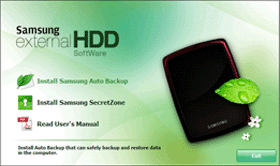
Samsung Auto Backup is Bundled software that performs a backup of the PC data to Samsung External Hard Drive. Through the Real-Time Backup or Scheduled Backup, the data can be backed up safely to Samsung External Hard Drive.

When the backed up data are damaged due to a system error or user’s mistake, they can be checked/recovered through the Integrity Check. Also the original data that was stored in the PC can be conveniently recovered when damaged or lost.

Q. Cannot install Samsung Auto Backup.
A.
Check the system you want to install Samsung Auto Backup on meets the minimum system requirements specified in this manual.

Q. How do I perform a manual backup?
A.
Select the backup source and click the “Backup” button on the icon bar. If you are in real-time mode (Auto Run), select “Setup” “Real-Time Backup” from the menu and deselect “Auto Run”.

Q. When I open a backed up file on the backup device, a message is displayed saying the file format is incorrect, or a jumbled file is displayed.
A. The “Compress files” option has been checked in the Backup Settings. The files were backed up using compression. Therefore, the files on the backup device have been compressed/password-protected. Accordingly, when you open the compressed/password-protected file, a message appears saying that the file has an error or the file format is incorrect. To open a compressed/password-protected file, first you need to restore the file using Samsung Auto Backup. For details about how to restore files, refer to “Restoring Backed up Data” in the “Using Samsung Auto Backup” section.

Q. Can I specify more than one destinations as Backup Device and back up the data to these destinations at the same time?
A.
Samsung Auto Backup does not support simultaneous backup to multiple backup devices.

Q. I selected the “Compress files during backup” option and performed a backup. However, only selected files are compressed instead of all files.
A.
Check if some files in the backup source were already backed up. Only files backed up after setting the “Compress” option are compressed. Therefore, the backup data may contain both compressed files as well as uncompressed files.

Q. I’d like to change the backup device. What should I do?
A.
Select “Change backup device” from the “Backup device” submenu of the “Setup” menu, and specify the new backup device.

Q. I formatted the computer and reinstalled Windows. How can I restore backed up data stored on another device?
A. First, you need to reinstall Samsung Auto Backup. Then, run Samsung Auto Backup and select the device that contains the backed up data as the backup device. By doing so, you should be able to use the backup data as before.

Q. Can I connect the Samsung external hard disc containing the backup data to other computers and restore the data? What should I do?
A. Connect the Samsung external hard disc to the computer, and install Samsung Auto Backup. Then run Samsung Auto Backup and select the backup folder of the Samsung external hard disc as the backup destination. In this way you should be able to use and restore the backup data

Q. How do I set a scheduled backup?
A.
There are two different ways to perform scheduled backups. Select “Backup Schedule” in the “Settings Information” window in the lower part of the Samsung Auto Backup window and add a new backup schedule. You can also add your backup schedule in the “Set Schedule” window of the “Set task options” menu.

Q. How do I check the results of a backup, restore, or delete operation?
A. After the backup, restore, or delete operation completes, you can check its results in the task log under “Settings Information” in the lower part of the Samsung Auto Backup window.

Q. I selected the C drive as the backup source. But the backup has failed and the backup log indicates that the program has failed to back up several files.
A. System files in the Windows operating system cannot be accessed for backup. Therefore, these files are not backed up.

Q. I installed and backed up an application. After deleting the application due to a problem, I restored the application from the backup file. But I cannot run the application for some reason. What’s the problem?
A.
Every application has a specific environment for it to be executed in. Samsung Auto Backup is a program that backs up data files. Accordingly, though the files of the application were backed up, the environment for running the application was not backed up. This is why you can’t run the application.

Samsung Auto Backup Free Download (Size : 38.2 MB)

Note: The Samsung Auto Backup program operates only with a Samsung External Hard Drive

Read More

2060-001175-000 WD PCB Circuit Board

HDD Printed circuit board (PCB) with board number 2060-001175-000 is usually used on these Western Digital hard disk drives: WD400JB-00ENA0, DCM DSCHHV2AH, Western Digital 40GB IDE 3.5 Hard Drive; WD400JB-00ENA0, DCM DSBANT2AA, Western Digital 40GB IDE 3.5 Hard Drive; WD400JB-00ENA0, DCM HSCAHVJAH, Western Digital 40GB IDE 3.5 Hard Drive The 2060-001175-000 Western Digital PCB repair…

Read More

Guideline for Diagnostics – Data Recovery

This is intended to be a guideline for determining whether a hard drive is failing physically or if the drive is a candidate for software recovery by technicians in the field.

There are many commercial utilities that will allow users or qualified technicians to recover data from a hard drive that is otherwise inaccessible. Commercial utilities work with varying degrees of success. The question to be asked is when is it a good idea to use these utilities versus when is a good idea to send the hard drive to Data Recovery Group?

The first step is to determine if the hard drive is functioning. If the hard drive is functioning properly it should be recognized in the CMOS and you should be able to boot the system from another media source, such as a floppy, CD-ROM, or another hard drive. If there are any BIOS errors when attempting to boot the system the hard drive has malfunctioned and needs to be sent to Data Recovery Group. If during the boot process the system is unable to boot from an alternate media source, this is another indication that hard drive is malfunctioning. Further attempts to boot the system could seriously reduce the likelihood of a successful data recovery.

If the system can be successfully booted the next step is to attempt to run the data recovery utility. Most utilities work in the same way. The first step the data recovery utility performs is to scan the drive to locate the file system components. Most utilities will display this scan with some type of progress meter. It is necessary to monitor progress and to stay with the hard drive while the utility is operating. If the hard drive starts to make unusual noises stop the scan immediately and power down the computer. The hard drive will need to be sent to us. Another thing that needs to be watched is the rate of progress for the utility. Usually there will be a count of sectors read. The count should steadily increase and it should not stop. If the count or progress does stop the scan should be terminated and the computer powered down. Failure to stop could jeopardize the likelihood of a successful data recovery. The hard drive should be sent to Data Recovery Group.

If there are any signs that the hard drive is failing physically, it is important that software data recovery utilities not be used on the hard drive. Hard drives usually fail gradually and this failure process will be accelerated during a full scan of the hard drive necessary for most data recovery utilities to recover the data.

It is important to read the instructions provided with any data recovery utility you may use on a hard drive. It is important that if you can complete a scan of the failing hard drive that the recovered files are not saved back to the hard drive you are trying to recover. It is possible o save recovered files on the source drive and if this occurs the recovered files could overwrite other files you are trying to recover.

In conclusion, it is very important to determine if a drive has any physical failure before attempting to recover the data using a utility. Data Recovery Group has received many hard drives from customers where the data could have been recovered had we received the drive right after the original failure. Repeated attempts to recover the data with software rendered the drive useless and the data not recoverable.

Read More

How to Access Motherboard BIOS?

Access BIOS The BIOS is a program pre-installed on computers (with the exception of Macs) that the computer uses to start up. The CPU accesses the BIOS before the operating system is loaded. The BIOS then checks all your hardware connections and locates all of your devices. If everything is OK, the BIOS loads the operating system into the computer’s memory and finishes the boot-up process.

Some of the most common single key commands are:

F1, F2, ESC and DEL.

Some of the most common key combinations are:

CTRL+ALT+ESC, CTRL+ALT+DEL, or CTRL+ALT+INS.

///////////////////

ALR Advanced Logic Research, Inc. ® PC / PCI     //F2
ALR PC non / PCI     //CTRL+ALT+ESC
AMD® (Advanced Micro Devices, Inc.) BIOS     //F1
AMI (American Megatrends, Inc.) BIOS     //DEL
Award™ BIOS     //CTRL+ALT+ESC
Award BIOS     //DEL
DTK® (Datatech Enterprises Co.) BIOS     //ESC
Phoenix™ BIOS     //CTRL+ALT+ESC
Phoenix BIOS     //CTRL+ALT+S
Phoenix BIOS     //CTRL+ALT+INS

Acer®     //F1, F2, CTRL+ALT+ESC
ARI®     //CTRL+ALT+ESC, CTRL+ALT+DEL
AST®      //CTRL+ALT+ESC, CTRL+ALT+DEL
Compaq® 8700      //F10
CompUSA®     //DEL
Cybermax®      //ESC
Dell 400     //F3, F1
Dell 4400     //F12
Dell Dimension®     //F2 or DEL
Dell Inspiron®      //F2
Dell Latitude     //Fn+F1 (while booted)
Dell Latitude     //F2 (on boot)
Dell Optiplex     //DEL
Dell Optiplex     //F2
Dell Precision™     //F2
eMachine®     //DEL , F 2
Gateway® 2000 1440     //F1
Gateway 2000 Solo™     //F2
HP® (Hewlett-Packard)     //F1, F2 (Laptop, ESC)
IBM®     //F1
E-pro Laptop     //F2
IBM PS/2®     //CTRL+ALT+INS after CTRL+ALT+DEL
Intel® Tangent     //DEL
Micron®     //F1, F2, or DEL
Packard Bell®      //F1, F2, Del
Seanix     //DEL
Sony® VAIO     //F2
Sony VAIO     //F3
Tiger     //DEL
Toshiba® 335 CDS     //ESC
Toshiba Protege     //ESC
Toshiba Satellite 205 CDS     //F1
Toshiba Tecra     //ESC then F1 or F2

Fujutsu Manuals & BIOS Manuals & BIOS Download
Lenovo(formerly IBM) Lenovo BIOS Access page

Toshiba Notebook:
1. Turn on computer by Holding down power button while pressing the ESC key.
The machine will beep, then display:
Check System, then press [F1] key.
2. Release ESC key
3. Press F1 key

//////////////////////

Each computer and BIOS manufacturer can use a different key or combination of keys in order to enter the System BIOS. Sometimes during system boot when the screen is blank you will see some text in the bottom middle or bottom right of the screen that will tell you what the key sequence is. If not, you may need to consult your computer manual, or contact the manufacturer of your computer to find out what the key or key combination is.

Read More