Tips for upgrading drive in Macintosh computer

Upgrade Drive in Macintosh Computer To upgrade the drive in your Macintosh computer, the first thing to consider is do you want to upgrade the internal drive or do you just want to add additional storage with an external drive?

Internal Drive vs. External Drive

An internal drive will generally provide much better performance on the computer and can be used to store programs and data. An external drive will be slower and suited for data only, however it provides portability and an easier installation.

Internal storage considerations

Internal drives come in several interfaces, Serial ATA (SATA), ATA/IDE (PATA), and SCSI.

Most newer Apple desktop computers use SATA interface. Below is a list of popular Apples and the interfaces used.

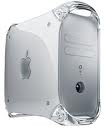
Desktops – Desktop systems use 3.5″ drives.
Mac Pro – SATA
G5 – SATA
G4 – ATA (most of these systems are limited to 128GB capacity, see Apple Care document #86178 for details)

Laptops – Laptops use 2.5″ drives. Due to the complexity of installations in laptops professional installation should be considered.

Mac mini – Not user serviceable, see external drives below for additional storage.

G5 and MacPro computers include the cable and rails needed to connect the drive, so no accessories should be needed, just a Phillips screw driver.

G4 computers may require an UltraATA cable with 3 connectors if you are adding a second drive to the computer. A Phillips screw driver would also be required for this installation.

External storage considerations.

External drives come in several interfaces, USB 2.0, IEEE 1394a, IEEE 1394b and eSATA.

Most Apple computers have a 1394 port which will provide enough performance for data backups, but many not provide enough speed for day to day use. For higher speed check if your computer has any IEEE 1394b ports. 1394b offers much higher transfer rates, this interface is offered on our Maxtor line of external drives.

Most older Apple computer G4 and prior used USB 1.1 which is very slow and would not be acceptable for backing up large amounts of data or for day to day use. USB is very popular for PC use, so these drives are the most common, but may not be a good match for an older Macintosh. Newer G5 and Mac Pro computers have USB 2.0 which would provide similar performance to 1394a and should be fine for backup usage. When looking at different external drives, check if the bundled software is compatible with MacOS. Some Seagate and Maxtor product lines are specialized for different markets, so not all drive features will work on a Macintosh if the drive was designed for a Windows PC market. Seagate and Maxtor drives that have a 1394b interface tend to be customized for the Macintosh users.

eSATA offers the best transfer rates for an external drive, however at this time eSATA is not a standard interface on Macintosh computers. So, eSATA would not be a good choice for use with your Apple.

External cables: USB drives include a USB cable so the box should have everything needed to connect the drive as long as the computer has an open USB port. Most 1394a kits include a 6 pin to 6 pin cable which works for desktop computers, but a 4 pin to 6 pin cable may be required for use with a laptop. Most 1394b drives include the 1394b cable, but be sure to check the listing of contents on the box to be sure.


Read More

Western Digital PCB Buying Guide (SATA)

As we know:  Western Digital HDD can’t spin; board/chip be burnt; interface broken; etc. These problems are caused by PCB malfunction. Swap PCB of your Western Digital SATA hard drives can resolve the problems.

1. Western Digital Hard Drives PCB Buying Guide (SATA):

For Western Digital HDD pcb swap needs,  you just need the donor PCB has the same pcb board number(2060-701265-001) as yours.

western-digital-pcb-buying-guide

One thing you should know before this purchasing: Most PCB’s BIOS chip(ROM Chip) store the unique information. We need change the BIOS form original PCB to replacement PCB, in order to make the replacement PCB compatible with the HDD.  The 8pins (4 pins on each sides) with 25P05VP、25P10VP、25F512、25F1024、25F1024AN、SST25VF512、SST25VF010, etc. are the BIOS Chip. LocalTV/Phone Repair Shop can offer these services for $5-%20.

2. Where to buy these Western Digital PCB circuit boards?

Western Digital PCB 2060-771702-001
Western Digital PCB 2060-771590-001
Western Digital PCB 2060-701477-001
Western Digital PCB 2060-771640-002
Western Digital PCB 2060-771577-001
Western Digital PCB 2060-771698-002
Western Digital PCB 2060-701640-006
Western Digital PCB 2060-771640-003
Western Digital PCB 2060-701640-005
Western Digital PCB 2060-771668-000
Western Digital PCB 2060-771642-000
Western Digital PCB 2060-701640-007
Western Digital PCB 2060-701567-000
Western Digital PCB 2060-701640-000
Western Digital PCB 2060-701640-001
Western Digital PCB 2060-701640-002
Western Digital PCB 2060-771642-001
Western Digital PCB 2060-701590-001
Western Digital PCB 2060-701563-000
Western Digital PCB 2060-701520-000
Western Digital PCB 2060-701310-004
Western Digital PCB 2060-701537-004
Western Digital PCB 2060-701383-001
Western Digital PCB 2060-701384-002
Western Digital PCB 2060-701453-000
Western Digital PCB 2060-701293-001
Western Digital PCB 2060-701393-002
Western Digital PCB 2060-701444-003
Western Digital PCB 2060-701444-004
Western Digital PCB 2060-701477-002
Western Digital PCB 2060-701537-003
Western Digital PCB 2060-701552-003
Western Digital PCB 2060-701577-001
Western Digital PCB 2060-701590-000
Western Digital PCB 2060-701335-003
Western Digital PCB 2060-701335-005
Western Digital PCB 2060-701310-003
Western Digital PCB 2060-001293-000
Western Digital PCB 2060-001252-000
Western Digital PCB 2060-701537-002
Western Digital PCB 2060-001293-001
Western Digital PCB 2060-701335-002

Note: Western Digital PCB sells on HDDZone.com are fully tested before shipment(worldwide free shipping now!); These are just PCB (Printed Circuit Boards), not the whole HDD (Hard Disk Drive).

More other pcb swap guide please refer to this post: hard Drive PCB Swap

Read More

To prevent data loss

The best prevention is to always remember to back-up your data!

Accidents may happen: coffee is spilled on your CD or Zip drive, a CD falls on the floor and gets scratched, the hard drive does not want to spin after being unused during 2 humid summer months, … Anything may happen, but you should not worry if your most valuable data is stored separately in a safe place.

Another thing to remember is to use anti-virus software routinely, especially if you download from the Internet! Your data could be as easily corrupted by a computer virus as by any natural disaster. To protect your data from the newest viruses, update your antivirus program as often as possible.

Avoid electro-static discharge (ESD) during installation of the drives and later handling. Do not touch electric contacts on the controller board with your bare hands. When handling the drives, try to keep your other hand on a metal part of your PC, which will serve as a “ground”.

Keep your storage systems clean!
Particulate contamination is a clear and present danger for all types of storage media since is causes mechanical damage which is rarely recoverable and can crash the entire storage device!

Keep your data cool!
Storage systems, especially magnetic media, may suffer from the so-called ‘thermal decay’ of magnetic information. In other words, your magnetic domains will lose their magnetization much faster at higher temperatures, and your bits of information will disappear… Magnetic drives are designed to operate in conditions comfortable for humans. Therefore, there is no danger in keeping your drives at 40 (104F) and even 50C (122F). But, exceeding this temperature by much can be harmful.

Prevent impacts on your storage device, especially when it is running! For example, don’t move your desktop when the power is on! All commercial storage systems are designed to withstand significant shock and vibration, but there is always a chance that your drive may be damaged by an impact.

Keep away your magnetic storage from strong magnetic fields!

Read More

FreeAgent XTreme drive doesn’t wake up from hibernation when connected via USB?

FreeAgent XTreme drive doesn’t wake up from hibernation when connected via USB.

With the original build of Windows Vista some computers may lose connection with the USB external drive after waking up from hibernation.

This issue is addressed in Vista Service Pack 1.

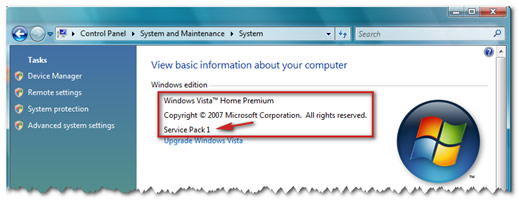
To determine what version of Windows Vista you have, follow these steps:

  1. Click the Windows (Start) Button.
    Image
  2. In the Search bar, type Welcome center and open the Welcome Center.
  3. In the upper right of the screen, click the button that says Show more details.
    (Click to expand)
    Image
  4. On that screen it should say what version of Vista is running, including the service pack level.
    (Click to expand)
    Image

If no service pack is listed, please view Microsoft Knowledge Base article 935791 for instructions on how to obtain Service Pack 1.

Read More