Seagate HDD Firmware Download

Here you can download Seagate firmware collections, you can make use of them as donor for your damaged hard drives or your seagate harddisk firmware update!

Seagate Harddisk Firmware:k2,k3,k4,k5,k7,k9,Momentus,Neptune,u5,u6,u8,u10,ux series Firmware Free download!

Seagate Disk Firmware Download

Seagate Momentus hard drive firmware update SP35474 SP33937
Firmware update for ST94813A, ST96812A, ST98823A, ST9100824A, ST9120821A, ST9402112A, ST980829A, ST9100825A,

ST9210824A, ST960812A, ST94813AS, ST96812AS, ST98823AS, 9100824AS, ST9120821AS

Seagate Barracuda 7.200 11 ST3500320AS ; ST31000340AS ; ST3750330AS
Seagate Firmware Update

Latest firmware update for Seagate ST3320620AS 3.AAE Tested!
Seagate Firmware Update

UX-UXX307B
Seagate Disk Firmware

UX-UXX307A
Seagate Disk Firmware

UX-UX20307
Seagate Disk Firmware

u8-U88303B
Seagate Disk Firmware

u8-U88303
Seagate Disk Firmware

u8-U84303
Seagate Disk Firmware

u8-U817303B
Seagate Disk Firmware

U8-U817303
Seagate Disk Firmware

u6-U640G339
Seagate Disk Firmware

u6-U640533
Seagate Disk Firmware

u6-U640399D
Seagate Disk Firmware

u6-U640399
Seagate Disk Firmware

u6-U640334D
Seagate Disk Firmware

u6-U640334C
Seagate Disk Firmware

U6-U620G399
Seagate Disk Firmware

U6-U620334A
Seagate Disk Firmware

U6-U620334!
Seagate Disk Firmware

U5-6.55
Seagate Disk Firmware

U5-3.58
Seagate Disk Firmware

U5-3.57
Seagate Disk Firmware

U5-3.54
Seagate Disk Firmware

U5-3.53
Seagate Disk Firmware

U5-3.39
Seagate Disk Firmware

U5-3.35
Seagate Disk Firmware

U5-3.11
Seagate Disk Firmware

U5-3.07
Seagate Disk Firmware

U10-U105302
Seagate Disk Firmware

U10-U1015302
Seagate Disk Firmware

U10-U1010302
Seagate Disk Firmware

ST380817AS-3.42-4MR1MNEN
PCI PC3000 v2.27 Firmware

ST3802110A-3.AAH-5LR57566
PCI PC3000 v2.27 Firmware (LDR included)

ST380011A-8.01-M14-248-5JVF40LF
PCI PC3000 Firmware

Read More

Error Messge: "DISK BOOT FAILURE".

Disk Boot Failure Problem:
Error Messge: “DISK BOOT FAILURE“, while booting the system.

Cause:
There are several causes for this error message. The boot sequence may not be properly set in the system BIOS. Another cause is the presence of non-bootable media in the floppy or CD-ROM drives. The drive may not be properly configured or detected in the system BIOS. Incorrect Jumper Settings or a defective IDE cable may also be responsible.

Resolution:

  • Make sure that your boot sequence is correctly set. Generally, you should set the boot sequence to boot to the floppy drive first, then the hard drive, and the CD-ROM drive last.
  • Check your floppy drive and CD-ROM drive for media and remove any that you find.
  • Verify that your drive is properly detected in the system BIOS.
  • Verify that your Jumper Settings are correct.
  • Power off the system, replace the IDE data cable and try to boot again.
Read More

Data Security & Data Loss

Encryption continues to be the topic on every CIO and IT person’s lips nowadays. No one wants to end up in the news as the next victim of a privacy breach or the next company that didn’t protect its customers’ information. If you conduct a news search using the words “personal data breach,” you’ll be alarmed at the number of instances where personal information such as social security and credit-card numbers have been exposed to possible theft. In a recent breach, a state government site allowed access to hundreds of thousands of records, including names, addresses, social security numbers and documents with signatures.

Whether it’s government agencies, research facilities, banking institutions, credit card processing companies, hospitals–or your company’s computers – the risk of compromising private information is very high.  At the recent “CEO-CIO Symposium,” speaker Erik Phelps from the law firm Michael Best & Friedrich described the relationship business has with technology. In his presentation, he stated that since “business relies so heavily on technology today, business risk becomes technology dependent.” The possibility of litigation is part of business. It has always been a risk of doing business, but because technology and today’s business are so intertwined, business risk has a higher threat level. This has prompted many to encrypt workstations and mobile computers in order to protect critical business data.

If you have rolled out encryption, how do you maintain your IT service quality when the hard disk drive fails? How do you plan and prepare for a data loss when the user’s computer is encrypted?  These are all issues that should be considered when putting together a data disaster plan. In addition, data recovery, one of the more common missing elements of a disaster recovery plan, should also be factored in because it can serve as the “Hail Mary” attempt when all other options have been exhausted

Read More

Hard Disk Details(7)

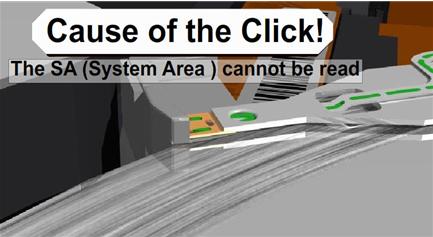
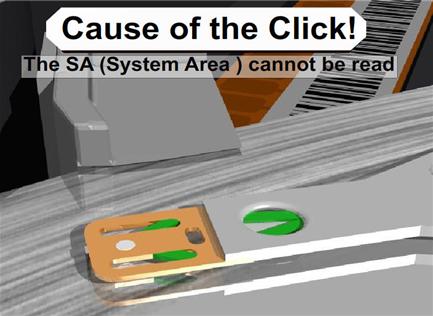
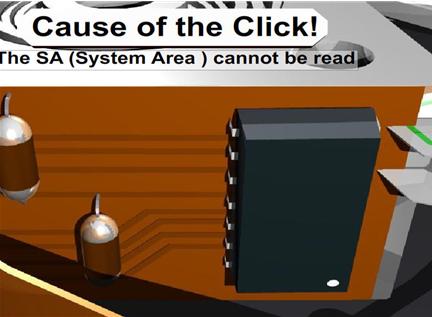
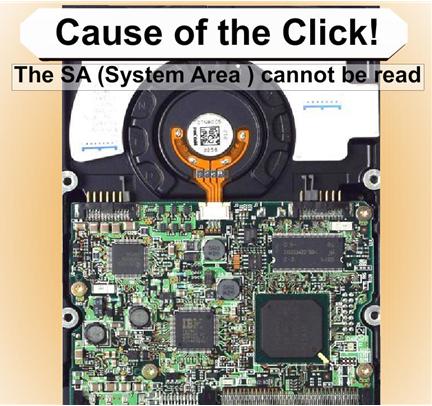
Slide 3791: The cause of the click is from four possible areas, all resulting in the SA not being able to be read.

1.    System Area of the drive cannot be read because the platter is scratched.

2.    The head itself has a problem and cannot read the SA area.

3.    Preamp on Actuator to the Head has gone bad and is not passing the correct signal to the electronics

4.   The firmware on the board is damaged and does not initialize. This is sometimes caused by static electricity walking across the carpet to install the drives, or there is a short on the board, and additionally I see where someone has allowed the board on the bottom of the drive to touch metal cause it to burn.

All will result in the same problem and will sound like the Click of Death. Recovery Software will not help you correct any of these until after you have repaired the drive and it is running again.

Correcting Problems
Now we move on to some of the things you can do about it on your own.  The click of death is a very difficult problem to solve and in some cases will not be able to be solved especially without some very high end and expensive equipment. But I will tell you what I have been able to fix without that equipment.

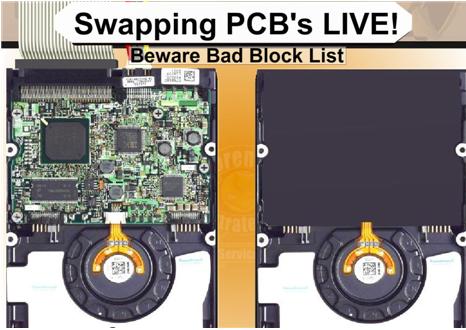
Slide 4009: Swapping the PCB (printed circuit board) Live to get around a SA area that cannot be read.

I have done this process several times successfully. It is not perfect but it is a possible chance you will have to recover your data. The first step is to get a hard drive as close to identical as the bad drive you have that is a working drive. At the bottom of this paper you will find help about matching hard drives and serial numbers. If the System Area is badly damaged or corrupt and for some reason the drive will not read the System Area you can attempt to do a live swap. What this means is that you can hook up the good drive, then you use software or windows and tell the drive to go to sleep.  This will cause the drive to spin down but will still be live and powered up and mounted.  Once the drive goes to sleep and the drive stops spinning you can unscrew the board, carefully so as not to let the screws roll around on the board, and disconnect the board and connect it to the bad drive. I suggest that once you do this, you go after the files you need very quickly. It’s possibly you will be able to make an image of the drive.  Keep in mind, that whatever bad blocks that the drive had assigned to the other drive will be bad here as well.  You could try to use some software to clear bad blocks before attempting this, however I don’t suggest it in most cases. That is because it is one more possible item that might cause failure. I would prefer to use the drive that was working and lose a few blocks. After you get what you can then you can attempt to make changes and go back for more data. This is a concept that works about 25% of the time.

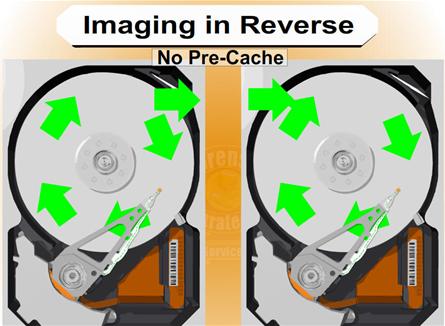
Slide 4199: Imaging in Reverse

In dealing with damaged hard drives, I have run into many problems with cache memory on the drive. The problems will often show up as timeouts or ECC failures as well. For example, I try to read from a drive with16 megs of ram for cache and receive errors but the drive is otherwise appears ok. If there is an error 16 megs away from the sector I am reading my drive will die. As of now there is no way to turn off this cache.  However, if you can image your drive backwards there is no cache. Memory on a drive only caches data forward. There are only three ways I know of to image a drive backwards. The first is free, and it is to use dd_rescue. dd_rescue has a special setting for imaging a drive backwards. There is also a special script for dd_rhelp to control dd_rescue for the purpose of data recovery. You can use this on Linux and it works on drives regardless of the operating system on the drive you are recovering from. Typically you will start at the MaxLBA number and work backwards down to 0 LBA. It works quite well and will work on a surprising number of drives that cannot be read any other way. Your other two choices are Media Tools Pro from RecoverSoft (http://www.recoversoft.com/) for Windows, which is about $400, or a piece of hardware which is extremely efficient at doing this type of recovery called Deepspar Disk Imager (http://www.deepspar.com/products-ds-disk-imager.html), which will cost between $3000 and $4000 depending on configuration. But you should contact each of these vendors for pricing, or use the free option!

Read More

Seagate Firmware Update Utility Step by Step

This is a help post for seagate windows firmware update utility which may be downloaded from seagate firmware update pages.

Your drive is eligible for a firmware update?

Seagate Firmware Update Utility Seagate products are run by firmware.  Having the latest firmware can improve performance and or reliability of your product.  Seagate recommends applying new firmware to enhance the performance and or reliability of your drive.

Like any software, firmware is improved over time and problems are also fixed.  Every drive family has a couple of firmware releases during the life of the product.  Please check in regularly to determine if new firmware is available for your drive.

If newer firmware is available for your drive, it will reflect the improvements we have engineered for the latest manufacturing.  Firmware for legacy products will be the final release from manufacturing.  Please note that Seagate does not offer details about specific firmware.

Until recently, firmware updates for typical desktop and laptop computers were difficult and somewhat risky.  This situation, in part, was based on a lack of friendly firmware download tools and operating system limitations.  This situation has improved and Seagate now offers firmware updates as a routine matter for the general support of your Seagate drive.

Note: If you are troubleshooting a system or OS problem, you should not consider firmware updates until after exploring more typical troubleshooting steps like file system error checking and anti-virus scanning.

Firmware update step by step

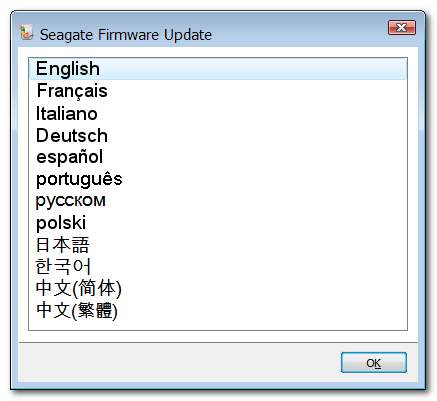
1) Choose from the list of languages.  The screens in Windows will be translated to your selection.  When the application restarts in DOS, the language will be in English.

Firmware Update Tool
(Click to expand.)

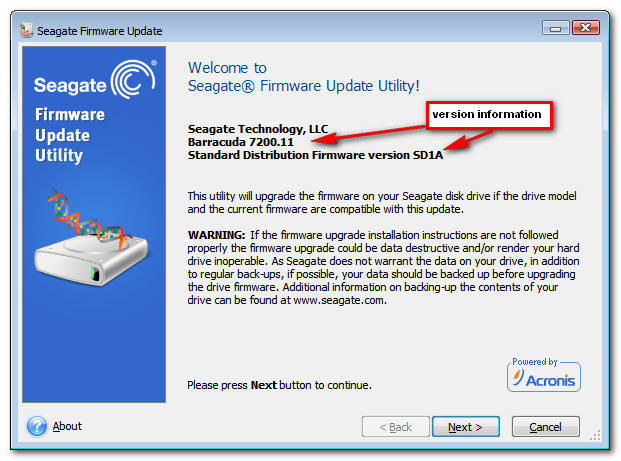
2) Welcome screen.
Be sure inspect the title, which gives a description of what products and firmware versions are supported by this package.  This screen contains an important warning to remind you to back up your system.

Firmware Update Tool
(Click to expand.)

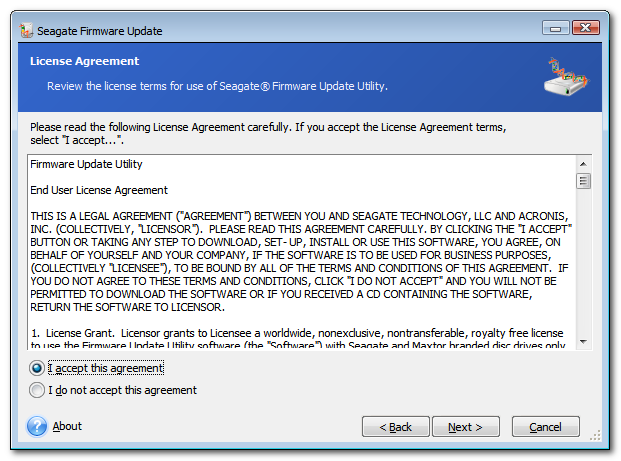
3) End User License Agreement

Firmware Update Tool
(Click to expand.)

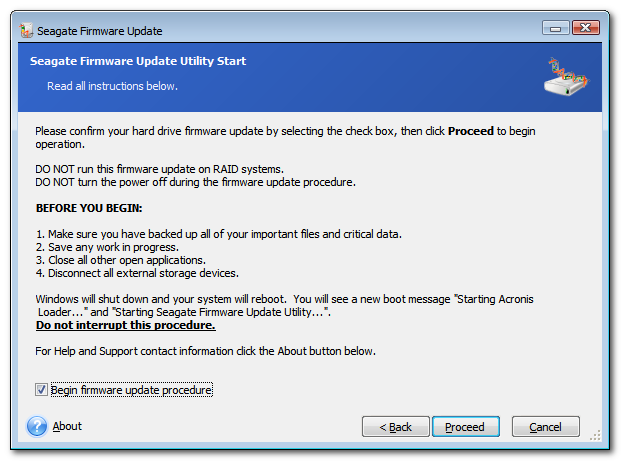
4) Very important instructions and warnings.  Again, they are:

DO NOT run this firmware update on RAID systems.
DO NOT turn the power off during the firmware update procedure.

BEFORE YOU BEGIN:

  1. Make sure you have backed up all of your important files and critical data to some other storage media.
  2. Save any work in progress.
  3. Close all other open applications.
  4. Disconnect all external storage devices.

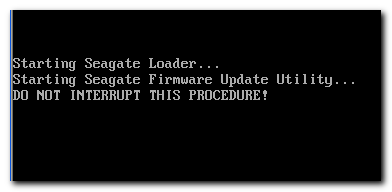
Windows will shut down and your system will reboot.  You will see a new boot message “Starting Seagate Loader…” and “Starting Seagate Firmware Update Utility…”
Do not interrupt this procedure.

Firmware Update Tool
(Click to expand.)

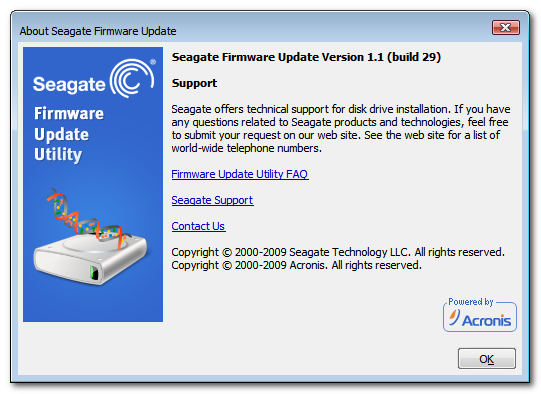
5) About screen

Firmware Update Tool
(Click to expand.)

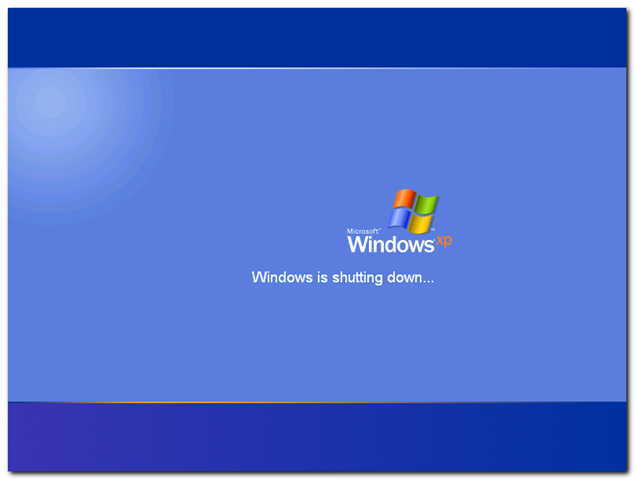
6) Windows will shut down and the system will reboot.

Firmware Update Tool
(Click to expand.)

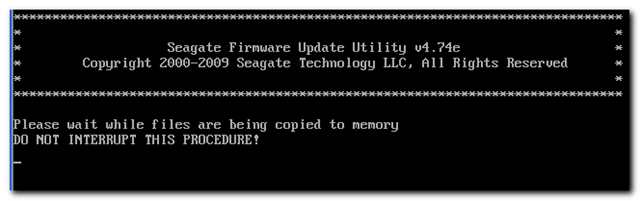
7) These are the first screens you will see after the reboot.
DO NOT INTERRUPT this procedure!

Firmware Update Tool Firmware Update Tool
(Click to expand.)

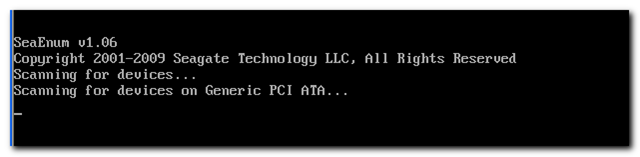
8) The SeaEnum utility will scan your system for hard disk drives and display the Model Number, Serial Number and current Firmware Revision for each drive.

Firmware Update Tool
(Click to expand.)

Try the Seagate Drive Detect utility if you want to see this information while in Windows.

9) The Firmware Update Utility runs from DOS to load the new firmware on your disk drive. This utility will upgrade the firmware on your Seagate disk drive if the drive model and the current firmware are compatible with this update.

This process may take a few minutes.  Afterwards, the utility will exit and reboot.  If the software is unable to automatically reboot system, you may restart the system yourself.

Firmware Update Tool
(Click to expand.)

Besides the “Sending data” firmware download message, other common messages are:

  • Firmware Already Updated! Will not download firmware. – The current version on the disk drive matches the version supplied in this update.
  • Model Matched, No Firmware Matched!  Will not download firmware. – Even though the model is a match, the current version on the disk is not compatible with the version supplied in this update.
  • No Model Matched! Will not download firmware.
  • Wrong Model, or Not a Seagate drive.

If the software determines that the update should not be run, the utility will exit and reboot back to Windows.

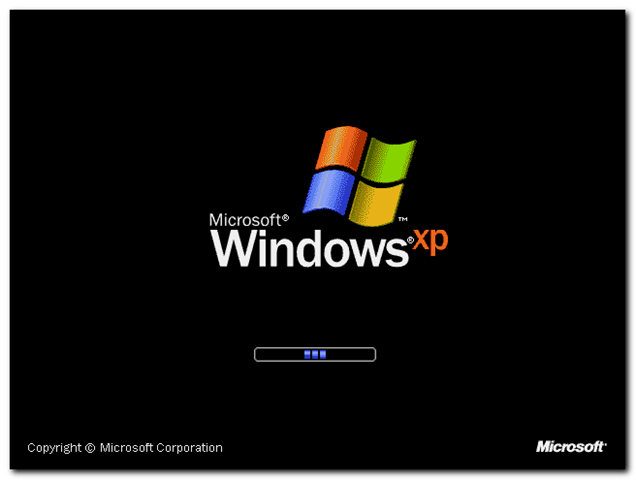
10) Windows starting to load.

Firmware Update Tool Firmware Update Tool
(Click to expand.)

Finished!

Related Link: Firmware Download Base

Read More