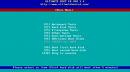
SCSIMax is a diagnostic utility for all Maxtor (and Quantum®) SCSI hard disk drives supporting Self-Monitoring, Analysis, and Reporting Technology (S.M.A.R.T). This test will determine hard drive integrity in a short period of time, with a high degree of confidence. If the program completes without error, the problem remains elsewhere in your system. Check SCSI cables, termination and operating system. Maxtor recommends you use this utility for troubleshooting potential hard drive problems. These problems include, but are not limited to: potential hard drive surface media problems (e.g., bad clusters or sectors, partitioning/formatting problems, etc.) and drive recognition problems (e.g. hard drive that is not recognized by the operating system). SCSIMax uses the SCSI controller’s ASPI driver to route Int13 commands to the hard drive. The utility is not data destructive, but Maxtor recommends that you complete a full backup of your hard drive before running this utility.
Note: Incompatible with Apple® systems, and SCSI Ultra320 controllers. This utility does not run from the Windows desktop.
Use SCSIMax on all legacy (ie, up to Ultra160/Ultra3 speed) Maxtor SCSI hard drives prior to warranty replacement.
Seatools Enterprise may be used for these drives as well, but is particularly well-suited for Serial-Attached SCSI and SCSI Ultra320 drives of the newest generations.
SCSIMax supports all Maxtor and Quantum SCSI drives including:
- Atlas 15K
- Atlas 10K, Atlas II, Atlas III and Atlas IV
- Atlas 7200RPM IV and Atlas 7200RPM V
- Viking II
Depending on S.M.A.R.T. settings, not all tests are performed on all drives.
ASPI Drivers
ASPI (Advanced SCSI Programming Interface) is a software layer that enables programs to communicate with SCSI devices. Adaptec® ASPI drivers will load from the Windows 98SE, or Millennium (ME) startup disks, when the “Start computer with CD-ROM support” option is chosen at the selector prompt. LSI host adapters load their own ASPI drivers during system startup. If you are using another brand of SCSI host adapter, consult your host or system manufacturer for ASPI driver support. SCSIMax is not currently supported to run on SCSI Ultra320 controllers, due to boot issues.
SCSIMax System Requirements
- Windows 98SE/Millennium startup disk, or equivalent bootable DOS disk that loads compatible ASPI drivers, in accordance to the model of SCSI host, being used to test the hard disk.
- SCSIMAX.EXE program copied to a clean formatted floppy diskette.
- PC-compatible system (Pentium or newer).
- A supported Maxtor/Quantum SCSI S.M.A.R.T. capable hard drive.
Step-by-Step Instructions
- Download SCSIMax to an existing directory on your hard drive (for convenience copy to the desktop). The download version is a self-extracting Zip file. After opening you will be prompted to insert a floppy into the (A:\) drive.
- After SCSIMax has been extracted to the floppy diskette, remove the diskette and perform a normal shutdown.
- Boot your system to the 98SE or Millennium startup disk, and at the selector prompt choose the Start computer with CD-ROM support option. This will automatically load the ASPI manager drivers for Adaptec branded hosts.
- When the 98/Me boot disk reaches the A:\ prompt, remove the disk, and insert the disk with the SCSIMax utility. Type SCSIMAX at the A:\ prompt and hit [ENTER].
Note: SCSIMax is designed to run on Maxtor/Quantum S.M.A.R.T. capable hard drives (the utility will identify a drive as S.M.A.R.T. capable). As with any system test or diagnostic, Seagate recommends that you have a complete backup of your drive before beginning. - SCSIMax will next display a license agreement. Choose [Continue] or[Accept]. The program will identify all SCSI controllers in the computer. If your system has more than one drive, you will see a menu of recognized SCSI controllers with attached drives. Select a drive to test, enter its number or choose 0 for all.
- After the Quick Test, you will be prompted to perform a full surface scan. The full surface scan can take quite some time depending upon the drive’s capacity, but will test every Logical Block Address (user’s data area). Seagate recommends the full surface scan if you suspect that the hard disk may report media errors on areas of the drive that are not normally tested by the Quick Test.
- When the test finishes you are prompted to Print, Save and Exit. Press S; to save. Regardless of Pass or Fail, SCSIMax saves a drive information text file to the floppy called TESTLOG.prn. If the drive fails any of the tests performed, SCSIMax will display a 6-digit error code. Please make note of the code, or save the TESTLOG.
Note: Owners of O.E.M systems (HP, Compaq, Dell, etc.) that were originally purchased containing a Maxtor or Quantum SCSI drive must contact the O.E.M. or the place of purchase for warranty service.
File Version: 1.21
File Size: 70.0 kb
Supported Operating Systems: Windows NT, Windows XP Home Edition, Windows 2000, Windows Me, Windows 98, Windows 95A, Windows 95B, DOS, Windows XP Professional
Download: SCSIMax


 Ghost imaging