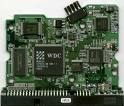
Swap Hard Drive PCB Board

Hard Drive PCB Board If you’ve ever installed a hard drive, you have noticed the green board on the bottom of the drive. The green board is known as the hard disk drive’s PCB (Printed Circuit Board).

What A Hard Drive PCB Does?

The PCB is more than a simple way for a hard drive to contain power; it often contains part of the firmware of a drive, which lets the hard drive know how to operate properly and how to read data from the platters. For instance, part of its function is to store information about how many heads are contained within the drive, unique adaptive, and how to access continued microcode for successful drive start-up.

This information is put onto each PCB at the factory, and is programmed to be very specific to the particular hard drive for which it’s designed. While this may sound inefficient, it’s actually the culmination of dozens of years of hard drive technology; it allows larger and larger drives to be built that are both accurate and dependable.

PCB is one of the most complex and intriguing parts of a hard drive. When hard drives fail, occasionally it’s due to a malfunction of the PCB board. Power surges can cause this type of a failure, as well as dust contamination and many other common computer problems.

Hard Drive PCB Failure Symptoms

Hard drive PCB failures usually render a drive unable to boot up. Depending on the brand and model of the drive, some PCB problems cause a hard drive’s information to display inaccurately in the BIOS.

Swapping Out a Hard Drive’s PCB

Because of this customized firmware, however, it’s not possible to switch out a PCB board in many cases; of course, this varies depending on the manufacturer of a drive. For instance, some older drives have the same basic information on two PCB boards of the same model, provided that both drives were made at about the same time, before more unique adaptive were programmed into the next line of drives. If one of the PCBs fails, there is some chance of making a recovery by simply swapping the boards of the two drives. However, hard drives have contained “customized” firmware on at least an occasional basis since they’ve become a consumer product, so the chances of a straight “board swap” working are very low. In most cases, when you swap the PCB, you should also exchange the BIOS which includes the unique information.

Recommended PCB Boards Provider:

HDDzone.com can offer all kinds of HDD PCB boards which you want. You just need to contact them and issue your detailed requirements. They will send your requires with best price in short time.

Read More

Glossary of Western Digital Hard Disk Drive (Letter M)

imageMagnetic flux
A pattern of magnetic pole directions of bits written on a disk.

Master
The primary drive in a dual-drive configuration. A Master drive by itself (with no Slave) is called a single drive.

MB
Megabyte. WD defines a megabyte as 1,000,000 (one million) bytes.

mechanical latency
A time period, including both seek time and rotational latency. Mechanical latencies are the main hindrance to higher performance in hard drives and are one hundred times greater than electronic (non-mechanical) latencies associated with data transfers. See also rotational latency and seek time.

media
In hard drives, the disks and their magnetic coatings. Sometimes refers only to the coating material.

memory
A device or system capable of storing and retrieving data.

MFM
Multiple frequency modulation. A method of encoding analog signals into magnetic pulses or bits.

MioNet®
WD’s remote computer access service. Adding MioNet to your home or work computer provides secure and instant access from any PC in the world back to your computer. You can use your applications and access and share files on your computer or storage device from anywhere.

mirroring
The process of generating an exact copy of saved data from one drive to another drive within a RAID 1 system. Each drive can be accessed and read separately. A mirrored drive can be removed from a system while the other drive(s) are still active. See also RAID 1.

MP3
MPEG-audio layer 3. A digital audio coding scheme for distributing music over the Internet.

MR head
Magnetoresistive head. MR heads were developed to increase areal density and improve drive performance. These heads use an inductive element for writing data and a separate magnetoresistive element for reading data, rather than traditional inductive thin-film, read/write heads. The read element has a magnetically sensitive material that detects data recorded on the magnetic disk surface. MR head construction results in a stronger signal than that produced by inductive thin-film, read/write heads, which allows reading higher areal density data.

MTBF
Mean time between failures. The average time (expressed in hours) that a component works without failure. This time is calculated by dividing the total number of operating hours observed by the total number of failures. Also, the length of time a user may reasonably expect a device or system to work before an incapacitating fault occurs.

MTTR
Mean time to repair. The average time it takes to repair a drive in the field. Only major subassemblies (the PCB, sealed housing, etc.) are changed in the field; component level repairs are not performed in the field.

multimedia
A simultaneous presentation of data in more than one form, such as by means of both video and audio.

multi-user
A system in information technology that enables more than one user to access data at the same time.

My Book 3.0
Trade name for WD’s initial line of USB 3.0 external hard drives.

My Book®
Trade name for WD external hard drives with a book-shaped enclosure.

My DVR Expander™ eSATA Edition™
WD external device that adds additional storage capacity to a DVR with an enabled eSATA port.

My DVR Expander™ USB Edition™
WD external device that adds additional storage capacity to a DVR with an enabled USB port.


Read More

Which Backup Media Should You Use?

Using external hard drives for data backups

For small businesses, buying and using an external hard drive for data backups is the method I recommend. External hard drives are cheap compared to tape drive systems ; you can get one for several hundred dollars. They’re also easy to use; in many cases, all you have to do is plug the hard drive into your computer’s USB port. And while hard drives do fail, their failure rate is much lower than that of backup media such as CDs.

Using CD-Roms as data backups
Using CD-Roms as data backups is popular. Blank CDs are inexpensive, and copying data onto CDs is easy. However, this is the most unreliable method of all the data backup methods listed here. Who hasn’t had the experience of putting a CD into a drive only to find that the data is unreadable and the disk “doesn’t work”? CDs, like the floppy disks they’ve replaced, have a limited shelf life. I don’t recommend this method of data backup for any small business. If you are writing your data backup files onto CDs, make sure that you make (and keep) multiple copies over time.

Using tapes as data backups
Tape backups are ten thousand times as reliable as CD-Roms, but tape drives and their associated media are much more expensive than CD-Rom writers and CDs. A good tape drive can still cost over $1000, and individual tapes for the drive can cost up to $40 each. If you can afford the equipment, however, tape backup is far and away the best backup method.

Using Online backup services as data backups
There are many companies offering online backup services, but I can’t recommend this method. Besides the potential of bandwidth problems, there are just too many security issues that have yet to be dealt with. Firstly, the method is only as reliable as the company offering the online backup service, and Internet service companies have been coming and going faster than the common cold lately. Secondly, if your business data is sensitive, (and whose isn’t?), why would you want to put it on the ‘Net?

Read More

Download Music to an Ipod?

Because of the popularity of the iPod there are so many softwares that can be downloaded for free that allow you to download music to an ipod.

There are also so many websites offering not just software but audio and video for ipods. But of course the easiest way to download music to an iPod is still to use the iTunes that is bundled with the gadget.

You can either install the iTunes that come with your iPod or you can download a free version of the itunes software from their website. Using the iTunes, you can either purchase content from the iTunes store or you can import your music library from your CD collection to your iPod.

To transfer your music collection from CD to your iPod you just need to insert your CD to your optical media drive. The songs from the CD will then appear on the iTunes window.

Click on the import button after choosing all the songs you want to be imported from the CD. After the songs you have been chosen have been imported from the CD simply click on the eject button to eject the CD. You can sync your iPod to your iTunes and load songs from your CD collection to your iPod.

To purchase songs from the iTunes store, click on the iTunes store in the iTunes window. Search for the song or video you want to buy.

You can then click on the “buy” button if you are using 1-click shopping or you can click on add. You can then check your shopping cart to see if you have all the music and videos you want to purchase and then proceed with the check-out by clicking on “Buy Now”. Aside from music, you can also buy video, audiobooks and other content for your iPod.

After you have purchased content or transferred content from your CDs, you can download the audio or video into your ipod by syncing your ipod with the iTunes.

To sync your iPod, simply connect your iPod to your computer using

Read More