How to install, partition, format, or reformat a WD external hard drive in Windows XP?

To partition and format the external hard drive with Disk Management, follow these steps:

  1. To begin, access Disk Management by right-clicking on My Computer and left-click on Manage. If you don’t have My Computer on your desktop, it should be located in your Start Menu.
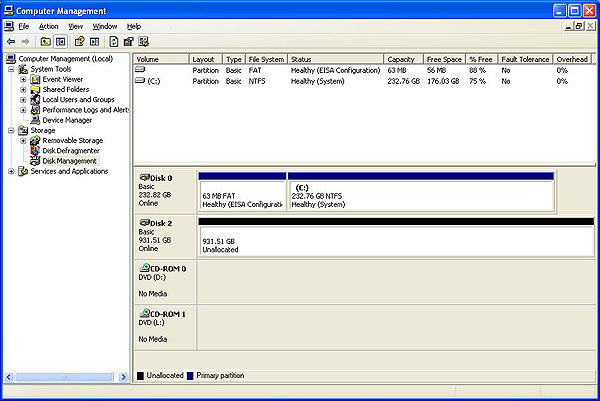
  2. The Computer Management window will open. It will have two panes. On the left pane, there will be a list of items. Under Storage, click on Disk Management. This will load a right pane with 2 windows on the right side. You may need to maximize the Computer Management window to see all your drives.
  3. In the lower right pane, you should see a graphical list of all available drives or devices. Find the drive listing that corresponds to the drive that you want to partition and format. It typically has a black barindicating unallocated space.If there is a blue bar, then the drive has already been partitioned and formatted. Make sure, that if you have data on the drive, you back it up before proceeding. Once you are ready to proceed, right-click on the blue bar and choose Delete Partition… You will get a pop-up window asking you if you really want to delete the partition. Click Yes. The bar should now be black.

    Image

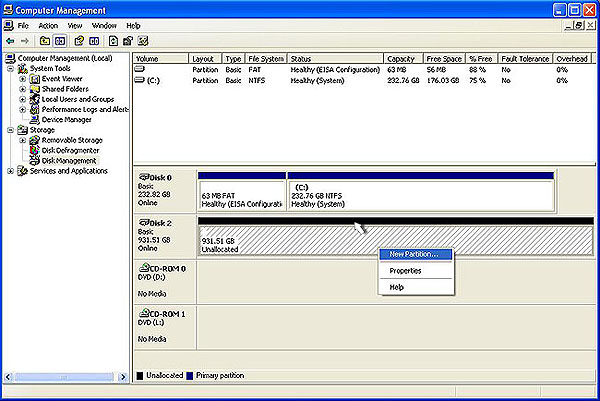
  4. Right-click on the black bar to see a menu of available options. Select New Partition…Image
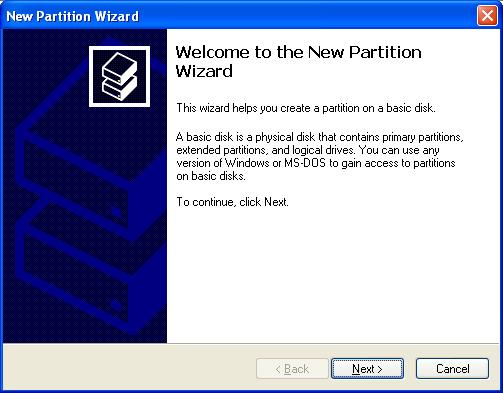
  5. The Welcome to New Partition Wizard will come up. Click on Nextto proceed to the next screen.Image
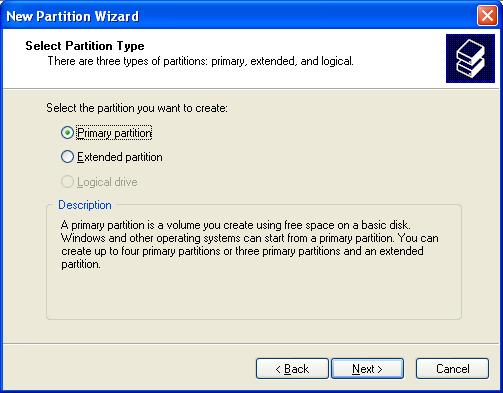
  6. Choose Primary Partition and press Next.Image
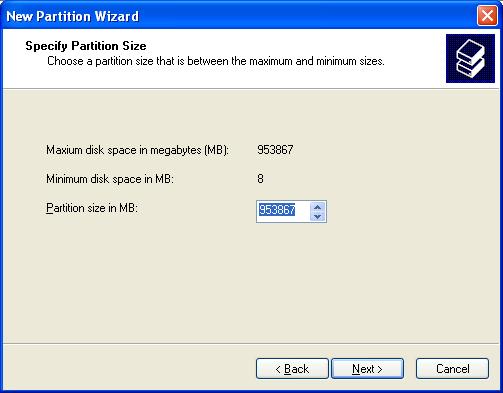
  7. This is where you can set a partition on the drive. By default Windows chooses the whole drive so click on Next.Note: You can also chose to create more than one partition by choosing a smaller size for this partition. Later, you can come back to this window, and create another partition on this drive, by repeating this process.

    Image

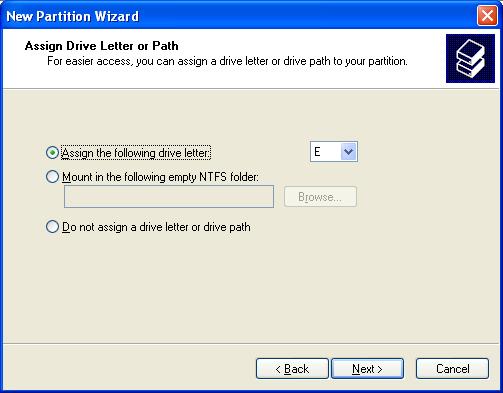
  8. Choose the drive letter that you want the drive to have. By default Windows will choose the next available drive letter. Then click on Next.Image
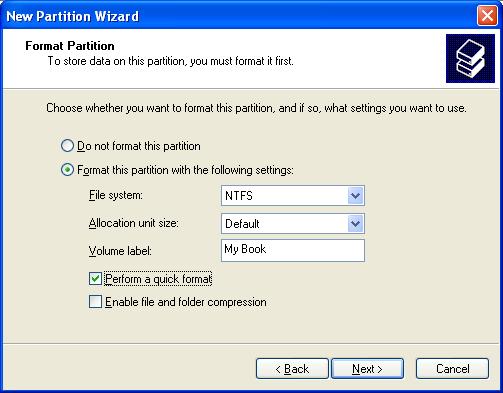
  9. This is the format screen. Make sure that the File System is set to NTFS. In the Volume Label field you can give the drive a name if you want. Check the box that says Perform a Quick Format so that the drive will be formatted quickly. Make sure to leave the Allocation unit size to Default, and then click Next.Image
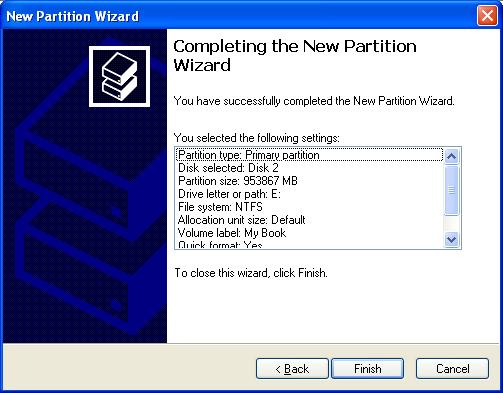
  10. This screen gives you a confirmation of all the steps that you just went through. Click on Next.Image
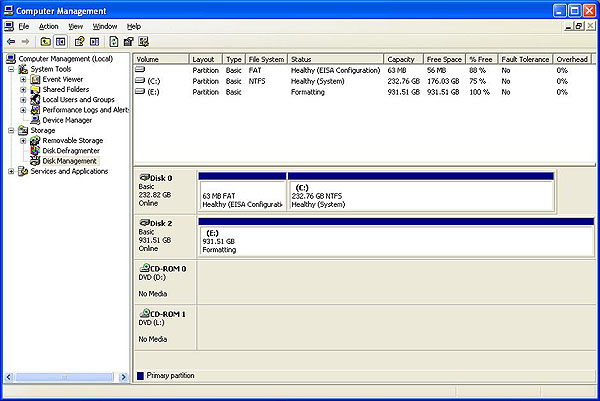
  11. The listing for the drive (Disk 2 in the picture below) will say Formattingas it formats the drive.Image
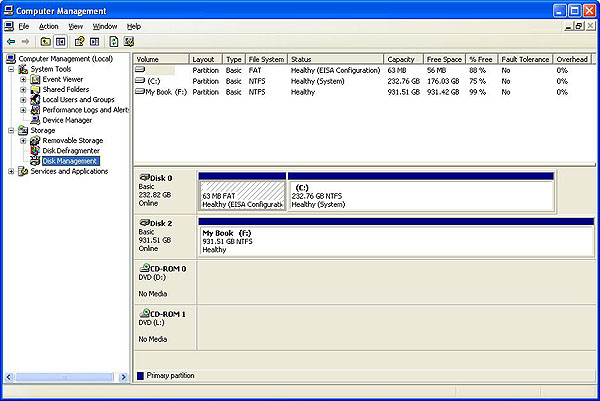
  12. When the drive is done (Disk 2 in the picture below) the bar will be blue and the drive will say Healthy.Image

Note: Once the drivers are installed, you can follow the directions to partition and format the hard drive, if necessary.

Read More

Hard Drive Data Recovery In Austin TX

Looking for a professional data recovery service in Austin TX area? In austin area there are many recovery companies and here is a list just for your referance:

Places for data recovery near Austin, TX

IT Data Recovery
www.itdatarecovery.com
809 West Oltorf Street, Austin
(512) 833-0568

Data Recovery Austin
www.datarecoveryinaustin.net
1153 San Jacinto Boulevard, Austin
(512) 318-2659

Flashback Data
www.flashbackdata.com
4029 South Capital of Texas Highway, Austin
(512) 301-5700

24 Hour Data
www.24hourdata.com
401 Congress Ave. suite 1540, Austin
(512) 692-7272

Certified Data Recovery
www.certifieddatarecovery.com
809 West Oltorf Street, Austin
(512) 771-7589

Secure Hard Drive Raid Data Recovery Services
www.securedatarecovery.com
7000 North Mopac Expressway, Austin
(512) 354-4059

If you are living in Austin area maybe you have heard about one or some all of them, they are all top-customer-reviews recovery companies that can help you so much. If you also know other companies can provide professional recovery services please feel free to contact me, I can list them here in time. Thank you!


Read More

Power supply – Is it possible (and safe/reliable/non-damaging) to use a 20-pin ATX PSU with a 24-pin ATX motherboard?

I have a reasonably-decent old 20-pin PSU which I want to use on a newer 24-pin ATX motherboard. I see that the ATX page on wikipediamentions that 24-pin ATX is backward-compatible, and I can find 20-to-24 pin adapters to buy for a couple of dollars/pounds at lots of places, but I can’t find any mention…

Read More

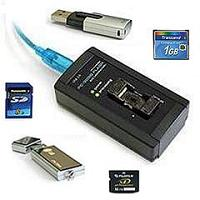
Flash Data Recovery Tool: PC-3000 Flash

PC-3000 Flash Data Recovery PC-3000 Flash is a professional tool for recovering data from flash based storage devices like SD cards, USB sticks, etc.

PC-3000 is the product of years of development by the experts of ACE Laboratory Russia. It is capable of interfacing with NAND chips directly and reading the data, so you do not have to go through the complicated (and often impossible) process of repairing the controller board of the device.

Highlights of PC-3000 Flash:

  • Very easy to use. The operator does not have to be a data recovery expert.
  • Three recovery ‘steps’. First is to physically remove the NAND chip(s) from its controller, second is to read the raw data off the chip(s), and third is to decode the data into a logical image.
  • Complete support for input of your own NAND chip reading parameters in case the software suit does not currently support the chip(s) you are recovering.
  • Connects to any desktop or laptop PC running Windows 2000 or XP through the USB port. Small and portable.
  • Contains built in safety features to prevent electrical damage from incorrect chip insertion or previous physical damage to the NAND chip.
  • 20-30x faster at reading NAND chips than other chip readers.
  • The PC-3000 Flash Kit includes the hardware device for reading NAND chips, PC-3000 Flash Software, and the manual.

Useful Links:

  • List of Controllers supported by PC-3000 Flash
  • List of Memory Chips supported by PC-3000 Flash
  • Get more about PC-3000 Flash
Read More