System BIOS and Hard Drive Related FAQs (Part II)
System BIOS 5. Why use software for translation?

Software translation is an effective, although non-conventional, means of translating large capacity hard drives so they can be utilized on older systems with older motherboards and BIOS’s. We use Maxtor hard drives almost exclusively, and they (Maxtor) furnish a driver made by StorageSoft, which is called MaxBlast. Instead of loading a driver in the start-up files, MaxBlast loads drivers before the operating system is loaded.

6. Can a hard drive be transferred to another computer without losing data?

Generally speaking no, but there are exceptions to everything. Usually there are no guarantees that a new motherboard’s BIOS will use the same translation scheme as its predecessor. We recommend that you back up your data prior to making any system changes. We also recommend that the hard drive be re-partitioned and reformatted once installed in the new system.

7. Can the translation mode or parameters in the BIOS be changed?

When a drive is partitioned, the operating system interprets the size of the drive via information provided by the BIOS. Changing the translation can cause permanent data corruption. If the original parameters are changed, they usually cannot be recovered without specialized drive manipulation software. If you do not have this software, we recommend that the hard drive be re-partitioned and reformatted.
Read More

Security – How do I list the SSL/TLS cipher suites a particular website offers?

How can I retrieve a list of the SSL/TLS cipher suites a particular website offers? I’ve tried openssl, but if you examine the output: $ echo -n | openssl s_client -connect www.google.com:443 CONNECTED(00000003)depth=1 /C=ZA/O=Thawte Consulting (Pty) Ltd./CN=Thawte SGC CAverify error:num=20:unable to get local issuer certificateverify return:0—Certificate chain 0 s:/C=US/ST=California/L=Mountain View/O=Google Inc/CN=www.google.com   i:/C=ZA/O=Thawte Consulting (Pty) Ltd./CN=Thawte…

Read More

Hard Disk Details (2)

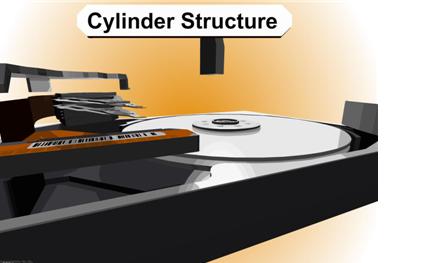
The hard drive knows nothing about your files and is not aware in any way of the content. That is the job of the Operating System (OS from here on). When the OS asks for a file, the OS will request a logical block from the drive; the drive will translate that to the physical location in CHS. An example is that it might request data from Cylinder 2500 at head 2 located on sector 234. The drive has many spare sectors and sometimes spare tracks to be used to compensate for errors and relocation of data. NOTE: Look at $BadClus on a NTFS File system for what the OS thinks is bad.

In a previous speech here at Defcon 14, I gave the basic inner workings of a hard drive and several ways you can repair it. I am sure that you can get that previous speech on DVD, find it on the web, or on www.myharddrivedied.com and it will give you a large amount of info that I am not going to discuss here today.  Additionally, there is a whitepaper on the CD that includes more data and notes about repairing a hard drive.

Since my last speech one of the most common questions I get everyday is “What is that clicking noise? How do I fix it?” This is not a simple problem by any means.  So my goal today is to give you more insight into the inner workings your hard drive and explain how this problem occurs and what you might be able to do to fix it.

Slide 1208: In this speech we are looking at the platter assembly where the heads are located, through the area of the preamp and the IC Logic Board down to the PCB.  This is the area that affects what is causing the clicking noise that you hear.  I am now going to explain how each of these things works and walk you through the drive functions.

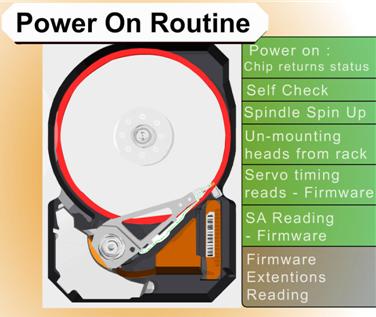
Part of what causes this clicking problem is related to the power on routine functions.

The boot sequence of a drive is as follows:
1.      Power on chip returns status
2.      Self check
3.      Spindle spin up
4.      Un-mounting heads from rack
5.      Servo timing reads – firmware
6.      SA reading – firmware
7.      Firmware extensions reading
8.      Error – read SA from other secondary copies

Read More

How To Create A BlackArmor Recovery CD Or ISO Image?

blackarmor recovery cd I lost my BlackArmor Recovery CD…is there a quick way to create one?

The Seagate BlackArmor Backup software has a utility within it called the Bootable Rescue Media Builder. This utility has the ability to do the following:

  • Create a Seagate BlackArmor Recovery CD.
  • Create an ISO Image of the Seagate BlackArmor Recovery CD that can then be used to create a Recovery CD at a later time.

To Create a BlackArmor Recovery CD

Prerequisite: One (1) blank CD-ROM

  1. Click StartAll ProgramsSeagateBlackArmor BackupBootable Rescue Media Builder.
  2. (For Windows Vista only) A User Account Control (UAC) window opens asking for permission to precede. Click Continue.
    The Welcome to BlackArmor Media Builder window opens.
  3. Click Next. The Rescue Media Contents Selection window opens.
  4. Check the Top-Level, BlackArmor Backup box.
  5. Click Next. The Bootable Media Options window opens.
  6. Click Next. The Rescue Media Selection window opens. Select the CD-ROM drive from the list of options.
  7. Click Next. A Media Parameters/Summary window opens.
  8. At this time (if you have not already done so), insert the blank CD-ROM in your System’s CD/DVD ROM drive bay.
  9. Click Proceed. At this point the Seagate BlackArmor Recovery CD creation starts processing (this may take a few moments to complete).
  10. When finished, an information window opens, notifying you that the process is complete.
  11. Click OK. The BlackArmor Recovery CD is created.

Video Tutorial – Using Bootable Rescue Media Builder to Create a BlackArmor Recovery CD.

To Create an ISO Image of the BlackArmor Recovery CD

  1. Click StartAll ProgramsSeagateBlackArmor BackupBootable Rescue Media Builder.
  2. (For Windows Vista only) A User Account Control (UAC) window opens asking for permission to precede. Click Continue.
    The Welcome to BlackArmor Media Builder window opens.
  3. Click Next. The Rescue Media Contents Selection window opens. Check the Top-Level, BlackArmor Backup box.
  4. Click Next. The Bootable Media Options window opens.
  5. Click Next. The Rescue Media Selection window opens.
  6. Select the ISO Image drive from the list of options.
  7. Click Next. The Destination File Selection window opens.
  8. Browse to the location where you want to save/store the ISO Image.
    Optional – you can opt to change the default filename too.
  9. Click Next. A Media Parameters/Summary window opens.
  10. Click Proceed. At this point the Seagate BlackArmor Recovery CD creation starts processing (this may take a few moments to complete).
  11. When finished, an information window opens, notifying you that the process is complete.
  12. Click OK. The BlackArmor Recovery CD is created.

Video Tutorial – Using Bootable Rescue Media Builder to Create a BlackArmor Recovery ISO Image

Read More