CD Optical Storage Glossary of Computer Terms (Letter A)

Access time
In mass storage devices, the time elapsed to read or write to or from a device.

Additive color system
A color reproduction system in which images are reproduced by mixing appropriate amounts of red, green, and blue lights.

Animation
A synchronized sequence of graphics that conveys action.

Antialiasing
The process of reducing the visibility of jagged edges by using gray scale pixel values to smooth and feather contrasting intersections of bitmapped objects.

Application
A computer program written for a specific purpose.

Aspect ratio
The ratio of width to height of an image. The standard aspect ratio of broadcast television and most computer displays is 4:3. The 35mm slide standard is 3:2.

Asymmetric system
A video system that requires more equipment to store, process, and compress a digital image than it needs to decompress and playback. Intel’s DV I and Phillips/Sony’s CD-I systems are asymmetric in full fidelity mode.

Audio track
A CD- DA track with digital audio samples encoded as 16 bit numbers.

Audio
Sound portion of a video signal. or separate sound used to; annotate objects on frames including text, graphics, animation and still images.

Authoring language
A high- level programming language using English or mnemonics and simple commands specifically designed for developing multimedia applications. Often included as a subset of an authoring system.

Authoring system
A software product designed to allow users without specific programming skills to develop and test multimedia applications.

Averaging
The process of smoothing the selection or image by averaging the values of the surrounding pixels over a specified radius.

Read More

Storage for Beginners

datastorageforbeginnersSome of us are old enough to remember when floppy disks were the most popular way to store and transport data. It was a risky business: extreme heat, scratching, exposure to magnets or rough treatment could damage or erase the disk. College students, IT consultants and businesspeople everywhere would hold their breaths, push a floppy into the drive and hope that their disk wasn’t corrupted. Data storage in the old days was stressful, unreliable and depending on how many disks you needed for all your data, expensive.

Technology has advanced exponentially since the days of floppy disks and zip drives, and storing your data has never been easier. Flash drives and writable CD’s make it fast and easy to store large amounts of data and take them anywhere. And cloud drives let people access their data from literally anywhere, without the worry of storage or damage.

Flash drives
Small and portable, these drives use flash memory to store gigs of data on a tiny device. Flash drives plug right into a computer’s USB port and can be removed, rewritten and erased with ease. They’re perfect for school work and papers, since you can take them to your school’s library and print out what you need.

Flash drives are also great for online university students who tend to be more mobile and need the ability to take their data anywhere. But they’re not damage-proof: bending the USB plug and a limited number of read/erase cycles make flash drives less than a perfect storage choice.

CD’s and DVD’s and external hard drives
CD’s and DVD’s bridge the gap between floppy disks and flash drives, because they’re portable and easy to use. Both CD’s and DVD’s are easily readable by any computer with a CD-ROM drive, and DVD-R’s can hold more than four gigs of data. They’re perfect for program and software backups. But dust, heat, scratches and fingerprints can affect their performance or damage them. Also be sure to choose rewriteable CD’s and DVD’s if you want to use them more than once.

External hard drives work just like the hard drive in your computer except you connect your external HD and your computer through a USB port. Advantages to an external hard drive include the ability to store a great amount of data and security from viruses since it’s not constantly connected to your computer. But hard drives are sensitive creatures, so handle your drive carefully and be sure not to drop it or jostle it.

Cloud storage/e-mail
Cloud storage has become the latest trend for both businesses and individuals, in part because of its easy access and security. Services like Dropbox and Amazon’s Cloud Drive offer a decent amount of space for free, and you can buy more space for an affordable price. There are caveats to storing all of your data on a cloud. Read terms of services carefully before uploading, since some companies reserve the right to access—or even use–your files.

Cloud storage isn’t foolproof either: recent power outages for Microsoft and Amazon made data inaccessible for an uncomfortable amount of time. And if you’re a student who’s working on a term paper or a business that relies on a cloud drive to keep records secure, any outage is uncomfortable.

Choosing a main storage method for your data depends on your needs, so choose what works best for you. Also be sure to choose—and maintain—regularly scheduled backups. If you use a cloud for your everyday storage needs, make sure you’re aware of any changes in terms of use agreements or storage limits since cloud services can change their terms at will. There’s no storage method that’s completely safe, but making sure your data is safe should be your first priority.


Read More

Glossary of Hard Disk Drive Terminology (Letter I)

IDE (Integrated Drive Electronics)
A type of drive where the interface controller electronics are incorporated into the design of the hard drive rather than as a separate controller.

Index Pulse Signal
A digital pulse signal indicating the beginning of a disk revolution. An embedded servo pattern or other prerecorded information is present on the disk following index.

Initiator
A device in control of the SCSI bus that sends commands to a target. Most SCSI devices have a fixed role as an initiator or a target; however, some devices can assume both roles.

Initialization
See low-level formatting.

Input
The incoming data that the computer processes, such as commands issued by the user.

Input/output (I/O)
An operation or device that allows input and output.

Interface
A hardware or software protocol that handles the exchange of data between the device and the computer; the most common ones are AT (also known as IDE) and SCSI. (See AT and SCSI.)

Interface controller
The chip or circuit that translates computer data and commands into a form suitable for use by the hard drive and controls the transfer of data between the buffer and the host. (See disk controller and disk drive controller.)

Interleave
The arrangement of sectors on a track.

Interrupt
A signal sent by a subsystem to the CPU that signifies a process has either completed or could not be completed.

ISA
Industry Standard Architecture. The standard 16-bit AT bus designed by IBM for the PC/AT system. ISA was the only industry standard bus for PCs until the recent release of MCA (MicroChannel Architecture), EISA (Extended Industry Standard Architecture), and PCI (Peripheral Component Interconnect).

Read More

Flash Data Recovery Tool: PC-3000 Flash

The data recovery process from ssd and flash memory devices is much more complicated than usual data recovery. The next generation of flash based storage devices and ssd is coming… If you want to be prepared for it, the pc-3000 flash is the only professional flash memory data recovery solution with the best support and future development…

What is PC-3000 Flash?
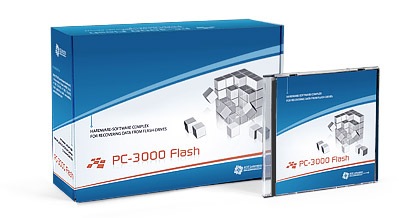
PC-3000 Flash PC-3000 Flash is a professional tool for recovering data from physically and logically damaged flash based storage devices. Based on hardware and working in conjunction with software, it creates a powerful algorithm to recreate data structure in automatic and manual modes.

What can pc-3000 flash do?
PC-3000 Flash recovers data from flash drives at:

  • serious mechanical damages
  • serious electrical damages of PCB
  • logical structure damages
  • damaged controller
  • accidentally deleted files

Logical damages of the drive, at which the drive is physically detected in the system at the usual connection, but it has the damages which prevent the access to the user data by the standard ways of the operation system. In this case, you can use all logical instruments of PC-3000 Flash suite or Data Extractor UDMA to recover data.

Physical damages of the drive or service area damages, which cause impossible access to the contents of flash-memory microchips. This type of damages is more popular than the first type. To recover data in such cases, They developed PC-3000 Flash suite.

Supported models:

  • It supports almost all popular memory cards (SD, SM ,MMC, USB Flash, MemoryStick, CompactFlash etc.), with damaged controller, or with serious physical PCB’s damage. Automatic and manual modes
  • Each controller has its own method of spreading the data, and this method is called “Data mix”. PC-3000 Flash has the database of widely spread controller “Data mixes“. Special mode analyses mix of your Raw data and helps you to select the most suitable solution for your flash storage device.
  • Moreover, if the controller is unknown, it is possible to try to restore the data order manually, with applying the operations to raw imaged data.

PC-3000 Flash SuitePC-3000 Flash Suite:

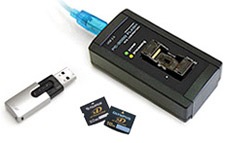
  • Device for reading NAND-based flash memory microchips (PC Flash Reader)
  • PC-3000 Flash software
  • USB cable
  • User manual for PC-3000 with data recovery methods.

Features are going to be added to the next versions:

  • Add fully automatic algorithms and modes enabling to make your participation minimal while working with PC-3000 Flash
  • Increase the number of the supported controllers and applied algorithms
  • Increase functionality of the tool, adding to support more operations with NAND flash-memory microchips
  • Add specialized modes enabling to make the full analysis of the task in the complicated cases
  • Make possible data recovery from flash drives which use data coding algorithms.

Free training video on PC-3000 Flash: http://www.pc-3000flash.com/eng/video.php
Buy:
http://www.pc-3000flash.com/eng/flashwork.php
Support: http://www.pc-3000flash.com/eng/flashwork.php

Read More