Partition Offset Information (Part II)

How to check if a partition is aligned?
Seagate has created a simple Windows utility, Partition Offset Information, to read and display the starting LBA for every partition. This tool can analyze the starting sector of a partition if it is misaligned or not.

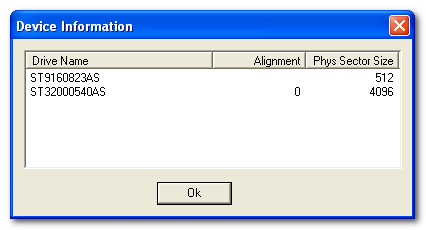
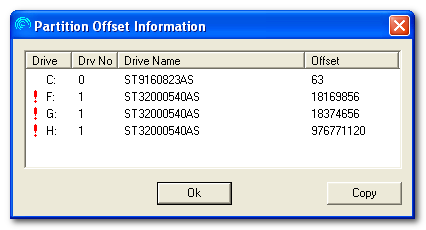
In the example below, drive C: is a generic drive (ST9160823AS) with 512 bytes per sector. Drives F:, G: and H: are logical drives, all on the ST32000540AS which has a 4096 byte (4KiB) sector size and an Alignment of 0.

Partition Offset Information

Partition Offset Information

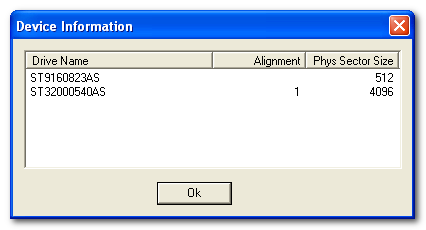
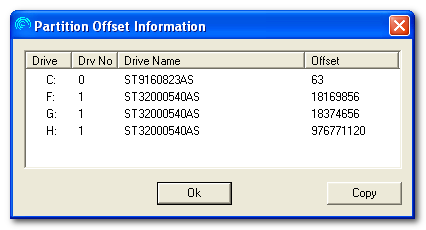
If the alignment on the ST32000540AS was 1, instead of 0, the display would look like this:

Partition Offset Information

Partition Offset Information

Notice: the the RED exclamation marks. These marks indicate that the Logical Volumes (drive letters) in this partitioning arrangement are not aligned with the physical sectors on the disk drive. Normal 4K disk drives will ship with Alignment 0. Drives with Alignment 1 and not typical and the example above is shown only for comparison purposes.

It is important to understand that the drive operates with the same reliability, but just a little bit slower when WRITING to the drive. It runs the same when READING which accounts for the majority of activity on a disk drive.

Useful link: Download Partition Offset Information

Read More

Fujitsu HDD Firmware Download

Here you can download Fujitsu firmware collections, you can make use of them as donor for your damaged Fujitsu hard drives or Fujitsu firmware update!

Fujitsu V60+/Z60/Z60+ Family FW Update (MHV models)
mpg3204at-a80-80c4,mpg3204at-882-80c2
mpg3204at-880-9117,mpg3204at-682-80c2
mpg3204at-680-80c4,mpg3204at-582-80c2
mpg3204at-482-80c2,mpg3204at-280-80c4
mpg3204at-1a9-80b5,MPG3204AT 82-80C2
MPG3204AT -FB ID: YFIP PART NO. CA05761-B72300FB SER. NO. VH44P1804YLE DATE 2001-08 882-80C2 PCB: CA21273-B12X 009CF
mpg3204ah-a00-c3c7,mpg3204ah-900-c3c7
mpg3204ah-900-c3c5, mpg3204ah-800-c3c5
mpg3204ah-700-d290,mpg3204ah-700-c3c5
mpg3204ah-636-42b5,mpg3204ah-600-d290
mpg3204ah-600-c3c5,mpg3204ah-536-42b5
mpg3204ah-436-42b5,mpg3204ah-236-42b5
mpg3102at-ca9-9206,mpg3102at-b89-9206
mpg3102at-b89-9111,MPG3102AT-80c2
mpg3102at-382-80c2,mpg3102at-282-80c2
mpg3102at-1a9-80b5,MPF3102AT
MPD3130AT_DD-04-44,FUJITSU MHT2040AT-0022-NQ08T4726H3F
MHS2040 – B88-8004,MHS2040 – 48F-8004
MHS2040 – 28F-8004,MHS2040 – 020D-8004
MHS2040 – 020D-3005,PC3000PCI FUJITSU MHS2030AT-8307-NL13T3114AWV DCM: NIDEC T23025E4
MHS2020 – C8D-8004,MHR2020 – 802-40BA
MHR2020 – 502-55BA,MHN2300 – C10-7255
MHN2200 – 110-7255,MHN2100 – B13-7256
MHN2100 – 910-7255,MHM2200 – B0E-3B27
MHM2200 – 90E-3822,MHM2200 – 40E-5823
MHM2200 – 0B0E-3B27,MHK2060 – 418-D834
MHK2060 – 417-D834,MHH2048 – A0E-B815
MHG2102 – C0E-B015,MHF2043 – 702-A518
FUJITSU MHT2060AT 0022,FUJITSU MHT2040AT 009B
FUJITSU MHT2020AT 009A,FUJITSU MHS2020AT E 8406

Fujitsu Firmware Download

Read More

Resolve O LBA, Seagate 7200.11 BIOS don’t recognize (Part I)

This tutorial is not for inexperienced users!!! Do NOT POWER OFF YOUR hdd, computer, during it, (EXCEPT IF I SAY SO)and you just to be sure connect your computer to UPS.

First you must have to build serial rs232 converter to TX,RX GND, you can use any data cable from your cell phone from Siemens 35 series custom build data cable buid on this picture with max232. Be sure that you put zener diode 2V7 at the picture..Because you could burn your Tx, Rx, on HDD-s PCB.

So, when you build, get your adapter, connect it to this pins on Seagate drive.
[ ”””””””’| |””””’ ] [ .. ..] —-> Rx.. Tx
You do not need to connect SERIAL-ATA CABEL
open hyper terminal or another type of terminal select Serial port example “COM1”
set bit rate to 38400bps
data bits 8
parity N
stop bits 1

it’s default settings except bps.
plug power to disk and after that you will see on terminal something like this:

PART 1

Rst 0x10M
hit Ctrl + Z to get “prompt”
F3 T>

now, if your BIOS recognize disk but there is 0 LBA,0 capacity

all you need is to hit this command:

F3 T>m0,2,2,0,0,0,0,22 Enter

!!!IMPORTANT, don’t turn hdd power off, or comp off, wait about 30 sec to 2 minutes until it finished!!!

then you see something like this.

Max Wr Retries = 00, Max Rd Retries = 00, Max ECC T-Level = 14, Max Certify Rewrite Retries = 00C8 Max retries Wr = 00, Max Rd retries = 00, Max T-ECC Level = 14, Max certify Rewrite retries = 00C8
User Partition Format 10% complete, Zone 00, Pass 00, LBA 00004339, Err Code 00000080, Elapsed Time 0 minutes 05 seconds User Partition Format 10% complete, Zone 00, Pass 00, LBA 00004339, Err Code 00000080, Elapsed Time 0 minutes 05 seconds
User Partition Format Successful – Elapsed Time 0 minutes 05 seconds User Partition Successful Format – Elapsed Time 0 minutes 05 seconds

After that hit

F3 T>/2
and
F3 2>Z
Spin Down Complete
Elapsed Time 3.038 msecs

Turn off power from your HDD, od shutdown your computer.

WARNING: Please do NOT try this if you have valuable data on your drive. Do not blame anyone if something goes wrong. You do it at your own risk. Remember that if something goes wrong, it is extremely unlikely that anyone will be able to help you remotely. One wrong command via terminal could easily result in a completely bricked HDD (I really do mean bricked = no one will be able to recover it, even Seagate).


WARNING: Please do NOT try this if you have valuable data on your drive. Do not blame anyone if something goes wrong. You do it at your own risk. Remember that if something goes wrong, it is extremely unlikely that anyone will be able to help you remotely. One wrong command via terminal could easily result in a completely bricked HDD (I really do mean bricked = no one will be able to recover it, even Seagate).
Read More

Data Interface Connector or Card

Modern hard disk drives use one of two interfaces: IDE (ATA) – Integrated Drive Electronics (also called ST506 drives) and its variants (EIDE – Enhanced Integrated Drive Electronics, or the SCSI (Small Computer System Interface). You can tell immediately by looking at the back of the hard disk which interface is being used.

1. IDE hard disks use a 40-pin connector, and SCSI hard disks normally use either a 50-pin or a 68-pin or 80-Pin connector.

2. Note: Older MFM (MODIFIED FREQUENCY MODULATION), RLL (RUN LENGTH KIMITED) and ESDI (ENHANCED SYSTEM DEVICE INTERFACE) hard disks used two data connectors, one 34 pins and the other 20 pins.

3. The cable usually has a red stripe to indicate wire #1 and the hard disk uses markers to indicate the matching pin #1.

Led Connector: Originally, hard disks shipped with a faceplate (or bezel) on the front. The hard disk was mounted into an external hard drive bay (in place of a floppy disk drive) and an LED was visible on the front of the drive to indicate when the disk was in use. It was quickly realized that having the disks mounted internally to the case made more sense, but the LED was still desirable. So an LED was mounted to the case and a wire run to a two-pin connector on the hard disk itself. On newer systems that run with integrated IDE controllers on the motherboard, the LED is connected to a special connector on the motherboard itself.

Drive Bay: The entire hard disk is mounted into a physical enclosure designed to protect it and also keep its internal environment sealed from the outside air. This is necessary because of the requirement of keeping the internal environment free of dust and other contamination that could get between the read/write heads and the platters over which they float, and possibly lead to head crashes.

DRIVE BAYS are where internal hard drives are mounted inside the PC. They come in internal and external versions, based on whether they allow access from the exterior of the case, and also in two standard sizes: 5.25″ and 3.5″.

Now, we have rough understanding of the HDD components now and how these parts work in architecture. But you may find the importance of the microprogram inside the HDD. No matter how precise the HDD design, they are a stack of meaningless mechanical parts.

Read More