7200.11 Firmware Data Recovery

Case:The data recovery center successfully recovered the 7200.11 firmware failure. The data recovery center once again proved the leading position in the field of data recovery with strength and received unanimous praise from customers.The Data Recovery Center received a call from the customer for help, saying that their desktop backup equipment was damaged. The desktop…

Read More

Hard drive not recognized

Case:1000GB mobile hard disk in the West, there is no reflection after powering. Solution:The engineer tested that the hard disk circuit board was damaged. After replacing the same type of circuit board, the hard disk motor rotated normally, but the magnetic head made an abnormal noise. It was confirmed that the magnetic head was penetrated…

Read More

Lenovo Notebook One-Key Restore to Factory Settings Data Recovery Successfully

Case:The customer misused the one -click recovery on Lenovo’s notebook, and the hard disk was restored to the factory state. The important data of the original D, E and F disks were all lost. Solution:The engineer of the data recovery center manually analyzes and calculates the partition table parameters. The customer’s hard disk originally had…

Read More

How NTFS File System Works: NTFS Physical Structure (6)

NTFS Physical Structure Last Access Time

Each file and folder on an NTFS volume contains an attribute called Last Access Time. This attribute shows when the file or folder was last accessed, such as when a user performs a folder listing, adds files to a folder, reads a file, or makes changes to a file. The most up-to-date Last Access Time is always stored in memory and is eventually written to disk within two places:

  • The file’s attribute, which is part of its MFT record.
  • A directory entry for the file. The directory entry is stored in the folder that contains the file. Files with multiple hard links have multiple directory entries.

The Last Access Time on disk is not always current because NTFS looks for a one-hour interval before forcing the Last Access Time updates to disk. NTFS also delays writing the Last Access Time to disk when users or programs perform read-only operations on a file or folder, such as listing the folder’s contents or reading (but not changing) a file in the folder. If the Last Access Time is kept current on disk for read operations, all read operations become write operations, which impacts NTFS performance.

Note: File-based queries of Last Access Time are accurate even if all on-disk values are not current. NTFS returns the correct value on queries because the accurate value is stored in memory.

NTFS eventually writes the in-memory Last Access Time to disk as follows.

Within the file’s attribute

NTFS typically updates a file’s attribute on disk if the current Last Access Time in memory differs by more than an hour from the Last Access Time stored on disk, or when all in-memory references to that file are gone, whichever is more recent. For example, if a file’s current Last Access Time is 1:00 P.M., and you read the file at 1:30 P.M., NTFS does not update the Last Access Time. If you read the file again at 2:00 P.M., NTFS updates the Last Access Time in the file’s attribute to reflect 2:00 P.M. because the file’s attribute shows 1:00 P.M. and the in-memory Last Access Time shows 2:00 P.M.

Within a directory entry for a file

NTFS updates the directory entry for a file during the following events:

  • When NTFS updates the file’s Last Access Time and detects that the Last Access Time for the file differs by more than an hour from the Last Access Time stored in the file’s directory entry. This update typically occurs after a program closes the handle used to access a file within the directory. If the program holds the handle open for an extended time, a lag occurs before the change appears in the directory entry.
  • When NTFS updates other file attributes such as Last Modify Time, and a Last Access Time update is pending. In this case, NTFS updates the Last Access Time along with the other updates without additional performance impact.

Note: NTFS does not update a file’s directory entry when all in-memory references to that file are gone.

If you have an NTFS volume with a high number of folders or files, and a program is running that briefly accesses each of these in turn, the I/O bandwidth used to generate the Last Access Time updates can be a significant percentage of the overall I/O bandwidth.

Multiple Data Streams

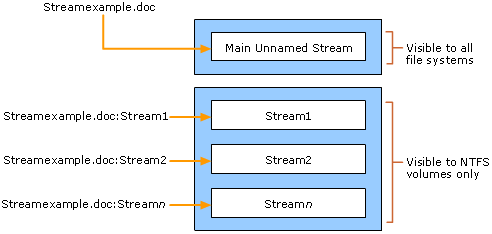
A data stream is a sequence of bytes. An application populates the stream by writing data at specific offsets within the stream. The application can then read the data by reading the same offsets in the read path. Every file has a main, unnamed stream associated with it, regardless of the file system used.

However, NTFS supports additional named data streams in which each data stream is an alternate sequence of bytes as illustrated in the figure Unnamed and Named Streams. Applications can create additional named streams and access the streams by referring to their names. This feature permits related data to be managed as a single unit. For example, a graphics program can store a thumbnail image of bitmap in a named data stream within the NTFS file containing the image.

Unnamed and Named Streams

NTFS File System

FAT volumes support only the main, unnamed stream, so if you try to copy or move Streamexample.doc to a FAT volume or floppy disk, you receive an error message.


Read More

Windows 10: Scheduled tasks with workstation lock/unlock not being triggered

I’m running Windows 10, and trying to get a pair of scheduled tasks working. These tasks are set to run on workstation lock and workstation unlock, and execute a script that remotely locks or unlocks an adjacent arch-linux workstation. This is accomplished via the WinSCP command-line interface, WinSCP.com, and its built-in scripting ability. These scrips…

Read More

Intel RAID Controller Troubleshooting Guide: Some of my hard drives show up during POST and some do not

Drives not showing up in post can be caused by a variety of problems. Please check the
following:

• Are you using the latest BIOS and firmware for the server board and the latest firmware
for the RAID card?

• System memory limitations limit the number and size of option ROMs that can be used
in the system. If you place too many adapters in the system, or the ROMs on the
adapters you have installed take up too much space in memory, the option ROM on
your RAID controller may not expand correctly and will not show the hard drives that are
connected to it. Try turning off the expansion ROMs for any on-board device that is not
being used. For example, if your server board includes a SCSI controller that is not
being used, disable this SCSI controller in BIOS setup. For a list of tested peripherals
with the Intel RAID controller, download the Tested Operating System and Adapter List
from http://support.intel.com/support/motherboards/server.

• If you are using a Zero Channel Card that utilizes the on board IO controller, such as an
on-board SCSI or Serial ATA controller, the Option ROM scan for the on-board device
must be enabled. If it is not enabled, drives connected to that device will not show up
during POST.

• Confirm that the drive power cables are firmly connected. If you are using a chassis
with a backplane, make sure the power and SCSI cables are properly applied to the
backplane and the hard drives are firmly seated in the backplane.

• Check your SCSI ID numbers. SCSI devices must each have a unique ID on the SCSI
bus. This number is set with jumpers on the device. ID numbers should be set starting
at 0 and they must be set lower than 8 if booting from the drive. If you are using a
server chassis with a backplane, the device IDs are usually automatically set by the
backplane, but may be manually configurable.

• Check for proper termination on the SCSI bus. Intel RAID cards are by default autoterminating.

If your hard drives still do not show during post, please call your customer support
representative. Note the following information and have it ready to assist the support engineer:

• Model number and firmware revision of the RAID controller you are using.
• Manufacturer and model number of other add-in adapters installed in your system.
• Manufacturer and model number of hard drives installed in the system.
• Identify the type of termination used for the card.
• The SCSI IDs of the devices on your SCSI bus.
• The number and type of SCSI channels.
• Manufacturer and model of the memory used in the system and on the RAID controller
and whether it is on the tested memory list.

Read More