
SalvageData Data Recovery is a unique hybrid solution that combines professional data recovery services with free DIY recovery software. Founded in 2003, SalvageData has established itself as a certified data recovery provider with over 20 years of industry experience, operating a centralized laboratory equipped with Class 100 ISO 5 cleanroom facilities. The company offers a distinctive “No Data, No Charge” guarantee, ensuring customers only pay if their data is successfully recovered.
Unlike traditional software-only solutions, SalvageData addresses both logical data loss scenarios (accidental deletion, formatting, corruption) and physical damage cases (mechanical failure, water damage, fire damage) through their professional lab services. Their free data recovery software provides a no-cost option for DIY recovery of deleted or formatted files, with no limitations on recovery amount.
Two Approaches to Data Recovery
SalvageData distinguishes itself by offering two distinct paths to data recovery, depending on the nature and severity of your data loss:
Free DIY Data Recovery Software
For logical data loss scenarios that do not involve physical damage, SalvageData provides completely free recovery software. This software can recover:
- Accidentally Deleted Files: Documents, photos, videos, and other files deleted from Recycle Bin or using Shift+Delete.
- Emptied Recycle Bin: Files that have been cleared from the Recycle Bin or Trash bin.
- Formatted Drives: Data from HDDs, USB flash drives, and SD cards that have been accidentally formatted.
- Corrupted File Systems: Files from drives that have become corrupted or unreadable.
Professional Lab Recovery Services
When physical damage or complex hardware failures occur, SalvageData’s professional lab services are required. These services handle:
- Hardware Failures: Clicking, grinding, or beeping hard drives.
- Physical Damage: Water, fire, impact damage, or broken connectors.
- RAID & NAS Recovery: Complex RAID arrays, NAS, and SAN systems.
- SSD & Flash Recovery: Solid-state drives, USB flash drives, and memory cards with controller failures.
- Mobile Devices: Smartphones and tablets with logical or physical issues.
Key Features of SalvageData Data Recovery Software
The free data recovery software from SalvageData includes the following features:
Three Core Functionalities
- Data Recovery: Scan any device connected to your computer to find deleted files and start recovering.
- Data Image & Clone: Create images and clones of your data to another device for future data loss prevention.
- Secure Data Wipe: Permanently erase data from your device beyond recovery, providing a clean slate.
Broad Device Compatibility
The software supports a wide range of storage devices:
- Hard Disk Drives (HDDs)
- Solid State Drives (SSDs)
- USB Flash Drives
- SD Cards and Memory Cards
- External Hard Drives
Extensive File System Support
SalvageData software works with multiple file systems across different operating systems:
- Windows: FAT, exFAT, NTFS
- macOS: HFS, HFS+
- Linux: Ext2, Ext3, XFS, ReiserFS
- BSD: UFS1, UFS2
Cross-Platform Availability
The software is available for:
- Windows: XP SP3, 7/8, 10+, 11+, Windows Server 2003-2016
- macOS: macOS 11.0 or later (Apple Silicon)
- Linux: Various distributions
Mobile App for Case Management
SalvageData offers a mobile app available on both Apple Store and Google Play that allows users to:
- Create and manage data recovery cases
- Message a dedicated recovery advisor
- Track the progress of lab recoveries
- Access articles and support information
Supported File Types
SalvageData software can recover virtually all common file types, including:
| Category | Supported File Extensions |
|---|---|
| Documents | DOC, DOCX, XLS, XLSX, PPT, PPTX, PDF, TXT, RTF, HTML |
| Images | JPG, JPEG, PNG, BMP, GIF, TIFF, TIF |
| Audio | MP3, WAV, AAC, FLAC, M4A |
| Video | AVI, MOV, MP4, MPEG, WMV, MKV, FLV |
| Archives | ZIP, RAR, 7Z, TAR, GZ |
How to Use SalvageData Free Recovery Software
Follow these simple steps to recover your lost data using SalvageData’s free software:
- Download and Install – Download the software from the SalvageData website. Important: Do not install the software on the drive from which you want to recover data, as this may overwrite lost files.
- Launch the Software – Open SalvageData Data Recovery software and agree to the terms and conditions.
- Select the Drive – Click the “Data Recovery” button and choose the drive you want to recover files from.
- Choose File System – Select the appropriate file system for your drive (NTFS, FAT32, exFAT, HFS+, Ext4, etc.).
- Scan the Drive – Initiate the scanning process. The software will search for recoverable files. This may take several minutes to hours depending on drive size.
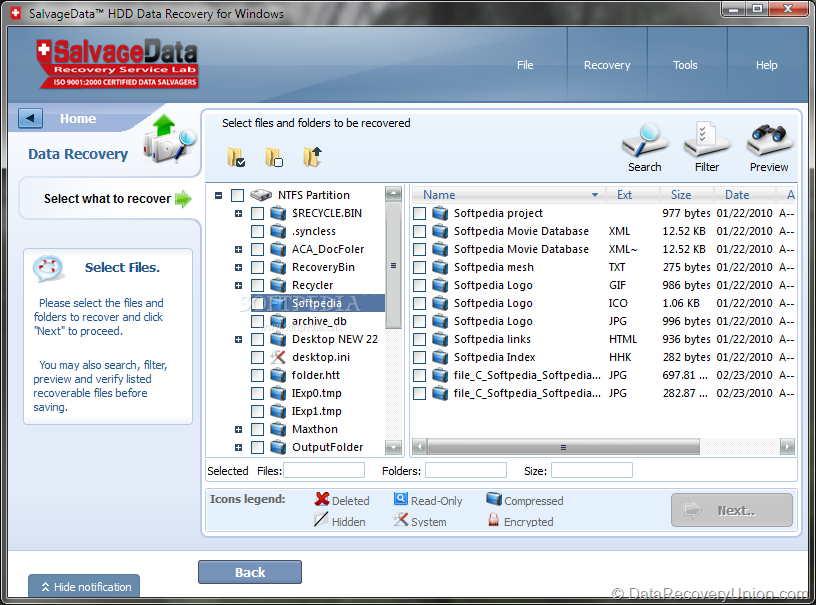
- Browse and Select Files – Once scanning is complete, browse through the list of recoverable files and select the ones you wish to restore.
- Recover Files – Click the “Recover” button and save your files to a different drive to avoid overwriting data.
Professional Lab Recovery Process
For cases where the software cannot help (physical damage, clicking drives, no detection), SalvageData offers professional lab services:
- Free Evaluation – Send your storage device to SalvageData’s centralized Ohio laboratory or visit a drop-off location for a free assessment.
- Quotation and Authorization – After evaluation, you receive a detailed quote outlining recovery costs and estimated turnaround time. You only authorize the work if you approve the quote.
- Data Recovery – Upon authorization, certified engineers use advanced tools (PC-3000, head swaps, firmware repairs, NAND extractions) to recover your data.
- Data Validation and Delivery – Recovered data is thoroughly validated and returned to you on a new storage device.
- No Data, No Charge – You pay only if SalvageData successfully recovers your data.
Editions and Pricing
SalvageData offers a free software solution and paid professional services:
| Product | Price | Description |
|---|---|---|
| Free Recovery Software | Free | Unlimited data recovery for logical issues (deletion, formatting, corruption). No cost, no limitations. |
| Professional Lab Evaluation | $200-$240 (non-refundable deposit) | Diagnostic fee that applies toward recovery costs if you proceed. Covers assessment of physical and complex logical failures. |
| Professional Recovery Service | Quote-based (typically $500-$2,500+) | Full lab recovery for physically damaged drives, RAID arrays, SSDs, and complex cases. No data, no charge guarantee. |
Certifications and Credentials
SalvageData maintains numerous industry certifications and accreditations:
- ISO 9001:2015 Certified – Quality management standard
- Class 100 ISO 5 Cleanroom – For contamination-free drive openings
- SSAE 16 SOC 3 Type II Certified – Security and availability controls
- BBB Accredited (A+ Rating) – Better Business Bureau
- Certified Apple Independent Repair Center
- HIPAA Compliant – Healthcare data protection
- PCI Security by SecurityMetrics – Payment card industry security
- Microsoft Trusted Partner
- GSA Approved Contractor – U.S. government services
Known Limitations and Controversies
While SalvageData has successfully recovered data for many customers, users should be aware of certain limitations and reported issues:
Software Limitations
- Physical Damage Cannot Be Fixed by Software: The free software cannot recover data from physically damaged drives (clicking, grinding, beeping, water/fire damage).
- Overwritten Data Cannot Be Recovered: If lost files have been overwritten by new data, recovery becomes impossible.
- TRIM on SSDs: Modern SSDs with TRIM technology may permanently erase deleted files almost immediately.
Professional Service Controversies
Independent reviews and consumer reports have documented several concerns about SalvageData’s professional services:
- Non-Refundable Evaluation Deposit: The $200-$240 diagnostic fee is required before evaluation and is not refundable, even if you decline the recovery quote.
- Quote Escalation Reports: Some customers report receiving higher quotes after their drives were shipped than initially indicated.
- Technically Questionable Advice: Some blog posts on the SalvageData website have been criticized by data recovery professionals for recommending destructive actions like running CHKDSK on failing drives, formatting drives to fix hardware errors, and using failed drives as RAID hot spares – practices that can destroy data or accelerate hardware failure.
- Billing Complaints: Some Better Business Bureau complaints document instances of customers being billed after declining service or receiving unexpected charges.
- Inconsistent Technical Claims: Some published articles contain technical inaccuracies about storage technology fundamentals, which has raised concerns about the company’s technical expertise.
Comparison at a Glance
| Feature | SalvageData | Typical Software-Only Competitors |
|---|---|---|
| Free Software Tier | Free (unlimited recovery) | Often 500MB-2GB limit |
| Physical Damage Recovery | Yes (lab service) | No |
| RAID Recovery | Yes (lab service) | Limited software-only options |
| Platforms Supported | Windows, Mac, Linux | Often Windows only |
| File Systems Supported | FAT, exFAT, NTFS, HFS, HFS+, Ext, XFS, ReiserFS, UFS | Often FAT, NTFS, exFAT only |
| Pricing Model | Free software + paid lab services | One-time license or subscription |
| No Data, No Charge | ✓ For lab services | N/A (software no guarantee) |
When to Use SalvageData’s Free Software
The free SalvageData software is appropriate for:
- Accidentally Deleted Files: Files recently deleted from Recycle Bin or using Shift+Delete.
- Formatted Drives: Quick-formatted drives where data hasn’t been overwritten.
- Corrupted File Systems: Drives that show as RAW or require formatting.
- Virus Damage: Files hidden or removed by malware attacks.
- DIY Recovery Before Seeking Professional Help: Trying free software first before paying for lab services.
When to Seek Professional Lab Services
Professional lab recovery is necessary for:
- Physical Damage Signs: Clicking, grinding, beeping, or no spin-up from your drive.
- Water or Fire Damage: Drives exposed to liquids or extreme heat.
- Broken Connectors or PCBs: Physical damage to USB ports, SATA connectors, or circuit boards.
- RAID System Failures: Multi-drive arrays where multiple disks have failed.
- SSD Controller Failures: SSDs not detected despite no signs of physical damage.
- Failed Software Attempts: When DIY software cannot detect or recover your files.
Final Verdict: Is SalvageData Right for You?
SalvageData offers a unique hybrid model in the data recovery space, providing completely free software for logical recoveries alongside professional lab services for physical damage cases. The free software’s unlimited recovery capability makes it one of the most generous free options available, and the “No Data, No Charge” policy for lab services provides financial protection for expensive professional recoveries.
This solution is ideal for:
- Budget-Conscious Users: The free software imposes no limits on recovery amount, making it excellent for personal use.
- Users with Logical Data Loss: Accidental deletion, formatting, or corruption cases are well-served by the free software.
- Cross-Platform Users: Support for Windows, Mac, and Linux makes it versatile for mixed environments.
- Physical Damage Cases: When your drive is clicking or not detected, professional lab services are necessary regardless of software.
Consider alternatives if:
- You prefer a pure software solution with no need for physical damage recovery.
- You are uncomfortable with non-refundable evaluation deposits for professional services.
- You have concerns about the technical accuracy of the company’s published advice.
- You need immediate service – lab recovery typically takes days to weeks.
Pro Tip: After data loss, stop using the affected drive immediately. Do not add new files, run disk repair tools like CHKDSK, or attempt to format the drive. For logical issues, try SalvageData’s free software first – it costs nothing and may recover all your data. If you hear clicking, grinding, or beeping sounds, power off the drive immediately and do not attempt software recovery – contact a professional lab service. Never ship a drive for evaluation without backing up any critical data that may still be accessible.
Official website: www.salvagedata.com
Disclaimer: Recovery success depends on multiple factors, including how long ago data was lost, whether the drive has been used since the loss, and the extent of corruption or physical damage. No data recovery software or service can guarantee 100% recovery in all situations. Professional service pricing and policies are subject to change. This article is for informational purposes only. All product names, logos, and brands are property of their respective owners.