Posted in

80GB Hard Disk Shows Only 75GB Useable Capacity

My 80GB HDD shows 75GB of spece while partitioning drive & installing XP SP3. Is it any to wrong with HDD or ??? waiting for your updates

That’s normal. Windows reports a drive as smaller than what it says on the sticker.
If you look in BIOS you’ll see the full capacity.

The reason is that HDD manufacturers use 10^3 (1,000) to define 1 kilobyte – Windows use 2^10 (1,024).

Posted in

New SSD Installed, Old Storage HDD Not Appearing

I recently upgraded to a Vertex 3 for windows and programs. Runs fine with Windows 7 64-bit except I cannot access my 1TB storage HDD. It DOES appear in the bios and device manager but not in My Computer. I’m wondering if it has anything to do with AHCI mode and TRIM? Any help is much appreciated.

It was a “drive letter” conflict.

Please make sure you bring it “online” in disk management. Go to left-hand side, where it does show up in disk management, as Disk 0 or Disk 1, and make sure it shows “online” as the status. If it shows offline, then right-click that left-most panel and choose “online.”

Sorry if that’s a ‘basic’ answer, but you didn’t give much info.

You did say it shows up in Disk Management – I hope that is correct, vs. “Device Manager.”
Also, please double-check for any existing “drive letter” conflicts from before you moved to the SSD device – i.e., if you forget to re-allocate your old external storage device to a NEW logical drive letter, like G: or H:, for example, then it could be that your new SSD or some other device might try to claim the logical drive letter that was previously being used by the old storage device that you are trying to view.

I have had that happen to me before, and it was puzzling to figure out.

Posted in

Changing HDD Letter on Boot Drive

MY HDD is currently labled as H. Long story but it is the only HDD currently in the system. I have run into a problem trying to install Nvidia GPU drivers. I can unload them to H but when they try to install they want to install to C and it does not give me a chance to change the install to H. Is there a way to change my drive letter or a work around for the driver install. OS is currently Vista Business 32 bit.

hdd-letter

Have you tried changing the drive letter via diskpart’s assign command?

Command: assign; Syntax: assign[{letter=d|mount=path}] [noerr]

Assigns a drive letter or mount point to the volume with focus. If no drive letter or mount point is specified, then the next available drive letter is assigned. If the assigned drive letter or mount point is already in use, an error is generated.

By using the assign command, you can change the drive letter associated with a removable drive.

You cannot assign drive letters to system volumes, boot volumes, or volumes that contain the paging file. You cannot assign a drive letter to an OEM partition or any GPT partition other than a basic data partition.

letter= d

Specifies the drive letter that you intend to assign to the volume.

mount= path

Specifies the mount point path that you intend to assign to the volume.

noerr

For scripting only. When an error is encountered, specifies that DiskPart continues to process commands as if the error did not occur. Without the noerr parameter, an error causes DiskPart to exit with an error code.

Posted in

Sata Data Transfer Rates VS RPM

I am looking to buy a new HDD, my SSD and 200GB HDD is not even close to enough storage for me, so im looking for either 1tb or 2tb, not too sure on the differences in performance, newegg has a deal right now for a 1tb caviar black 7200 rpm for $120, but its only sata 2 interface, however i could pick up a 2tb caviar green drive with sata 3 interface, but there only 5400 rpm for $130 im mainly going to be using the drive for storage, backup and games, since my OS is installed on my SSD. what would be the best bet here based on my needs?

Media servers don’t really stress the disk all that much, except maybe for caching. Any drive, probably even one from ten years ago, could handle the read rate for a media server. There’s an easy way to estimate how much bandwidth you’d need to serve a file.

Let’s say you have a 720p rip on your machine, at 4.5 GB. This movie is 90 minutes long, and you want to serve it from the media server. So, at minimum, your drive needs to be able to read 4.5 GB of data in the time it takes the movie to play. That’s only about 0.85 MB/s.
Because the initial buffering is going to hit the disk harder, you’ll have a higher utilization there, so let’s say we need to load the first minute of data (about 50 MB) as quickly as possible, say in under 5 seconds. That gives us a peak speed requirement of about 10 MB/s.
Even the worst 5400 RPM drive should be able to handle 10 MB/s, and 0.85 MB/s is a pathetically light load.

Which is better a 5400 RPM or a 7200 RPM  hard drive and why?

5400 is slower (doesn’t read and write as fast) but uses less power
7200 is faster, but uses more power.
Usually for a laptop 5400 is better.
So for Desktop 7200 is better.

Posted in

Samsung Hard Drive PCB Boards Buying Guide

As we know:  Samsung HDD can’t spin; board/chip be burnt; interface broken; etc. These problems are caused by PCB malfunction. Swap PCB of your Samsung hard drives can resolve the problems.

1. Samsung Hard Drives PCB Buying Guide:

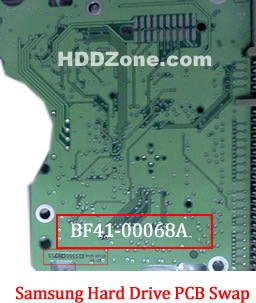
For Samsung HDD, just need the donor PCB has the same board number as yours.

samsung-hard-drive-pcb-swap

Samsung HDD PCB Swap

2. Before PCB Swap you should know:

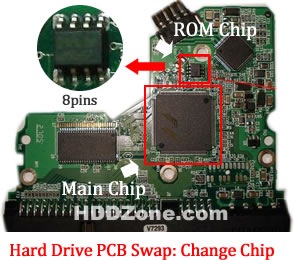
1. Most PCB’s BIOS chip(ROM Chip) store the unique information. We need change the BIOS form original PCB to replacement PCB, in order to make the replacement PCB compatible with the HDD.  The 8pins (4 pins on each sides) with 25P05VP、25P10VP、25F512、25F1024、25F1024AN、SST25VF512、SST25VF010, etc. are the BIOS Chip.

Tips: Most of the TV/Phone Repair Shop can offer these services for just $5-%20

hard-drive-pcb-swap-change-chip

Hard Drive PCB Swap: Change BIOS Chip, Main Chip

2. Some PCB don’t have separate BIOS. The BIOS be integrated on the Main Controller IC(The biggest chip on the board, also named Main Chip). We should exchange the Main Controller IC to let the HDD be recognized.

3. Where to buy Samsung PCB Circuit Boards?

SAMSUNG PCB BF41-00263A
SAMSUNG PCB BF41-00206B
SAMSUNG PCB BF41-00163A
SAMSUNG PCB BF41-00204B
SAMSUNG PCB BF41-00068A
SAMSUNG PCB BF41-00109A
SAMSUNG PCB BF41-00051A
SAMSUNG PCB BF41-00303A
SAMSUNG PCB BF41-00085A
SAMSUNG PCB BF41-00205B
SAMSUNG PCB BF41-00314A
SAMSUNG PCB BF41-00284A
SAMSUNG PCB SP0812C BF41-00069A
SAMSUNG PCB HD080HJ BF41-00095A
SAMSUNG PCB SV0411N BF41-00080A
SAMSUNG PCB BF41-00108A
SAMSUNG PCB SP1203N BF41-00112A
SAMSUNG PCB BF41-00133A
SAMSUNG PCB BF41-00086A
SAMSUNG PCB SP0822N BF41-00067A
SAMSUNG PCB BF41-00067B
SAMSUNG PCB BF41-00093A
SAMSUNG PCB BF41-00087A
SAMSUNG PCB BF41-00082A

Note: Samsung PCB sells on HDDZone.com are fully tested before shipment(worldwide free shipping now!); These are just PCB (Printed Circuit Boards), not the whole HDD (Hard Disk Drive).

More other pcb swap guide please refer to this post: hard Drive PCB Swap

Posted in

To RAID-0 or Not To RAID-0

I was thinking about going down the RAID road with my rig and was wondering what people think is best RAID-0 or RAID 0+1(This is what i was thinking) or is there a better option advice would be well recived befor i go spend £150 on 3 more new drives to make the 4 needed for 0+1 and could you tell me how RAID 0+1 and RAID 1+0/10 differ please.

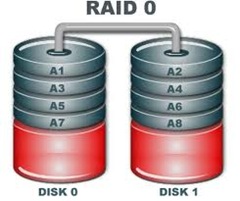
As was said up, it’s necessary to know the application before accurate advice can be given. RAID 0 will benefit you in database access, huge spreadsheets, video editing, CAD rendering and a few other specialized apps. For everybody else, all its going to do for you is getting you bragging rights for good benchmark scores.

RAID 0

If you need data redundancy, and in reality who doesn’t, RAID 1 is a viable solution. For most data control situations an NAS presents a very convenient alternative and it easily performs the same job for multiple boxes. All data can be kept on the NAS with images of a standard “programs drive” as well as individual boot drives for each machine on the network, making cold metal restores a cinch. Many proprietary RAID formats will even allow ya to do rebuilds and expansions on the fly via “Hot Swap”. It’s also rather “portable” and the joke in my SOHO is that in case of fire, I can grab the NAS handle and run …. and after the data is safe come back in for the any employees, wife, kids, etc.

If your concern is only “one box”, RAID 1 provides data redundancy…..but so do other alternatives …. i.e. tape / optical, cloud backups …… RAID 0 , again unless you have specialized applications, will serve no observable benefit other than nice benchmark scores.

Posted in

Seagate Board 100535537

I am looking for Segate board # 100535537 and the main chip is b5502c30. I see you have the board but the description says it contains a different chip b5502c20. Do you have the c30?

We also have this PCB with Main Controller IC of b5502c30. When you order, please note you need the b5502c30 one.

In fact, for this PCB swap, just need the donor PCB has the same board number 100535537 as yours. Then you need move your original PCB’s BIOS to the replacement PCB. The 8pins (4 pins on each sides) with 25P05VP、25P10VP、25F512、25F1024、25F1024AN、SST25VF512、SST25VF010, etc. are the BIOS.

Different Main Controller IC PCB can be used as same.

I received my board today, transfered the bios, but the drive is not powering up, is there anything else that needs to be transfered? The board I received does not have all components matching up, only 2 of the 3 main ic’s

In fact, for this PCB swap, just need the donor PCB has the same board number as yours. Also just need swap BIOS.

Please add more tin to solder the BIOS firmer and confirm you soldered the BIOS in right direction.

Thanks! I did have it in the right direction, just not enough solder.

Posted in

Possible Hard Drive Disappeared Failure

Hard-Drive-Disappeared-Failure Q: So I just completed a clean install of Windows 7 and I was installing some software that was originally on my primary HDD to my secondary HDD ,and the installation was taking so much longer than usual, The progress bar was almost full then it slowed down, then completely stopped, so I just gave it some more time. I opened my browser (Opera) to go on youtube and pass the time but my speed dial was gone! and the “Speed Dial File” is located on my secondary HDD, so I thought to myself that either the file is corrupt or something happened to the hard drive. I checked “Computer” and sure enough its gone! Its gone on both Computer and Disk Management, but for some reason is detected by BIOS. its the “Seagate Barracuda 7200 3 TB 7200RPM ST3000DM001” This happened after only after 1 month of use. I have over 1.5 TB of data on that hard drive, and I pretty much install everything on that drive, I have a back up but my data is constantly changing, I wanted a RAID setup but I really dont have the money for that.

Seagate Barracuda 7200 3 TB 7200RPM SATA 6 Gb/s NCQ 64MB Cache 3.5-Inch Internal Bare Drive ST3000DM001 ($146 on Amazon.com)

Is there anything at all I can do? Is my data 100% lost? An help would be appreciated.

Specs:
ASUS M4A88T-M Motherboard
Seagate Barracuda 7200 320 GB
Seagate Barracuda 7200 3 TB 7200RPM ST3000DM001
AMD Phenom II X4 965 Black Edition Deneb 3.4GHz
Rosewill Stallion Series RD500-2DB 500W ATX12V Power Supply
SAPPHIRE Radeon 6950 OC Edition
Kingston ValueRAM 4GB 1333MHz
Windows 7 Ultimate X64

so I just rebooted my PC and the hard drive is back! Works just as good but what if it happens again? is this a sign of failure?

A: I would suggest you to change the sata cable and the power one from the psu see if that fix the issue adding this check if there is a new bios for those big drive on asus

Posted in

Do It Yourself Laptop Repairs

As much as I like fast, shiny, new computer hardware, my actual needs are such that I get along fine with gear that is best described as “trailing edge technology.” I’ve been perfectly happy with a couple of older laptops for years now, but recently suffered hardware failures on both machines — one an easy fix, the other much, much harder to resolve. Thankfully, I was able to repair both machines, and, in this post, I’ll walk you through what was involved.

First up is the easy fix.

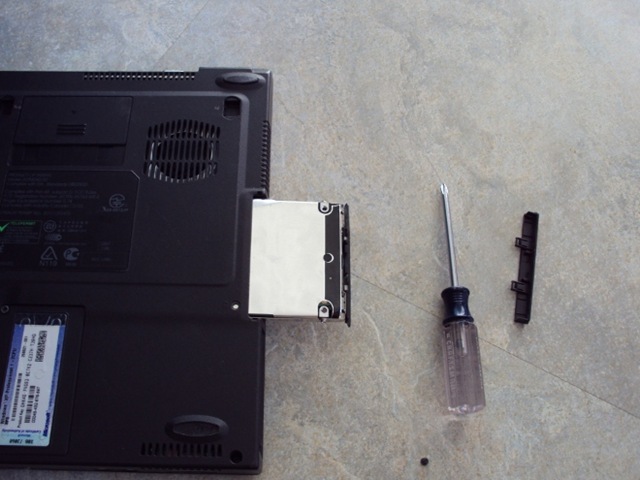
removingdeadharddrive Removing the dead hard drive

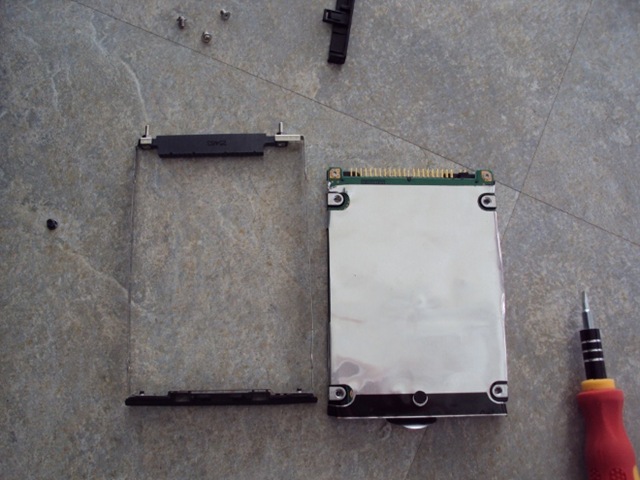
The hard drive on my aging Compaq N610C finally died on me. Fortunately, I have a few spare HDs kicking around, and replacing a drive in this laptop takes less than 5 minutes to accomplish. I simply had to remove a screw, slide out the old drive, swap the replacement and dead drive in the mounting bracket, then pop the “new” drive back in. Fast and easy!

Unfortunately, reinstalling the OS and needed software took far, far longer than the actual replacement of the drive (an hour later, as I type this, it’s still downloading updates).

deaddrivebracket The dead drive and the mounting bracket

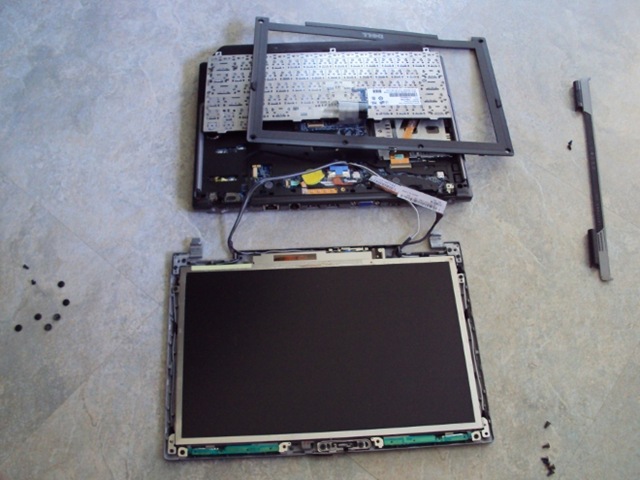
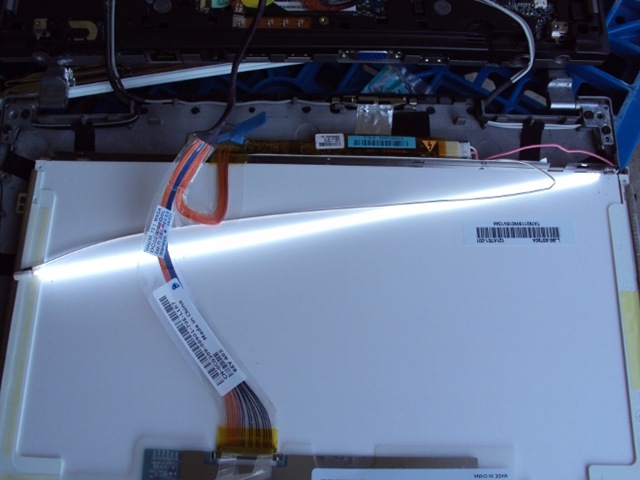
The second repair was the non-trivial one, since it involved a failed backlight on my Dell D430. Let’s take a look at how involved this operation turned out to be:

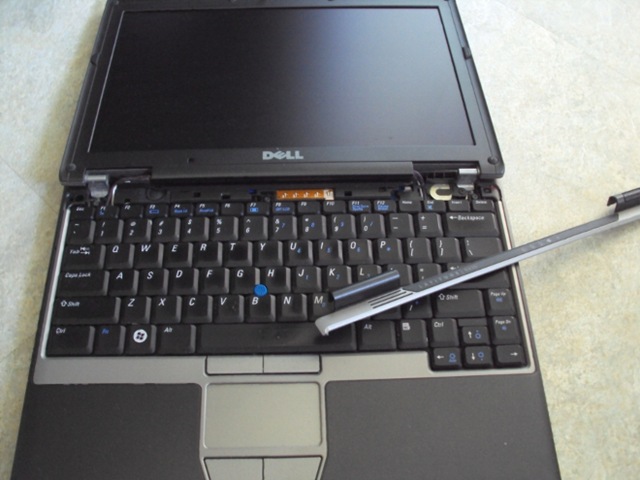
removebezelkeyboard Step one was to remove the bezel and keyboard

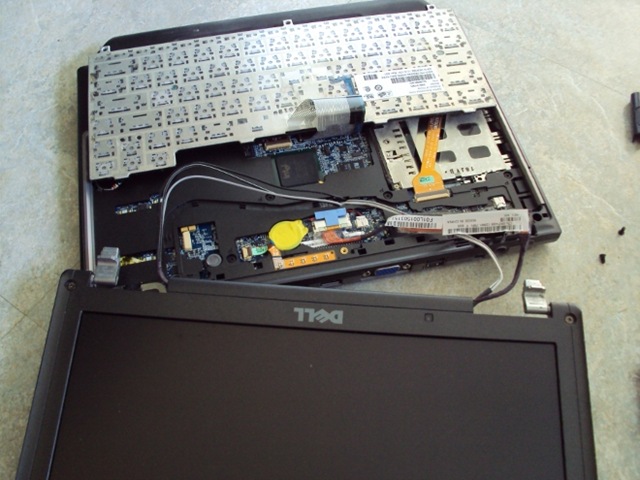
To get to the backlight inside the display panel, I didn’t have to completely disassemble the laptop, but it was darned close. The keyboard needed to be removed to give me adequate slack on the cables, then the hinges needed to be unscrewed to free the display panel.

d430disassembled Keyboard and cables freed up, hinges released

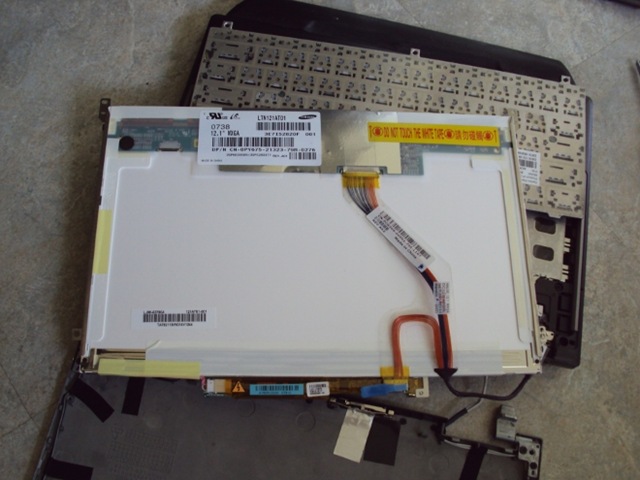
Next up, the display panel was disassembled:

bezellcdpanel Next, the bezel on the LCD panel was removed

lcdpanelrevealed The LCD panel revealed

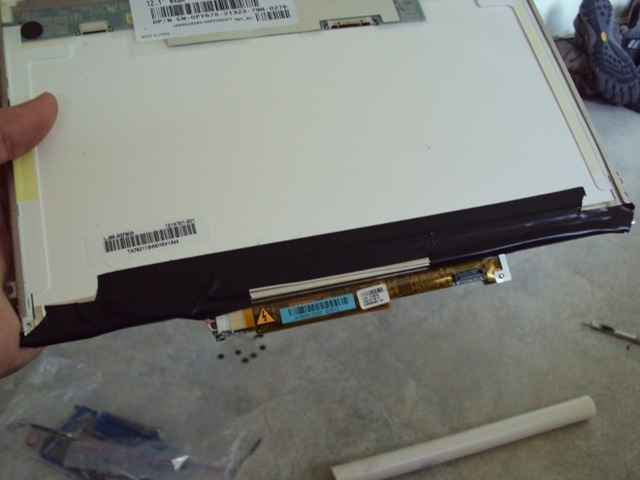
Now, the specific problem with the backlight was that it would flash for about a second when the laptop powered up, but then the light would go dark. Presumably this meant that either the light itself or the inverter board that powered the light was defective and in need of replacement. The lighting element on this laptop is actually a very tiny fluorescent tube, much like the large ones in common use in industrial settings. The inverter board takes care of converting the low-voltage DC current from the laptop batteries into high-voltage AC current to drive the lighting element.

Given the behavior of the display, I suspected the inverter board to be a problem. If the fluorescent tube were a problem, the display would likely have failed over time, appearing reddish and dim when the machine was first powered up. Since the display flashed brightly and briefly, I was pretty sure it was not the tube at fault.

In preparation for this repair job, I’d actually purchased a replacement inverter board. To confirm that this was the problem, I swapped out the cables between the old and new inverter and powered-up the D430. Surprisingly, the backlight displayed the exact same behavior with the new inverter! Given that, I sadly concluded that the problem lay with the lighting element itself, and I was faced with a much more complicated repair.

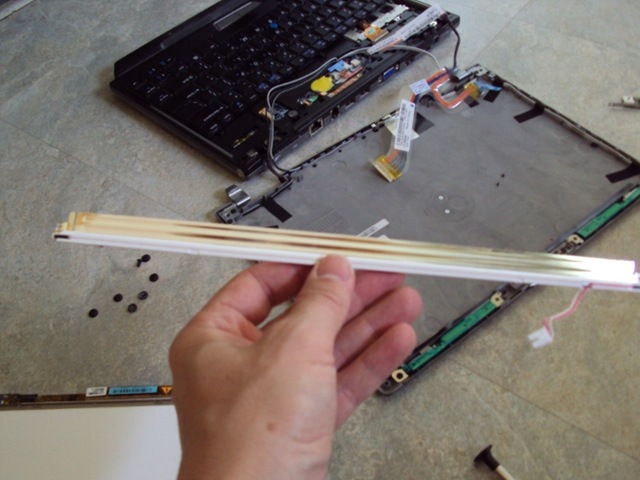
thebacklight The backlight itself

Removal of the lighting element from the panel was the trickiest part of all. The tube is about 2mm in diameter and is incredibly fragile. I was lucky to get it loose without breaking.

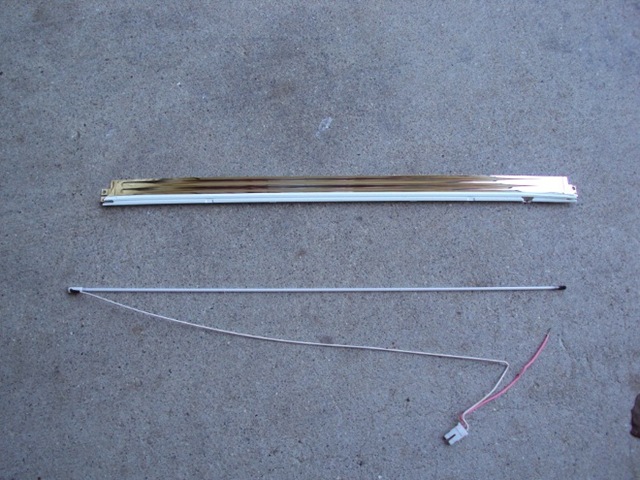
During disassembly of the tube, one of the power cables dropped free. These are soldered onto the ends of the tube — or should I say that they are supposed to be soldered onto the ends of the tube. Assuming that I had not pulled the cable loose, it seemed that I had found the problem. Apparently the solder join had failed over time, leaving just enough of a connection for the start-up current to flicker the backlight, but not enough for the light to function under normal operating current.

backlight The backlight completely stripped down

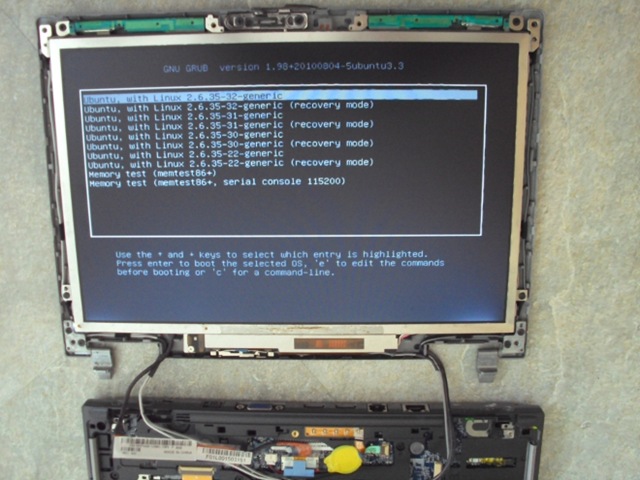
I carefully cleaned and resoldered the power cable, then reassembled the system enough to test:

lettherebelight Let there be light!

Thankfully, the backlight worked!

Having solved that problem, it was time to reassemble the thing.

tubeback Tube back in display panel, electrical tape applied

Before I completely closed up the laptop, I tested the display again. It really sucks to have to backtrack in this sort of repair.

displaypanel Another test of the display panel

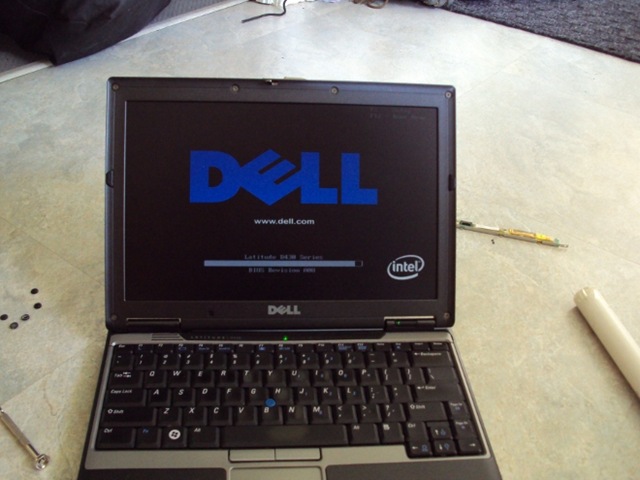
And finally….

success Success!

So, an hour or so later, I had the D430 back in action.

In retrospect, I’m not sure I would have undertaken the backlight repair if I’d known it was going to be this involved. I’m glad to have resurrected the laptop, rather than consigning it to some sketchy recycling program or paying someone else a hundred bucks or more to fix it; however, I honestly don’t enjoy this kind of thing as much as I used to.

So, no, I really will not fix your computer for you.

Posted in

ACE Data Group Announced Strategic Partnership With Dell

ACE Data Group, LLC, today announced that they have entered into a strategic partnership with Dell(www.dell.com). The partnership allows Dell support agents to recommend Data Recovery Services for any media recovery needs their customers may have. This expands the range of services Dell can offer their customers and greatly increases the level of customer satisfaction.

While most hardware manufacturers warranties only cover replacement of failed hardware and not data recovery, Dell is now well positioned to offer a comprehensive data recovery service for all of its commercial products. As the authority in the recovery industry, Data Recovery Services has provided reliable and cost effective solutions serving a global market for over 30 years. DRS facilities are cutting edge and staffed with the finest personnel from engineering to customer service. Data Recovery Services represents the best choice for Dell customers.

“Even the best equipment on the planet, such as Dell, can fail or become inaccessible due to natural disasters, power surges, failed hard drives and human error. This is where the DRS-Dell partnership comes into play to support Dell’s customers to the fullest.”says Data Recovery Services General Manager Don Wells.

Laptops and notebook computers take a lot of abuse, and with todays mobile technology, more and more critical data is being stored on these devices every day. Because they are often carried about and exposed to different environmental factors such as heat, water and dust, laptops and notebook computers are far more susceptible to data loss and became a subject for data recovery than their desktop counterparts.

“Our RAID data recovery technologies are unparalleled in the industry, and we have dedicated resources to support exactly what Dell customers would require. With the quality of Dell products and our experience and knowledge, this partnership has created a true, full circle of support.” continued Mr. Wells

More and more corporations, and even small businesses, move to the cloud and virtual environments with comprehensive replication and backup. But no RAID or cloud setup is immune to data loss, and even the best configured systems can still fail due to power surges or human error. Replication, for example, does not protect against accidental deletion of critical data because this operation will be replicated. Unfortunately, backup infrastructure and planning is not failure-proof itself and can be affected by data loss in the same ways current storage systems can. Also, many backups are not done “on the fly”, meaning a part of the important data may not have been backed-up in the time window when the data loss happened. This piece of information may be critical for business itself, not to mention possible compliance and regulatory issues of sensitive data.

ACE Data Group CEO, Charles Walker, regards the Dell partnership as a major goal for the future direction of the company, “This partnership is critical to our objective of being the number one data recovery and computer forensic service provider. We truly appreciate Dell’s confidence in our ability to not only solve complex recovery issues, but to also increase customer satisfaction and loyalty”.

About ACE Data Group LLC
ACE Data Group LLC, provider of computer forensic and data recovery services to customers all over the world. Since 1981, Data Recovery Services has worked with every type of media including HDD, SSD, RAID, SAN, NAS, flash drives, and tapes. For additional information visit their website at: http://www.datarecovery.net or call at 877-304-7189.

Related Post: Top 10 Data Recovery Companies