Articles

Secure Data Recovery

secure-data-recoverySecure Hard Drive Data Recovery / Raid / Mac / Tape / Laptop / SQL / Data Recovery Services Since 1997

Located in the United States, Secure Data Recovery is right for you: Raid Recovery, Hard Drive Data Recovery, Mac Data Recovery, SQL Data Recovery and Tape Recovery Services.

Since 1997, Secure Data Recovery Services offers data recovery service that specializes in recovering data from hard disk, RAID drives, tapes, laptops or notebooks and personal computers.

Secure Data Recovery Services:

  • Hard Drive Recovery
    Recover data any internal or external hard drive, regardless of brand or interface.
  • Apple Mac Data Recovery
    Recover data from any Apple computer or device, including all laptops, systems, and devices. We also offer data recovery services for iPods and iPhones.
  • Laptop Data Recovery
    Recover data from a laptop hard drive. We can perform data recovery services regardless of your operating system (Windows, Mac, Linux, etc), the age of the laptop, or the brand.
  • USB & Digital Media Recovery
    Recover data from a damaged, corrupted, or otherwise failed USB drive, jump drive, or other USB powered device.
  • Server Data Recovery
    Recover data from file servers, web servers, application servers, storage servers, among others.
  • RAID Data Recovery
    Recover data from a RAID system with any controller, level, or architecture. We service all types, makes, and models.
  • Database Data Recovery
    Repair or recover data from a broken or corrupted database, including SQL, Oracle, and many others.
  • Tape Data Recovery
    Restore data from tape storage devices such as backup and archival tape drives, cassettes, and many other tape media.
  • File / E-Mail Data Recovery
    Restore accidentally deleted or missing files and email archives, as well as files and emails that have become inaccessible or corrupt.
  • Computer Repair
    We offer technical support and repair services to prevent future recurrence of data loss, as well as restoring functionality to computers that fail to turn on or operate correctly.

Secure Data Recovery is a network of data recovery service locations located throughout the United States.


us-data-recovery

If you or your company is in need of Secure Data Recovery services, then look no further. Contact Secure Data Recovery today for a free estimate!

Call: 1-800-388-1266 (24 Hour Service Expert Hotline)
Website: http://www.securedatarecovery.com

Secure Data Recovery Read More »

Hard Drive ROM Chip Swap/Replacement (Video)

Hard Drive ROM Chip Swap/Replacement (Video)Note: If your data is so important, please make sure to look for a professional data recovery firm for recovery.

About Hard Drive PCB

The main purpose of the hard drive PCB is to deliver power to the hard drive, maintain velocity and rotation of the spindle, and manage all inside operations through its firmware. Basically, hdd PCB is the brains of the hard drive that all machinery are closely dependent upon.

Hard drive PCB boards Swap/Replacement, why?

Hard drives that do not turn up after the power has been supplied can be diagnosed as PCB crash. As data recovery service is very costly, sometimes we would prefer to change hdd pcb ourselves.

How to swap hard drive PCB?

Remove the PCB from both hard drives with star screwdriver. Change the damaged PCB with other one. If your HDD still can’t spin or can’t be recognized, you should also change the BIOS chip on it. If there is no similar 8 pins BIOS chip on the PCB, it means the BIOS chip is included to the Main Chip IC,  need some tools to read it from the original pcb and write to the replacement board, or swap the main chip. It is more complex to replace the Main Chip IC than exchange the BIOS chip. You can find a electric shop help you.

You need to change the ROM chip from original board to the replacement board, in order to make the replacement board compatible with your HDD when you swap burned PCB if your PCB have ROM chip.

Where to buy hard drive PCB online?

Online hdd pcb shop such as HDDZone.com provides all kinds of PCB: Seagate, Western Digital, Maxtor, Samsung, IBM, Hitachi and Fujitsu. They can always help you to find the marching PCB for your hard drive.

Hard Drive ROM Chip Swap/Replacement (Video) Read More »

Data Backup Glossary (Letter S)

SaaS: Software as a Service
Software as a Service (SaaS) is a software delivery method that provides access to software and its functions remotely as a web-based service. Software as a Service allows organizations to access business functionality at a cost typically less than paying for licensed applications since SaaS pricing is based on a monthly fee. Also, because the software is hosted remotely, users don’t need to invest in additional hardware. Software as a Service removes the need for organizations to handle the installation, setup, and often daily upkeep and maintenance. Software as a Service may also be referred to as simply hosted applications.

SaaS: Storage as a Service
Storage as a Service (SaaS) is a storage model in which a business or organization (the client) rents or leases storage space from a third-party provider. Data is transferred from the client to the service provider via the Internet and the client then accesses the stored data using software provided by the storage provider. The software is used to perform common tasks related to storage, such as data backups and data transfers. Storage as a Service is popular with SMBs because there usually are no start-up costs (for example, servers, hard disks, IT staff, and so on) involved. Businesses pay for the service based only on the amount of storage space used. Storage as a Service may also be called hosted storage.

SAN
A Storage Area Network (SAN) is a high-speed subnetwork of shared storage devices. A storage device is a machine that contains nothing but a disk or disks for storing data. A SAN’s architecture works in a way that makes all storage devices available to all servers on a LAN or WAN. As more storage devices are added to a SAN, they too will be accessible from any server in the larger network. In this case, the server merely acts as a pathway between the end user and the stored data. Because stored data does not reside directly on any of a network’s servers, server power is utilized for business applications, and network capacity is released to the end user.

SAN fabric
The hardware that connects workstations and servers to storage devices in a SAN. The SAN fabric enables any-server-to-any-storage device connectivity through the use of Fibre Channel switching technology.

SAN services
A technology used by businesses to obtain greater flexibility in their data storage. A Storage Area Network (SAN) provides raw storage devices across a network, and is typically sold as a service to customers who also purchase other services. SAN services may also be administered over an existing, local fiber network, and administered through a service subscription plan.

Scratch disk
Space dedicated on a hard drive for temporary storage of data. Scratch disks are commonly used in graphic design programs, such as Adobe Photoshop. Scratch disk space is only for temporary storage and cannot be used for permanently backing up files. Scratch disks can be set to erase all data at regular intervals so that the disk space is left free for future use. The management of scratch disk space is typically dynamic, occurring when needed.

Seed
The first full backup of company data.

Secret storage technology
A technology for encrypting and hiding data on a hard drive, flash drive, or when transferring files. Secret storage is a portion of encrypted data, hidden in some file or FAT/FAT32/NTFS partitions. To the end-user, it looks like a folder in which he may add files and folders and protect it with a password.

Selective backup
A type of backup where only the user-specified files and directories are backed up. A selective backup is commonly used for backing up files which change frequently or in situations where the space available to store backups is limited. Also called a partial backup.

Serial storage architecture
Serial storage architecture (SSA) is an open industry-standard interface that provides a high-performance, serial interconnect technology used to connect disk devices and host adapters. SSA serializes the SCSI data set and uses loop architecture that requires only two wires: transmit and receive. The SSA interface also supports full-duplex, so it can transmit and receive data simultaneously at full speed.

Server cage area
The area where a company stores its data center equipment. This area is protected from personnel access.

Service-level agreement
A service-level agreement (SLA) is an agreement between a service provider, such as an IT department, an Internet services provider, or an intelligent device acting as a server, and a service consumer. A service level agreement defines parameters for measuring the service, and states quantitative values for those parameters.

Slack space
The unused space in a disk cluster. The DOS and Windows file systems use fixed-size clusters. Even if the actual data being stored requires less storage than the cluster size, an entire cluster is reserved for the file. The unused space is called the slack space. DOS and older Windows systems use a 16-bit file allocation table (FAT), which results in very large cluster sizes for large partitions. For example, if the partition size is 2 GB, each cluster will be 32 K. Even if a file requires only 4 K, the entire 32 K will be allocated, resulting in 28 K of slack space. Windows 95 OSR 2 and Windows 98 resolve this problem by using a 32-bit FAT (FAT32) that supports cluster sizes smaller than 1K.

Small and medium enterprise (SME)
Companies whose headcount or turnover fall below certain limits. In the United states, a small business is often defined as having fewer than 100 employees. A medium-size business is often defined as having fewer than 500 employees.

Small to mid-size business (SMB)
Companies whose headcount or turnover fall below certain limits. In the United states, a small business is often defined as having fewer than 100 employees. A mid-size business is often defined as having fewer than 500 employees.

Snapshot backup
A virtual copy of a device or file system. Snapshots imitate the way a file or device looked at the precise time the snapshot was taken. It is not a copy of the data, only a picture in time of how the data was organized. Snapshots can be taken according to a scheduled time and provide a consistent view of a file system or device for a backup and recovery program to work from.

Solid state disk
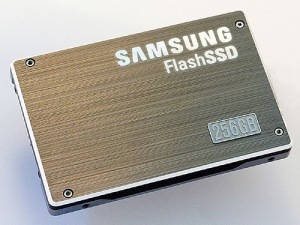
A solid state disk (SSD) is a high-performance plug-and-play storage device that contains no moving parts. SSD components include either DRAM or EEPROM memory boards, a memory bus board, a CPU, and a battery card. Because SSDs contain their own CPUs to manage data storage, they are a lot faster (18MBps for SCSI-II and 35 MBps for UltraWide SCSI interfaces) than conventional rotating hard disks; therefore, they produce highest possible I/O rates.

Spin valve
Another name for a giant magnetoresistive(GMR) head. The term was coined by IBM.

Storage

  • The capacity of a device to hold and retain data.
  • Short for mass storage.

Storage bay bridge
Storage bridge bay (SBB) is a specification that defines mechanical, electrical, and low-level enclosure management requirements for an enclosure controller slot that will support a variety of storage controllers from a variety of independent hardware vendors and system vendors. Any storage controller design based on the SBB specification will be able to fit, connect, and operate within any storage enclosure controller slot design based on the same specification.

Storage Consolidation
The concept of centralized storage where resources are shared among multiple applications and users. Traditionally, organizations have deployed servers with direct-attached storage (DAS) as file servers. However, many organizations are facilitating server consolidation by deploying network-attached storage (NAS). NAS provides a single purpose device that can provide CIFS and NF- connected storage that can scale from gigabyte to petabytes.

Storage device
A device capable of storing data. The term usually refers to mass storage devices, such as disk and tape drives.

Storage footprint
The amount of energy, physical space, and other equipment necessary to run a data storage management system.

Storage management
The tools, processes, and policies used to manage storage networks and storage services such as virtualization, replication, mirroring, security, compression, traffic analysis, and other services. The phrase also encompasses other storage technologies, such as process automation, storage management and real-time infrastructure products, and storage provisioning. In some cases, the phrase storage management may be used in direct reference to storage resource management (SRM).

Storage management initiative specification
Storage management initiative specification (SMI-S) is an interface standard that enables interoperability in both hardware and software between storage products from different vendors used in a SAN environment. The interface provides common protocols and data models that storage product vendors can use to ensure end user manageability of the SAN environment.

Based on the CIM and Web-Based Enterprise Management (WBEM) standards, SMI-S adds common interoperable and extensible management transport, automated discovery, and resource locking functions. SMI-S was developed by the Storage Networking Industry Association (SNIA) in 2002.

Storage networking
A high-speed network of shared storage devices. The storage network is used by IT departments to connect different types of storage devices with data servers for a larger network of users. As more storage devices are added to the storage network, they too will be accessible from any server in the larger network.  Storage networking is a phrase most commonly associated with enterprises and data centers.

Storage optimization
The implementation and management of tiered storage solutions to obtain a lower cost per capacity across a corporation or enterprise. Storage optimization is an information lifecycle management (ILM) strategy.

Storage over IP
Storage over IP (SoIP) technology refers to the merging of Fibre Channel technologies with IP-based technology to allow for accessing storage devices over TCP/IP networks. SoIP is the framework for storage area networking (SAN) using Internet Protocol (IP) networks to directly connect servers and storage. SoIP products are designed to support transparent interoperability of storage devices based on Fibre Channel, SCSI, and a new class of Gigabit Ethernet storage devices using iSCSI and iFCP. Existing Fibre Channel or SCSI devices, such as servers with host bus adapters (HBAs) or storage subsystems, can be included in an SoIP storage network without modification.

Storage resource management
Storage resource management (SRM) refers to software that manages storage from a capacity, utilization, policy, and event management perspective. SRM includes bill-back, monitoring, reporting, and analytic capabilities that allow you to drill down for performance and availability.
Key elements of SRM include asset management, charge back, capacity management, configuration management, data and media migration, event management, performance and availability management, policy management, quota management, and media management.

Storage service provider
A storage service provider (SSP) is a company that provides computer storage space and related management services. SSPs also offer periodic backup, archiving, and the ability to consolidate data from multiple company locations so that data can be effectively shared.

Storage virtualization
Storage virtualization is the amalgamation of multiple network storage devices into what appears to be a single storage unit. Storage virtualization is often used in a SAN (storage area network), a high-speed subnetwork of shared storage devices, and makes tasks such as archiving, backup, and recovery easier and faster. Storage virtualization is usually implemented via software applications.

Store
To copy data from a CPU to memory, or from memory to a mass storage device.

Stripe
The process of distributing data across several storage devices to improve performance.

Superparamagnetism
In magnetic disk drive storage technology, the fluctuation of magnetization due to thermal agitation. When the areal density—the number of bits that can be stored on a square inch of disk media—of a disk medium reaches 150 gigabits per square inch, the magnetic energy holding the bits in place on the medium becomes equal to the ambient thermal energy within the disk drive itself. When this happens, the bits are no longer held in a reliable state and can “flip,” scrambling the data that was previously recorded. Because of superparamagnetism, hard drive technologies are expected to stop growing once they reach a density of 150 gigabits per square inch.

Synchronization
In Fibre Channel, a receiver’s identification of a transmission word boundary.

Synthetic backup
A synthetic backup is identical to a regular full backup in terms of data, but it is created when data is collected from a previous, older full backup and assembled with subsequent incremental backups. The incremental backup will consist only of changed information. A synthetic backup is used when time or system requirements do not allow for a full complete backup. The end result of combining a recent full backup archive with incremental backup data is two kinds of files which are merged by a backup application to create the synthetic backup. Benefits to using a synthetic backup include a smaller amount of time needed to perform a backup, and lower system restore times and costs. This backup procedure is called “synthetic” because it is not a backup created from original data.
Data Backup Glossary (Letter S) Read More »

Is SSD The Future Of Storage?

Guest post by: Peter Lee @ Computer How To Guide

Is SSD The Future Of Storage?Solid State Drives (SSD) are storage devices like that of Hard Disc Drives or HDDs. But, the technology used is considerably different. The SSDs do not, like in the case of HDDs and other magnetic storage media, use movable heads and instead use non volatile micro memory chips for storage.

Performance Advantage
Solid State Drives are faster when compared to the traditional Hard Disc Drives. The performance advantage can be attributed to various factors which affect the speed of accessing the information from the disc.
To understand the intricacies involved in the process of computing data, let us first try and understand the way a computer processes data, in brief.

How Data Is Computed
One needs to understand that all the data that is processed by the computer is only done in its RAM i.e. Random Access Memory, which is a volatile storage device. When a request is sent to the computer, it needs to fetch the operands (the variables that are required in the computation) from the non volatile storage and then send it to the RAM, where the request is processed.

The performance of the auxiliary storage device, in this case HDD or SSD, depends on how fast it can retrieve the information and send it to the primary storage i.e. the RAM.

Factors Affecting Performance
There are two factors that affect this time. One is the access time and the other is the latency.

Latency
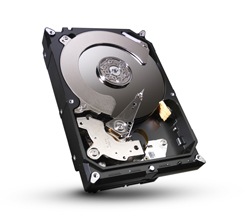
Latency, in case of HDDs, is the amount of time that is required by the read/write head to position itself to the sector where the information is available.

Access Time
Access time, which includes latency, is the total amount of time that is required to access the information.

SSD vs HDD
Comparing SSD with HDD, we can say that the access time and latency of SSDs are much lower than those of HDDs, thus giving it a performance advantage. This could be attributed to the lack of a moving head in the SSDs.

Durability
HDDs have a read/write head which moves at 5000 to 7000 rpm (revolutions per minute). The read/write head is the most susceptible part of the HDDs, leading to head crash, which may prove fatal to your data. Though there are other ways in which a HDD may crash, a head crash is the most common and it results in the loss of your data. Data recovery techniques are extremely expensive and it advisable to avoid losing data.

Cost Comparison
SSDs were a lot expensive when they first rolled in. There has been a considerable decrease in the prices of the SSDs. Though there has been a decrease in the cost of these devices, SSDs are still costly.

Although the prices of SSDs and HDDs are comparable, the effective price of the device per one gigabyte of storage in case of SSDs is much higher than the price per GB in case of HDDs i.e. you could get a 500 GB hard disc for $100 whereas you’d only 60GB SSD for $100.

Is SSD The Future Of Storage?
Both, yes and no. While SSDs are fast compared to HDDs, they are expensive. SSDs have almost reached their threshold price i.e. cost reduction in case of SSDs is hard, if not impossible.
HDDs, on the other hand, have been evolving and their speeds have considerably increased.
HDDs can be used in arrays called the redundant array of inexpensive discs (RAID), by connecting them in a form of arrays. This technique, though, may seem somewhat unachievable by the masses, is quite common in the computing field and in fact, is easy. It offers higher speeds, more reliability as there are multiple devices in which your data is stored.

Recommendation
As the SSDs are expensive, it would be better if they are used wisely. Also, there is a lot of demand for storage today. So, it would be advisable to have an SSD as well as a HDD. The SSD can be for the OS and other installation files, and the hard disc can be used for storing content like audio and video files. By having this combination of storage drives, you can even format your drives separately, not worrying about your data.

This way, you would save money while having faster accessible speeds.

Is SSD The Future Of Storage? Read More »

Seagate Streamlines Barracuda Desktop Drives Family

Seagate Streamlines Barracuda Desktop Drives FamilyNovember 1, 2011 – Seagate is streamlining its flagship family of desktop drives under a single product that hones in on performance and big capacities to help satisfy the explosive growth in content creation and consumption by businesses and consumers worldwide. The new Barracuda® family makes it easier for consumers to find the product they need and reduces costs for Seagate’s original equipment manufacturer and distribution channel customers by reducing the number of product qualifications and amount of inventory they need to manage.

Seagate 3–terabyte Barracuda hard drive featuring 1 terabyte of storage capacity per disk platter, the highest storage density available.

“A simpler desktop drive product family is exactly what Seagate customers are asking for, the new Barracuda® family reflects the reality that end-users want a full range of hard drive capacities and as much performance as we can give them to help manage and store massive amounts of digital content. In addition, our OEM and channel customers want to reduce overhead costs by having fewer product lines to qualify and manage in their inventory.” – said Scott Horn, vice president of Marketing at Seagate.

Desktop PC performance is growing in importance as computer users consume and otherwise use more and more multimedia – a blend of text, audio, images, animation and video – and other rich-content files in areas as diverse as business, advertising, art, education, entertainment, engineering, medicine, mathematics and science. Higher hard drive performance often means a faster computer and quicker access to this content.

The new Barracuda hard drive – to be available first at online retailers Amazon, CDW, Newegg and TigerDirect – is designed for desktop, tower or all-in-one personal computers; workstations, home and small business servers; network-attached storage devices; direct-attached storage expansion; and home and small-business RAID solutions. Capacities of the family range from 250GB to a massive 3TB.

The simplification of the Barracuda family comes as Seagate begins volume shipments of its 1TB-per-disk Barracuda® hard drive. Seagate plans to end production of its Barracuda® Green drive in February 2012. Seagate analysis shows that its new Barracuda drives have a nearly identical power-consumption profile as energy-efficient desktop drives but deliver much higher performance. Barracuda® XT, Seagate’s fastest desktop hard drive, will be folded into the new Barracuda family and re-emerge, in name, as the company’s desktop solid state hybrid drive.

Technical Specifications
The new Barracuda hard drive features a SATA 6GB/second interface, 7200RPM spin speed and up to 64MB cache to deliver high performance across all capacities. Seagate’s SmartAlign™ technology, a feature of Seagate’s Barracuda Green drives, will continue to ship with the flagship Barracuda drives to help the hard drive industry segue from the current 512-byte sector standard for hard drives to the new 4096-byte sector size. The new 4K standard enables the use of stronger error correction algorithms to maintain data integrity at higher storage densities and capacities.

Environmental Commitment
Seagate is committed to building hard drives to the highest quality and environmental standards. More than 70 percent of materials used in its storage products are recyclable, and all of its products are halogen-free and comply with the rigorous REACH standard*. These and other initiatives at Seagate are what truly make a difference to the environment.

Seagate Streamlines Barracuda Desktop Drives Family Read More »

Data Backup Glossary (Letter Q)

Data Backup Glossary (Letter Q)RAID
See redundant array of independent (or inexpensive) disks.

RAIN
See redundant array of independent nodes.

Raised floor
A type of flooring supported by a metal grid and typically used in data centers. Raised flooring can be removed in pieces to allow for cabling, wiring, and cooling systems to run under the floor space. When the floor is raised, it usually can accommodate space for walking or crawling in.

Recovery
The recreation of a past operational state of an entire application or computing environment. Recovery is required after an application or computing environment has been destroyed or otherwise rendered unusable. It may include restoration of application data, if that data has been destroyed as well.

Recovery point objective
Recovery point objective (RPO) is the maximum acceptable time period prior to a failure or disaster during which changes to data may be lost as a consequence of recovery. Data changes preceding the failure or disaster by at least this time period are preserved by recovery. Zero is a valid value and is equivalent to a “zero data loss” requirement.

Recovery time objective
Recovery time objective (RTO) is the period of time after an outage in which the systems and data must be restored to the predetermined recovery point.

Red Hat Global File System
Red Hat Global File System (GFS) is an open source cluster file system and volume manager that executes on Red Hat Enterprise Linux servers attached to a storage area network (SAN). It enables a cluster of Linux servers to share data in a common pool of storage to provide a consistent file system image across server nodes. Red Hat Global File System works on all major server and storage platforms supported by Red Hat.

Redundancy
The inclusion of extra components of a given type in a system (beyond those required by the system to carry out its function) for the purpose of enabling continued operation in the event of a component failure.

Redundant array of independent (or inexpensive) disks
Redundant array of independent (or inexpensive) disks (RAID) is a category of disk drives that employ two or more drives in combination for fault tolerance and performance. RAID disk drives are used frequently on servers but aren’t generally necessary for personal computers. RAID allows you to store the same data redundantly (in multiple places) in a balanced way to improve overall performance.

Redundant array of independent nodes
Redundant array of independent nodes (RAIN) is a data storage and protection system architecture. It uses an open architecture that combines standard computing and networking hardware with management software to create a system that is more distributed and scalable. RAIN is based on the idea of linking RAID nodes together into a larger storage mechanism. In a RAIN setup, there are multiple servers, each with disk drive and RAID functionality, all working together as a RAIN, or a parity or mirrored implementation. RAIN may also be called storage grid.

Remote offices/branch offices (ROBOs)
Refers to corporate offices externally connected to a WAN or a LAN. These offices will often have one or more servers to provide branch users with file, print, and the other services required to maintain the daily routine.

Replicate
(n.)  A copy of a collection of data.
(v.) The action of making a replicate as defined above.

Restore
To bring a desired data set back from the backup media.

Rotational latency
Also called rotational delay, the amount of time it takes for the desired sector of a disk (for example, the sector from which data is to be read or written) to rotate under the read-write heads of the disk drive. The average rotational latency for a disk is half the amount of time it takes for the disk to make one revolution. The term typically is applied to rotating storage devices, such as hard disk drives and floppy drives (and even older magnetic drum systems), but not to tape drives.

RPO
See recovery point objective.

RTO
See recovery time objective.

Run length limited
Run length limited (RLL) is an encoding scheme used to store data on newer PC hard disks. RLL produces fast data access times and increases a disk’s storage capacity over the older encoding scheme called MFM (modified frequency modulation).

Data Backup Glossary (Letter Q) Read More »

Lindsey Harper Mac

photorecHere’s a scenario many computer users are familiar with: You’re sitting at your computer late at night (or early in the morning) trying to finish up a term paper you have submit for your Online MBA when suddenly your computer crashes. You restart your computer only to see what every college student dreads—your paper has gone missing. This is an all too common occurrence. Sometimes it’s an entire music library instead of a class paper, but the result is still the same: your data is gone. Luckily there are numerous tools to help you recover your files. Many of them cost an exorbitant amount of money, but there’s a simple, open source tool that will make short work of any missing data: PhotoRec.

Features

PhotoRec can operate under all contemporary operating systems, including all versions of Windows, Linux and BSD, Solaris and Mac OS X. Additionally, the source code for the program can be compiled on nearly all Unix systems, making it a universal file recovery tool. It ignores the file system and can recover lost files from FAT, NTFS, EXT2/EXT3 and HFS+ filesystems, even if they’re damaged. It can also recover from virtually any media, including hard disks, CD-ROMS, memory cards, portable media players and some cameras. The total list of file formats that PhotoRec can recognize and recover encompasses over 300 file extensions.

How to Use PhotoRec

When files are lost, users need to be aware that they should not save any data to the disk drive until the files are recovered. Recovering files with PhotoRec is an incredibly simple process, unless the files have been overwritten. Also, because PhotoRec recovers files as it’s scanning the disk drive, there should be a secondary drive attached to store the recovered data. There are different steps that need to be taken if data is to be recovered from an iPhone or CD/DVD, but the following steps will work for virtually all other media in a Windows environment.

1) Download and install PhotoRec

The program should be downloaded onto the secondary drive that will be used to store the recovered data. This can be a flash drive, external backup drive or a separate internal drive with enough space to store the missing files. If there is an unaffected partition on the same drive, that partition can be used instead of a secondary drive.

2) Run the PhotoRec program

In Windows Vista or 7, PhotoRec must be run by an account with Administrator access. Right-click the executable and select “Run as administrator”.

3) Select the disk and partition to recover from

Drives will be labeled according to the Linux labeling scheme (/dev/sda, /dev/sdb, etc.) and will display their total space, free space, make and model. Select the proper drive, and then select the partition table type. If using Windows or Linux, the partition table type will be Intel. After this, select the partition the missing files are located on. The PhotoRec user will need to know how the system is partitioned in order to recognize which partition to select.

4) Select options (optional)

At the bottom of the partition selection screen, the user can choose from options that will affect the recovery process. Most users should leave the settings alone and should only change them if they are fully aware of what they do.

5) Select file types to recover (optional)

Also on the bottom of the partition selection screen of the File Opt menu, which allows users to select which file types PhotoRec will attempt to recover. If only music files are missing, the user can disable all file types and only select audio file types.

6) Select Partition type

After all settings have been selected, users will be required to select the partition’s filesystem type. If the filesystem is ext2/ext3/ext4 (Linux), the user should select the ext2/ext3 option. If the filesystem is of another type, the user should select Other. After this, the user must tell PhotoRec whether to scan the entire partition or only the sections of the partition that are currently marked as empty. If no files have been written since the data was lost, scanning the free space should be enough.

7) Select the disk and partition to store recovered data

The user will be asked to select a drive (if there is more than one available), partition and directory in which to store the recovered information. By selecting a separate drive or partition, the recovered data is guaranteed not to overwrite any further missing data.

8) Wait

Depending on the size of the disk and the options selected, the recovery process can take as little as a few minutes or as long as several hours. When the recovery is finished, a summary will be displayed showing the total number of recovered files and their files types. Recovered files will be stored on the destination drive under recup_dir.1, recupt_dir.2, etc. sub-directories. The file names will not be recovered, but the full files should be available.

Lindsey Harper Mac Read More »

100535537 Seagate Barracuda 7200.12 PCB

Swap Seagate Barracuda 7200.12 PCB board 100535537 to recover your data from damaged HDD due to PCB failure. 100535537 is the board number on this PCB. If your HDD’s PCB has problems, the drive usually cannot boot up or there may be an inaccurate display in the BIOS of the hard drive’s information. Also power may not get to the hard drive and as a result it will not spin up.

There are two types of this Seagate 100535537 PCB:

1. Seagate 100535537 Barracuda 7200.12 PCB Circuit Board Details:

Board Number: 100535537
Main Controller IC: V60131
HDD Motor Combo IC: SH6968B

2. Seagate 100535537 B5502C20 Barracuda 7200.12 PCB Circuit Board Details:

Board Number: 100535537
Main Controller IC: B5502C20
HDD Motor Combo IC: SH6968B2

Note: Hard drive failures are NOT always caused by circuit board failure.

Possibilities of Seagate circuit board failures:

  1. Hard disk doesn’t spin up. Either no sound or a short, quiet tickling sound can be heard.
  2. Hard disk does not spin up. Buzzing sound can be heard.
  3. Hard drive spins up fine, but is not recognized in device manager or in BIOS. Hard drive recognized with default manufacturer value (like 0GB capacity, wrong SN or Model).
  4. There is a burning smell can be sensed coming from a hard drive or pcb circuit board.
  5. You can see a burned component on the circuit board.
  6. Hard drive makes a clicking sound.
  7. Extremely slow reading.
  8. Hard drive, after some time disappears from Device Manager and from the system. May also be running very hot.

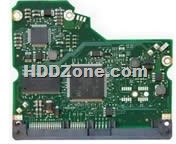
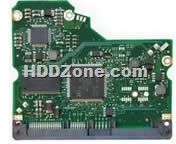
Seagate 100535537 (V60131)  Barracuda 7200.12 PCB Photo:

Seagate-100535537-PCB

Seagate 100535537 (B5502C20)  Barracuda 7200.12 PCB Photo:

Seagate-100535537-PCB

Buy this Seagate PCB board online: PCB 100535537 (V60131)
Buy this Seagate PCB board online: PCB 100535537 (B5502C20)

100535537 Seagate Barracuda 7200.12 PCB Read More »

Data Backup Glossary (Letter P)

Physical erase unit
A physical erase unit is the smallest memory area of the flash memory media that can be erased in a single erase operation. Its size varies between flash devices.

Platform
A physical entity that contains nodes. Platforms include all end devices that are attached to a Fabric, for example, hosts and storage subsystems. Platforms communicate with other platforms in the storage area network using the facilities of a Fabric or other topology

Portable image storage device
A small, portable storage device used for storing and viewing your digital images. The device is a portable hard drive in an enclosure that resembles handheld game consoles. The device usually offers USB and memory card readers as options for transferring your images directly to the device, as well as an LCD display for viewing the stored images. The device  may also have different controls for maneuvering through the images, such as forward, random, skip, and so on.

Primary storage
A somewhat dated term for main memory. Mass storage devices, such as disk drives and tapes, are sometimes called secondary storage.

Protocol
A set of rules that control an interaction between two or more entities in communication with one another, for example,  TCP ports, Fibre Channel FC-4 processes, and polite humans.

Data Backup Glossary (Letter P) Read More »

Storage for Beginners

datastorageforbeginnersSome of us are old enough to remember when floppy disks were the most popular way to store and transport data. It was a risky business: extreme heat, scratching, exposure to magnets or rough treatment could damage or erase the disk. College students, IT consultants and businesspeople everywhere would hold their breaths, push a floppy into the drive and hope that their disk wasn’t corrupted. Data storage in the old days was stressful, unreliable and depending on how many disks you needed for all your data, expensive.

Technology has advanced exponentially since the days of floppy disks and zip drives, and storing your data has never been easier. Flash drives and writable CD’s make it fast and easy to store large amounts of data and take them anywhere. And cloud drives let people access their data from literally anywhere, without the worry of storage or damage.

Flash drives
Small and portable, these drives use flash memory to store gigs of data on a tiny device. Flash drives plug right into a computer’s USB port and can be removed, rewritten and erased with ease. They’re perfect for school work and papers, since you can take them to your school’s library and print out what you need.

Flash drives are also great for online university students who tend to be more mobile and need the ability to take their data anywhere. But they’re not damage-proof: bending the USB plug and a limited number of read/erase cycles make flash drives less than a perfect storage choice.

CD’s and DVD’s and external hard drives
CD’s and DVD’s bridge the gap between floppy disks and flash drives, because they’re portable and easy to use. Both CD’s and DVD’s are easily readable by any computer with a CD-ROM drive, and DVD-R’s can hold more than four gigs of data. They’re perfect for program and software backups. But dust, heat, scratches and fingerprints can affect their performance or damage them. Also be sure to choose rewriteable CD’s and DVD’s if you want to use them more than once.

External hard drives work just like the hard drive in your computer except you connect your external HD and your computer through a USB port. Advantages to an external hard drive include the ability to store a great amount of data and security from viruses since it’s not constantly connected to your computer. But hard drives are sensitive creatures, so handle your drive carefully and be sure not to drop it or jostle it.

Cloud storage/e-mail
Cloud storage has become the latest trend for both businesses and individuals, in part because of its easy access and security. Services like Dropbox and Amazon’s Cloud Drive offer a decent amount of space for free, and you can buy more space for an affordable price. There are caveats to storing all of your data on a cloud. Read terms of services carefully before uploading, since some companies reserve the right to access—or even use–your files.

Cloud storage isn’t foolproof either: recent power outages for Microsoft and Amazon made data inaccessible for an uncomfortable amount of time. And if you’re a student who’s working on a term paper or a business that relies on a cloud drive to keep records secure, any outage is uncomfortable.

Choosing a main storage method for your data depends on your needs, so choose what works best for you. Also be sure to choose—and maintain—regularly scheduled backups. If you use a cloud for your everyday storage needs, make sure you’re aware of any changes in terms of use agreements or storage limits since cloud services can change their terms at will. There’s no storage method that’s completely safe, but making sure your data is safe should be your first priority.

Storage for Beginners Read More »

Scroll to Top