
SATA-2 hard drives are backwards compatible with SATA-1 controllers. The same is also true with SATA-2 controllers and SATA-1 drives. However, if you have any difficulty with drive detection using a SATA-2 drive on a SATA-1 controller, install a jumper across pins 5-6 to limit the drive to SATA-1 speeds.
Articles
How to reduce the chance of hard drive damage by ESD
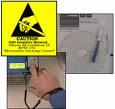 Hard drives are highly sensitive precision instruments that read, write, and store information on spinning magnetic disks. Special handling is required to protect hard drives from damage. Hard drives can be damaged by excessive physical force or from Electrostatic Discharge (ESD).
ESD damage is usually invisible to the eye and may not be discovered until much later, either through intermittent performance or failure. By using the proper procedures outlined in this article, you can reduce the chance of hard drive damage by ESD.
- Before removing the hard drive from its ESD bag, prepare tools and cables to install.
- Keep the hard drive inside the ESD bag until you are ready to physically install the hard drive into the computer system.
- Wear a grounding strap if available – especially if near sensitive devices like memory, controller cards, or other electronic boards.
- With the computer turned off (but still plugged into the power source), touch bare metal on computer case, then unplug the computer’s power cable*.
- Do not let others touch the drive.
- Hold a hard drive by the sides, taking care not to touch the PCB connectors or Printed Circuit Board assembly.
- Install drive without walking on carpet or moving about in any way that generates static electricity.
- Do not drop, jolt, or shake a hard drive. This action could damage the internal components of the drive.
- Avoid subjecting the hard drive to extreme temperatures.
- Do not stack hard drives.
- Do not stand hard drives on their sides.
- Do not place anything on top of a hard drive.
- Never force or hammer a hard drive into a computer bay.
- Use caution when installing data and power connectors to avoid damaging connector pins.
- Do not obstruct or cover any air filter holes on the drives.
Basic Disk VS Dynamic Disk
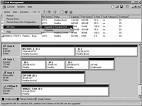 Basic Disks in Windows 2000/XP/Vista:
A basic disk uses the normal partition tables found in MS-DOS and Windows. The volumes contained on a basic disk will be basic volumes, such as primary and extended partitions, and logical drives. Basic disks may also contain multi-disk volumes created by Windows NT 4.0 and earlier (volume sets, stripe and mirror sets, and stripe sets with parity). Windows XP will not support these types of multi-disk basic volumes. With Windows XP, you should back up your data and then convert these to dynamic disks prior to installing Windows XP Professional.
Dynamic Disks in Windows 2000/XP/Vista:
Dynamic disks are supported in Windows 2000 Professional and Windows XP Professional. Windows XP Home Edition does not support dynamic disks. Dynamic disks contain simple volumes, spanned volumes, striped volumes, mirrored volumes, and RAID-5 volumes. Dynamic storage allows you to perform disk and volume management without having to restart Windows.
Dynamic disks are only supported in Windows Vista Ultimate, in Windows Vista Business, and in Windows Vista Enterprise. Generally, dynamic disks are not supported in Windows Vista Home Basic or in Windows Vista Home Premium. However, when you upgrade your computer from Windows XP Media Center Edition to Windows Vista Home Premium, some dynamic disks are supported.
General Information
- On a basic disk, a partition is a portion of the disk that functions as a physically separate unit. On a dynamic disk, storage is divided into volumes instead of partitions.
- Storage types are separate from the file system type; a basic or dynamic disk can contain any combination of FAT16, FAT32, and NTFS partitions or volumes. Please note that the creation of FAT16 volumes will be limited to 2GB or less, FAT32 volumes will be limited to 32GB or less. NTFS volumes do not have a capacity limitation.
- Windows 2000 Professional and Windows XP Professional accommodates both basic and dynamic storage. A disk system can contain any combination of storage types. However, all partitions or volumes on the same disk must use the same storage type (Basic or Dynamic).
A slave hard drive is not assigned a drive letter in Windows 2000/XP
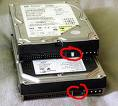 Why is my slave drive not assigned a drive letter after either moving it from one system to another system or installing Windows 2000/XP?
Problem:
A slave drive is recognized in Disk Management, but it is not assigned a drive letter after Windows 2000/XP installation or moving it from one system to another system, with both systems running Windows 2000/XP.
Cause:
Proper steps were not taken to move the drive from one system to another.
Affected Products:
All EIDE drives in Windows 2000/XP.
Resolution:
The information below is provided as is without any warranty of any kind, either expressed or implied. Western Digital will not be liable to you for any damages, including any loss of profit or savings, arising out of the use or inability to use the information contained in this document.
The following information appears in the Microsoft Windows help file for Disk Management. It has been modified for formatting purposes only.
Before you disconnect the disks, make sure the status of the volumes on the disks is Healthy. If the status is not Healthy, you should repair the volumes before you move the disks.
Turn the computer off, remove the physical disks, and then install the physical disks on the other computer. Restart the computer that contains the disks you moved.
Using Disk Management:
To open Disk Management, follow these steps:
- Click Start, point to Settings, and click Control Panel
- Double-click Administrative Tools, and then double-click Computer Management.
- In the console tree under Storage, click Disk Management.
Once Disk Management is open, follow these steps:
- Click Action, and then click Rescan Disks.
- Right-click any disk marked Foreign, click Import Foreign Disks, and then follow the instructions on your screen.
Notes: You must be logged on as an administrator or a member of the Administrators group in order to complete this procedure. If your computer is connected to a network, network policy settings may also prevent you from completing this procedure.
Jumper settings for WD 2.5 inch and 3.5 inch EIDE drives
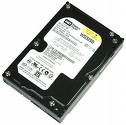 Two different protocols can be used for jumpering EIDE devices, including disk drives. One is the master-slave relationship. With this protocol, one device is jumpered as master and the other is jumpered as slave. The second protocol is cable select. With this protocol, both devices are jumpered as cable select and their position on the cable dictates which device is the master and which device is the slave. The end device is master while the device on the middle of the cable is slave. You can use either of these protocols but you cannot mix them on the same data cable. Both methods refer to having multiple devices attached to the same IDE cable and have options for single drive installations (only 1 drive installed on the system).
1. For Western Digtial 3.5″ EIDE hard drives:
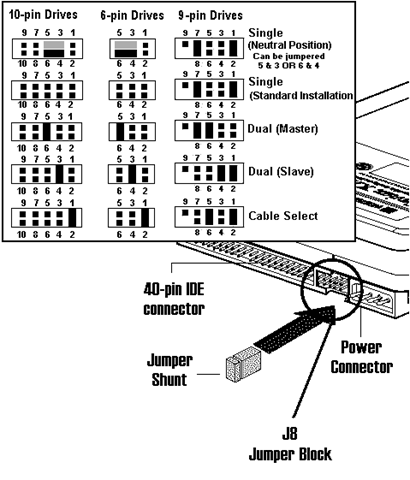
A) Cable Select Configuration Options for PC Systems:
If you have determined that your system and all other IDE devices support Cable Select, please use the following information to connect your IDE drive. The jumper should be on pins 1-2.
Installing the new drive as the only drive in the system:
If you are connecting your drive as the only IDE drive on the cable, then there is no need to change the jumper pin on the drive. Simply connect the drive to the black connector at the end of the cable.
Installing the new drive as the primary (Master) drive:
If you are connecting your drive as the primary drive on the cable with another IDE drive, there is no need to change the jumper pin on the drive. Jumper the other IDE drive as Cable Select. Connect the drive to the black connector at the end of the cable for the system and the other IDE drive to the gray connector located at the middle of the cable.
Installing the new drive as the secondary (slave) drive:
If you are connecting your drive as the secondary drive on the cable with another IDE drive, there is no need to change the jumper pin on the drive. Jumper the other IDE drive as Cable Select. Connect the drive to the gray connector in the middle of the cable and other IDE drive to the black connector located at the end of the cable.
B) Master/Slave Configuration Options for PC Systems:
Installing the new drive as the only drive in the system:
If you are connecting your drive as the only IDE device on the cable, then move the jumper shunt on the drive from pins 1 & 2 to pins 4 & 6. Once the jumpers have been configured, connect the drive to the black connector at the end of the cable.
Installing the new drive as the primary (Master) drive:
If you are connecting your drive as the Master drive on the cable with another IDE device, move the jumper shunt on the drive from pins 1 & 2 to pins 5 & 6. Then configure the jumper on the other IDE device as Slave. Connect the drive to the black connector at the end of the cable, and the other IDE device to the gray connector located at the middle of the cable.
Installing the new drive as the secondary (Slave) drive:
If connecting your drive as the secondary drive on the cable with another IDE device, move the jumper shunt on the drive from pins 1 & 2 to pins 3 & 4. Then configure the jumper on the other IDE device as Master. Connect the drive to the gray connector at the middle of the cable, and the other IDE device to the black connector located at the end of the cable.
2. For Western Digital 2.5″ EIDE hard drives:
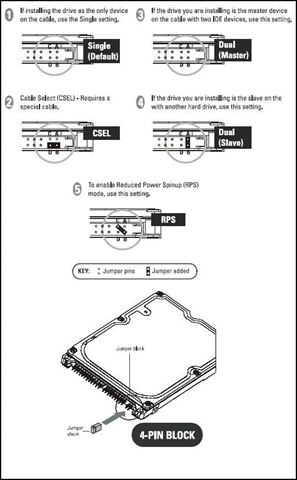
A) Cable Select Configuration Options for PC Systems:
If you have determined that your system and all other IDE devices support and are using Cable Select, please use the following information to connect your IDE drive. The jumper should always be on pins B-D for Cable Select installations.
Installing the new drive as the only drive in the system:
If you are connecting your drive as the only IDE drive on the cable, please ensure that a jumper is connected to pins B-D on the 2.5″ drive. Simply connect the drive to the end of the cable.
Installing the new drive as the primary (Master) drive:
If you are connecting your drive as the primary (Master) drive on the cable with another IDE drive, please ensure that a jumper is connected to pins B-D on the 2.5″ drive. Please ensure that the second (Slave) IDE drive is jumpered as Cable Select as well. Connect the primary (Master) 2.5″ drive to the end of the cable and the second (Slave) drive to the middle connector of the cable.
Installing the new drive as the secondary (Slave) drive:
If you are connecting your drive as the secondary (Slave) drive on the cable with another IDE drive, please ensure that a jumper is connected to pins B-D on the 2.5″ drive. Connect the 2.5″ drive to the middle of the cable and other (Master) drive to the end of the cable.
B) Master/Slave Configuration Options for PC Systems:
Installing the new drive as the only drive in the system:
If you are connecting your drive as the only IDE device on the cable, no jumper is needed on the 2.5″ drive. Connect the 2.5″ drive to the end of the cable.
Installing the new drive as the primary (Master) drive:
If you are connecting your drive as the Master drive on the cable with another IDE device, no jumper is needed on the 2.5″ drive. Ensure to configure the jumper on the secondary (Slave) IDE device as Slave. Connect the primary (Master) 2.5″ drive to the end of the cable, and the secondary (Slave) device to the middle of the cable.
Installing the new drive as the secondary (Slave) drive:
If connecting your drive as the secondary drive on the cable with another IDE device, please ensure that a jumper is connected to pins A-B on the 2.5″ drive. Configure the jumper on the primary IDE device as Master. Connect the 2.5″ (Slave) drive to the middle of the cable, and the Master IDE device to the end of the cable.
Hard drives greater than 2 TB do not work on existing operating systems
 External USB, eSATA, Firewire, and internal hard drives over 2 TB’s cannot be formatted on Windows 32-bit operating systems using the Master Boot Record (MBR) partitioning scheme. As a result, when you connect drives over 2 TB’s, depending on which interface you are using to connect them to the computer, they may not be recognized at all, they may be only partially recognized, or they may be recognized but you can’t access them. Other issues such as the system locking up or the computer not being able to boot may also occur.
Cause:
This not an external or internal hard drive issue. It is a 2 TB volume limitation caused by the Master Boot Record (MBR) partitioning scheme that has long been used by Windows 32-bit operating systems such us Windows 2000 and XP.
Solution:
In order to use a drive larger than 2 TB’s, you will need an operating system that can partition and format that drive. Windows Vista, Windows XP (64-bit), Mac 10.4, and Mac 10.5 all have this capability through the GUID Partitioning Table (GPT). The GUID partitioning scheme has the ability to partition both internal and external drives far beyond 2 TB’s in size.
Below are some things to keep in mind when considering the use of drives larger than 2 TB’s:
- Windows 2000/XP (32-bit) has no issues with Network storage drives larger than 2 TB’s since they are accessed indirectly through the network.
- Windows XP (64-bit) only recognizes external hard drives larger than 2 TB’s that are connected by USB.
- You need to know in which partition scheme, MBR or GPT, your Windows Vista operating system is installed. If it’s MBR, you will still have the same issues as in Windows 2000 and XP.
- Windows 2000/XP will have no problems formatting a 2 TB Raid 1 (Mirrored) drive in the MBR format. However, it will not be able to convert that 2 TB RAID 1 drive to a 4 TB RAID 0 drive.
- Likewise, Windows 2000/XP will not be able to convert a 4 TB RAID 0 external drive to a 2 TB RAID 1 drive. You will need the use of a computer running Windows Vista (using a GPT partition), XP (64-bit), or Mac 10.4/10.5 to convert the drive from 4 TB RAID 0 to 2 TB RAID 1.
- Windows 2000/XP will not be able to convert any 2 TB, or smaller, GUID partitioned drive to an MBR partition through Window’s Disk Management. This will require a utility, such as DLG Diagnostics, that can write zeros to the drive so it can be partitioned and formatted through Windows 2000/XP.
How can I test my hard drive for defects or problems in a Mac?
Mac systems have an excellent diagnostic utility included in the operating system called Disk Utility. You can find Disk Utility within the Utilities folder inside the Applications folder on the boot drive. You can also find this utility by booting directly to the operating system installation CD/DVD.
1. Go to Disk Utility and click on it.
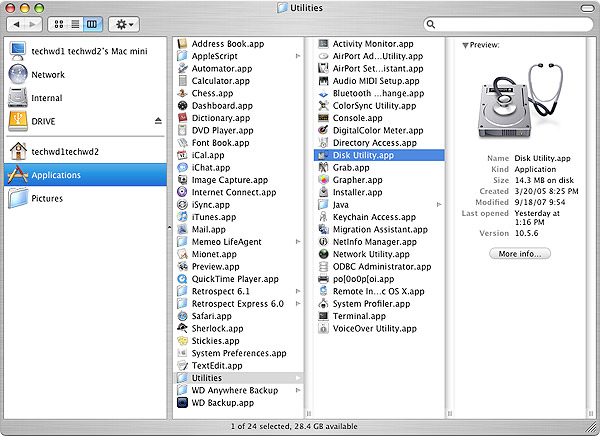
2. Choose the drive you wish to test by selecting the drive or partition on the left window pane and then selecting the First Aid tab.
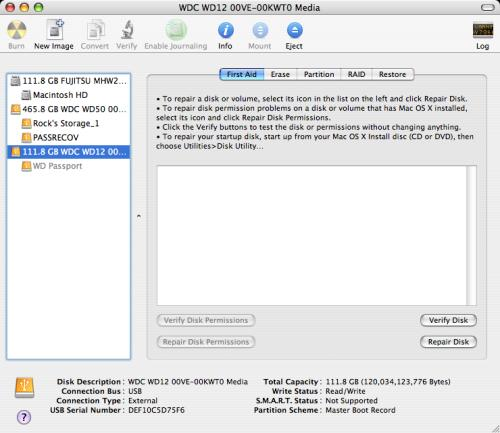
3. Click Verify Disk to check a drive/partition for errors but not repair them.
4. Click Repair Disk to check a drive/partition for errors and repair any that it finds.
5. Click Verify Disk Permissions to check the permissions on a drive/partition but not repair any errors.
6. Click Repair Disk Permissions to check the permissions on a drive/partition and repair any errors.
Note: You cannot check or repair permissions on a FAT32 (MS-DOS) partition. Only the Mac OS Extended (HPFS+) file system supports permissions.
Seagate And MusicSkins Join Forces To Add Custom Options To External Storage
 Seagate, the world’s leading provider of hard drives and storage solutions, and MusicSkins LLC, the leader in music and music-related, high-quality, vinyl skin products, today announced a marketing partnership to add personal flair to the FreeAgent Go™ and FreeAgent Go™ for Mac external hard drives. With a wide range of skins from a vast catalog of licensed creative or customized designs, this partnership expands on the already extensive range of FreeAgent® drive color, size and capacity options that let people to put their personal stamp on their Seagate external storage devices.
MusicSkins’ utilizes a patented 3M® adhesive technology that prevents air bubbles and allows for both easy application and clean removal. These hassle-free, premium vinyl skins offer a distinctive look, and personal style to Seagate external drives, while also safeguarding the device with a durable anti-scratch, anti-UV coating to protect the exterior of the hard drive. From Bob Marley to John Lennon, Madonna to Lil Wayne, EXPLODINGDOG to Adult Swim, and even personal photos and images, there’s a MusicSkin to suit every personality.
“Our FreeAgent Go™ portable hard drives allow people to store their personal digital treasures in a slim, fashionable, easy-to-carry package. It makes sense that they would want to add their personal stamp to the drives, Your photos, music and movies are a reflection of who you are and through our partnership with MusicSkins, you can now have their drives reflect your personality, too.” said Terry Cunningham, senior vice president, Seagate Branded Solutions.
Tricking out your FreeAgent external portable drive is easy. Consumers can either purchase a skin directly from Seagate.com when purchasing a FreeAgent Go drive, or outfit a previously purchased drive by visiting www.seagate.com/musicskins and selecting a skin from the library of designs, or creating a uniquely designed personal piece with the online customization tool. The skins traditionally range in price from $15.00 to $30.00, depending on the selection and type of device, and arrive via mail in seven to ten business days(1). However, for a limited time(2), those who purchase a FreeAgent Go or FreeAgent Go for Mac drive at any Seagate retailer, can take advantage of a special email offer to receive 20 percent off any MusicSkin and 35 free songs from eMusic when they register their FreeAgent Go on Seagate.com. With even more options for tricking out a Seagate hard drive with fresh looks and favorite tunes, the FreeAgent Go drive makes the perfect addition to any back-to-school, gift or personal shopping list.
“As the leading manufacturer of premium quality vinyl skin products for an array of leading personal digital devices, we’re proud to be working with Seagate to tailor their award-winning FreeAgent Go™ drives to fit the personal style of their customers, People today are inseparable from the tools that give them access to content. They want it with them wherever they go, whether it’s on their phone, iPod, laptop or an external hard drive. They also like to put a personal mark on the device to make it their own.” said Vince Bartozzi, president, MusicSkins LLC.
FAT 32 File System Frequently Asked Questions
 Microsoft’s FAT32 File System
Windows 95 OSR2 provides an updated version of the File Allocation Table file system called FAT32. This updated file system allows for a default cluster size as small as 4K, as well as support for EIDE hard disc sizes in excess of 2 Gbytes. FAT32 provides many enhancements over previous implementations of the FAT file system.
Cluster & Partition Sizes
FAT32 supports drives up to 2 terabytes in size. FAT32 uses smaller clusters (that is, 4K clusters for drives up to 8 Gbytes in size), resulting in 10 to15 percent more efficient use of disc space relative to large FAT16 partitions. FAT32 will only work on 512 Mbytes and larger drives. Microsoft’s bundled disc tools (Format, FDISK, Defrag, and MS-DOS based ScanDisk) have been revised to work with FAT32.
Note: Please backup all data.
1. QUESTION
When I try to format a FAT32 file system partition larger than 8025 Mbytes from within Windows 95, I receive the following error:Verifying xxx.xx M
Invalid media or track 0 bad-disk unusable
Format terminated
REASON
This error occurs if there is a non-DOS partition preceding the extended DOS partition and the primary DOS partition has been formatted using the real-mode FORMAT.EXE command.
SOLUTION
- Click the “Start” button, click “Shut Down”, click “Restart The Computer In MS- DOS Mode”, and then click “Yes”.
- Type format c: (where c is the drive letter for the partition you want to format), and press >ENTER>.
- When the format is complete, type exit and press ENTER to restart Windows 95.
2. QUESTION
When I try to partition a drive that is larger than 8 Gbytes in size, the maximum partition size is still 8 Gbytes.
REASON
This can occur if the hard disc controller does not fully support the interrupt 13 extensions. In order for a hard disc that is both larger than 8 Gbytes and using the FAT32 file system to be fully addressed, it must support interrupt 13 extensions. The file IO.SYS tests for the presence of interrupt 13 extensions, and if they are not found, uses the default CHS LBA limit of 7.9 Gbytes. This information applies to both ATA and SCSI hard disc drives.
SOLUTION
Contact the drive controller’s manufacturer for information about a possible BIOS upgrade to a version of the BIOS that fully supports interrupt 13 extensions.
3. QUESTION
When I check in FDISK to see if my partition is FAT32, it only shows FAT16. How do I get my drive to be partitioned in FAT32?
REASON
- You are either using the real-mode FDISK, which does not contain the “enable large disk support” prompt, or you did not answer “y” for yes to “enable large disk support”; or
- The drive you are attempting to partition with FAT32 is smaller than 512 Mbytes.
SOLUTION
Run the FDISK tool which came with OSR2 on a system with a drive over 512 Mbytes. FDISK will ask whether you wish to enable large disc support. If you answer Yes, any partition you create larger than 512 Mbytes is marked as a FAT32 partition.
4. QUESTION
When I try to dual-boot Windows version 3.x on a computer running Windows OSR2, I receive one of the following error messages:
- This version of Windows does not run on MS-DOS 6.x or earlier.
- You started your computer with a version of MS-DOS incompatible with this version of Windows. Insert a Startup diskette matching this version of Windows and then restart.
- The system has been halted. Press CTRL+ALT+DELETE to restart your computer.
- This version of Windows cannot be run on this version of DOS.
REASON
Starting with OSR2, dual-booting Windows 3.x is not supported in Windows 95.
SOLUTION
To dual-boot between Windows 3.x and Windows 95, install the retail version of Windows 95. If you have FAT32 partitions, remove them and create a FAT16 partition with the Windows 95 or MS-DOS 6.x version of FDISK.EXE.
Neither MS-DOS 6.x nor the retail version of Windows 95 will recognize a FAT32 volume. Windows 3.x was designed to use the FAT12 and FAT16 file systems. It could potentially damage a FAT32 volume.
5. QUESTION
When I try to compress my drive with DriveSpace or DriveSpace 3, I get the following error:Drive C cannot be compressed because it is a FAT32 drive.
REASON
DriveSpace was designed to work with the FAT12 and FAT16 file systems and cannot be used with drives using the FAT32 file system.
SOLUTION
None at this time.
6. QUESTION
When I try to defragment a FAT32 partition, I receive the following error:Windows cannot defragment this drive. Make sure the disk is formatted and free of errors. Then try defragmenting the drive again.
REASON
This can be caused by running an earlier version of DEFRAG.EXE than the version included with OSR2.
SOLUTION
Extract a new copy of the DEFRAG.EXE file from your original OSR2 CD-ROM or discs. For additional information about how to extract or obtain the OSR2 version of DEFRAG.EXE, contact you OEM vendor or Microsoft technical support.