Articles

The BlackArmor Recovery CD boots to a dark or barely readable screen

BlackArmor Recovery CD Some video cards and monitors may not correctly display the BlackArmor recovery interface.   Some issues that have been observed are noted below, in some cases temporarily switching to a different monitor helps resolve the issue, in other cases it may be necessary to download a new CD image that has different display settings or drivers that will work with certain video cards.

Monitors:

If you are using an affected monitor, temporarily switch to a different monitor to perform the restore.

ViewSonic model VX2835 WM display

Characters and buttons are nearly black and not readable.

Videos cards:

If you are using an affected monitor, please contact technical support via our web form to receive an updated CD image.  Be sure to include the brand and model of your video card.

Intel(R) 82845G Graphics Controller

Colors are negative images and may be difficult to read.

The BlackArmor Recovery CD boots to a dark or barely readable screen Read More »

FreeAgent XTreme drive doesn’t wake up from hibernation when connected via USB?

FreeAgent XTreme drive doesn’t wake up from hibernation when connected via USB.

With the original build of Windows Vista some computers may lose connection with the USB external drive after waking up from hibernation.

This issue is addressed in Vista Service Pack 1.

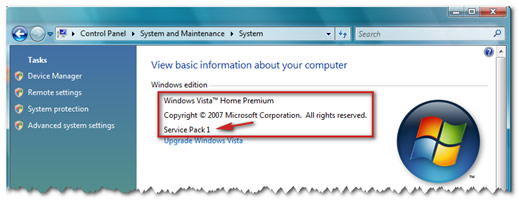
To determine what version of Windows Vista you have, follow these steps:

  1. Click the Windows (Start) Button.
    Image
  2. In the Search bar, type Welcome center and open the Welcome Center.
  3. In the upper right of the screen, click the button that says Show more details.
    (Click to expand)
    Image
  4. On that screen it should say what version of Vista is running, including the service pack level.
    (Click to expand)
    Image

If no service pack is listed, please view Microsoft Knowledge Base article 935791 for instructions on how to obtain Service Pack 1.

FreeAgent XTreme drive doesn’t wake up from hibernation when connected via USB? Read More »

Install FreeAgent Mobile Recovery Software To Your FreeAgent Go drive

FreeAgent Go drive The following procedure will install the FreeAgent Mobile Recovery software to your FreeAgent Go drive. The FreeAgent Mobile Recovery is offered so that you can reload software to your Freeagent drive in the event that the original software becomes lost or corrupted. The procedure will return the software to its original, default state; it is recommended that you backup any/all critical data before continuing.

Procedure:

  1. Download/extract the mobile-recovery-efigs.zip to your Windows Desktop
  2. Double-click setup-mobile-recovery x.x.xx EFIGS.exe.
    Note: The “x” will be denoted by the current revision number
  3. You may see an Open File – Security Warning generated by your operating system; click Run to continue.
    Windows Vista Users – If prompted with an User Account Control window, click Continue. Otherwise, proceed to the next step.
  4. The Choose Setup Language window opens. Select your Language from the drop-down menu (e.g., English) and click OK. At this point, the FreeAgent Go Tools Setup prepares the InstallShield Wizard.
  5. From the Welcome to The InstallShield Wizard window, click Next.
  6. The Choose Destination Location window opens.
    If needed, click Change to choose a different location; select the Drive Letter associated with your FreeAgent Go drive and click OK.
  7. Click Next to continue.
  8. The Ready to Install the Program window opens. Click Install. At this point, the FreeAgent Go Tools installs to your FreeAgent Go Drive. When finished a Configuring Ceedo window opens…this may take awhile to complete.
  9. When finished, the InstallShield Wizard Complete window opens. Click Finish to close the program. Your FreeAgent Go’s software has been returned to its default original state. Please Safely Remove the drive from your computer and reconnect it to launch the AutoPlay Window.

Flash Video: Installing Mobile Recovery Software

Install FreeAgent Mobile Recovery Software To Your FreeAgent Go drive Read More »

WD External Drive Is No Longer Recognized In Windows Or Mac?

How can I tell if my WD external drive is still functional even though it is not recognized in Windows or Mac?

Please note: This answer is highly recommended prior to returning the drive for a replacement.

Some of the simple troubleshooting techniques used below can be applied to external hard drives on a Mac as well as a PC.

Problem:
I was using my external hard drive for some time and now a drive letter (icon) does not appear in My Computer (Mac Desktop) and I cannot access the data on that drive.

Cause:
there could be a few reasons why the drive is not showing up in My Computer (Mac Desktop). The drive itself could have failed, the partition on the drive may be damaged, the data cable may no longer be good, or the drive may no longer be getting enough power to fully spin up.

Solution:
It’s always best to start with the most simple possible causes when troubleshooting. Follow the steps below in order to eliminate the common simple issues:

  1. If the drive is not being recognized, disconnect the power adapter from the surge protector/UPS and plug directly into the wall. Sometimes, surge protectors diminish the power being supplied as more devices are added to them.Note: If after doing this the drive does not spin up at all (you can tell by feeling for vibration on the drive), then either the drive or the power adapter has failed. You will need to replace the power adapter to proceed with the troubleshooting. If after replacing the power adapter, the drive still doesn’t spin up, then you will need to replace the drive. You will find links for data recovery and warranty replacement down below.
  2. If the drive is spinning but not recognized in My Computer (Mac Desktop), then change out the data cable with one that you know is good. Cables get old and the wires inside can break, or pull loose from the connectors.
  3. If that doesn’t work, connect the external drive to another USB port. The USB port could be malfunctioning.
  4. If your drive still isn’t being recognized, turn your PC (Mac) off, disconnect the data cable, restart the computer, and once the operating system is fully up and running, reconnect the data cable. Give it a minute or two to recognize then you will want to access Disk Management (Disk Utility) to see if the drive shows up in there. If it does show up in Disk Management (Disk Utility), then you have a corrupted or damaged partition and will need to re-partition and reformat the drive for it to be recognized on your PC (Mac). See Links and note below.

    Important: If you have data on the drive that you need, do not reformat the drive. You will need to perform data recovery on the drive, before you can proceed with reformatting the drive. With a damaged partition, there is data recovery software that may restore the data. You can research the various kinds on the internet.

  5. If the drive doesn’t show up in Disk Management (Disk Utility), then the last option you have is to connect the drive to another PC. If it works, then there’s an issue with either the hardware or drivers on the primary PC. You will then have to troubleshoot that computer and operating system. For help with the operating system, you will need to contact either Microsoft Support, or if you have a Mac then Apple. For help with the computer hardware, you will need to contact the computer manufacturer.
  6. If the external drive does not show up on another PC, then the drive has failed. You will need to go to data recovery if you need the data on the drive. If the drive is under warranty, you can then replace it with them.

Final Note: (For Windows) If the computer does detect the drive, you can test the drive to make sure that there won’t be any ongoing issues by using Windows Data Lifeguard Diagnostics. (For Mac’s): You can test the drive by running First Aid.

If the software reports any errors for the drive, please see Data Lifeguard Tools 11 Error Codes for a list of error codes and what they mean.

IMPORTANT: To avoid corrupting or losing the data on your external hard drive you should always shut down the drive correctly before you disconnect the data cable from the drive or computer, or the power connection from the drive or the wall outlet.

WD External Drive Is No Longer Recognized In Windows Or Mac? Read More »

How to partition, format, or reformat an internal or external drive on Mac OS X 10.4?

Please follow the steps below to format hard drive:

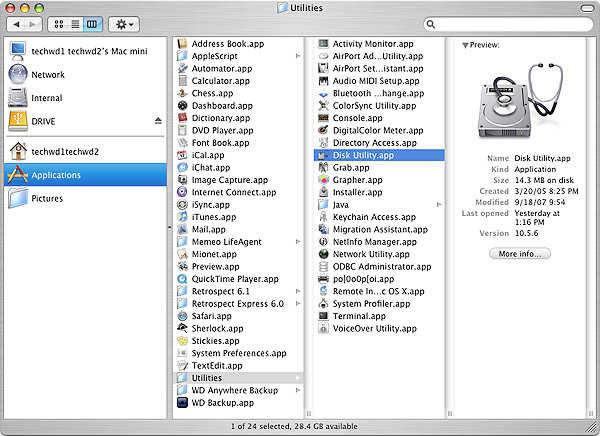
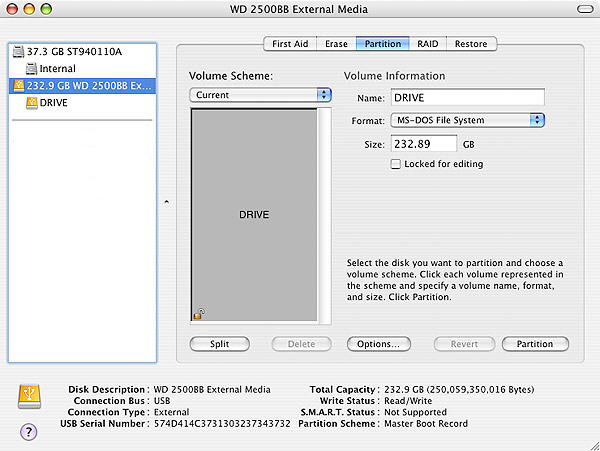
1. Double left-click on your Internal Mac drive and choose Applications -> Utilities and double-click on Disk Utilities.

format hard drive

2. In the far left pane, choose the drive that you want to partition and format. Typically there are two listings for each drive unless you have more than one partition on a particular drive. Choose the drive listing that is farthest to the left for the drive that you want to format. It is usually directly above the name of the drive.

format hard drive

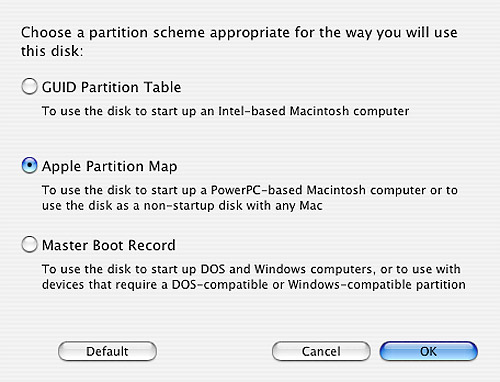
3. Click the Options button and choose Apple Partition Map. Then click on Ok.

format hard drive

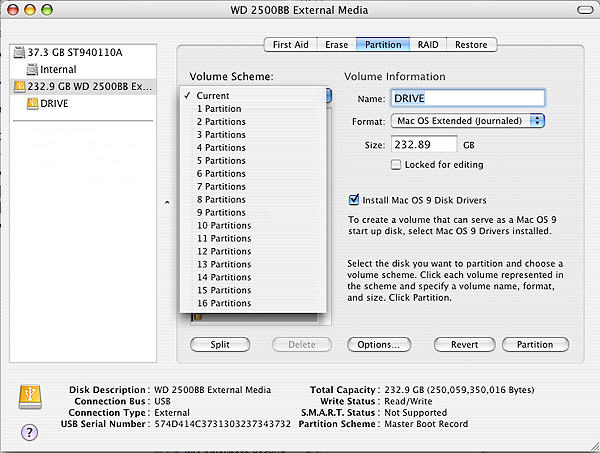
Note: If you cannot choose Options because it is grayed out, click on the Current dropdown menu and click on 1 partition. This should make the Options button useable again. Also, if you receive an error that the drive cannot be unmounted, shut down the Mac, unplug the drive from the Mac, turn you Mac back on and when it is fully loaded to the desktop, connect the drive and try again from Step 1.

format hard drive

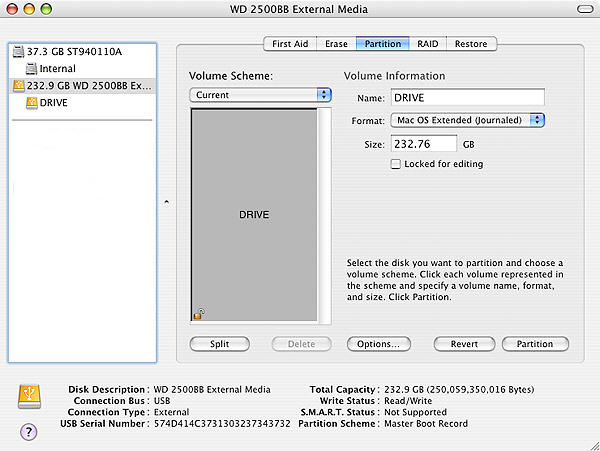
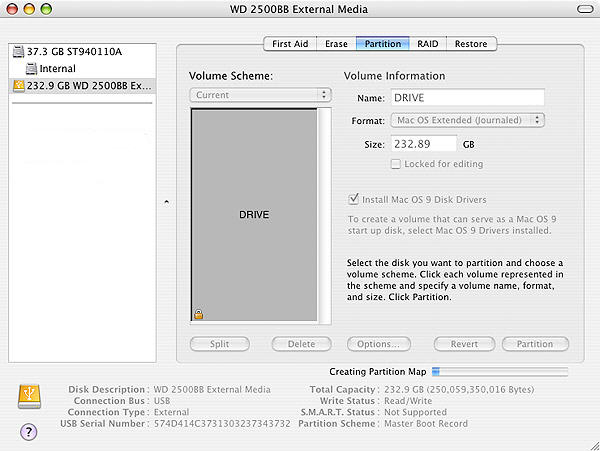
4. Change the Format to Mac OS Extended (Journaled). You can also give the drive a name by typing it into the Name box. When you are done, click on Partition.

Partition hard drive

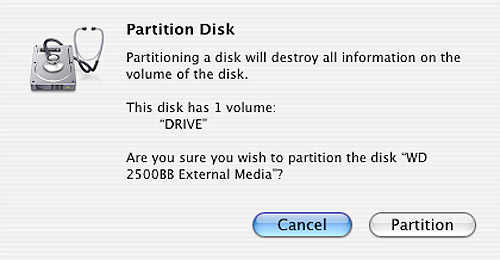
5. A box will come up letting you know that formatting and partitioning the drive will erase all of the information that is on the drive. If you don’t need any of the information on the drive, then click on Partition.

Partition hard drive

6. The drive is now formatting and you will see a status bar at the bottom that says Creating Partition Map. When it is done, this bar will go away and the drive should now show up on your desktop.

Partition hard drive

How to partition, format, or reformat an internal or external drive on Mac OS X 10.4? Read More »

How to become an authorized data recovery service company for Western Digital?

Western Digital periodically reviews and updates its data recovery partner list. In order to be considered for placement on this list, you can mail a corporate overview and fact sheet along with information on your data recovery services to the following address:

Western Digital Data Recovery Partner Program
1 Morgan
Irvine, CA 92618

Your company will be contacted if the opportunity arises to update our current list of preferred Western Digital Data Recovery Partners.

How to become an authorized data recovery service company for Western Digital? Read More »

‘Access Denied’ Error or File/Folder Permission Issues on an External Drive

access denied error When connecting an external drive to a Windows 2000 Pro, XP, or Vista computer, sometimes the permissions/privileges will need to be assigned. Since the ownership of the files belong to a different user account, you may see “Access Denied” or “Not accessible” errors when trying to open the drive or a folder within the drive.

1. To change the ownership with Windows XP HOME to the current user:

  1. You must boot into Safe Mode.
  2. Right-click the file/folder you are trying to access, go to Properties.
  3. Go to Security > Advanced > Owner and highlight the user account on your machine that you would like to take ownership of these files/folders.
    Be sure to check the box below, “Replace owner on subcontainers and folders” so all files within the folder will inherit the changes (only if you are changing the permissions on a folder).
  4. At the message, “You do not have permission to read the contents of directory [folder name]. Do you want to replace the directory permissions with permissions granting you Full Control? All permissions will be replaced if you press Yes”, click on Yes.

2. To change the ownership with Windows XP PROFESSIONAL to the current user:

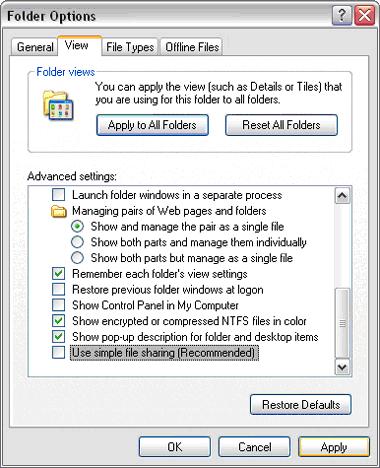
  1. Check My Computer > Tools > Folder Options > View, and uncheck “Use Simple File Sharing”.Access denied
  2. Right-click the file/folder you are trying to access, go to Properties.
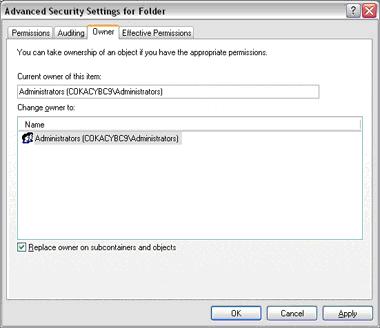
  3. Go to Security > Advanced > Owner and highlight the user account on your machine that you would like to take ownership of these files/folders.
    Be sure to check the box below, “Replace owner on subcontainers and folders” so all files within the folder will inherit the changes (only if you are changing the permissions on a folder).
  4. At the message, “You do not have permission to read the contents of directory [folder name]. Do you want to replace the directory permissions with permissions granting you Full Control? All permissions will be replaced if you press Yes”, click on Yes.

Access denied

‘Access Denied’ Error or File/Folder Permission Issues on an External Drive Read More »

SCSI Sense Key Chart

What are Sense Keys, Sense Codes, and Additional Sense Code Qualifiers?

SCSI Sense Key Chart SCSI devices have the ability to generate error information in the form of Sense Key, Sense Code, and Additional Sense Code Qualifiers.

When an error condition is encountered on the SCSI bus, SCSI devices will issue a CHECK CONDITION Status to the host. The SCSI host adapter will respond by sending a REQUEST SENSE Command to the device to determine the nature of the error condition. The device will then reply with Sense information. This Sense information – the Sense Key, Code, and Qualifier – is represented by a series of numbers in Hexadecimal format. These Hexadecimal numbers (e.g. 02h) have certain meanings if referenced to their corresponding tables, which are normally found in the product manuals.

The Sense Key will indicate a general error. A Sense key of 2h means “Not Ready“. The Additional Sense Code and Additional Sense Code Qualifier, ASC and ASCQ, will indicate the specific error. An ASC of 04h with an ASCQ of 02h means “LUN Not Ready, Initializing Command Required“.

In some cases, these codes may enable you to remedy the error if you understand what they indicate (the language used to describe these codes can be somewhat cryptic). The example used here — Not Ready-LUN Not Ready, Initializing Command Required — would indicate that the disk drive has not yet spun up, and you may be able to remedy this by configuring the drive’s jumpers.

Key | Sense Key Description

0h

No Sense – Indicates there is no specific Sense Key information to be reported for the disc drive. This would be the case for a successful command or when the ILI bit is one.

1h

Recovered Error – Indicates the last command completed successfully with some recovery action performed by the disc drive. When multiple recovered errors occur, the last error that occurred is reported by the additional sense bytes.

Note: For some Mode settings, the last command may have terminated before completing.

2h

Not Ready – Indicates the logical unit addressed cannot be accessed. Operator intervention may be required to correct this condition.

3h

Medium Error – Indicates the command terminated with a nonrecovered error condition, probably caused by a flaw in the medium or an error in the recorded data.

4h

Hardware Error – Indicates the disc drive detected a nonrecoverable hardware failure while performing the command or during a self test. This includes SCSI interface parity error, controller failure or device failure.

5h

Illegal Request – Indicates an illegal parameter in the command descriptor block or in the additional parameters supplied as data for some commands (Format Unit, Mode Select, and so forth). If the disc drive detects an invalid parameter in the Command Descriptor Block, it shall terminate the command without altering the medium. If the disc drive detects an invalid parameter in the additional parameters supplied as data, the disc drive may have already altered the medium. This sense key may also indicate that an invalid IDENTIFY message was received. This could also indicate an attempt to write past the last logical block.

6h

Unit Attention – Indicates the disc drive may have been reset.

7h

Data Protect – Indicates that a command that reads or writes the medium was attempted on a block that is protected from this operation. The read or write operation is not performed.

9h

Firmware Error – Vendor specific sense key.

Bh

Aborted Command – Indicates the disc drive aborted the command. The initiator may be able to recover by trying the command again.

Ch

Equal – Indicates a SEARCH DATA command has satisfied an equal comparison.

Dh

Volume Overflow – Indicates a buffered peripheral device has reached the end of medium partition and data remains in the buffer that has not been written to the medium.

Eh

Miscompare – Indicates that the source data did not match the data read from the medium.

Extended SCSI Sense Key Chart

Byte 12 | Byte 13 | Error Code Description

00 00 No Additional Sense Information

01 00 No Index/Sector Signal

02 00 No Seek Complete

03 00 Peripheral Device Write Fault

04 00 Logical Unit Not Ready, Cause Not Reportable

04 01 Logical Unit Not Ready, Becoming Ready

04 02 Logical Unit Not Ready, Initializing Command Required

04 03 Logical Unit Not Ready, Manual Intervention Required

04 04 Logical Unit Not Ready, Format in Progress

08 00 Logical Unit Communication Failure

08 01 Logical Unit Communication Time-Out

08 02 Logical Unit Communication Parity Error

09 00 Track Following Error

09 01 Servo Fault

09 04 Head Select Fault

0A 00 Error log overflow

0C 00 Write error

0C 01 Write Error Recovered With Auto-Reallocation

0C 02 Write Error – Auto Reallocation failed

10 00 ID CRC Or ECC Error

11 00 Unrecovered Read Error

11 01 Read Retries Exhausted

11 02 Error Too Long To Correct

11 04 Unrecovered Read Error – Auto Reallocation Failed

12 00 Address Mark Not Found For ID Field

12 01 Recovered Data without ECC using Previous Sector ID

12 02 Recovered Data with ECC using Previous Sector ID

14 00 Sector Not Found

14 01 Record Not Found

15 00 Random Positioning Error

15 01 Mechanical Positioning Error

15 02 Positioning Error Detected By Read Of Medium

16 00 Data Synchronization Mark Error

17 00 Recovered Data With No Error Correction Applied

17 01 Recovered Data Using Retries

17 02 Recovered Data Using Positive Offset

17 03 Recovered Data Using Negative Offset

17 05 Recovered Data Using Previous Sector ID

17 06 Recovered Data Without ECC – Data Auto Reallocated

18 00 Recovered Data With ECC

18 01 Recovered Data With ECC And Retries Applied

18 02 Recovered Data With ECC And/Or Retries, Data Auto-Reallocated

18 05 Recovered Data with ECC and/or retries

19 00 Defect List Error

19 01 Defect List Not Available

19 02 Defect List Error In Primary List

19 03 Defect List Error in Grown List

1A 00 Parameter List Length Error

1B 00 Synchronous Data Transfer Error

1C 00 Defect List Not Found

1C 01 Primary Defect List Not Found

1C 02 Grown Defect List Not Found

1C 83 Seagate Unique diagnostic code

1D 00 Miscompare During Verify Operatio

SCSI Sense Key Chart Read More »

What risks do viruses pose to the data on internal or external hard drive?

Rirus Recovery When it comes to data storage, viruses can be divided into two basic categories:

  • Viruses that delete data.
  • Viruses that corrupt data.

Viruses that delete data will tell the Operating System (such as Windows) to flag files as being deleted. The data itself becomes unavailable but it still exists on the platters until it’s overwritten. This data is recoverable using 3rd-party data recovery softwares which will scan the platters and mark recognizable files as not deleted, effectively restoring them to the directory structure.

Viruses that corrupt data are the most dangerous because they overwrite files with garbage data and then possibly flag them as deleted. This makes the data unrecoverable.
In either case, it is very important to have Antivirus software running on any machine whether it’s connected to the internet or not (viruses can be propagated from CDs, floppies, and other storage mediums) and keep a backup of any critical data on a removable storage device which will help prevent viruses from propagating to your backup.

What risks do viruses pose to the data on internal or external hard drive? Read More »

Does Seagate Perform Or Provide Data Recovery Services?

Data on a disk drive may become inaccessible either by simple corruption or by physical damage.  In the case of data corruption, the disk drive hardware is in perfect working order and is as reliable as it should be.  However, the data has become corrupted by a fault usually caused by the system memory, or the operating system or even improper shut down.  In the case of physical damage to the disk drive, this can be caused by some extreme conditions like floods or fire, damage to the electronics from a power surge, or abuse from being dropped or mishandled, or failure of the drive, itself.

In these situations, the data may be recoverable through extraordinary means offered through a specialized data recovery service.

Please see the following link for more information:

Seagate Recovery Services

Seagate Recovery Services are a pay-per-use service and not covered by a drive’s warranty.

If your drive is still under warranty and you intend to pursue data recovery, you must do the data recovery before exchanging the drive.  Once a drive has been returned for warranty exchange, any data on the drive is forfeited and lost.

Seagate now offers Do-It-Yourself Data Recovery software:

File Recovery for Windows

Please remember, you should always keep current backups of your critical data.  Seagate is not responsible for lost user data.

Does Seagate Perform Or Provide Data Recovery Services? Read More »

Scroll to Top