The BlackArmor Recovery CD boots to a dark or barely readable screen

BlackArmor Recovery CD Some video cards and monitors may not correctly display the BlackArmor recovery interface.   Some issues that have been observed are noted below, in some cases temporarily switching to a different monitor helps resolve the issue, in other cases it may be necessary to download a new CD image that has different display settings or drivers that will work with certain video cards.

Monitors:

If you are using an affected monitor, temporarily switch to a different monitor to perform the restore.

ViewSonic model VX2835 WM display

Characters and buttons are nearly black and not readable.

Videos cards:

If you are using an affected monitor, please contact technical support via our web form to receive an updated CD image.  Be sure to include the brand and model of your video card.

Intel(R) 82845G Graphics Controller

Colors are negative images and may be difficult to read.

Read More

FreeAgent XTreme drive doesn’t wake up from hibernation when connected via USB?

FreeAgent XTreme drive doesn’t wake up from hibernation when connected via USB.

With the original build of Windows Vista some computers may lose connection with the USB external drive after waking up from hibernation.

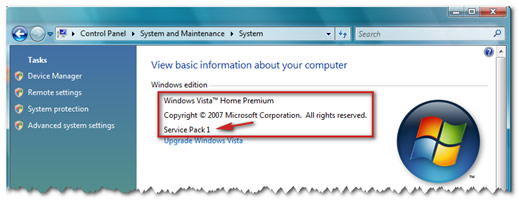
This issue is addressed in Vista Service Pack 1.

To determine what version of Windows Vista you have, follow these steps:

  1. Click the Windows (Start) Button.
    Image
  2. In the Search bar, type Welcome center and open the Welcome Center.
  3. In the upper right of the screen, click the button that says Show more details.
    (Click to expand)
    Image
  4. On that screen it should say what version of Vista is running, including the service pack level.
    (Click to expand)
    Image

If no service pack is listed, please view Microsoft Knowledge Base article 935791 for instructions on how to obtain Service Pack 1.

Read More

WD External Drive Is No Longer Recognized In Windows Or Mac?

How can I tell if my WD external drive is still functional even though it is not recognized in Windows or Mac?

Please note: This answer is highly recommended prior to returning the drive for a replacement.

Some of the simple troubleshooting techniques used below can be applied to external hard drives on a Mac as well as a PC.

Problem:
I was using my external hard drive for some time and now a drive letter (icon) does not appear in My Computer (Mac Desktop) and I cannot access the data on that drive.

Cause:
there could be a few reasons why the drive is not showing up in My Computer (Mac Desktop). The drive itself could have failed, the partition on the drive may be damaged, the data cable may no longer be good, or the drive may no longer be getting enough power to fully spin up.

Solution:
It’s always best to start with the most simple possible causes when troubleshooting. Follow the steps below in order to eliminate the common simple issues:

  1. If the drive is not being recognized, disconnect the power adapter from the surge protector/UPS and plug directly into the wall. Sometimes, surge protectors diminish the power being supplied as more devices are added to them.Note: If after doing this the drive does not spin up at all (you can tell by feeling for vibration on the drive), then either the drive or the power adapter has failed. You will need to replace the power adapter to proceed with the troubleshooting. If after replacing the power adapter, the drive still doesn’t spin up, then you will need to replace the drive. You will find links for data recovery and warranty replacement down below.
  2. If the drive is spinning but not recognized in My Computer (Mac Desktop), then change out the data cable with one that you know is good. Cables get old and the wires inside can break, or pull loose from the connectors.
  3. If that doesn’t work, connect the external drive to another USB port. The USB port could be malfunctioning.
  4. If your drive still isn’t being recognized, turn your PC (Mac) off, disconnect the data cable, restart the computer, and once the operating system is fully up and running, reconnect the data cable. Give it a minute or two to recognize then you will want to access Disk Management (Disk Utility) to see if the drive shows up in there. If it does show up in Disk Management (Disk Utility), then you have a corrupted or damaged partition and will need to re-partition and reformat the drive for it to be recognized on your PC (Mac). See Links and note below.

    Important: If you have data on the drive that you need, do not reformat the drive. You will need to perform data recovery on the drive, before you can proceed with reformatting the drive. With a damaged partition, there is data recovery software that may restore the data. You can research the various kinds on the internet.

  5. If the drive doesn’t show up in Disk Management (Disk Utility), then the last option you have is to connect the drive to another PC. If it works, then there’s an issue with either the hardware or drivers on the primary PC. You will then have to troubleshoot that computer and operating system. For help with the operating system, you will need to contact either Microsoft Support, or if you have a Mac then Apple. For help with the computer hardware, you will need to contact the computer manufacturer.
  6. If the external drive does not show up on another PC, then the drive has failed. You will need to go to data recovery if you need the data on the drive. If the drive is under warranty, you can then replace it with them.

Final Note: (For Windows) If the computer does detect the drive, you can test the drive to make sure that there won’t be any ongoing issues by using Windows Data Lifeguard Diagnostics. (For Mac’s): You can test the drive by running First Aid.

If the software reports any errors for the drive, please see Data Lifeguard Tools 11 Error Codes for a list of error codes and what they mean.

IMPORTANT: To avoid corrupting or losing the data on your external hard drive you should always shut down the drive correctly before you disconnect the data cable from the drive or computer, or the power connection from the drive or the wall outlet.

Read More

How to partition, format, or reformat an internal or external drive on Mac OS X 10.4?

Please follow the steps below to format hard drive:

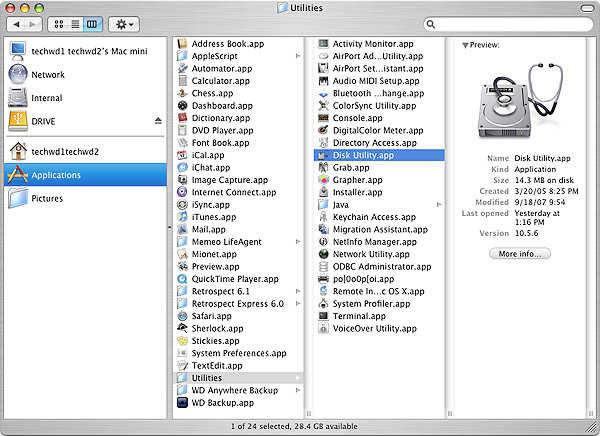
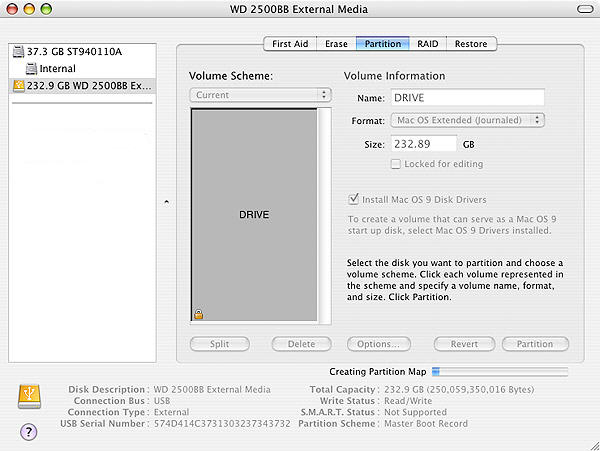
1. Double left-click on your Internal Mac drive and choose Applications -> Utilities and double-click on Disk Utilities.

format hard drive

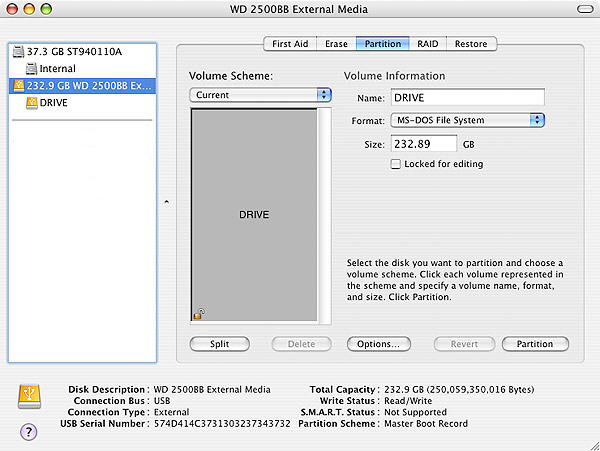
2. In the far left pane, choose the drive that you want to partition and format. Typically there are two listings for each drive unless you have more than one partition on a particular drive. Choose the drive listing that is farthest to the left for the drive that you want to format. It is usually directly above the name of the drive.

format hard drive

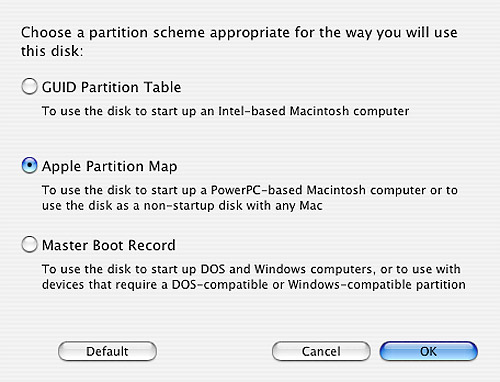
3. Click the Options button and choose Apple Partition Map. Then click on Ok.

format hard drive

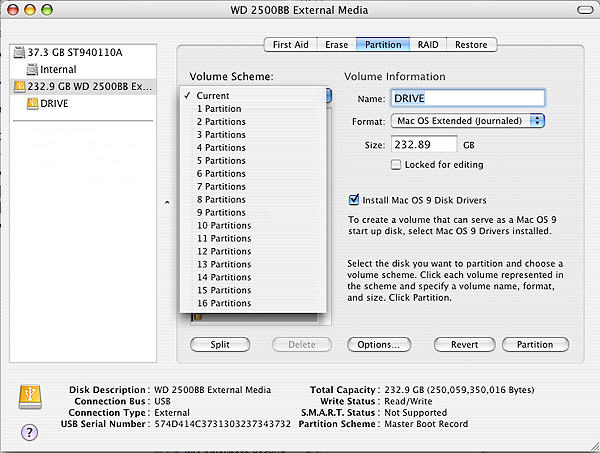
Note: If you cannot choose Options because it is grayed out, click on the Current dropdown menu and click on 1 partition. This should make the Options button useable again. Also, if you receive an error that the drive cannot be unmounted, shut down the Mac, unplug the drive from the Mac, turn you Mac back on and when it is fully loaded to the desktop, connect the drive and try again from Step 1.

format hard drive

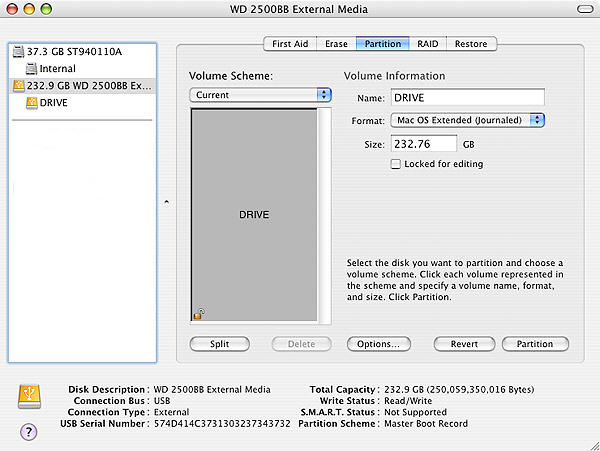
4. Change the Format to Mac OS Extended (Journaled). You can also give the drive a name by typing it into the Name box. When you are done, click on Partition.

Partition hard drive

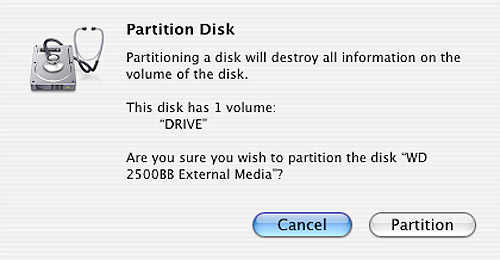
5. A box will come up letting you know that formatting and partitioning the drive will erase all of the information that is on the drive. If you don’t need any of the information on the drive, then click on Partition.

Partition hard drive

6. The drive is now formatting and you will see a status bar at the bottom that says Creating Partition Map. When it is done, this bar will go away and the drive should now show up on your desktop.

Partition hard drive

Read More

‘Access Denied’ Error or File/Folder Permission Issues on an External Drive

access denied error When connecting an external drive to a Windows 2000 Pro, XP, or Vista computer, sometimes the permissions/privileges will need to be assigned. Since the ownership of the files belong to a different user account, you may see “Access Denied” or “Not accessible” errors when trying to open the drive or a folder within the drive.

1. To change the ownership with Windows XP HOME to the current user:

  1. You must boot into Safe Mode.
  2. Right-click the file/folder you are trying to access, go to Properties.
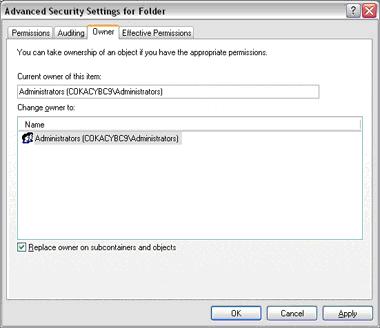
  3. Go to Security > Advanced > Owner and highlight the user account on your machine that you would like to take ownership of these files/folders.
    Be sure to check the box below, “Replace owner on subcontainers and folders” so all files within the folder will inherit the changes (only if you are changing the permissions on a folder).
  4. At the message, “You do not have permission to read the contents of directory [folder name]. Do you want to replace the directory permissions with permissions granting you Full Control? All permissions will be replaced if you press Yes”, click on Yes.

2. To change the ownership with Windows XP PROFESSIONAL to the current user:

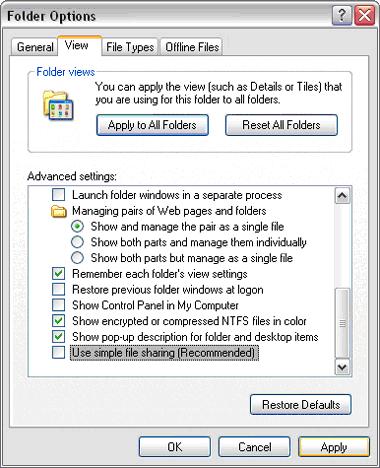
  1. Check My Computer > Tools > Folder Options > View, and uncheck “Use Simple File Sharing”.Access denied
  2. Right-click the file/folder you are trying to access, go to Properties.
  3. Go to Security > Advanced > Owner and highlight the user account on your machine that you would like to take ownership of these files/folders.
    Be sure to check the box below, “Replace owner on subcontainers and folders” so all files within the folder will inherit the changes (only if you are changing the permissions on a folder).
  4. At the message, “You do not have permission to read the contents of directory [folder name]. Do you want to replace the directory permissions with permissions granting you Full Control? All permissions will be replaced if you press Yes”, click on Yes.

Access denied

Read More

SCSI Sense Key Chart

What are Sense Keys, Sense Codes, and Additional Sense Code Qualifiers?

SCSI Sense Key Chart SCSI devices have the ability to generate error information in the form of Sense Key, Sense Code, and Additional Sense Code Qualifiers.

When an error condition is encountered on the SCSI bus, SCSI devices will issue a CHECK CONDITION Status to the host. The SCSI host adapter will respond by sending a REQUEST SENSE Command to the device to determine the nature of the error condition. The device will then reply with Sense information. This Sense information – the Sense Key, Code, and Qualifier – is represented by a series of numbers in Hexadecimal format. These Hexadecimal numbers (e.g. 02h) have certain meanings if referenced to their corresponding tables, which are normally found in the product manuals.

The Sense Key will indicate a general error. A Sense key of 2h means “Not Ready“. The Additional Sense Code and Additional Sense Code Qualifier, ASC and ASCQ, will indicate the specific error. An ASC of 04h with an ASCQ of 02h means “LUN Not Ready, Initializing Command Required“.

In some cases, these codes may enable you to remedy the error if you understand what they indicate (the language used to describe these codes can be somewhat cryptic). The example used here — Not Ready-LUN Not Ready, Initializing Command Required — would indicate that the disk drive has not yet spun up, and you may be able to remedy this by configuring the drive’s jumpers.

Key | Sense Key Description

0h

No Sense – Indicates there is no specific Sense Key information to be reported for the disc drive. This would be the case for a successful command or when the ILI bit is one.

1h

Recovered Error – Indicates the last command completed successfully with some recovery action performed by the disc drive. When multiple recovered errors occur, the last error that occurred is reported by the additional sense bytes.

Note: For some Mode settings, the last command may have terminated before completing.

2h

Not Ready – Indicates the logical unit addressed cannot be accessed. Operator intervention may be required to correct this condition.

3h

Medium Error – Indicates the command terminated with a nonrecovered error condition, probably caused by a flaw in the medium or an error in the recorded data.

4h

Hardware Error – Indicates the disc drive detected a nonrecoverable hardware failure while performing the command or during a self test. This includes SCSI interface parity error, controller failure or device failure.

5h

Illegal Request – Indicates an illegal parameter in the command descriptor block or in the additional parameters supplied as data for some commands (Format Unit, Mode Select, and so forth). If the disc drive detects an invalid parameter in the Command Descriptor Block, it shall terminate the command without altering the medium. If the disc drive detects an invalid parameter in the additional parameters supplied as data, the disc drive may have already altered the medium. This sense key may also indicate that an invalid IDENTIFY message was received. This could also indicate an attempt to write past the last logical block.

6h

Unit Attention – Indicates the disc drive may have been reset.

7h

Data Protect – Indicates that a command that reads or writes the medium was attempted on a block that is protected from this operation. The read or write operation is not performed.

9h

Firmware Error – Vendor specific sense key.

Bh

Aborted Command – Indicates the disc drive aborted the command. The initiator may be able to recover by trying the command again.

Ch

Equal – Indicates a SEARCH DATA command has satisfied an equal comparison.

Dh

Volume Overflow – Indicates a buffered peripheral device has reached the end of medium partition and data remains in the buffer that has not been written to the medium.

Eh

Miscompare – Indicates that the source data did not match the data read from the medium.

Extended SCSI Sense Key Chart

Byte 12 | Byte 13 | Error Code Description

00 00 No Additional Sense Information

01 00 No Index/Sector Signal

02 00 No Seek Complete

03 00 Peripheral Device Write Fault

04 00 Logical Unit Not Ready, Cause Not Reportable

04 01 Logical Unit Not Ready, Becoming Ready

04 02 Logical Unit Not Ready, Initializing Command Required

04 03 Logical Unit Not Ready, Manual Intervention Required

04 04 Logical Unit Not Ready, Format in Progress

08 00 Logical Unit Communication Failure

08 01 Logical Unit Communication Time-Out

08 02 Logical Unit Communication Parity Error

09 00 Track Following Error

09 01 Servo Fault

09 04 Head Select Fault

0A 00 Error log overflow

0C 00 Write error

0C 01 Write Error Recovered With Auto-Reallocation

0C 02 Write Error – Auto Reallocation failed

10 00 ID CRC Or ECC Error

11 00 Unrecovered Read Error

11 01 Read Retries Exhausted

11 02 Error Too Long To Correct

11 04 Unrecovered Read Error – Auto Reallocation Failed

12 00 Address Mark Not Found For ID Field

12 01 Recovered Data without ECC using Previous Sector ID

12 02 Recovered Data with ECC using Previous Sector ID

14 00 Sector Not Found

14 01 Record Not Found

15 00 Random Positioning Error

15 01 Mechanical Positioning Error

15 02 Positioning Error Detected By Read Of Medium

16 00 Data Synchronization Mark Error

17 00 Recovered Data With No Error Correction Applied

17 01 Recovered Data Using Retries

17 02 Recovered Data Using Positive Offset

17 03 Recovered Data Using Negative Offset

17 05 Recovered Data Using Previous Sector ID

17 06 Recovered Data Without ECC – Data Auto Reallocated

18 00 Recovered Data With ECC

18 01 Recovered Data With ECC And Retries Applied

18 02 Recovered Data With ECC And/Or Retries, Data Auto-Reallocated

18 05 Recovered Data with ECC and/or retries

19 00 Defect List Error

19 01 Defect List Not Available

19 02 Defect List Error In Primary List

19 03 Defect List Error in Grown List

1A 00 Parameter List Length Error

1B 00 Synchronous Data Transfer Error

1C 00 Defect List Not Found

1C 01 Primary Defect List Not Found

1C 02 Grown Defect List Not Found

1C 83 Seagate Unique diagnostic code

1D 00 Miscompare During Verify Operatio

Read More

What risks do viruses pose to the data on internal or external hard drive?

Rirus Recovery When it comes to data storage, viruses can be divided into two basic categories:

  • Viruses that delete data.
  • Viruses that corrupt data.

Viruses that delete data will tell the Operating System (such as Windows) to flag files as being deleted. The data itself becomes unavailable but it still exists on the platters until it’s overwritten. This data is recoverable using 3rd-party data recovery softwares which will scan the platters and mark recognizable files as not deleted, effectively restoring them to the directory structure.

Viruses that corrupt data are the most dangerous because they overwrite files with garbage data and then possibly flag them as deleted. This makes the data unrecoverable.
In either case, it is very important to have Antivirus software running on any machine whether it’s connected to the internet or not (viruses can be propagated from CDs, floppies, and other storage mediums) and keep a backup of any critical data on a removable storage device which will help prevent viruses from propagating to your backup.

Read More

How to use SeaTools for Windows

seatools for windows This post describes how to run SeaTools for Windows and provides some comprehensive advice about using the test to assist in troubleshooting.
First: Download and install SeaTools.

Launch SeaTools by following these steps once it is installed:

  1. Click on Start.
  2. Select Programs.
  3. Select Seagate.
  4. Select SeaTools for Windows.

A. Prepare the System

  • Isolate SeaTools – close all other applications before running a hard disc diagnostic. The main reason for this is to keep the drive focused on SeaTools as much as possible. Otherwise, Windows will continue to give the disc drive commands to access data for the needs of the other applications. When that happens, SeaTools will temporarily suspend its current progress while the drive is busy. This is harmless to the drive and a routine condition of use; however, it causes the SeaTools tests to take much longer time to complete.
  • SeaTools’ Drive Identification – External drives that connect to the system through USB, 1394 Firewire or eSATA do not have the same background activity as the Internal drive. Internal drives are identified as PATA (Parallel ATA or IDE), SATA (Serial ATA), SCSI or SAS (Serial-Attached SCSI). Most desktop and notebook systems have one SATA or PATA internal drive.
  • Keep the computer fully powered on – Power management controls may need to be suspended while doing very long tests. A complete drive scan may take a few hours to complete. The drive is working on its own at these times and the system may decide it should go into Stand By or Hibernate modes. Windows XP Control Panel Power Options has a setting “Turn off hard disks” and should be set to “Never” during the test.
  • Plug in your notebook computer – Notebook systems should not run the long tests using just battery power. These tests are disc-intensive and will draw more current than a typical usage profile. Be sure to connect the AC adapter to ensure adequate power during the tests.

B. Select the Drives to Test
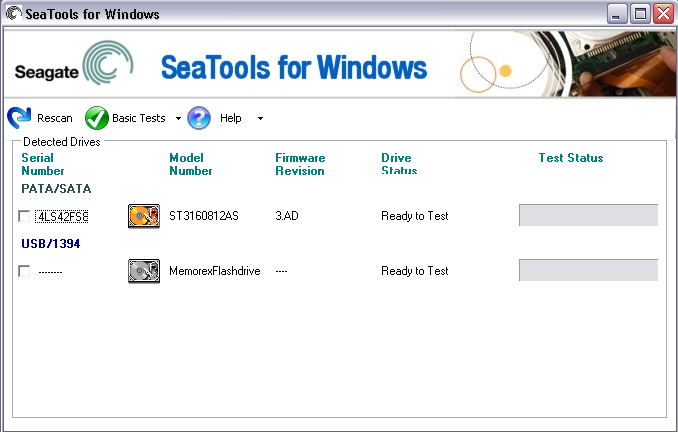
After SeaTools loads, the screen will list the different storage devices in your system. Select the drive you would like to test by making a check mark in the box next to the drive information. This screen also displays information about the drives such as the Model Number and Serial Number. Seagate model numbers begin with the letters “ST“. Seagate serial numbers are alphanumeric and eight characters long.

However, Seatools for Windows often displays the serial number and even the model number of the internal drive inside the external case, and these numbers do not correspond to the numbers that Seagate assigns to the external unit as a whole.

Seagate and Maxtor drives models are given a gold drive icon. Non-Seagate drives have a silver drive icon.

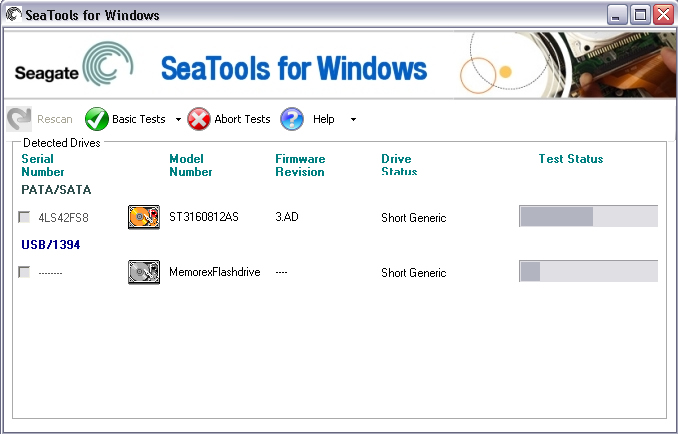
You may select more than one drive at a time to test them simultaneously.

seatools for windows

C. Select the Tests to Run

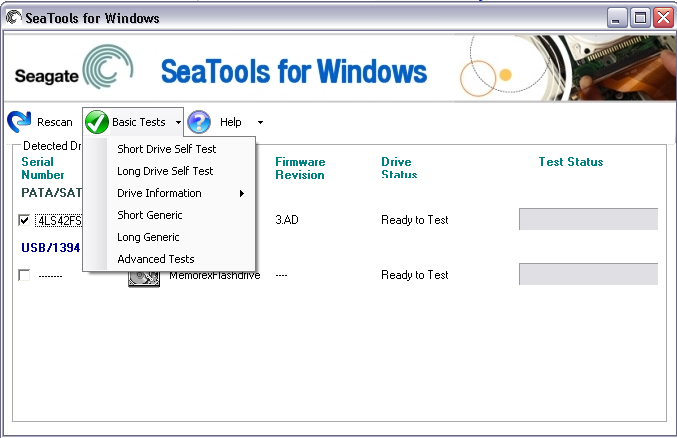
A menu of the possible diagnostic tests is shown. All Basic Tests are data safe, read-only tests. Select the tests that you would like to perform. The test will begin immediately.
These tests include:

  • Short Drive Self Test (20 to 90 seconds long)
  • Long Drive Self Test (may take up to 4 hours, progress in 10% increments)
  • Drive Information
  • Short Generic
  • Long Generic (progress in 1% increments)

seatools for windows

When you launch the “Short Drive Self Test” (DST) most drives will run a thorough diagnostic routine that is built in to the hard drive’s firmware. DST is completely data safe.
The “Short Drive Self Test” is adequate for most situations. Consider running the long Generic or long DST test, which reads each sector on the drive if you need a more comprehensive test.
The long tests will take time to complete. Because the long tests read every sector on the drive, the amount of time required will depend on the speed and capacity of the disc drive. The highest capacity drives often take 2 to 4 hours to complete. During the “Long Drive Self Test” progress is reported in 10% increments only. On large drives, 10% progress may take as much as 15 minutes. The apparent lack of activity often gives the impression that the drive or software has stopped responding. Please do not abort the Long Drive Self Test unless an adequate length of time has elapsed to complete the first 10%. Unfortunately, this 10% granularity is an industry standard.

D. Aborting the Diagnostics
The SeaTools performs a data-safe test of the selected hard disc drive or device for possible malfunctions. Long tests may be aborted at any time. Select the Abort Tests icon from the menu bar.
You can abort the test at any time without harming the drive, although the drive will not be fully tested if the test is aborted.

E. Summary of Results
Upon completion of running the diagnostics, a log for each drive is saved to the RAM drive.
The following conditions may apply:

  • Passed
  • Failed
  • Aborted

seatools for windows

More often than not, SeaTools for Windows will test with a PASS status. SeaTools for Windows is a useful testing tool to eliminate the hard disc drive as the source or physical cause of some system problem.

seatools for windows

A drive can be perfectly healthy but be holding corrupted data. If this is the case, you can attempt to repair the data. If it fails, then the data needs to be re-installed or re-saved.

Bad sectors (LBAs) may be detected during the test. The test will halt with a Fail status. If you are testing an internal PATA (IDE) or SATA disc drive, in this case, we recommend that you run the Long Test in the bootable version, SeaTools for DOS, which has the ability to repair sectors in most cases. Checkdisk can repair bad sectors.

If this software indicates a FAIL test status and you are testing an external hard drive, which uses a USB or 1394 type of bus connection, you should consider checking the warranty status of your device. You can check the warranty status for Seagate products at the Seagate Warranty Services Page website. You will need to write down the serial number for the drive you intend to check.

Please remember that Seatools for Windows often displays the serial number and even the model number of the internal drive inside the external case, and these numbers do not correspond to the numbers that Seagate assigns to the external unit as a whole.  See the drive label for the serial number.

Read More

Seatools For DOS Tutorial

Seatools For Dos SeaTools for DOS is a comprehensive, easy-to-use diagnostic tool that helps you quickly determine what is preventing you from accessing data on your desktop or notebook computer. It includes several tests that will examine the physical media on your Seagate or Maxtor disc drive and any non-Seagate disc drive. This is the walk-through for both the old (text) and new (GUI) version.

In order to use SeaTools for DOS choose to download the floppy diskette version or the bootable CD image version.

Creating a Diskette

For the floppy diskette version you will need one 1.44MB floppy diskette. Click the .EXE file downloaded from the Seagate web site and follow the on-screen instructions.

Creating a CD using the bootable CD image .ISO file.

Just copying the files to a CD will not work; the file must be burned as an image to the CD.

Once the bootable media has been created then boot the computer with the media in the drive. If it doesn’t boot from the media the boot order may need to be adjusted in the computer BIOS.

This document will cover a Graphical and a text version of Seatools for DOS. Find the guide to the graphical version immediately below.

SeaTools for Dos will not detect external drives. Please use SeaTools for Windows to test external drives.

SeaTools for DOS, Graphical version

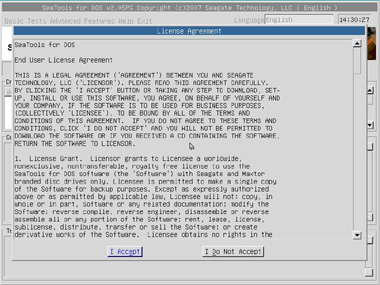
At bootup, you will see an End User License Agreement:

Image

Simply click “I Accept” to continue.
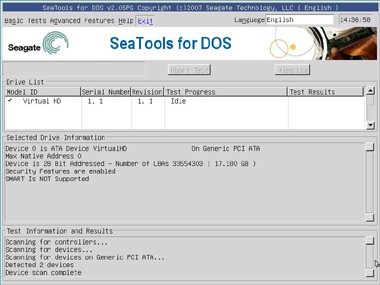
This will take you to the main menu page.

Image

Under the Basic menu:

  • Short test – Runs a DST test against Seagate drives. If DST is not supported by the drive, Seatools runs a read test. This test takes about 2 minutes.
  • Long test – Runs a full scan of the drive. This is usually used to find and repair bad sectors.
  • Acoustic test – Spins the drive down so you can determine if noise in a system is caused by the drive or by something else.

Image

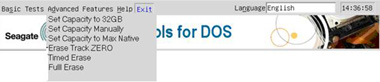
Advanced Features

  • Set Capacity to 32GB – Limits drive to 32GB for use on Pentium 3 or older systems.
  • Set Capacity manually – Limits drive to a specific number of Logical Block Addresses (LBAs), useful when replacing an unusual drive size in a RAID.
  • Set Capacity to MAX – Used to resize drive to full capacity (does not bypass the limit capacity jumper).
  • Erase Track Zero – Quick Zero fill to erase the data and partitions from a drive. This option requires one second to complete.
  • Timed Erase (10 second, 20 seconds, 1 minute, 5 minutes) – Handy for when quick zero fill just doesn’t get it all (ie, in case of boot loaders, etc).
  • Full Erase – Fills the entire drive with zeros. It can be used to recover bad sectors and erases all data.  This is not a Secure erase .

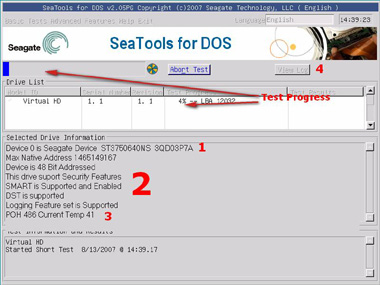
Below is the Results and Progress screen:

Image

  1. Model number and Serial number for drive selected.
  2. Drive status and supported features displayed.
  3. POH – Power on hours displayed; and Drive temperature in Celsius.

-Click View log to open the log file once the test is complete (won’t show much more than what is on the screen).

SeaTools for DOS, Text Version

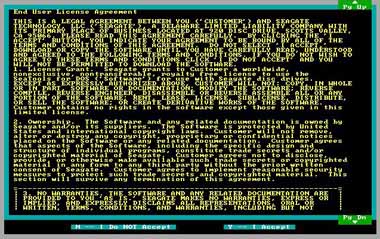
Once you have booted into SeaTools a license agreement will appear.

Image

Read the agreement and press “Y” to accept the terms and continue to the testing or press ‘”N” to exit the program. Use the Page Up and Page Down keys to scroll.

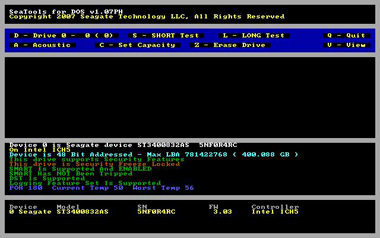
Once you agree to the license terms the testing screen will appear.

Image

See here the varying elements of the old version’s testing screen.

  • D or 0-9 – Switches drives – Select which drive to perform actions on (see device area for correlating number).
  • S – Short test – Runs a Drive Self-Test (DST) test against Seagate drives. (If DST is not supported, Seatools runs a read test). Takes about 2 minutes.
  • L – Long test – Full scan of the drive. Usually used to find and repair bad sectors.
  • Z – Zero Fill – Wipes out the data on the drive. Good for erasing corrupted or unusual partitions. It will erase ALL partitions and data on the drive. Quick and Long options supported.
  • A – Spin down drive (for Acoustic test) – Spins the drive down so you can determine if noise in a system is caused by the drive or by something else.
  • C – Set Capacity – Used to set drive capacity to surpass the common 32GB and 137 GB limits. Also used for drives that get clipped to a lower capacity.
  • V – View log file – Pulls up the log file for review.

Image

The explanation for the multi-colored text near the bottom follows:
White text: The device (ie, Device 0) and its model and serial numbers.
Yellow text: The motherboard chipset.
Aqua text: Whether the motherboard supports 48-bit Logical Block Addressing, and the Maximum LBA for this drive along with its capacity.
Green text: SMART status. If SMART has been tripped, then there is no need to run a test. The drive should be replaced.
Green text: DST (Drive Self Test) support status – If DST is supported it will be used during testing.
Blue text: Operating temperature status – Current and Max registered temp – useful in determining if heat is a factor in drive trouble or drive failure. See Product manual for specified Operating temperature. The Worst Temp refers to the highest temp that the drive has ever experienced in its lifetime.
A common unusual reading displays 253 Celsius, which simply means that the drive does not support the temperature reading feature. It is nothing to worry about.
POH = Power on Hours – Tells how long the drive has been running in its total lifetime.

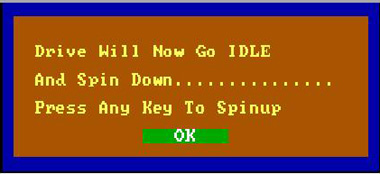
Acoustic Test

Image

Once activated, the drive will spin down so you can tell if noise is coming from the drive or other components (like a computer fan). The drive will remain spun down until user presses a key.
The Pop-up window will remain open for several seconds until the drive spins back up.

Set Capacity

  • S  – Set 32 GB Capacity: Useful for ATA drives on older motherboards that will lock up if the drive is larger than 32 GB. This solution sets the drive to 32 GB.  If too much capacity is lost, you can consider an add-in ATA controller that can fully support >32 GB.
  • R – Reset to Drive Maximum: Useful for both ATA and SATA drives that have been clipped (either manually or spontaneously) back to its maximum capacity.
  • M – Set Manually: Often useful for ATA and SATA drives as an alternative to attempt if the Reset to Maximum fails. Sometimes used to make all drives in a RAID array have the exact same size (use a specific number of sectors on the drive to set the size).
  • Q – Back to Main Menu.

Zero Fill
Main menu options: Z-Erase Drive is the zero-fill option.

Image

Here is the Zero-fill submenu.

Image

On the Zero Fill sub menu you have the following options:

  • Z – Quick Zero Fill (first 63 sectors of the drive, instantaneous)
  • A – Full Zero Fill (every sector of the drive, may take many hours)
  • F – Timed Zero fill where T adjusts the time.

Drive Information
This is the yellow text seen on the bottom of the main menu screen.

Image

Shows hard drives detected

  • Device number – Used to select which drive to test.
  • Model number
  • SN – Serial Number
  • FW – Firmware revision – Useful on SCSI and SATA products and a few ATA products.
  • Controller – Chipset to which the drive is connected. Useful for some SATA and capacity issues. If it is an old chipset, the 28-bit LBA limit may apply, and so the chipset may only support SATA speeds of 1.5Gb/s.

If a drive does not show up in this area then power off the computer and confirm the drive is installed correctly.
View the installation assistance page for details on configuring various types of drives.

Log File
Log file is stored on boot media if writeable or in memory for the CD version. It is stored as: Serial#.LOG
Ex: 5NF0R4RC.LOG
To view log in software, press V.
To exit log viewer, press the Escape key.

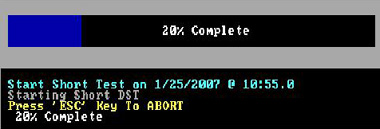
Test Status (during a DST)

Image

During a test the top part of the display shows a progress bar and the middle area shows the results.
After the test is complete, the middle area continues to show the result, and the top goes back to showing command options.

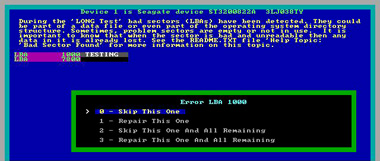
Bad Sector Repair (Long Test)

If bad blocks are found during a long test, a prompt will ask how to proceed.
The screen below appears at the end of the scan or if the user aborts the test if bad sectors have been discovered on the drive.

Example:

Image

Follow the instructions on the screen to proceed.
For further information about SeaTools for DOS view the SeaTools for DOS User Guide.txt file.

Read More

Rebuilding a Backup Catalog for Retrospect 5.x Windows

This post will walk you through the process of completely rebuilding your Retrospect catalog file. This may be required if you have lost your previous catalog file, or the file has become damaged due to a crash or disk problem.

Figure 1: The Retrospect Directory
To begin the catalog rebuild, launch the Retrospect program. The “Retrospect
Directory” will be displayed.

Click on the “Tools” tab followed by the “Repair” button (Figure 1).
catalog repair

Figure 2: Catalog Repair Selection
You will then be asked to select the catalog repair function.

You will need to select the catalog rebuild type that corresponds with the type of backup hardware you are currently using. In this example we are rebuilding the catalog from an Iomega Zip disk so we have chosen to “Recreate from removable disks.” This option is best if your backup is stored on a Zip, Jaz, SyQuest, Optical, MO, or DVD-RAM disk as well as several other types.

If you are using a tape drive like an OnStream drive, DAT, LTO, VXA, AIT, DLT or Travan drive (and several other types) you would choose “Recreate from tapes.” Users of CD-R or CD-RW devices should select “Recreate from CD-R discs.”

Once you have selected the repair type, click “OK” (Figure 2).

Update existing catalog file and Repair file backup set are not covered in this tutorial.
catalog repair

Figure 3: Media Selection
The next window will ask you to insert a member of your backup set (Figure 3). It is best to insert the Disk or Tape named 1-Your Backup Set Name (1-Backup Set A in our example). If that disk is unavailable, you should insert the next earliest member of the backup set.
catalog repair

Figure 3A: Member Selection
Once your disk has been inserted it should appear in the media request window. Select your inserted disk and click “OK” (Figure 3A).
catalog repair
Figure 3B: Forget
Note: Not all users will receive this dialog box.

For those that are asked, “There is already a known backup set named Backup Set A. Recreate a new catalog anyway, forgetting the existing one,” you must click “OK” to proceed with the catalog rebuild process.
catalog repair
Figure 4: Save Catalog Window
You will next be prompted to save your catalog file to the hard disk (Figure 4). The default location is “My Documents” or the “Retrospect” folder.
catalog repair
Figure 4A: Replace Catalog Window
If your hard disk already contains a file with a name identical to your catalog file name, you may be asked if it is safe to replace that file on the hard disk. You typically can replace the item you are saving, or choose a different location to keep the old file with this name, as well as begin the rebuild to a new file.
catalog repair
Figure 5: Building Catalog
Once the catalog file has been saved to the hard disk, Retrospect will begin the catalog rebuild process (Figure 5).

You should start to see the names of your files appear on the screen within a few minutes.

If the file names do not change, or if at any point in the process the text “Resynchronizing (Slow)” appears on the screen for more than a few minutes, please consult our Knowledgebase and other online technical resources.
catalog repair
Figure 6: More Members Window
When Retrospect reaches the end of the first disk or tape you will be prompted with this dialog box.

If you have additional tapes or disks (members) in this backup set that need to be recataloged, then click Yes. If you do not have any additional members to rebuild, click No.

If you select No, then you have completed the catalog rebuild process.

If you select Yes, then prepare to insert the disk or tape.
catalog repair
Figure 6A: Next Member Request
If you selected Yes to the previous dialog box, you will be prompted to insert the next member of your backup set (Figure 6A). You may need to manually eject the first disk or tape.

Once you insert the next member, Retrospect will automatically continue with the catalog rebuild process, displaying changes in file names. Over time the number of files and MB completed should change.
catalog repair
Figure 7: No More Members
When you have inserted all of the members that need rebuilding, click No (Figure 7).
catalog repair
Figure 8: Recatalog Finished
When the rebuild completes, you should have a dialog box similar to this one (Figure 8).

You should now be safe to perform future backup or restore operations with this backup set.
catalog repair

Read More