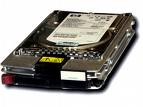
Even before the first commercial electronic computers appeared in 1951, “mass” storage – although minuscule by today’s standards – was a necessity. As early as the mid-1800s, punch cards were used to provide input to early calculators and other machines. The 1940s ushered in the decade when vacuum tubes were used for storage until, finally, tape drives started to replace punch cards in the early 1950s. Only a couple of years later, magnetic drums appeared on the scene. And, in 1957, the first hard drive was introduced as a component of IBM’s RAMAC 350. It required 50 24-inch disks to store five megabytes (million bytes, abbreviated MB) of data and cost roughly $35,000 a year to lease – or $7,000 per megabyte per year.
For years, hard disk drives were confined to mainframe and minicomputer installations. Vast “disk farms” of giant 14- and 8-inch drives costing tens of thousands of dollars each whirred away in the air conditioned isolation of corporate data centers. The personal computer revolution in the early 1980s changed all that, ushering in the introduction of the first small hard disk drives. The first 5.25-inch hard disk drives packed 5 to 10 MB of storage – the equivalent of 2,500 to 5,000 pages of double-spaced typed information – into a device the size of a small shoe box. At the time, a storage capacity of 10 MB was considered too large for a so-called “personal” computer.
The first PCs used removable floppy disks as storage devices almost exclusively. The term “floppy” accurately fit the earliest 8-inch PC diskettes and the 5.25-inch diskettes that succeeded them. The inner disk that holds the data usually is made of Mylar and coated with a magnetic oxide, and the outer, plastic cover, bends easily. The inner disk of today’s smaller, 3.5-inch floppies are similarly constructed, but they are housed in a rigid plastic case, which is much more durable than the flexible covering on the larger diskettes.
With the introduction of the IBM PC/XT in 1983, hard disk drives also became a standard component of most personal computers. The descriptor “hard” is used because the inner disks that hold data in a hard drive are made of a rigid aluminum alloy. These disks, called platters, are coated with a much improved magnetic material and last much longer than a plastic, floppy diskette. The longer life of a hard drive is also a function of the disk drive’s read/write head: in a hard disk drive, the heads do not contact the storage media, whereas in a floppy drive, the read/write head does contact the media, causing wear.
By design, hard disk drives contain vastly greater amounts of data than floppy disks and can store and retrieve it many times faster. Rapid declines in price for hard disk drives meant that by the mid-1980s, a drive of at least 20 MB capacity was a standard component of most PCs. (Because floppy diskettes are a cheap and removable storage media, floppy drives still are included in most PCs as a means for loading software and transporting and archiving vital data.)
Like any other product of the electronics industry, hard drives were subject to the inexorable law of miniaturization. By the mid-1980s, 5.25-inch form factor drives had shrunk considerably in terms of height. A standard drive measured about three inches high and weighed only a few pounds, while lower capacity “half-height” drives measured only 1.6 inches high. By 1987, 3.5-inch form factor hard drives began to appear. These compact units weigh as little as a pound and are about the size of a paperback book. They were first integrated into desktop computers and later incorporated into the first truly portable computers – laptops weighing under 12 pounds. The 3.5-inch form factor drives quickly became the standard for desktop and portable systems requiring less than 500 MB capacity. Height also kept shrinking with the introduction of one-inch high, ‘low-profile’ drives.
Even as 3.5-inch form factor drives were gaining acceptance, yet a smaller form factor of 2.5 inches appeared on the scene. This was in direct response to the need to further reduce size and weight in portable computers for four to six pound notebook computers. Today’s 2.5-inch drives are about the size of a deck of cards, weigh as little as four ounces, and deliver capacities of more than 500 MB.
Not surprisingly, the march to miniaturization did not stop at 2.5-inch drives. By 1992, a number of 1.8-inch form factor drives appeared, weighing only a few ounces and delivering capacities up to 40 MB. Even a 1.3-inch drive, about the size of a matchbox, was introduced. Of course, smaller form factors in and of themselves are not necessarily better than larger ones. Disk drives with form factors of 2.5 inches and less currently are required only by computer applications where light weight and compactness are key criteria. Where capacity and cost-per-megabyte are the leading criteria, larger form factor drives are still the preferred choice. For this reason, 3.5-inch drives will continue to dominate for the foreseeable future in desktop PCs and workstations, while 2.5-inch drives will continue to dominate in portable computers.
The drive to smaller form factors is made possible by continuing advances in electronics, disk media, read/write heads, and other disk drive technologies – all of which provide the ability to store ever more data on a given disk surface area. Historically, technology advances have resulted in the doubling of areal density – and thus the megabyte capacity of a disk – about every 18 months.
Since its introduction, the hard disk drive has become the most common form of mass storage for personal computers. Manufacturers have made immense strides in drive capacity, size, and performance. Today, 3.5-inch, gigabyte (GB) drives capable of storing and accessing one billion bytes of data are commonplace in workstations running multimedia, high-end graphics, networking, and communications applications. And, palm-sized drives not only store the equivalent of hundreds of thousands of pages of information, but also retrieve a selected item from all this data in just a few thousandths of a second. What’s more, a disk drive does all of this very inexpensively. By the early 1990s, the cost of purchasing a 200 MB hard disk drive had dropped below $200, or less than one dollar per megabyte.
A Look Ahead
Microsoft ex-CEO Bill Gates predicted that as PC users evolve into “knowledge navigators,” the demand for mass storage speed and capacity will continue to outpace technology developments. Gates speaks with authority as the mastermind behind dozens of PC applications and the leading PC operating environment, Microsoft Windows, all of which require increasing amounts of storage at higher levels of performance. As just one example, a complete installation of Microsoft Word, with its built-in spell checker, thesaurus, and grammar checker, now occupies 24 MB of hard drive space – more than two times the entire hard disk drive capacity of the original IBM PC/XT. Emerging applications such as multimedia, which requires storage of video images, demand even more hard drive capacity and performance. For example, a single frame of video can comprise over 4 MB of data. Given that “true motion” video operates at 30 frames per second, it’s not hard to understand how a multimedia application can easily devour a gigabyte of storage. The remainder of this book will familiarize you with mass storage options, and the hard disk drive in particular, one of the most vital components of the modern computer. You will learn about computer systems, disk drives, and other forms of mass storage. Finally, this book looks into the future to highlight new technology developments that promise to keep hard disk drives revolutionizing our lives for years to come.
“The Evolution of Mass Storage” is 1998-99 Quantum Corporation