Free MAC Data Reovery Program: Disk Drill

Recovery damaged, corrupted and deleted data from HFS, HFS+, FAT, NTFS & other file systems.

Version: Disk Drill 1.0.66
Publisher: www.cleverfiles.com
Operating system: Mac OS X 10.5+

Disk Drill is a free data recovery program designed and created exclusively for Mac OS. Extremely clear wizard-like user interface guides you through the data recovery process and offers several options for successful MAC data recovery. Was your hard drive formatted? Is your external volume not accessible any more? CleverFiles will help you recover what is still available on a binary level.

* Note: It is free while beta!

Disk Drill Main Features:

  • File systems supported: HFS/HFS+, FAT, NTFS, etc.
  • Media supported: Memory cards, external and internal hard drives, iPod and iPhone, camera and so on.
  • Recovery in Seconds: You can use Quick Scan or Recover from Vault modes to quickly analyze existing file system catalog and recover deleted files unexpectedly fast.
  • Partition Recovery: Accidental repartitioning lead to data loss? Recover data from partitioned or formatted disk drives right on your Mac.

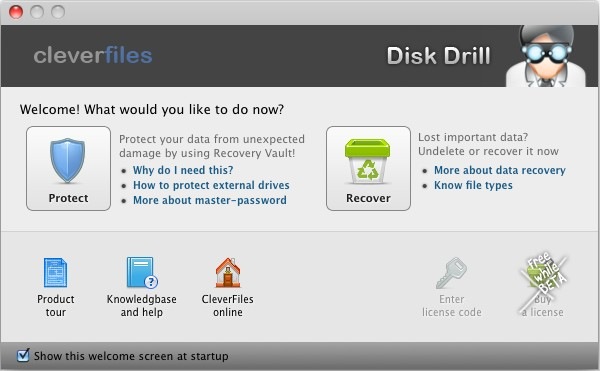
Disk Drill Main Screenshot:

Free MAC Data Reovery Program: Disk Drill

Disk Drill Free Mac Data Recovery Program Customer Reviews:

Disk Drill is the only true Mac-style software for data recovery and data protection. And it’s exactly what I was looking for”

Bravo! I just did the high level scan. Unbelievable! You are the only one capable of recovering from a CF 16GB. Every program I tried so far failed miserably. My hat to you.”

Disk Drill Free Download:

Free MAC Data Reovery Program: Disk Drill

Read More

Computer Cables Overview

1. External Drives Cables:
USB, FireWire 400, FireWire 800, eSATA, Powered eSATA

a) USB Cable
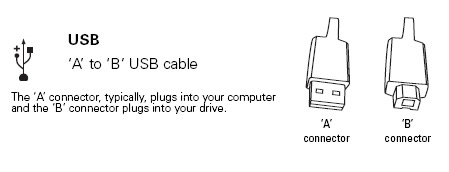
USB is the most common connection type for external devices, whether external hard drive, thumb drives, flash drives, printers, cameras, all kinds of other devices.  It is extremely easy to use. Whether the computer is powered on or powered off, simply connect the cable to your device and it should be ready to be used less than 30 seconds later (depending on your computer’s speed).

The USB cable has two ends – one to connect into the drive, and one to connect into the computer. Sometimes these ports are found both on the front and the rear of your computer.

USB Cable

b) FireWire 400 and 800 Cable
FireWire is a similar connection to USB, in that it is plug-and-play.  Simply connect your device to the computer and it will usually be ready to be used within 30 seconds.  FireWire is much more common in Mac computers than in Windows computers.

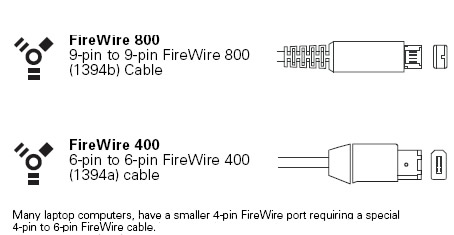
FireWire comes in two speeds at this time – FireWire 400 and FireWire 800.  FireWire 400 (also known as 1394a) usually gives performance similar to USB.  FireWire 800 (1394b) is significantly faster, giving performance similar to an internal Serial ATA drive, but is less common than FireWire 400, and is almost exclusively available in Mac computers.

FireWire 400 and 800 Cable

c) eSATA Cable
eSATA (external Serial ATA) is a high-performance interface most commonly found in Windows PCs, but is fairly rare.

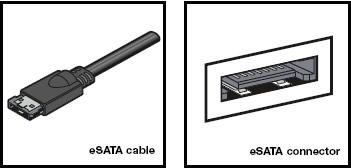
The eSATA cable’s connector and the port look similar to that of a normal Serial ATA connector and port, but they are not intercompatible due to small physical differences.

eSATA Cable


d) Powered eSATA Cable
Powered eSATA provides high performance like eSATA, but like USB 2.0 it also provides electrical power to operate a drive without needing to use a separate power cable for the drive. This interface is even more rare than eSATA.

2. Internal Drives Cables:
Serial ATA (SATA), (Parallel) ATA (PATA)

a) Serial ATA (SATA) Cable
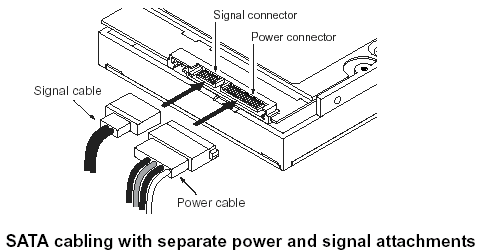
Serial ATA is the most common connection for internal drives in modern PCs and Macs (including all G5s).  There can be multiple SATA ports on any one motherboard or controller card.  One cable connects one hard drive to one port on the motherboard (as opposed to Parallel ATA).

SATA drives include a small power adapter that plugs in to the normal power cable inside your PC or Mac so that it will fit the SATA drive.

Serial ATA (SATA) Cable

b) (Parallel) ATA Cable
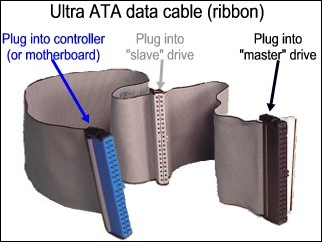
ATA is a very common connection for internal drives in older PCs and older desktop Macs (before G5), and for devices like CD and DVD drives in modern PCs and Macs.  It is a connector about 2 inches (5 cm) wide and has 40 small gold pins that will fit into the corresponding 40 small holes on its corresponding connector. There can be two or four ATA ports on any one motherboard.  One cable can connect to two devices at the same time.

(Parallel) ATA Cable

Blue connector – always connects to the motherboard.
Grey (middle) connector – is used for slave devices on the cable.
Black connector – is used for master device connection.

Note: An ATA hard drive will also have different jumper settings depending on whether it is connected as slave or master. An ATA hard drive that is connected to the same cable as a CD or DVD drive must be connected to the master position, with the CD or DVD drive in the slave position.

Read More

Intel RAID Controller Troubleshooting Guide: Some of my hard drives show up during POST and some do not

Drives not showing up in post can be caused by a variety of problems. Please check the
following:

• Are you using the latest BIOS and firmware for the server board and the latest firmware
for the RAID card?

• System memory limitations limit the number and size of option ROMs that can be used
in the system. If you place too many adapters in the system, or the ROMs on the
adapters you have installed take up too much space in memory, the option ROM on
your RAID controller may not expand correctly and will not show the hard drives that are
connected to it. Try turning off the expansion ROMs for any on-board device that is not
being used. For example, if your server board includes a SCSI controller that is not
being used, disable this SCSI controller in BIOS setup. For a list of tested peripherals
with the Intel RAID controller, download the Tested Operating System and Adapter List
from http://support.intel.com/support/motherboards/server.

• If you are using a Zero Channel Card that utilizes the on board IO controller, such as an
on-board SCSI or Serial ATA controller, the Option ROM scan for the on-board device
must be enabled. If it is not enabled, drives connected to that device will not show up
during POST.

• Confirm that the drive power cables are firmly connected. If you are using a chassis
with a backplane, make sure the power and SCSI cables are properly applied to the
backplane and the hard drives are firmly seated in the backplane.

• Check your SCSI ID numbers. SCSI devices must each have a unique ID on the SCSI
bus. This number is set with jumpers on the device. ID numbers should be set starting
at 0 and they must be set lower than 8 if booting from the drive. If you are using a
server chassis with a backplane, the device IDs are usually automatically set by the
backplane, but may be manually configurable.

• Check for proper termination on the SCSI bus. Intel RAID cards are by default autoterminating.

If your hard drives still do not show during post, please call your customer support
representative. Note the following information and have it ready to assist the support engineer:

• Model number and firmware revision of the RAID controller you are using.
• Manufacturer and model number of other add-in adapters installed in your system.
• Manufacturer and model number of hard drives installed in the system.
• Identify the type of termination used for the card.
• The SCSI IDs of the devices on your SCSI bus.
• The number and type of SCSI channels.
• Manufacturer and model of the memory used in the system and on the RAID controller
and whether it is on the tested memory list.

Read More

The Ever Growing Challenges of Data Storage

Electronic data storage needs continue to grow. As your client’s organization produces more information in electronic format, storage space is becoming increasingly important.

Managing data storage for performance, integrity, and scalability is the next summit in Information Technology management and planning.

It wasn’t long ago that having a single volume in the terabyte size range was rare for extremely large organizations. With the advent of IDE RAID and SATA RAID capabilities, large storage systems are within reach of medium to small businesses.

Let’s put things into perspective – how much space is 1TB?

Number of Bytes

What that relates to

1 Byte

One character (letter or number)

1KB (Kilobyte) 1000 bytes

3 or 4 typed manuscript style pages

1MB (Megabyte) 1,000,000 bytes

Average size of a novel (300-400pgs); 1 diskette

1GB (Gigabyte) 1,000,000,000 bytes

Approximately 20 sets of encyclopedias

1TB (Terabyte) 1,000,000,000,000 bytes

A small library (approx. 5,000 books)

Number of Bytes What that relates to

To get the best performance and reliability from any storage space, strategic storage planning is essential. This month’s technical article will review the importance of the file system and planning considerations.
The File System’s Role

The file system’s role is a layer above the storage device(s) itself. The file system manages the individual allocation units of the volume and provides hierarchical organization for the files. Managing the allocation units of the files requires algorithms that will know where to write file data and have a method of verifying that the data was written correctly.

Hierarchical organization is the logical formation of directories and underlying structures. For instance, a storage volume that has millions of files on it will have specific data that describes the directory or folder structure of where these files belong. This directory or folder structure has integrity checks and balances to ensure that the indices reliably point to the user data.

Today’s file systems track more than just the name of the file or directory structure. Additional information called Metadata is also stored. Metadata is data about data. Essentially, the file system is saving more details about your files and is storing this along with attributes of the file. Some file systems record only the minimum of metadata (file name, size, time and date, start address), while other file systems record more information (file name, size, multiple time and dates, security details such as Read/Write/Execute/Delete privileges).

Some file systems are designed for specific hardware and storage media. For instance, the file systems used for CD-ROMs are quite different than those for floppy diskettes. Forcing these file systems on other media may be possible, but not practical. So while specific storage media, such as CD-ROM, DVD-ROM, magnetic-optical disks, and tape, have unique file systems, hard disk and hard disk storage systems can work with many different file systems.

Understanding these extra features of file systems will help in choosing the best one for the needs of the volume.

File System Considerations

During server planning, more time and research is spent on hardware, data space requirements, and application specifications than on how the data will be stored. The file system can become a low priority during the planning stages of a file or data server because the file system is inherent to the operating system. Sometimes it is assumed that this is best fit. However, your storage requirements may call for a more robust method of data organization on the hard disk(s). Investigate whether the operating system you are planning to use allows the other file systems to be used.

If you have a choice of file systems, here are some requirements to consider:

• Volume Size
• Estimated number of files on the volume
• Estimated size of files on the volume
• Shared volume requirements
• Backup Requirements

Volume Size

Volume size is an important place to start for planning. However, this is only the start since strategic planning involves scalability—can it grow as the need arises without interruption of service to the users? The axiom of filling free space is all too true for data volumes. It is not uncommon to add a terabyte of storage and in six months it’s already half full.

Two terabytes (2TB) has become the initial hurdle for many file systems. This limit starts with the SCSI command set being limited to 32-bit logical block addressing. Therefore, a single SCSI LUN using 512 byte block size cannot access over 2TB. File systems that have been used on these systems have been ‘adjusted’ to handle extremely large volumes. However, volumes that are nearing the 2TB limit may be stressing the limits of the file system.

Estimated Number of Files on the Volume

The next item to plan for is the number of files that could potentially be stored on the volume. Earlier we discussed Metadata and how the file system uses this to describe the files that are stored. This means there is going to be a certain amount of volume space used by the file system just to manage the files that are there.

File systems that are not built for excessively large directories will slow down applications that access them. This can adversely affect users that have thousands of files on a volume that has millions of files.
Estimated Size of Files on the Volume

The next consideration is the sizes of the files that will be on the volume. Organizations that are running large database servers usually have the need to be able to pre-allocate very large files in the gigabyte range of sizes. The file system and operating system need to be able to handle this level of input and output. For these types of enterprises’ systems, expectations are high for performance and integrity. Will the file system be able to handle those extremely large files?

Shared Volume Requirements

There are mixed environments in many organizations today. Some organizations may have three or four different platforms of computer systems; from mainframe systems to 64-bit Sun machines, from Apple desktops to Intel based machines. Some of these systems may share storage space. Will the volume support mixed data types? Additionally, will the operating system that manages the file system allow for different types of data streams to be accessed simultaneously?
Backup Requirements

Large volumes present a challenge for backup procedures. Due to the amount of data, restorations can take days. There are some file systems that have ‘Snap-shot’ technology incorporated into the backup software. This technology saves critical file system metadata. This, along with incremental file backups, is part of entire system scheme of data archiving.

These considerations should be matched with hardware specifications to get the best performance, integrity, and growth capability.


Read More

Data Backup Glossary (Letter L)

Data Backup Glossary (Letter L)Light archive
In reference to data storage, an archive that can be accessed by many authorized users. Access to the data is open to all the members of the “community” that have a need for the data.

Lightbox
In digital asset management (DAM) systems, an area within the web site (or web service) or other internal DAM where users can create and store a list of assets they want to reference or use at a later time. Lightboxes are common on stock photo web sites where registered users can store images until they are ready to download them.

Linear tape open
Linear tape open (LTO) is a technology that was developed jointly by HP, IBM, and Certance (Seagate) to provide a clear and viable choice in an increasingly complex array of tape storage options.  LTO technology is an “open format” technology, which means that users have multiple sources of product and media. The open nature of the technology also provides a means of enabling compatibility between different vendors’ offerings.

Local area network
A local area network (LAN) is a communications infrastructure—typically Ethernet—designed to use dedicated wiring over a limited distance (typically a diameter of less than five kilometers) to connect a large number of intercommunicating nodes.

Lost cluster
Also called a lost allocation unit, or a lost file fragment. A data fragment that does not belong to any file, according to the system’s file management system, and, therefore, is not associated with a file name in the file allocation table. Lost clusters can result from files not being closed properly, from shutting down a computer without first closing an application, or from ejecting a storage medium, such as a floppy disk, from the disk drive while the drive is reading or writing.

Low-level format
(n.) A formatting method that creates the tracks and sectors on a hard disk. Low-level formatting creates the physical format that dictates where data is stored on the disk. Modern hard drives are low-level formatted at the factory for the life of the drive. A PC cannot perform an LLF on a modern IDE/ATA or SCSI hard disk, and doing so would destroy the hard disk. A low-level format is also called a physical format.

(v.) The process of performing low-level formatting.

Read More

DeepSpar Data Recovery

About DeepSpar Data Recovery: DeepSpar Data Recovery Systems is an Ottawa, Canada-based company dedicated to providing “serious gear for data recovery professionals”. DeepSpar was founded on a partnership with ACE Laboratory Russia to market the PC-3000 family of products in North America. With more than 16 years of successful data recovery engineering experience, engineers of…

Read More

3D Data Recovery process

Data recovery firms are missing out on data they could retrieve with the complete 3D Data Recovery process. Proper data recovery involves three phases: drive restoration, disk imaging, and data retrieval. But data recovery professionals can face frustrating problems when imaging a damaged disk. The drive may repeatedly stop responding in the middle of copying data. The drive may fail completely because of the stress caused by intensive read processes. Significant portions of data may be left behind in bad sectors.

These issues plague firms that use traditional disk imaging methods. Read instability makes it difficult to obtain consistent data quickly, and system software is not equipped to read bad sectors. However, these problems can be solved with imaging tools that address disk-level issues.

Imaging software bypasses system software and ignores error correction code (ECC), processing each byte of data in bad sectors. Inconsistent data is evaluated statistically to determine the most likely correct value. Faster transfer methods speed up the process, and customizable algorithms allow the data recovery professional to fine-tune each pass. Imaging software provides feedback on the data recovered while imaging is still underway.

Imaging hardware can reset the drive when it stops responding, which minimizes damage from head-clicks and allows the process to run safely without supervision.

1.Drive Restoration: Damage to the hard disk drive (also referred to as HDD) is diagnosed and repaired as necessary. There are three main types of damage:

  • Physical/mechanical damage: Failed heads and other physical problems are often repaired by replacing the damaged hardware with a donor part.
  •  Electronic problems: Failed printed circuit boards (PCBs) are replaced with donor PCBs, and the contents of the failed PCB read-only memory (ROM) are copied to the donor.
  •  Firmware failure: Firmware failures are diagnosed and fixed at the drive level.2.Disk Imaging: The contents of the repaired drive are read and copied to another disk, Disk imaging prevents further data loss caused by working with an unstable drive during the subsequent data retrieval phase.Drives presented for recovery often have relatively minor physical degradation due to wear from normal use. The wear is severe enough for the drive to stop working in its native system. However, imaging software can work with slightly degraded drives, so part replacement is often not required. In these cases, the data recovery process can skip drive restoration and start with disk imaging.3. Data Retrieval: The original files that were copied onto the image drive are retrieved. Data retrieval can involve these tasks:
  • File system recovery: The recreation of a corrupted file system structure such as a corrupted directory structure or boot sector, due to data loss.
  • File verification: Recovered files are tested for potential corruption.
  • File repair: If necessary, corrupted files are repaired. Files might be corrupt because data could not be fully restored in previous phases, in which case disk imaging is repeated to retrieve more sectors. File repair is completed, where possible, using vendor-specific tools.Drive restoration and data retrieval, the first and last phases, are well-serviced by the data recovery industry. Many data recovery companies have the necessary software, hardware, knowledge, and skilled labor to complete these phases. However, the technology for effective disk imaging has been relatively neglected because of its challenges, making it a weak link in the data recovery process. Data recovery firms that skim the surface with traditional imaging methods often miss out on potential revenue.
Read More

Hard Drive Data Recovery In Miami Florida

datarecoverymiamiLooking for a professional data recovery service in Miami area? In Miami area there are many recovery companies and here is a list just for your referance:

1. Secure Data Recovery Services
80 S.W. 8th Street, Suite 2000, Miami, FL 33130
(786) 372-0656
securedatarecovery.com

Performs professional data recovery for businesses and individuals for over 14 years backed by over 25,000 successful data recovery operations.

Services Specialize in‎ Hard Drive Recovery, Raid Data Recvery, Mac Data Recovery, SQL Data Recovery, Laptop Data Recovery, Raid Repair, Hard Drive Repair, Server Data Recovery Services

They recovered all the data from my damaged external hard drive. Hard Drive Data Recovery Raid Services – Miami did an outstanding job and helped me in a way I didn’t think was possible. My dog tipped over my external disk and I got the click of death. The drive was no longer accessible and made a constant clicking sound.I took it to a few places before coming across Hard Drive Data Recovery Raid Services – Miami. I had them take a look at it. I felt confident and decided to proceed with this company once I received the diagnostics results. I have all my data back and now keep my pets out of my work space.I had great communication with the staff and honestly the level of service in some points exceeded my expectation. I would def use them again, but I hope a hard drive never fails on me and I now backup my important information.

2. Data Recovery Miami
5068 Northwest 74 Avenue, Miami, FL 33166
(305) 228-6163
acedatalab.com

Data Recovery, $199 Flat Rate, 24/7, No Data, No Recovery Fee.

Happy To Have Them! I would like to give my heartfelt thanks to the people at Computer Based Associates. Frankly I am an IT manager but I even did not backup my home computer. Suddenly, my 500 GB Western Digital hard drive did not spin up any more. I lost everything that was important to me. One of my co-workers gave me the phone number for them since he got data recovered there from a smoking hard drive. They fixed the hard drive, I don’t know how they did it, and got all my data. They have their own clean room and facility instead of sending hard drives to other locations.

3. Data Recovery Hialeah
801 Brickell Avenue, Suite 900, Miami, FL 33131
(305) 537-5000
datarecoveryhialeahfl.com

Provides data recovery services that includes: Mac Data Recovery and Repair, Hard Drive Recovery, Raid Data Recovery and Repair and Laptop Data Recovery Services in Hialeah, FL. Florida.

Data Recovery Services‎‎: Hard Disk Drives, RAID Arrays, Servers, Laptops, Tape Drives, Flash Media.

Full Recovery I had the pleasure of using Data Recovery services of Hialeah to retrieve data off of 4 flash drives that my nephew destroyed. They got most of the pictures off of it, and much of my work data. I’m happy to recommend them to anyone for their professionalism and work. Thanks

4. Data Recovery Miami
9100 South Dadeland Boulevard, Miami, FL 33156
(786) 372-0656
datarecoverymiami.com

Hard Drive Data Recovery‎, Raid Data Recovery‎, Server Data Recovery‎, Apple Data Recovery‎, Mac Data Recovery‎, Database Data Recovery‎, Tape Data Recovery‎, Flash Data Recovery‎, Usb Data Recovery‎, Sql Data Recovery‎, Oracle Data Recovery‎, Dbase Data Recovery‎, Unix Data Recovery‎, Novell Data Recovery‎, Windows Data Recovery‎, Sharepoint Data Recovery‎, Cd Data Recovery‎, Dvd Data Recovery‎, Bluray Data Recovery

Grateful for excellent service. My external drive went out after I caught a malware virus and it started messing with my files. I shipped my drive to Hrad Drive Data Recovery Services Miami and they removed the malware for me, restored and backed up my documents.

If you are living in Miami Florida area maybe you have heard about one or some all of them, they are all top-customer-reviews recovery companies that can help you so much. If you also know other companies can provide professional recovery services please feel free to contact me, I can list them here in time. Thank you!

Read More