I can read and write from my SCSI hard disk, but I can’t boot from it

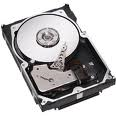
SCSI Hard Drive Sometimes, the master boot record(MBR) on a hard disk may become corrupted as a result of installing other operating systems or through infection by a boot-block virus. When this happens, you can boot from a floppy (you must have the necessary files) and attempt to re-write the Master Boot Record (Microsoft Windows 95/98/Me/2000/XP only) by typing “FDISK /MBR” (leave out the quotes). If that doesn’t work, there are other ways to purge the MBR through the use of debug routines, SCSI low-level format routines, or the zero-fill utility in your SCSI controller BIOS. Consult your operating system vendor for assistance with this to determine if this is an operating system issue.

Or try these troubleshooting steps:

  • Check all cable connections.
  • Verify twisted-pair cable on any LVD SCSI drives.
  • Test the data cable by trying a different cable.
  • Try the cable on a known working drive.
  • Check the jumper settings.
  • Check the SCSI bus termination.
  • Check the host adapter card default settings.
  • Test the card by either trying a known good card or a known working drive.
  • Check host adapter settings.
  • Set the SCSI transfer mode to asynchronous negotiation and the transfer rate to 10MB/s (or the slowest setting).
  • Make the offending drive the only device in the system and re-test.
  • Run the “low-level” format (SCSI Format) routine if it’s provided by the host adapter manufacturer (data destructive).
  • Try drive in a different system to see if the same results follow.
Read More

Data Storage: Optical Storage Devices

  • Optical Storage Devices Pinnacle Micro
    Optical storage solutions for general data storage and emerging applications.
    www.pinnaclemicro.com
  • InPhase Technologies
    Developing holographic data storage technology.
    www.inphase-technologies.com
  • QPS, Inc.
    Makers of CD-R, CD-RW and DVD storage products.
    www.qps-inc.com
  • MaxOptix
    Provider of optical drives, media, and jukeboxes.
    www.maxoptix.com
  • Octave Systems, Inc.
    Offers CD and DVD recorders and rewritables, recording software, media, and accessories.
    www.octave.com
  • Summation Technology
    Offers a variey of CD and DVD duplicators, printers, media, and packaging.
    www.summationtechnology.com
  • Verity Systems
    Manufactures CD-R and DVD-R duplicators, printers, packaging equipment, and degaussers (bulk tape erasers).
    www.veritysystems.com
  • Cutting Edge
    Provides high performance RAID solutions, Jukebox, magnetic optical storage, and other network attached storage systems.
    www.cuttedge.com
  • CenDyne, Inc.
    Marketer of computer peripheral products to the computer and consumer electronics market.
    www.cendyne.com
  • PrimeArray Systems, Inc.
    Makers of CD-ROM towers and mastering solutions.
    www.primearray.com
  • U.S. Design Corporation
    Optical Storage for DEC, IBM, SunOS, Solaris, HP, and Windows/NT.
    www.usdesign.com
  • Young Minds Inc.
    Develops mission-critical CD-R and DVD-R storage solutions including hardware and software solutions.
    www.ymi.com
  • 1st-CD Burners-Duplicators and CDR
    Offering firewire devices for Mac and PC, CD burners, duplicators, and printers.
    www.1st-cdburners-duplicators-and-cdr.com
  • Optical Laser
    Distributor of document imaging and mass storage products.
    www.opticallaser.com
  • Sunland International (SLI)
    Offers optical data storage DVD-RAM and UDO libraries, replacement drives, and compliant recordable media.
    www.slidirect.com
  • Optical Jukebox
    Distributes Asaca Fibre Channel DVD-RAM and DVD-R libraries for Optical RAID, NAS, and SAN.
    www.opticaljukebox.com
  • Kubik
    Manufactures CD-ROM and DVD auto-changer storage units.
    www.kubikjukebox.com
  • STEAG HamaTech
    Supplier of manufacturing equipment for the optical disc and photomask industries.
    www.flt.com
  • OpticalJukeboxes.com
    Provides information about optical storage technologies including CD, DVD, and Magneto-Optical jukeboxes. A division of Digital Storage Solutions.
    www.opticaljukeboxes.com
  • e-tronicDepot
    Sells DVD/CD duplicators, writers, recorders, players, printers, and media as well as PC peripherals and parts.
    www.e-tronicdepot.com
  • ProDisk Inc.
    Offers optical disk products and service.
    www.prodiskinc.com
  • T.S. Solutions
    Offers automated or manual CD-R duplication equipment, automated floppy duplicators and CD-R printers.
    ts-solutions.com
  • Gotdrives
    Offers a variety of optical drives from such makers as HP, Sony, Maxoptix, and Panasonic.
    www.gotdrives.com

To add your Optical Storage Devices Link here, please feel free to contact us!

Read More

CD Optical Storage Glossary of Computer Terms (Letter P)

Paint
to apply color or gradient to an area of an image

Palette
A group of selected colors used by a graphics board. The EGA board uses a palette of 16 colors. VGA boards in some resolutions provide a palette of 256 colors.

PCI Local Bus
The Peripheral Component Interconnect (PCI) local bus

PCMCIA
Personal Computer Memory Card International Association. PCMCIA is becoming the link between desktop and notebook computing for data transfer and storage. PCMCIA slots perform the same functions as expansion slots on PC compatibles.

Photo CD
Generic term used to refer to Digital images on compact disc (see Kodak Photo CD)

Pixel
Picture Element. The smallest element of a screen represented as a point of specific color and intensity level.

Platform
The hardware and operating system that applications are run on

Premastering
In CD-ROM distribution, the process of preparing the data to be placed on the CD-ROM so that is optimally fits the CD-ROM format and limitations.

Primary color
In a tri-stimulus color video system, one of the three colors mixed to produce an image. In additive color systems, the primary colors are red, green, and blue. In subtractive color systems, the primaries are cyan, magenta, and yellow.

Production

In video refers to the process of creating programs. In more specific usage, production is the process of getting original video onto tape or film and ready for post- production.

Read More

External Hard Drive Problems

Seagate are presently among the most popular and reliable hard disks drives. The disks of the Barracuda ATA 4, ATA 5 and SATA series are relatively fast and advanced models, the only major drawback of which is their considerable heating during operation. Most frequently repairs are called for because of damaged controller components or stuck spindle motors. Disks from the U series also suffer from reading problems due to erratic development of unstable regions on the disk surface which are impossible to eliminate in any conventional way. Data recovery from Seagate HDD’s is a labor consuming process, especially in cases of mechanical damage, and may take up a lot of time, but the chances of success are typically high.

seagate external hard drive problems

Maxtor, former Quantum, are inexpensive and relatively fast disks, although with quite a few downsides. With time the motor noise increases, the disk tends to develop surface defects and detection failures by the system may occur with increasing frequency. It is not recommended to use these disks for storing critical information and regular backups are just obligatory. While in most cases repair works are attempted for the sole purpose of data recovery, the repaired disk itself can be operational for a long time, except for the slim models which usually fail again within several weeks. The owners of such disks are advised to consider replacement with a more reliable brand. Data from these disks can be recovered successfully, but the repair work must always be trusted to a specialized service shop.

maxtor external hard drive problems

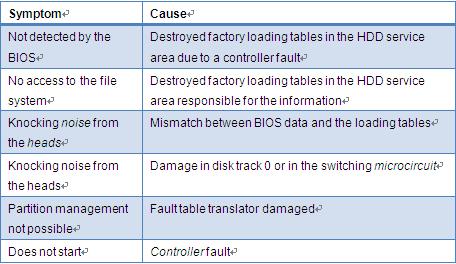
Western Digital disks, although quite widespread in the past, have never been regarded as very reliable. Disks manufactured only three or four years ago are now rarely to be found in a good operating condition. Current models of WD have a satisfactory price/capacity ratio. The new models of WD are called in for repair not very often, maybe also due to their low popularity. A characteristic feature of these disks is the sudden appearance and quick development of bad sectors in different areas of the disk surface. In some cases the disk fails to be detected by the BIOS because of faults in the switching microcircuits. The specific design and circuitry of these disks can sometimes make the task of data recovery after a physical damage too complicated.

wd external hard drive problems
IBM (presently Hitachi) are fast and advanced hard disk drives, however not very reliable, especially the glass plate models (DTLA and AVER series). If during startup the disk is not detected or detection is slow, then repair time has certainly come. These disks are highly serviceable and, if treated properly, can continue to operate reliably for a long time. Exception are the cases when the disk repeatedly emits a strong squeaking noise, which is a sign of a serious physical damage of the magnetic surface. Data can still be recovered, but quite complicated situations are possible when the magnetic surface has begun to destroy, thus making the data recovery task more time consuming and problematical. Isolated batches (assembled in Hungary and Romania) with numerous identical defects have also been registered. The production of HDD’s by IBM was discontinued.

ibm external hard drive problems
Hitachi is successor to the IBM HDD manufacturing division. Most of the remarks about IBM disks are valid for Hitachi as well.

hitachi external hard drive problems

Samsung hard disks are noteworthy for their combination of good performance, high reliability and attractive price. Current models (SP series) are hardly ever called in for repairs, unlike earlier models (Wiener series) most of which are already out of use. Samsung disks usually fail suddenly and for no obvious reason. With the IDE models service problems begin to appear after at least one or two years of operation. Data recovery is very difficult because of the specific design of these disks. Therefore, regular backups are strongly advised.

samsung external hard drive problems
Fujitsu, while known in the past as expensive and extremely reliable, with the advent of the MPG series these disks now present a sorry sight. The disk begins to shut off during operation and periodically fails to be detected by the system. Next comes full inoperability of the disk. Hopes for spontaneous revival are illusory since these misfortunate events repeat again and again. Data recovery from a damaged disk is in most cases successful. The disk can be repaired, but it is impossible to guarantee its stable operation. Fujitsu is discontinuing the production of hard disks for personal computers.


fujitsu external hard drive problems

Read More

Troubleshoot USB in Windows 98 SE and Windows Me

USB Troubleshoot There is little that you can do to control or configure USB devices. You can usually isolate most USB problems to one of these conditions.

  • Malfunctioning or incorrectly configured hardware
  • Malfunctioning, incorrectly configured, or missing device driver
  • Mismatched cabling
  • Out-of-date firmware on motherboard or system’s basic input/output system (BIOS)
  • Improperly configured PCI or imbedded USB host adapter

Malfunctioning or Incorrectly Configured Hardware If you plug a malfunctioning or incorrectly configured USB Storage Device into a USB port, the computer may stop responding (hang). Most of the time you need only physically turn off the computer, wait a moment, then back on to reset the bus. If another computer is available that you know is working correctly; plug the Personal Storage Device or PCI card into that computer to see if the problem follows or goes away.

  • If the Maxtor Personal Storage Device is routed through a secondary USB hub, plug the drive directly into the embedded or PCI USB controller.
  • Check Device Manager to be certain the USB hub is functioning correctly. If you see an exclamation point in a yellow circle, confirm system BIOS is assigning an interrupt request (IRQ) to the USB controller. This is required for the device driver to load.Malfunctioning, Incorrectly Configured, or Missing Device Driver
    When you install a USB PCI card or plug in a Personal Storage Device, the computer should load and configure the device and never request a device driver. All the drivers you need are in the Windows CD. If the computer prompts you for a device driver, confirm that PCI/USB card or embedded USB controller is correctly listed in Device Manager.

    Mismatched Cabling There are two types of USB cables, high speed and low speed. Low-speed cables (USB1.0) differ from high-speed cables (USB2) primarily in signal shielding. If you plug a Maxtor USB2 Personal storage device or Maxtor USB2 PCI accessory using a low-speed cable, this can cause signal distortion. Verify the entire USB chain is working correctly. Be certain that a device that requires power from the hub (mouse or keyboard) is not plugged into the chain on the other side of a non-powered hub. If the USB port is powered (PCI or embedded chip-set), verify the computer power supply is working properly.

    Incorrectly Configured Root Hub USB controllers require a dedicated IRQ (system interrupt) assignment. The PCI specification allows the motherboard manufacturer to determine the IRQ assignment for each PCI device. Usually IRQ 9 is assigned. The IRQ line is assigned in the computer’s BIOS. Check with the motherboard / computer manufacturer for the specific PCI configuration details of your system.

    There are several ways to enter the setup depending on your computer make and model. Usually on initial power up there is a message stating Press DEL to enter Setup or similar phrase. If you are not sure how to enter setup, see the system manual or seek assistance from the BIOS or motherboard manufacturer.

    Go to the Integrated Peripherals section and disable both Serial ports if you are not using them. Go to the PnP/PCI section and enable PnP OS, Auto and Reset Configuration Data. This releases the BIOS lock on system resources –allows operating system control. Go to the Power Management section. Disable all power management. This is a common source of intermittent errors.

    Shut down the computer and unplug any USB devices. Re-start the computer and immediately enter Windows Safe Mode (F8 at start-up). DO NOT allow the computer to boot fully to the operating system. If this happens, press ctrl /alt /delete at the same time to restart the computer; re-enter Safe Mode. Go to Add/Remove Programs. Remove all references to USB software. Open Device Manager. Remove the USB root hub and any PCI USB host controllers. Remove all duplicate or erroneous USB drivers. Windows will reinstall genuine device drivers. If you see SB16 emulation drivers (DOS sound support), disable them (do not remove) from this hardware profile. Most don’t need them. While still in Safe Mode, go to System Devices and disable Advanced Power Management support. Remove any drivers for device sharing. Windows should reinstall the drivers automatically. Now you have freed up two or three IRQs and reset Windows IRQ assignments. Reboot the computer and re-install devices.

    If this article does not describe your issue, click here to view the Microsoft Windows 98 and Windows Me Hardware/Device Driver Troubleshooting Resource Center.

Read More

Possible Hard Drive Disappeared Failure

Hard-Drive-Disappeared-Failure Q: So I just completed a clean install of Windows 7 and I was installing some software that was originally on my primary HDD to my secondary HDD ,and the installation was taking so much longer than usual, The progress bar was almost full then it slowed down, then completely stopped, so I just gave it some more time. I opened my browser (Opera) to go on youtube and pass the time but my speed dial was gone! and the “Speed Dial File” is located on my secondary HDD, so I thought to myself that either the file is corrupt or something happened to the hard drive. I checked “Computer” and sure enough its gone! Its gone on both Computer and Disk Management, but for some reason is detected by BIOS. its the “Seagate Barracuda 7200 3 TB 7200RPM ST3000DM001” This happened after only after 1 month of use. I have over 1.5 TB of data on that hard drive, and I pretty much install everything on that drive, I have a back up but my data is constantly changing, I wanted a RAID setup but I really dont have the money for that.

Seagate Barracuda 7200 3 TB 7200RPM SATA 6 Gb/s NCQ 64MB Cache 3.5-Inch Internal Bare Drive ST3000DM001 ($146 on Amazon.com)

Is there anything at all I can do? Is my data 100% lost? An help would be appreciated.

Specs:
ASUS M4A88T-M Motherboard
Seagate Barracuda 7200 320 GB
Seagate Barracuda 7200 3 TB 7200RPM ST3000DM001
AMD Phenom II X4 965 Black Edition Deneb 3.4GHz
Rosewill Stallion Series RD500-2DB 500W ATX12V Power Supply
SAPPHIRE Radeon 6950 OC Edition
Kingston ValueRAM 4GB 1333MHz
Windows 7 Ultimate X64

so I just rebooted my PC and the hard drive is back! Works just as good but what if it happens again? is this a sign of failure?

A: I would suggest you to change the sata cable and the power one from the psu see if that fix the issue adding this check if there is a new bios for those big drive on asus

Read More